
User Manual | Full Content
A branded operational guide for the Spechy platform, formatted for direct sharing, onboarding, and internal product reference.
Table of Contents
Use this manual as a structured reference for platform setup, modules, workflows, and daily operating procedures.
- 01Introduction Guide to the Spechy Platform
- 02🎧 How Does the Interviews Module Work?
- 03📧 Inbox Module
- 04✅ Task Management Module
- 05📚 Information Bank Module
- 06⚡ Quick Add Module
- 07🌍 Language Options (Multilingual Support)
- 08🌓 View Options
- 09🔔 Notification Module
- 10🔍 Search Module
- 11🟢 Status Management
- 12👤 My Profile Module
- 13🏗️ Workplace (Quick Access Panel)
- 14🚦 Conversation (Conversation Flow) Module
- 15📞 Caller ID and Line Information
- 16🚀 Interview Start Module
- 17🏷️ Adding Result Code (Disposition Code)
- 18⚙️ Advanced Result Codes and Automation
- 19💾 Save and Close (Person Card Closure Protocol)
- 20📋 Personal Card and Data Management
- 21🔗 Person Card Merging Feature
- 22🚫 Block (Block Person and Channel)
- 23💾 Save (Instant Data Update)
- 24📋 More Information (Segmentation and Title)
- 25📍 Address Information and Map Integration
- 26📱 Social Media Profiles and Integration
- 27🛠️ Additional Information and Customization (Custom Fields)
- 28📂 Contact Information (Person Card Consolidation)
- 29🕒 Past (Interview Timeline)
- 30🎫 Request (Ticket) Management and Tracking
- 31📝 Note (Customer Special Notes)
- 32📝 Form (Dynamic Data Collection and Tracking)
- 33📦 Product (Interest Area and Inventory Management)
- 34📁 Media (Image and File Archive)
- 35⏰ Reminders (Timed Returns)
- 36📄 Agreement and Proposal Management (PDF Proposal Submission)
- 37📢 Campaign Tracking and Participation Details
- 38📞 Manual Interviews (Offline Interaction Log)
- 39⚙️ Settings (Interface and Column Management)
- 40📊 Create a Panel (Personalized Dashboard Management)
- 41👥 Representatives (Instant Team and Status Tracking)
- 42📊 Components (Daily Transaction and Channel Analysis)
- 43📞 Incoming Calls (Statistics and Traffic Analysis)
- 44📞 Outgoing Calls (Outgoing Call Performance Analysis)
- 45🎧 Those Not Seen (Live Monitoring and Intervention)
- 46⏳ People in Line (Live Waiting and Queue Management)
- 47📞 Phone IVR (Smart Routing and Key Press Analysis)
- 48📊 Representative Statistics (Individual and Group Performance Analysis)
- 49📱 Social Media Statistics (Digital Channel Analysis)
- 50🖥️ Representative Panel (Personal Performance Command Center)
- 51🆘 Get Help (Instant Support and System Synchronization)
- 52🏆 Representative Performance Report (Gamification and Reward System)
- 53💬 Meeting Board (Digital Correspondence Management Center)
- 54📱 Discussion Board: Social Media Statistics
- 55👥 All Individuals (Central Customer and Contact Management)
- 56🔍 All Individuals: Advanced Filtering (Personalized Data Query)
- 57👤 My People (Individual Portfolio and Ownership Management)
- 58🚫 Blocked Users (Communication Restrictions and Blacklist Management)
- 59🏢 Companies (Corporate Customer and B2B Database)
- 60📊 Data List (Smart Column Matching and Data Package Management)
Manual Introduction
Introduction Guide to the Spechy Platform
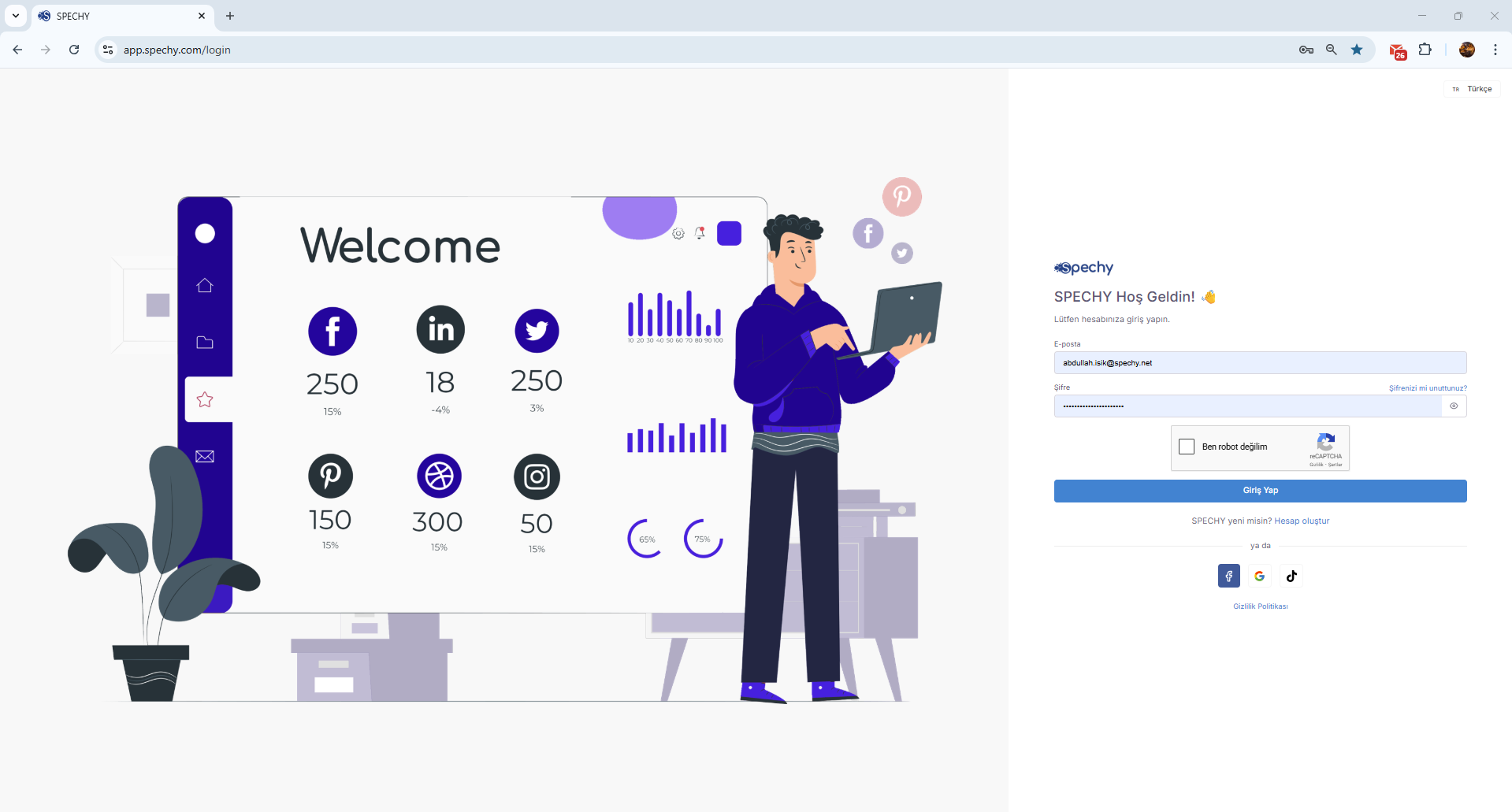
Access URL; https://app.spechy.com/login
You can follow the steps below to access the system without any problems:
1. Log In to the System
- Address: Go to the address app.spechy.com from your browser.
- Information: Log in by entering your username and password in the relevant fields.
- Verification: Enter the verification code sent to your email address for your security and click the "Log In" button.
2. Password Reset (I Forgot My Password)
Access URL; https://app.spechy.com/forgot-password
If you do not remember your password, you can use the password reset section on the login page:
- Request: Request a link by writing your email address in the password reset area.
- Email: Click on the password reset link that has been sent to your inbox (or spam folder).
- Update: Complete the transaction by creating a new, strong password on the opened page.
🎧 How Does the Interviews Module Work?
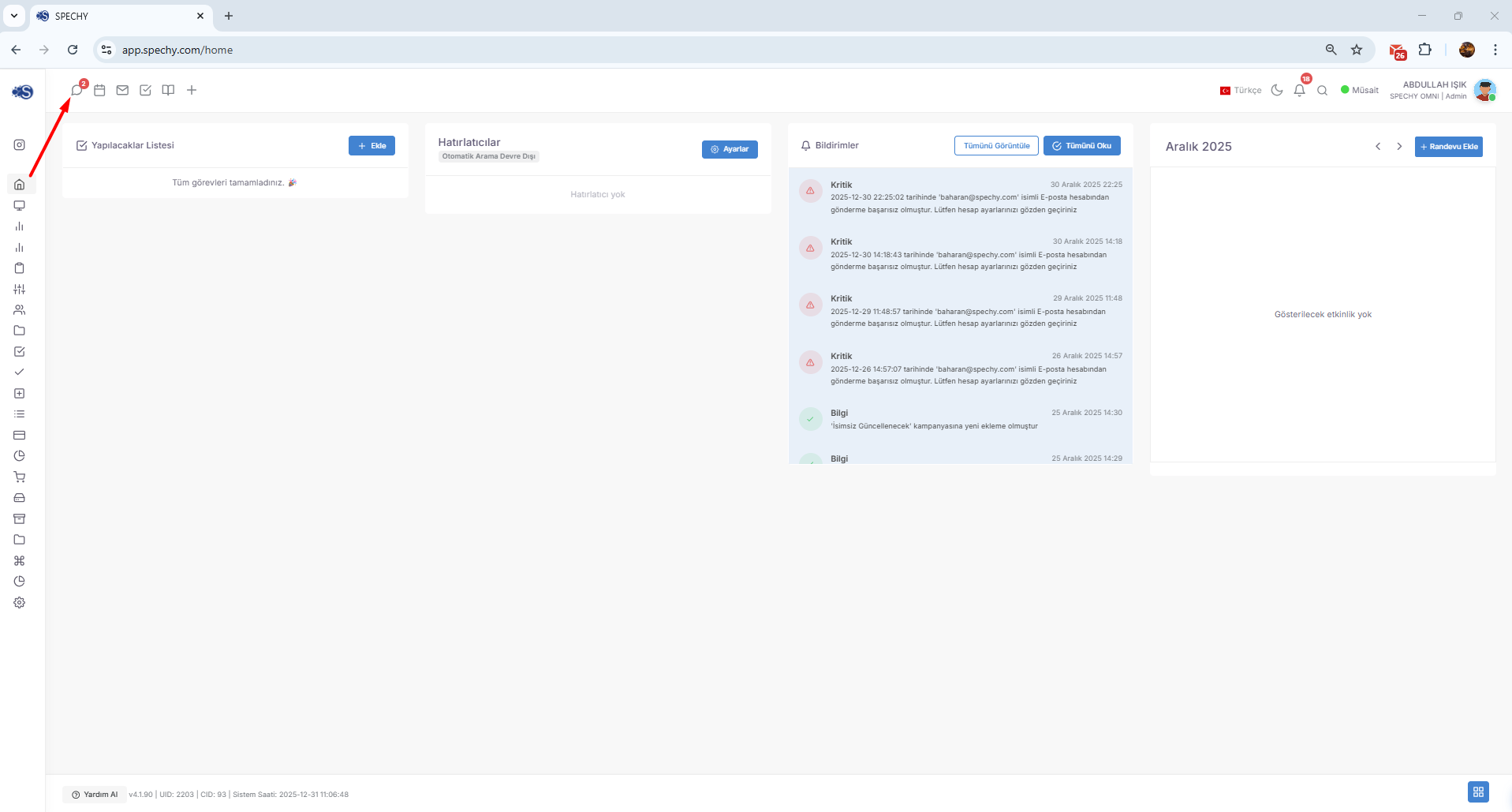
All your interactions are collected and managed under the Conversations tab, regardless of their source.
🔄 Source of the Flow
On the Conversations screen, two basic types of operations are automatically opened in the form of "Person Card":
- Communication Channels: All messages received via web chat, WhatsApp, Social Media (Instagram, Facebook, etc.).
- Phone Calls: All incoming and outgoing voice calls made through the call center.
🗂️ Person Card Advantages
Thanks to these cards, which open as soon as the interview begins, you can do the following:
- See the customer's past communication history instantly.
- Take notes during the interview.
- Transfer the transaction to the relevant department or representative.
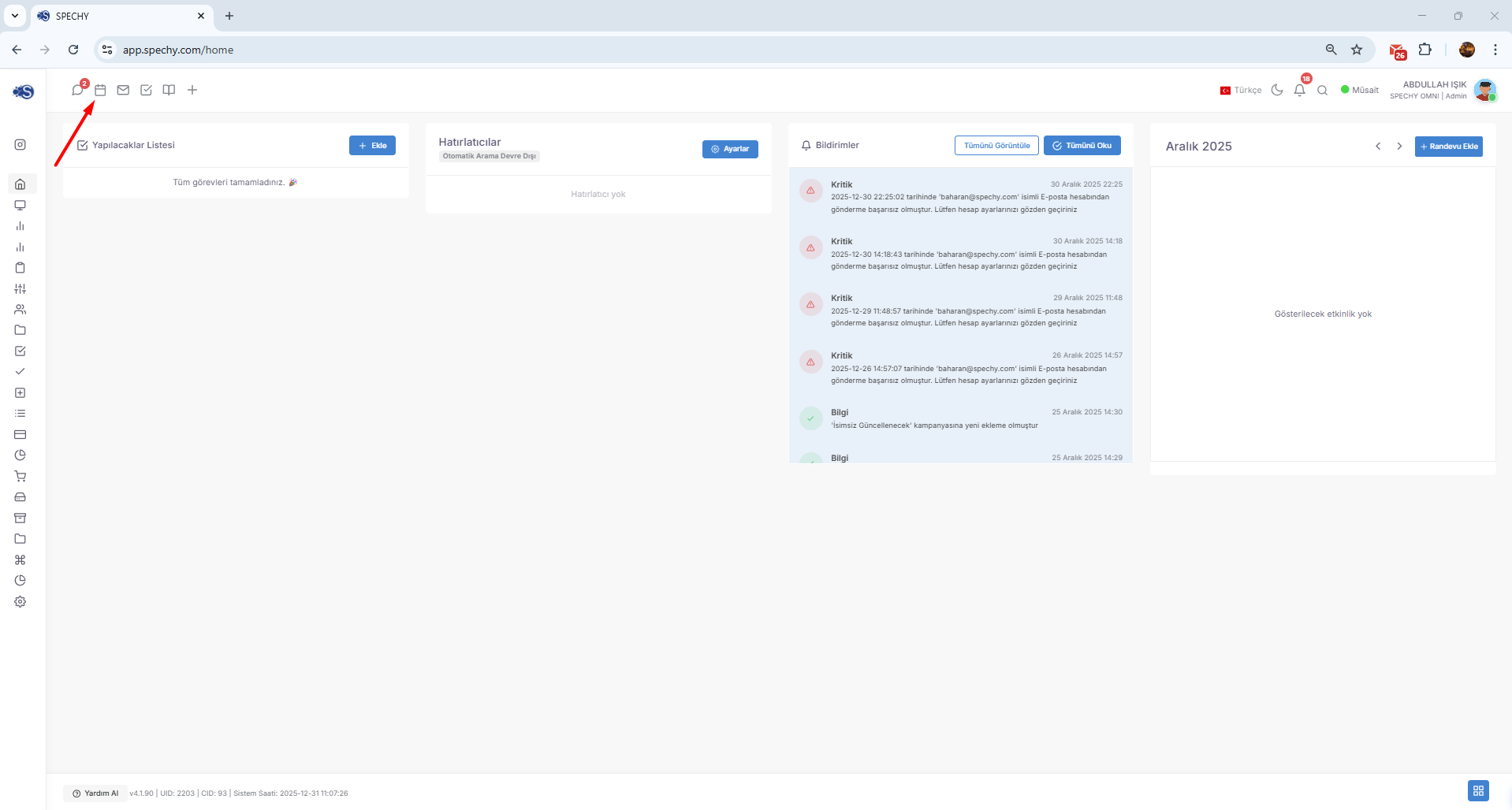
The Calendar tab on Spechy gathers your entire business plan and team interactions on a single screen.
🔍 Viewing Options
Access URL; https://app.spechy.com/calendar
You can track at three basic levels through the calendar module:
- Personal Calendar: Your own appointments, tasks and reminders.
- Shared Calendars: Private work plans shared with your team members or managers.
- General (All) Calendar: All events, meetings or department-based planning throughout the company.
🛠️ What Can You Do?
- Planning: You can invite participants by creating a new event or meeting.
- Synchronization: Thanks to shared calendars, you can see the availability of your team members instantly.
- Filtering: You can only focus on your own plans or analyze the intensity of the entire team in a single view.
📧 Inbox Module
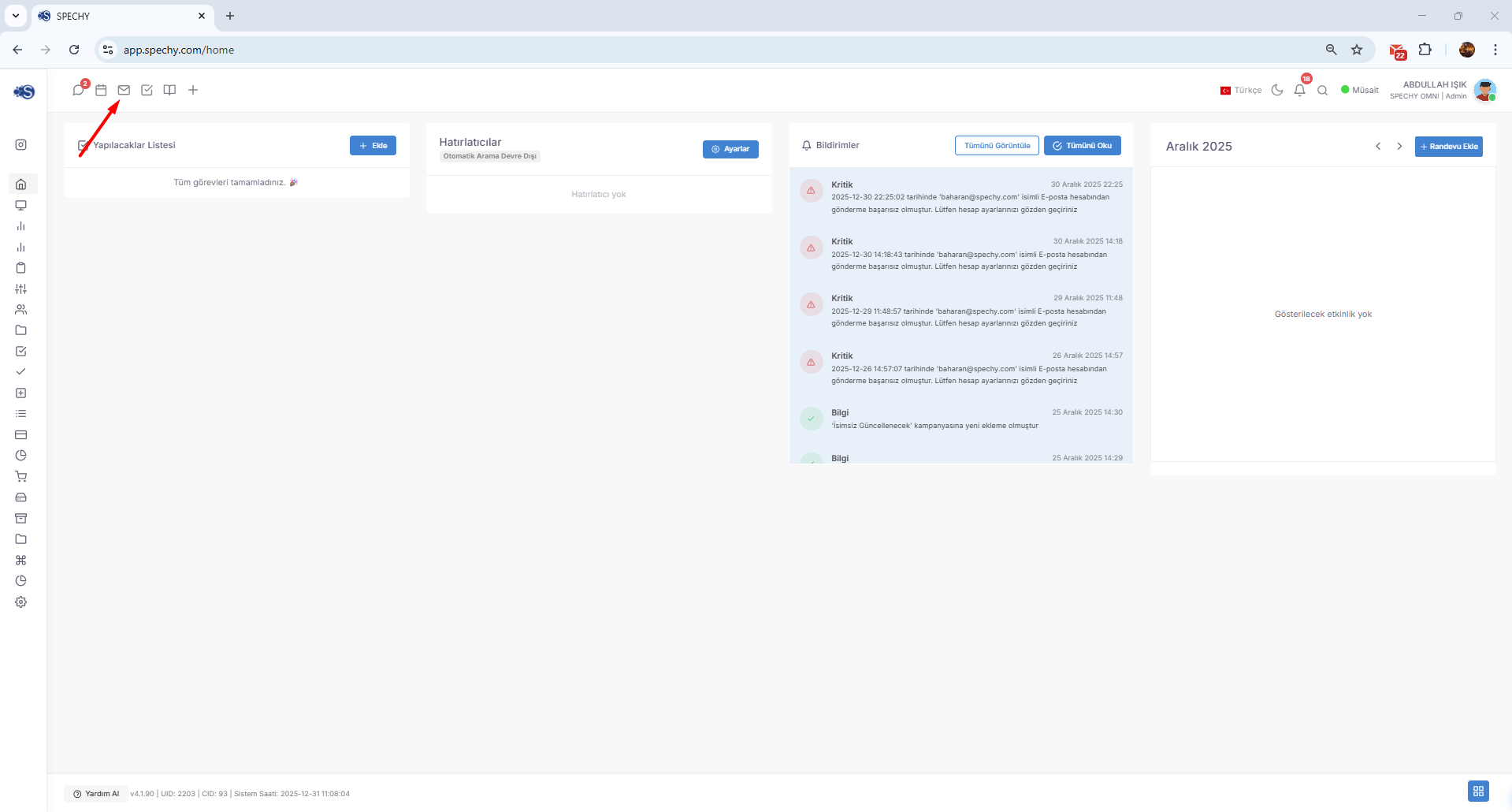
Access URL; https://app.spechy.com/inbox
The Inbox on Spechy allows you to manage all your correspondence from within the platform without the need for an external email client.
📥 Basic Operations
You can quickly perform the following operations via your Inbox:
- Check: You can instantly list all incoming emails and mark them as read/unread.
- Do not reply: You can reply directly to emails from your customers or business partners through the platform.
- Forward: You can forward an email that reaches you to other team members about the subject or to a different address.
💡 Integration Advantage
The emails in the incoming box are not just messages; they are also records:
- If the sender in the incoming email is registered in the system, it is automatically associated with the relevant Person Card.
- Thus, you can see email traffic with past phone calls or chat records on the same screen.
✅ Task Management Module
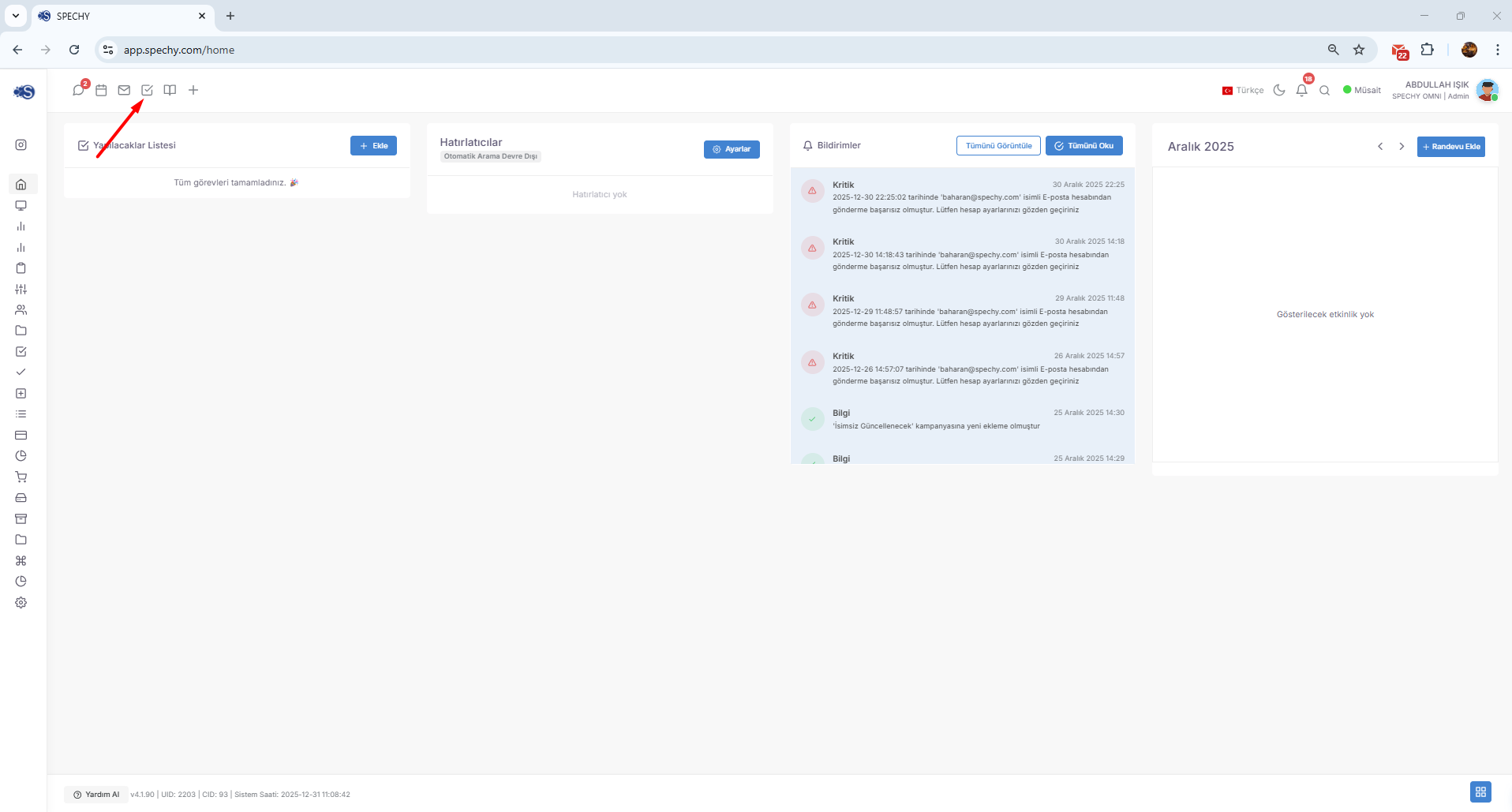
Access URL; https://app.spechy.com/tasks
Task Management is a central control point that allows you to organize your projects and daily tasks, and assign responsibilities to your team members.
🛠️ Basic Features and Usage
You can manage your workflow through this module with the following steps:
- Job Assignment: You can directly assign a specific task (task) to other users or teams on the platform.
- Detailed: You can clarify the scope of the work by adding an explanation, file attachment, priority status and deadline (due date) to the tasks.
- Tracking and Monitoring: You can instantly monitor which stage your assigned tasks are in (to be done, ongoing, completed).
- Feedback: You can quickly communicate about the process by commenting on the tasks.
🔗 Integration with Other Modules
Task Management also talks to the other parts of Spechy:
- A note taken during a Meeting can be quickly converted into an Assignment.
- The end date of the task is automatically processed into the user's Calendar.
📚 Information Bank Module
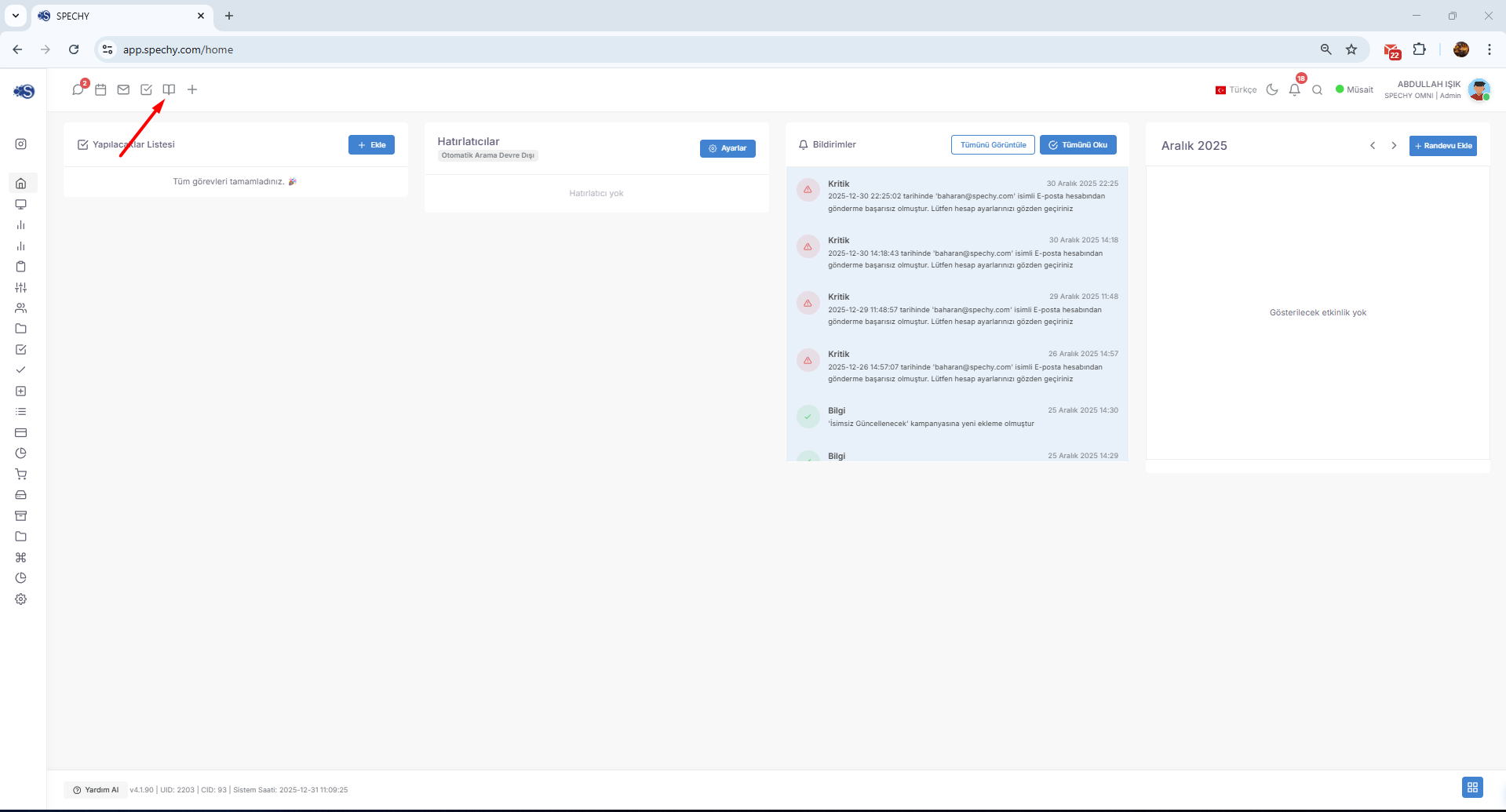
Information Bank is a module that enables you to digitize the knowledge base of your institution and allows your users to access the information they need as quickly as possible.
🛠️ Basic Operations and Configuration
You can organize your information through this module as follows:
- Creating Categories: You can create a regular structure by dividing your information into main categories such as "Technical Support", "Sales Processes", "IK Policies" or "Product Guides".
- Title and Content: Under each category, you can open specific topics in headings; you can add detailed texts, images or documents to these headings.
- Quick Access: You can ensure that your users (customer representatives or field teams) can reach the correct guide within seconds to solve a problem they encounter.
💡 Why is it Important?
- Shortens the Training Period: New users provide rapid adaptation with the ready-made guides on the platform.
- Reduces Error Rate: Since the standard steps of all processes are recorded in the Information Bank, transactions are carried out without errors.
- Self-Service Support: If this bank opens up to the outside world, your customers can solve their own problems without being connected to a representative.
⚡ Quick Add Module
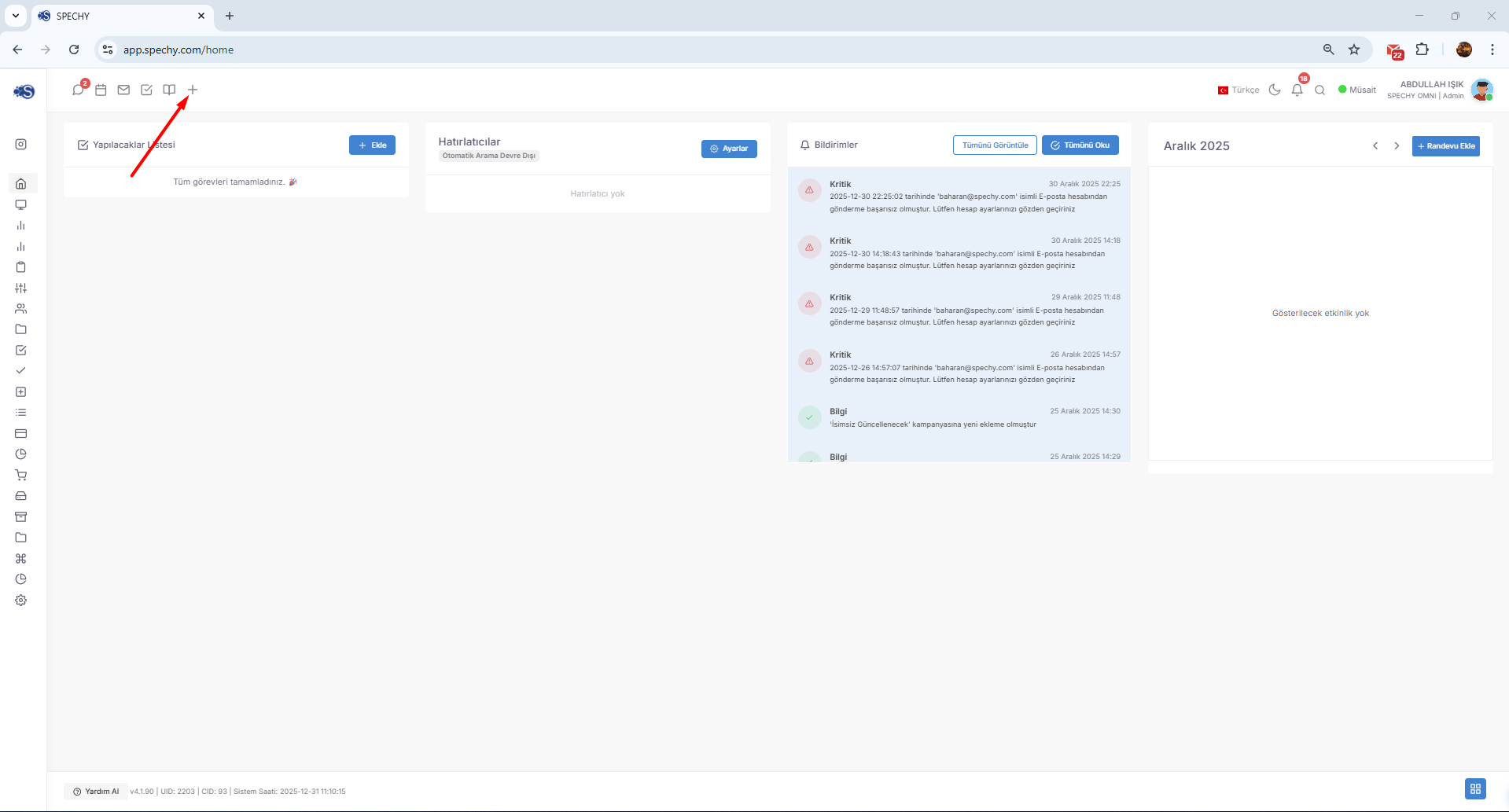
Quick Add is a time-saving "shortcut" center located in the upper right corner of the platform or at an easily accessible point. You can start the following operations instantly with a single click:
🛠️ What Can You Do?
- Add Person: You can quickly manually register a new customer or contact to the system without going to the detailed guide page.
- Company Addition: You can create new institution and organization records for your B2B processes in seconds.
- Creating a Request: During or after a conversation, you can open a new support/work request (ticket) that needs to be followed up.
- Sending Email: You can send emails directly by opening a new email draft without having to switch to the "Inbox" module.
💡 Usage Advantage
The biggest benefit of this module is that it provides uninterrupted working opportunities. For example; While planning in your Calendar, you do not need to leave your current screen to save a customer that comes to mind or to create an emergency email draft.
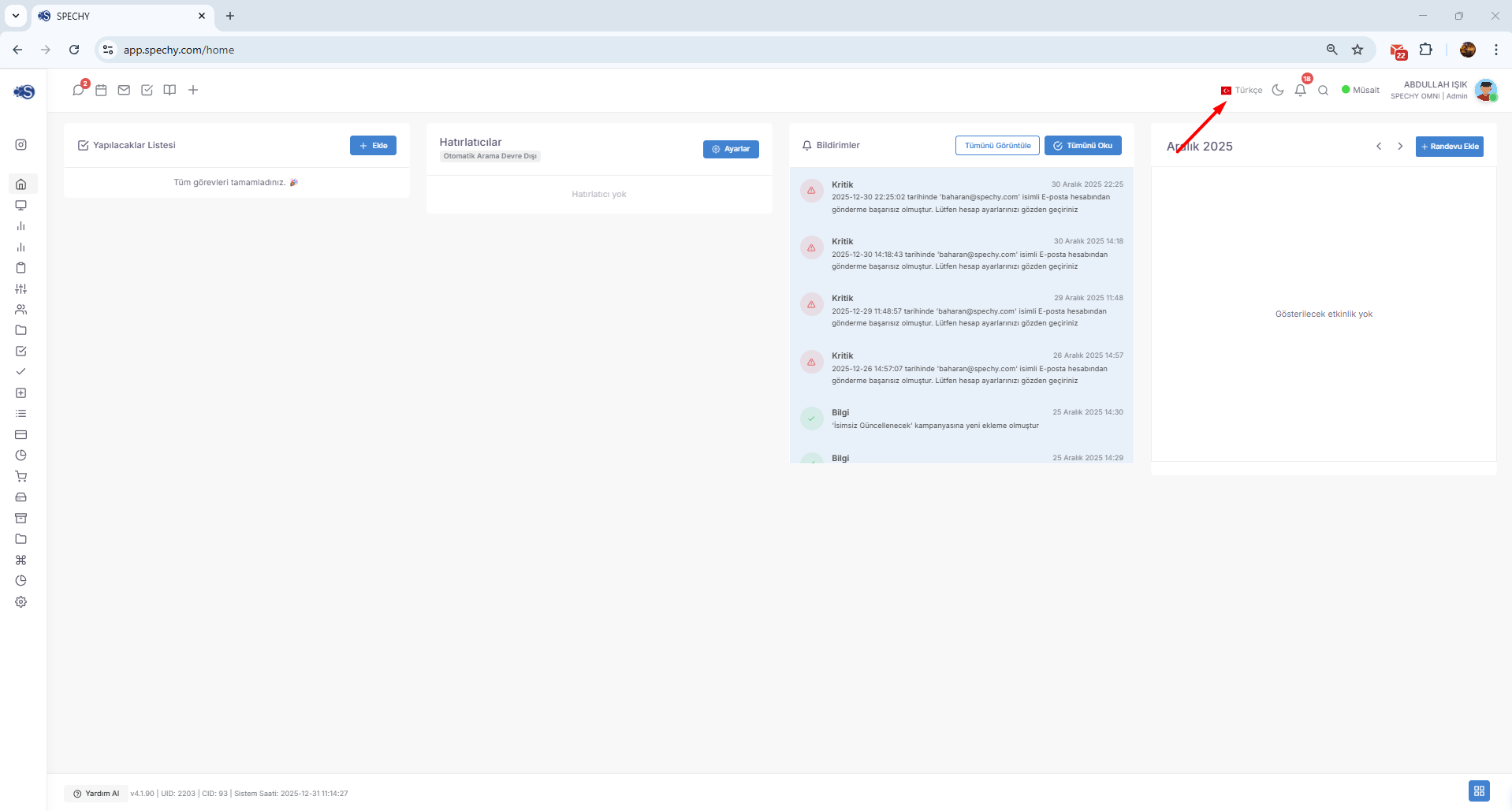
One of the most important features that completes the structure of the Spechy platform in global standards and its user-friendly interface is Language Options. This feature allows the personalization of the platform for teams that provide services in different languages.
I have summarized the information you shared in a stylish and compatible way with the other headings of our guide:
🌍 Language Options (Multilingual Support)
Spechy offers extensive language support to fully adapt to multilingual working environments. This allows each user to increase their productivity by using the platform in the language they are most proficient in.
🛠️ Language Options Offered
The platform contains many options, including the following languages:
- 🇹🇷 Turkish
- 🇬🇧 English
- 🇩🇪 German
- And many other language options...
💡 Usage Advantages
- Personalization: Each user can independently change the interface language through their own profile settings.
- Global Operation: Your teams in different countries can work synchronously in their own languages on the same system.
- Decrease in Error Rate: Having terms and commands in the native language minimizes the risk of making incorrect operations.
🌓 View Options
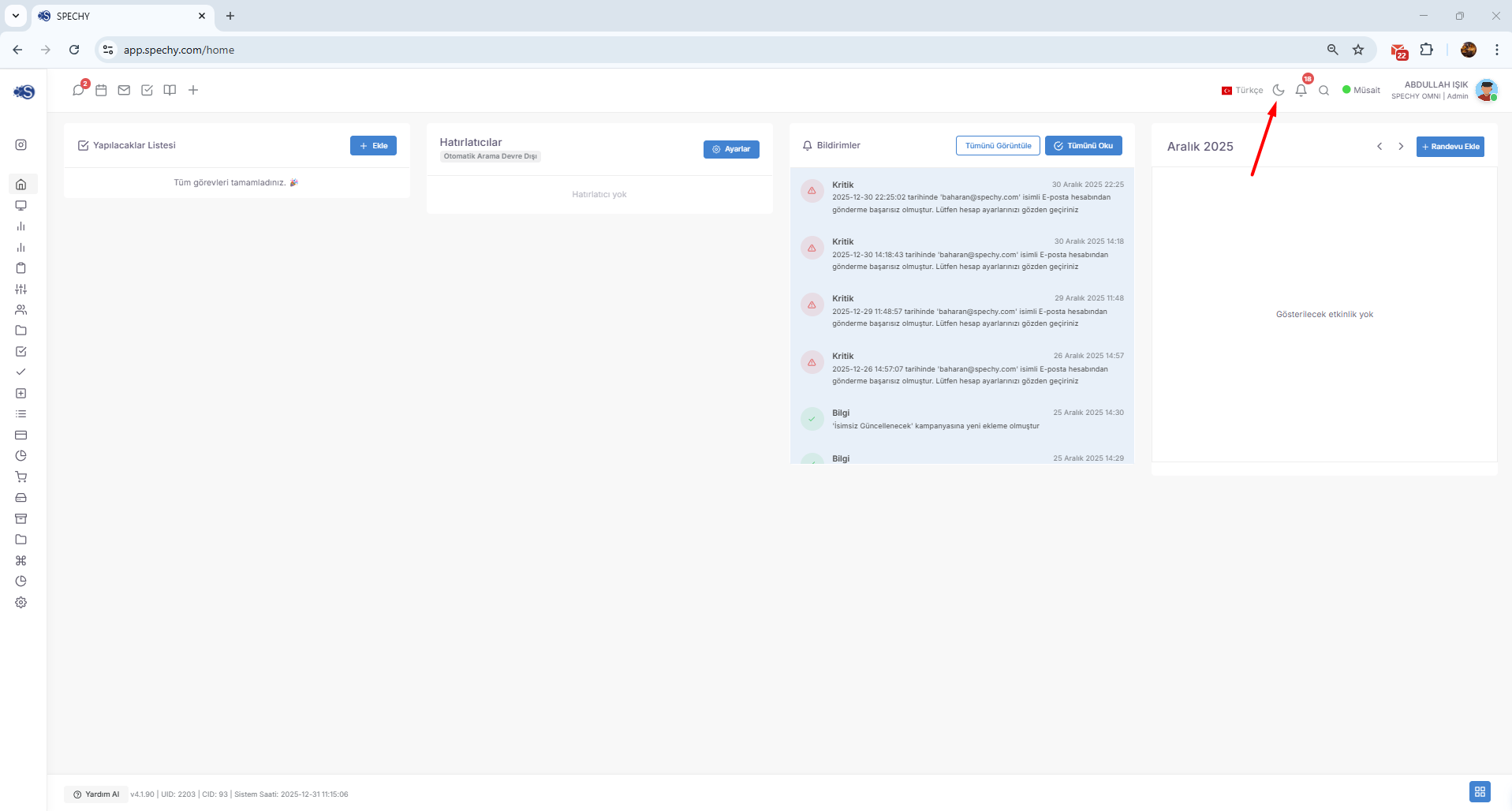
The appearance allows you to personalize your working environment and adapt to different lighting conditions. Two basic mode options are offered in the Spechy interface:
🌗 Offered Modes
- Day Mode (Light Mode): Ideal for a standard, bright and spacious working environment. It allows text to be read more clearly in high-light environments.
- Dark Mode: Reduces eye strain in low-light environments. While providing an aesthetic appearance, it also contributes to the battery life of devices (especially mobile devices).
💡 Why is it Important?
- Eye Health: In prolonged use, Dark Mode can be preferred to reduce the effect of blue light, which can strain the eyes.
- Focus: Allowing users to adjust the interface according to their own visual preferences positively affects their work motivation and screen focus time.
We have arrived at the Notifications module, one of the most dynamic parts of the Spechy guide. This feature works like an "early warning system" that allows you not to miss any critical developments within the platform.
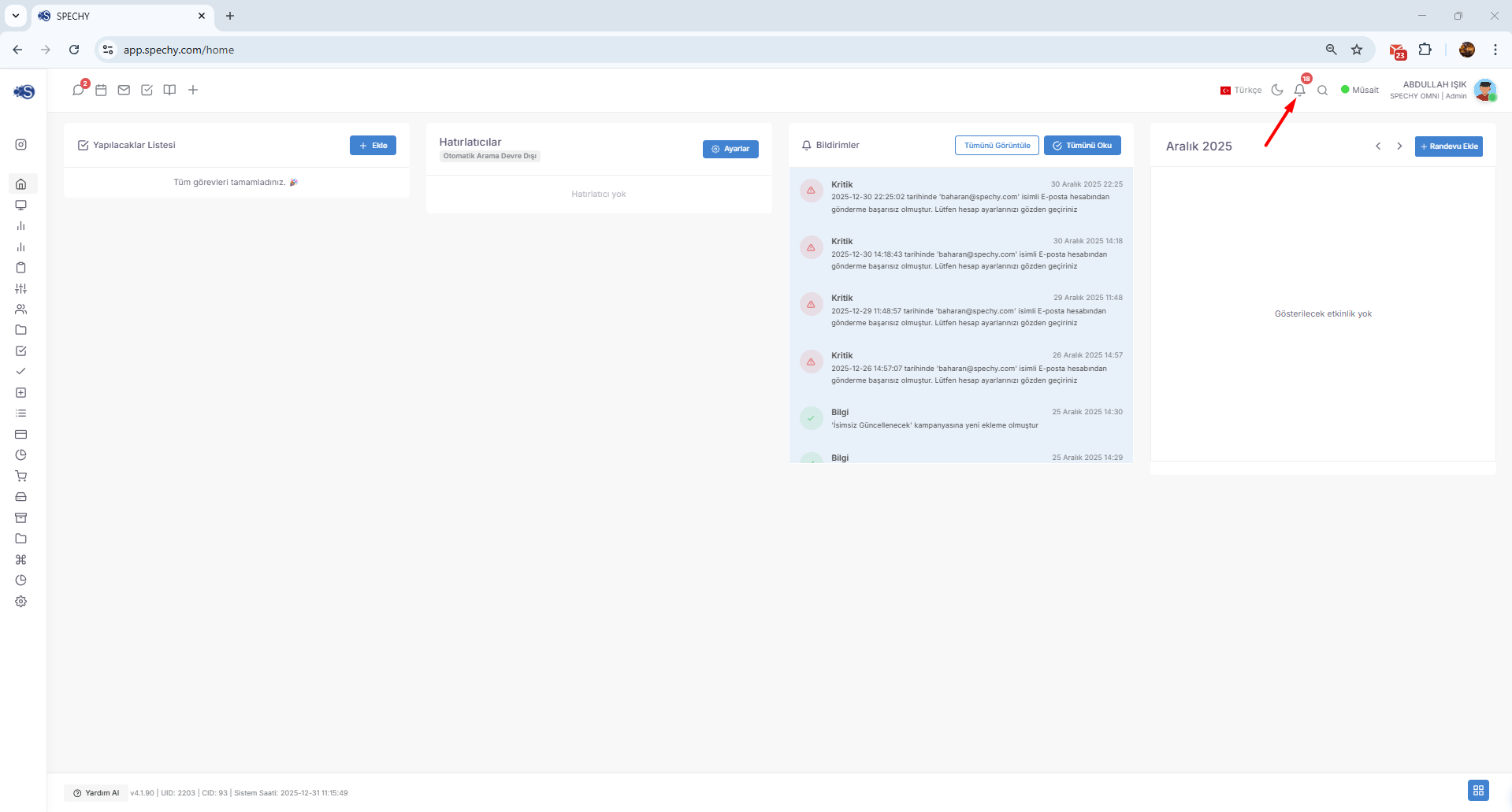
I have turned this information you shared into a professional structure that is compatible with the other sections of the guide:
🔔 Notification Module
Notifications are a central communication point that allows you to track your workflows on Spechy in real time. The system automatically alerts you when critical events occur.
🛠️ Notification Types
You will receive instant notifications in the following categories through the system:
- Reminders: Timely alerts for events you add to your calendar or upcoming important appointments.
- Request Notifications: New job requests (tickets), assignments assigned to you, or status updates for your current requests.
- Evaluations: Customer satisfaction surveys, performance feedbacks or analysis outputs generated by the system.
- System Announcements: Platform updates or important internal announcements.
💡 Usage Advantage
- Unmissable Tasks: You don't need to constantly check your screen; the system will alert you when a new task comes in.
- Fast Reaction: It increases service quality by allowing you to respond instantly to customer requests or urgent tasks.
- Regular Workflow: Thanks to reminders, you will never miss any meeting or deadline during the day.
We have come to the Search feature, which is an extremely critical module that completes the efficiency circle of the Spechy platform. This feature performs the task of "smart navigation" that allows you to access the information you need from thousands of records in seconds.
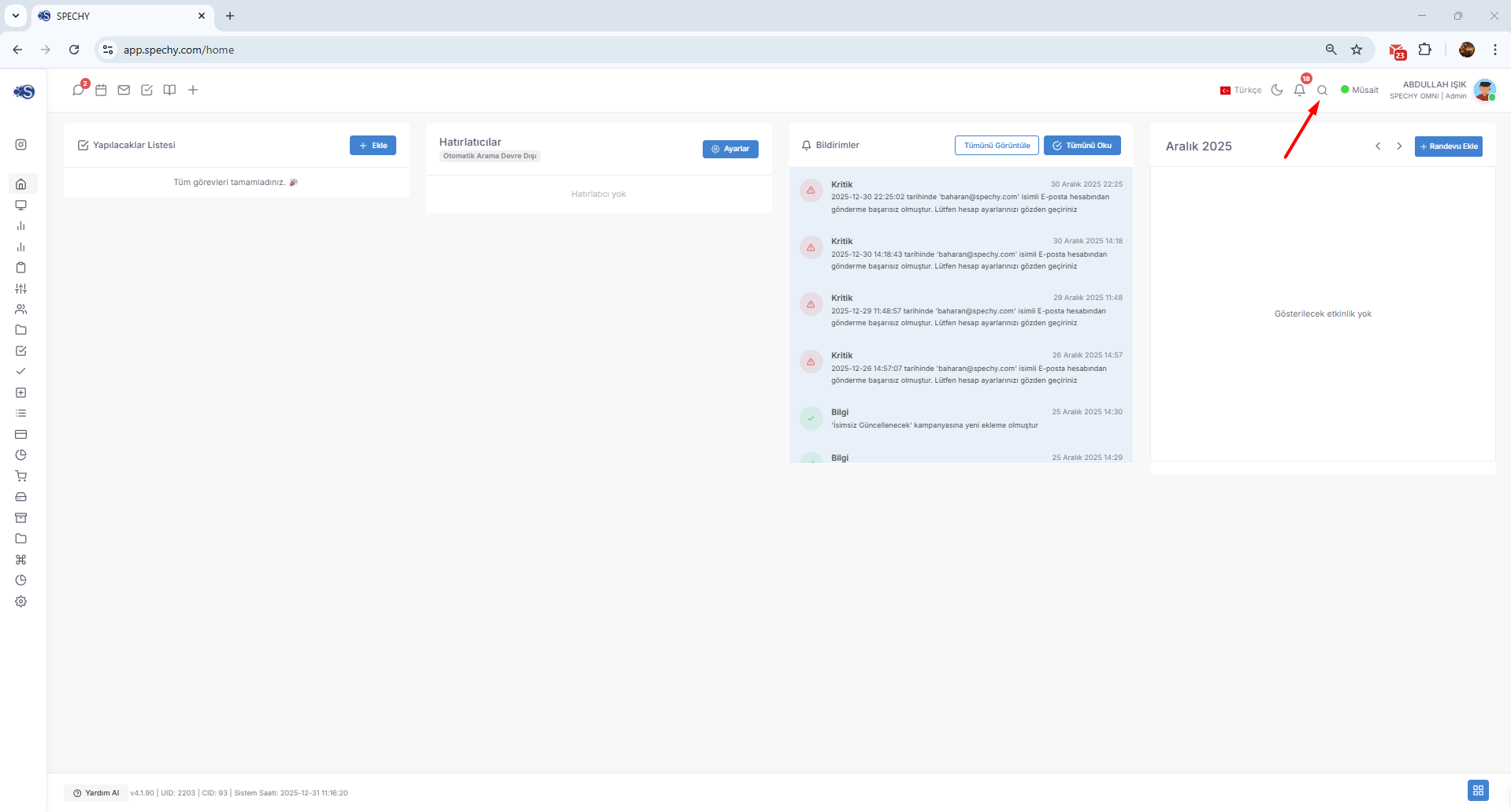
I have made the information you shared compatible with the other headings of our guide:
🔍 Search Module
Search is a central tool that allows you to access all kinds of data registered in the Spechy database in the fastest way. It enables you to work target-oriented without getting lost among complex menus.
🛠️ What Can You Find?
You can quickly search between the records below using the search bar:
- Customer Records: Reach people registered with their name, surname, phone number or email address instantly.
- Company Information: Find your corporate customers or business partners in your B2B processes by name.
- Requests and Negotiations: Go to the relevant record by calling the reference number of a request or correspondence opened in the past.
💡 Usage Advantage
- Time Savings: Instead of manual listing, you reach the result directly with a single keyword.
- Duplicate Registration Prevention: Before adding a new person, you can check if that person is already registered in the system by searching.
- Quick Action: As soon as you find your customer, you can start a new "Interview" or assign them a "Task".
We have come to the Status management, one of the most critical features of the Spechy guide in terms of operational efficiency and team management. This feature not only informs your availability status to your team but also provides data for performance reporting in the background.
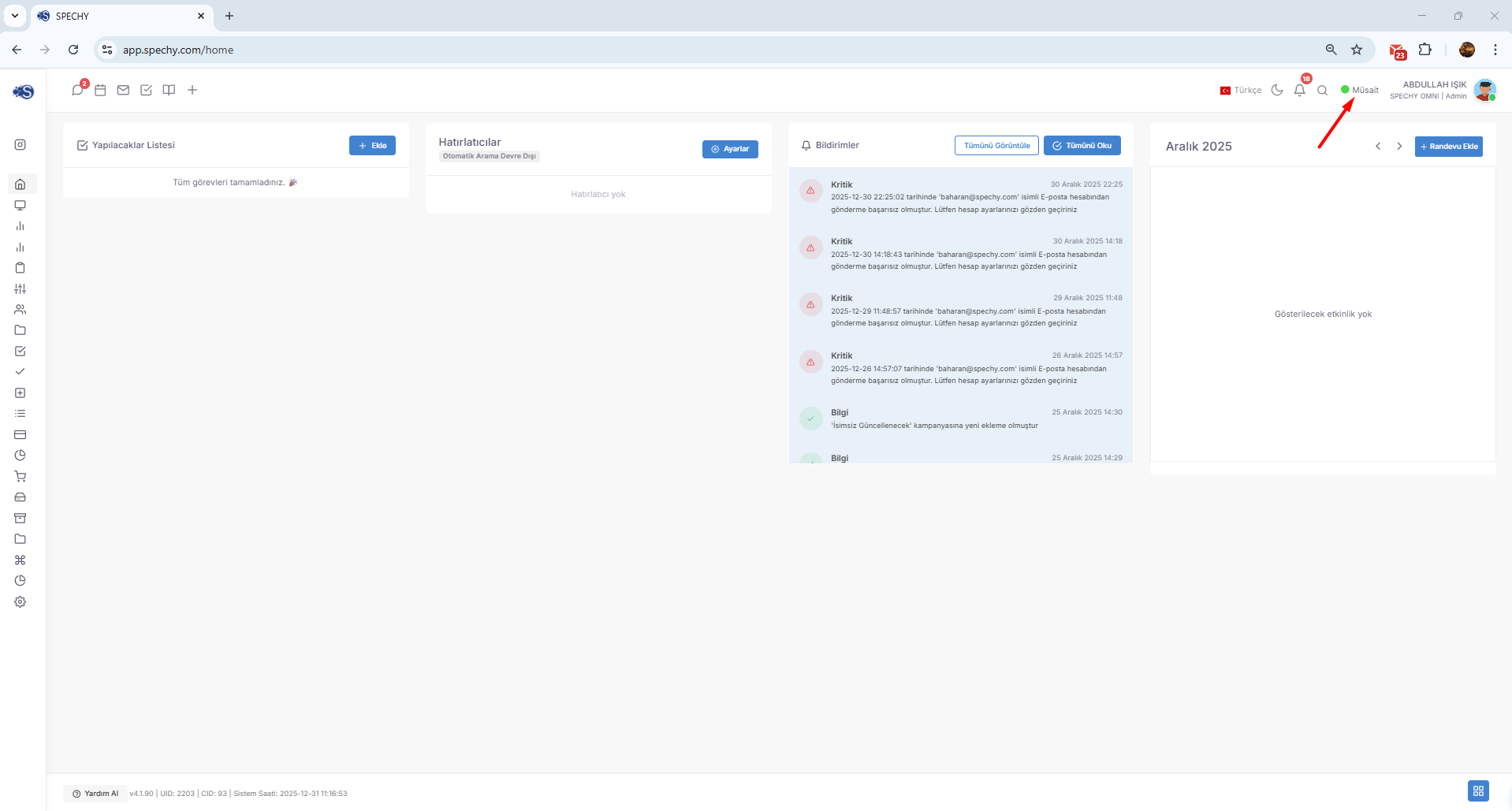
I have turned this information you shared into a professional structure compatible with the other headings of our guide:
🟢 Status Management
The status allows you to determine your immediate availability level on the platform. This way, your team members and managers can easily see if you are currently working.
🛠️ How Do You Update Your Status?
You can press the following options from the status menu located at the top of the platform or in the profile area:
- ✅ Ready/Active: Indicates that you are ready to answer incoming calls, correspondence and tasks.
- ☕ Break: Used during short rest intervals.
- 🍽️ Meal Break: It updates your status during the daily meal time.
- 👥 Meeting: Indicates that you are in an internal or external discussion, and that you cannot focus on a new job at that moment.
- ⚙️ Special Situations: You can also choose other options such as "Training", "Technical Issue" or "Project Work" determined by your institution.
💡 Why is it Important?
- Correct Job Distribution: The system cannot automatically assign a new live call (Call/Chat) to a user who is in the "Break" or "Meeting" mode.
- Team Transparency: Before reaching a friend, you can instantly understand if they are available by checking their status.
- Efficient Reporting: At the end of the day, the amount of time spent on each situation can be reported, which strengthens operational planning.
We continue with the Profile section of the Spechy guide, which is the personal management and security center. This area is like a "control tower" where the user manages his identity in the system and ensures his security.
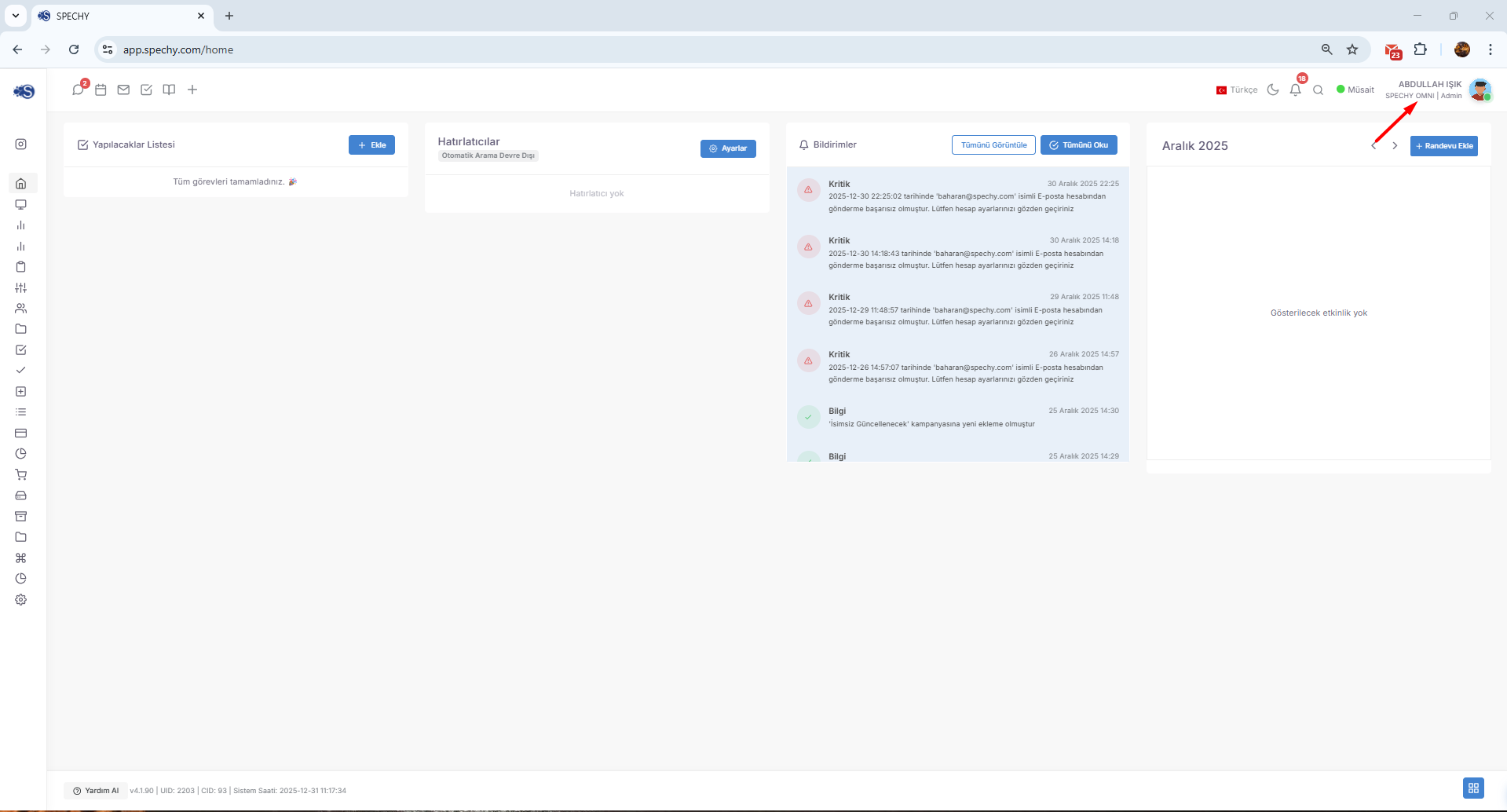
I have detailed this information you shared in accordance with the general flow of the guide:
👤 My Profile Module
Access URL; https://app.spechy.com/settings/profile
My Profile is the section where you manage your personal information on the platform, update your security and end your session.
🛠️ What Can You Do?
- Changing Profile Information: You can update your personal identifiers such as your name, surname, contact information or profile photo.
- Password Update: To protect your account security, you can periodically or when needed, change your current password to a new one.
- Log-out: You can perform the secure log-out operation to ensure the security of your account when your work is over or when you disconnect from a shared device.
💡 Why is it Important?
- Security: Updating your password from this menu at regular intervals minimizes the risk of unauthorized access.
- Representation: Having up-to-date profile information ensures that you appear with the correct identity in internal communications and customer contact.
- Data Privacy: Using the "Log Out" option helps protect your data by preventing your session from remaining open.
🏗️ Workplace (Quick Access Panel)
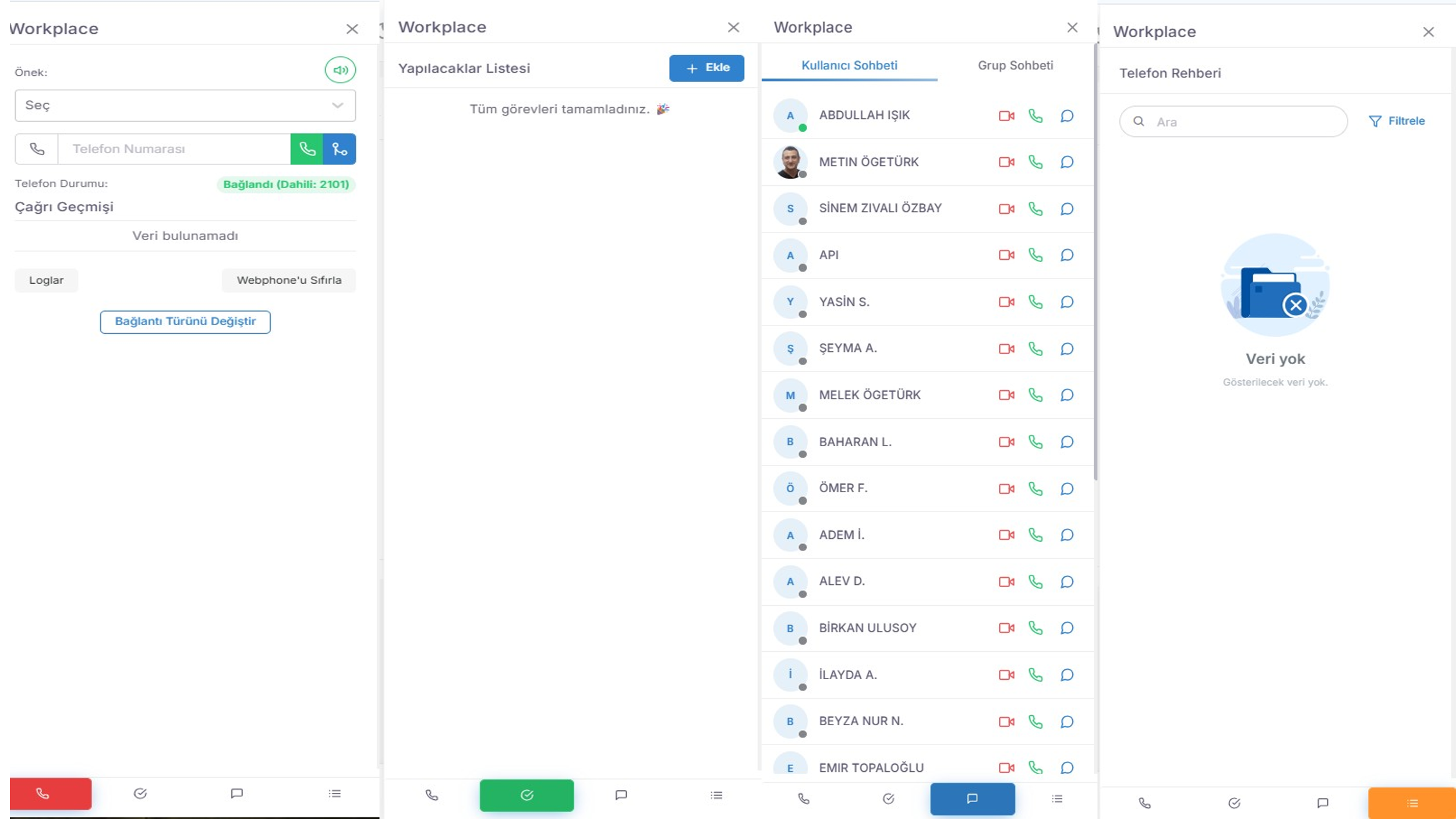
Workplace is a multifunctional control center that accelerates your Spechy experience, accessible by tapping the square button in the lower right corner of every screen. It contains four main tools:
1. 📞 Call Screen (Softphone)
- Manual Search: You can start an instant voice call by dialing the number you want to call.
- Call History: You can list all your recent calls, incoming, outgoing and unanswered, and make a return with one click.
- Calling with Different Numbers: Within your authorization, you can make calls by selecting different outgoing numbers (DIDs) defined in the system.
2. ✅ To-Do List (To-Do List)
- Full Integration: This list works in sync with the "To Do" section on your homepage.
- Quick Follow-up: While having a conversation or reading an email, you can add a new task or highlight the tasks you have completed.
3. 💬 Chat (Messenger)
- Personal Communication: You can instantly write to other users, call them directly by voice, record voice messages or send important documents.
- Group Chats: You can provide file sharing and fast coordination by creating team or department-based groups.
4. 📇 Phone Directory
- Person Management: You can quickly register new people in the guide.
- Detailed Information: Not only the number; you can also store the person's location and additional contact information in the form of a business card.
We are deepening the guide by adding details about the most exciting and operational traffic management module of our Spechy guide, the Conversation module. This module is the control center of omnichannel communication.
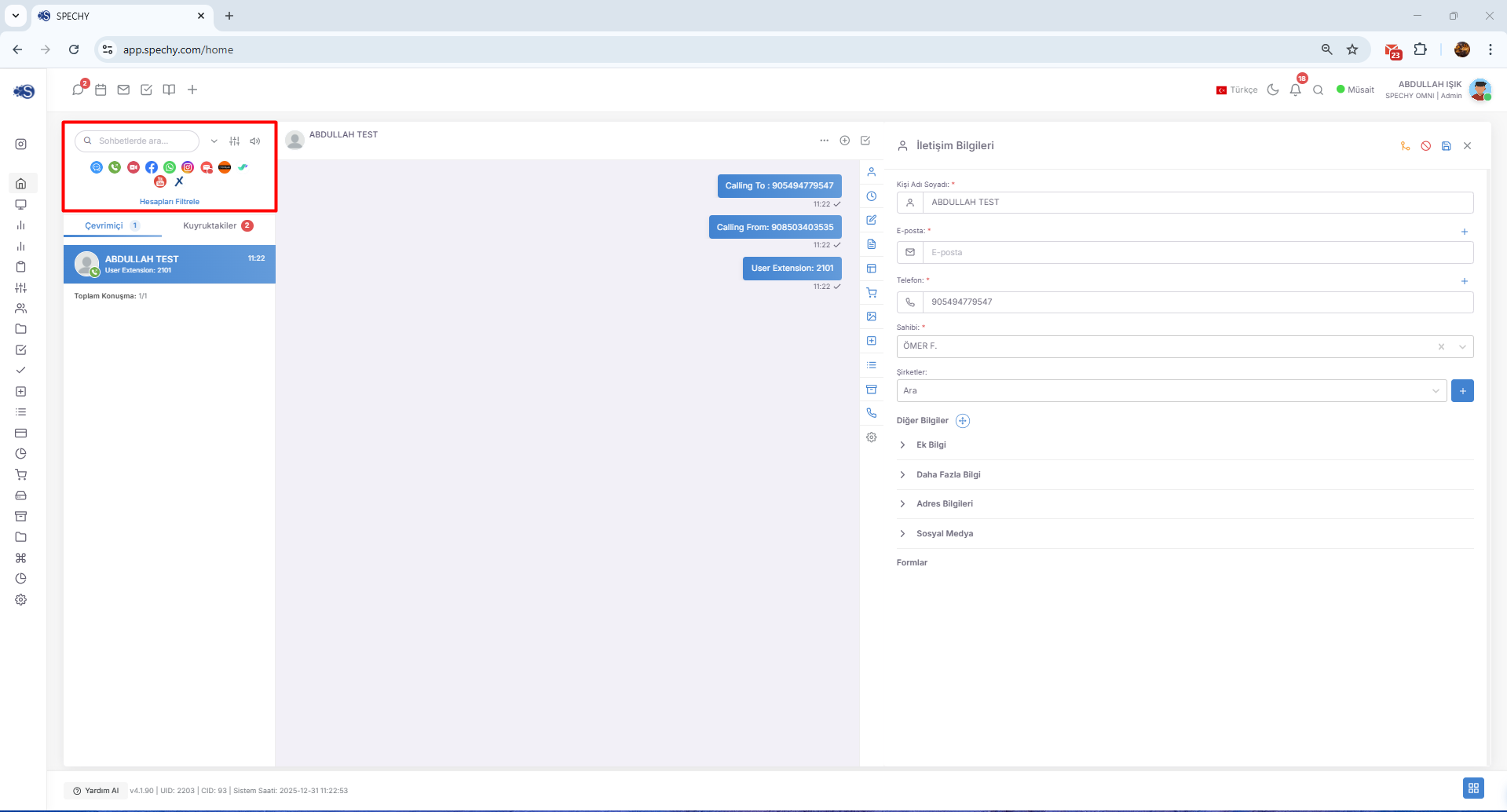
I have combined these specific features you shared with the other sections of the guide to form a professional structure:
💬 Conversation (Interview Management) Module
Conversation allows you to manage message traffic from all connected communication channels (WhatsApp, Web Chat, Social Media, etc.) from a single screen without any confusion.
🛠️ Advanced Filtering and Editing Options
You can use the following tools to manage your meeting list efficiently:
- Channel-Based Filtering: You can quickly filter between channels to focus only on a specific source (e.g., only WhatsApp or only Web Chat).
- Account-Based Filtering: If you have multiple accounts belonging to the same channel type (for example, two different Instagram accounts), you can narrow down the conversations by selecting between these accounts.
- Smart Sorting: You can sort the meetings chronologically in "Oldest to Newest" or "Newest to Oldest" according to your business priorities.
- Mute: When you need to focus during heavy traffic or for a certain period of time, you can prevent notification clutter by muting the channels you choose.
💡 Usage Advantage
- Focused Work: Thanks to filters, you only see messages on the channels you are responsible for, and you prevent distractions.
- Quick Answer: You can instantly react to the most recent messages by reordering them in reverse order.
- Flexibility: The mute channels feature helps representatives manage screen clutter in situations such as breaks or meetings.
🚦 Conversation (Conversation Flow) Module
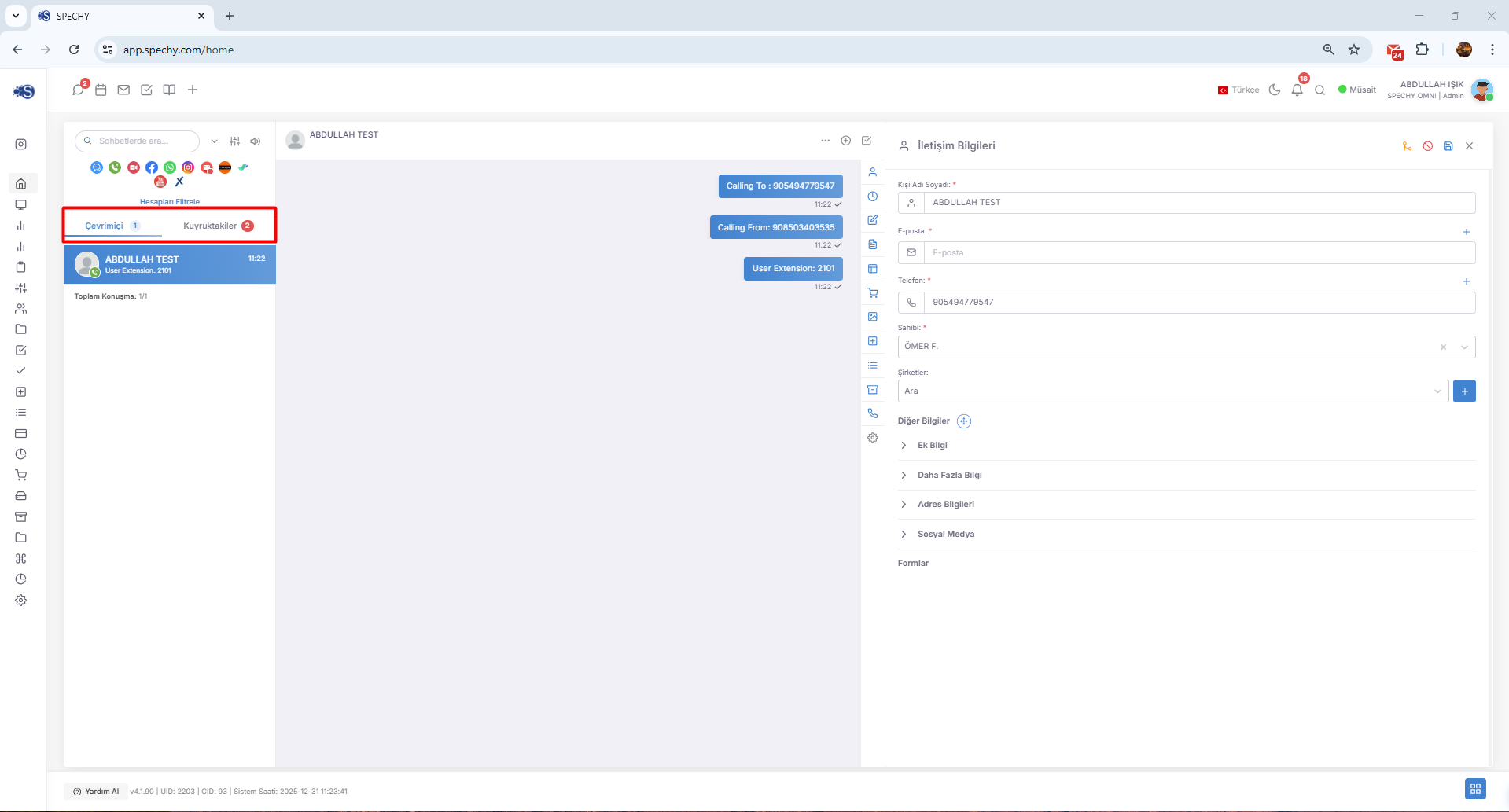
The listing structure on the meeting screen is divided into two basic categories to distribute the workload fairly and regularly:
📥 1. Queued Items (Queue)
This tab includes all interactions that have just been added to the system and have not yet been answered by a customer representative:
- Source: Every new message coming from communication channels (WhatsApp, Web Chat, etc.) first falls here.
- Ownership: There is no owner yet. Representatives start processing the negotiations "on behalf of" this pool.
- Speed: It is critical to keep the waiting time in the queue to a minimum for customer satisfaction.
👤 2. Online (Active Conversations)
This tab represents meetings owned and actively managed by a representative:
- Under Processing: All transactions that the user (representative) has taken over and continues to communicate with are listed here.
- Management: The representative responds to the customer, sends the file or concludes the interview through this tab.
- Personal Pool: Each representative keeps his focus by following the "Online" meetings he takes on himself.
📞 Caller ID and Line Information
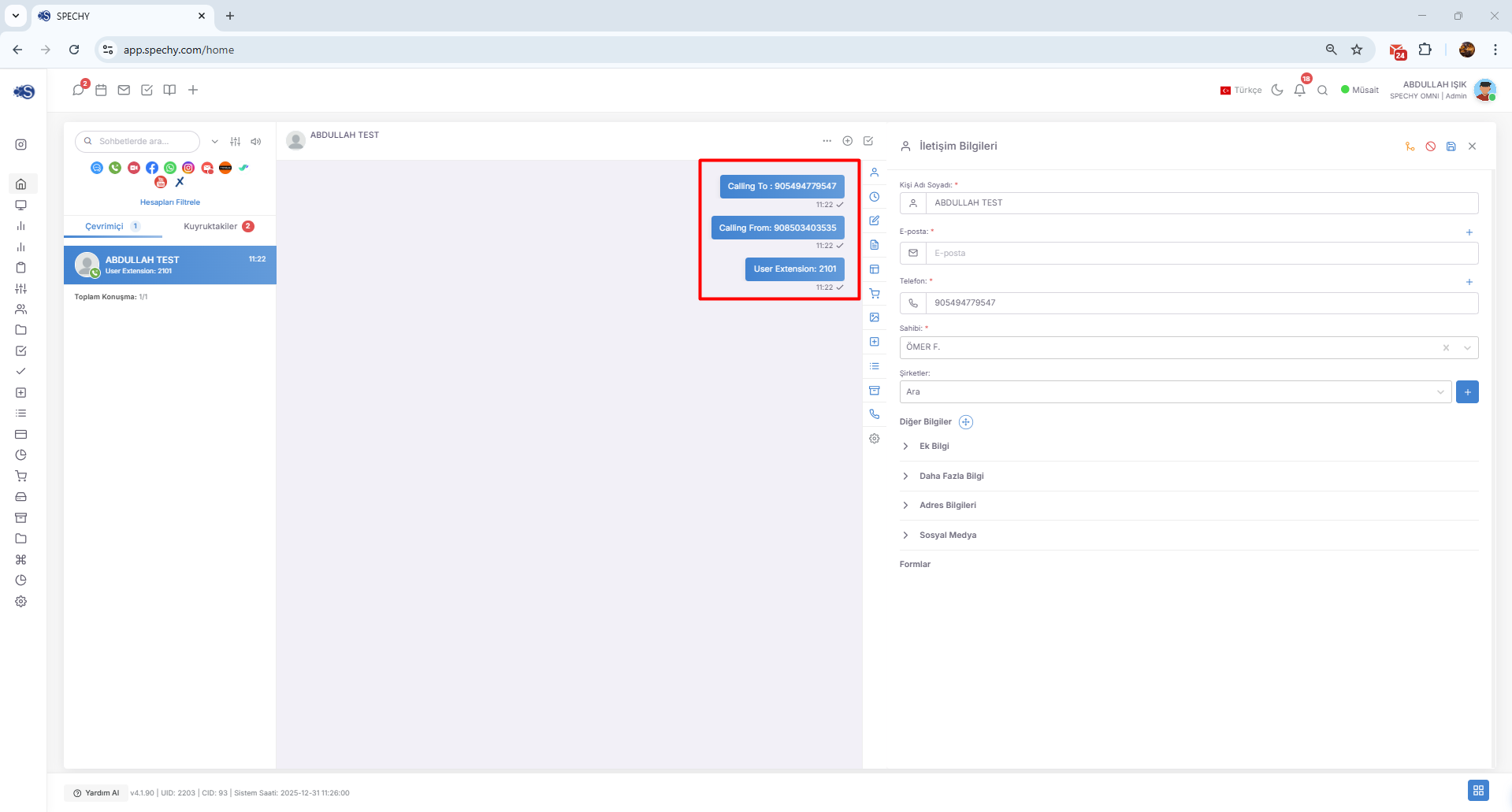
When you start a call or receive a call via the search screen (Softphone), the following three critical information are located at the top of the screen:
🛠️ Information Displayed
- Number you are looking for: The phone number of the customer or person you are currently communicating with.
- Number You Searched: Your outgoing number (DID), which is defined in the system and appears on the other party's screen. If you have multiple numbers, you can verify which line you are talking on here.
- Your Internal Number: A short number assigned to you within the system (Example: 1002). This information identifies you during intra-team transfers or domestic calls.
💡 Why is it Important?
- Correct Representation: Knowing which number you are calling allows you to address the customer with the correct corporate identity.
- Quick Action: You can use this information when transferring a call to another friend or asking for help from the internal line.
- Security and Control: It helps you monitor in real time which lines the search traffic is passing through.
We have come to the Start Conversation module, one of the most proactive features of the Spechy guide. This feature allows you to start the process without waiting for them to write, to contact the customer.
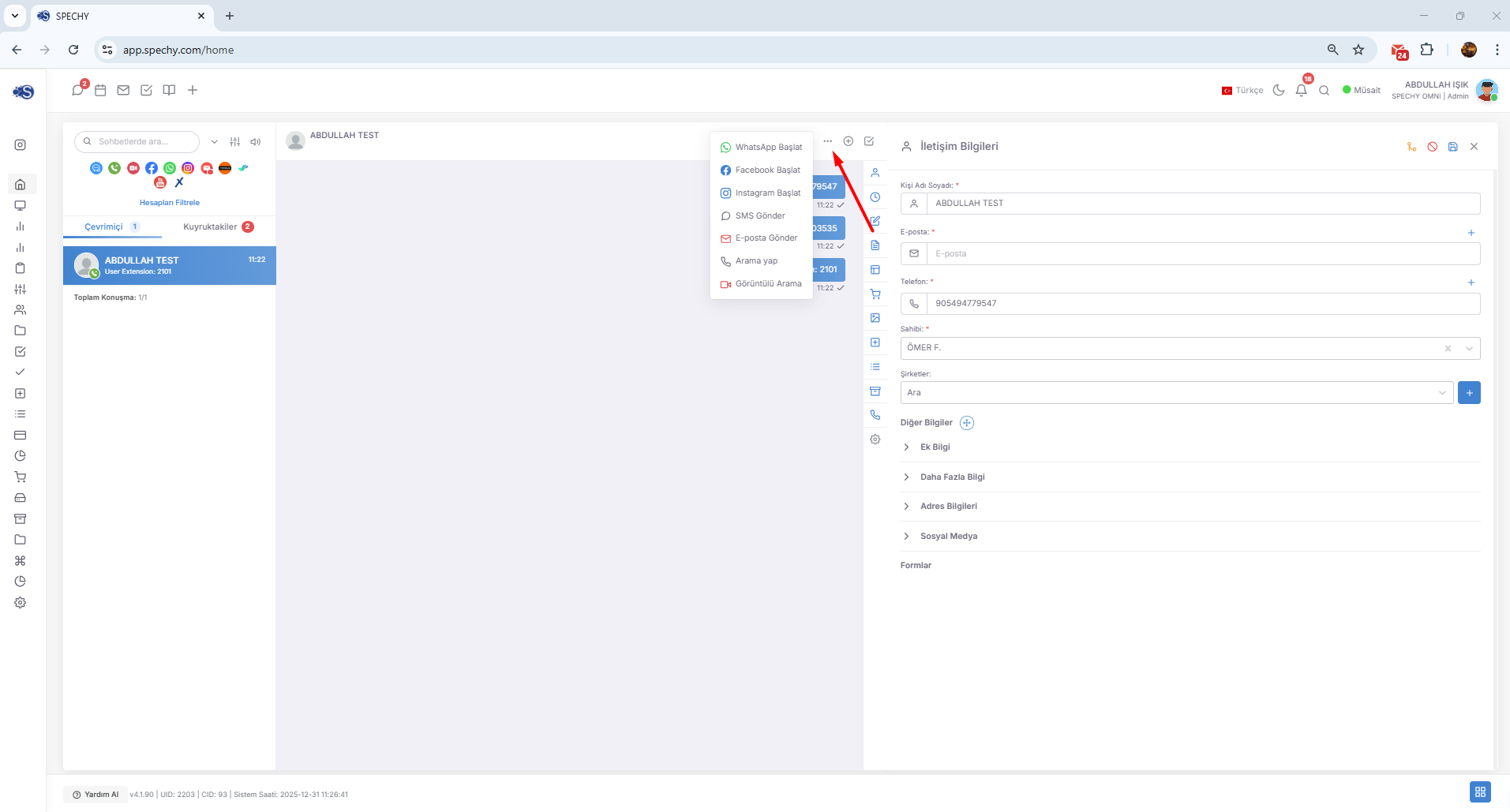
I have detailed this critical step you shared in accordance with the professional structure of our guide:
🚀 Interview Start Module
Start Meeting is a tool that allows you to get out of passive waiting and start an active communication process. When you want to reach the customer, you can engage in a dialogue by selecting the desired channel through this module.
🛠️ How to Use?
- Channel Selection: You can select the platform you want to contact (WhatsApp, SMS, Email, etc.) from the list.
- Person Identification: You can select a registered person in your guide or specify a new target by entering a number/email.
- Starting the Transaction: A call window will open through the channel you have selected and you can send your first message/call.
💡 Usage Advantage
- Proactive Support: When a problem is solved or you want to provide information about a campaign, you can take the first step for the customer.
- Channel Flexibility: You can increase your access rate by selecting the channel that the customer uses or prefers the most (e.g., only WhatsApp).
- Central Registration: Every conversation you initiate automatically creates a "Meeting Record" in the system and is processed into the past.
We have reached the most critical step of the Spechy guide in terms of operational efficiency and data analysis, which we can almost say is the "golden rule", the Result Code (Disposition Code) step. This step is the process of crowning every interview with a "label" and turning it into meaningful data in the system.
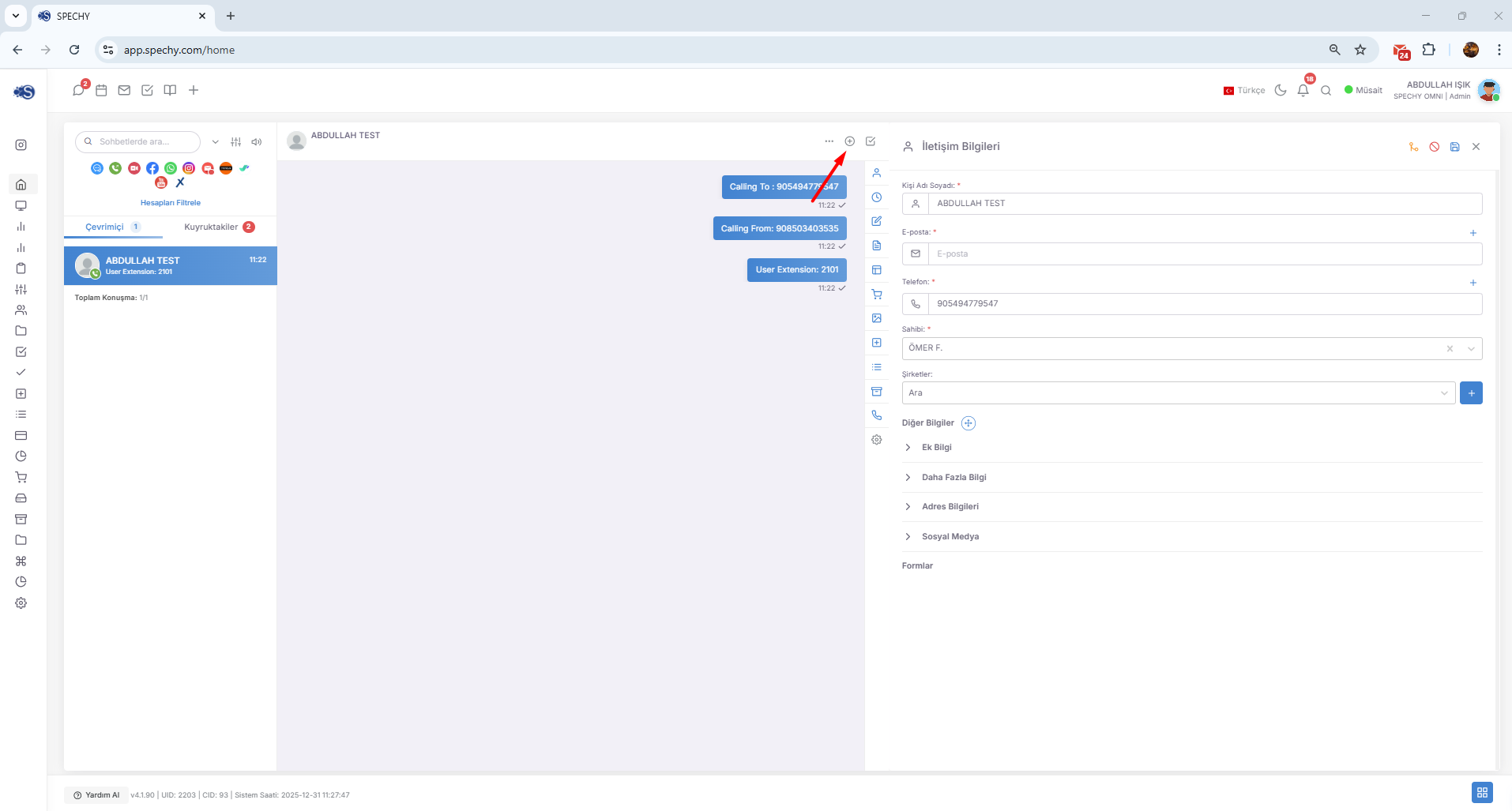
I have turned this vital information you shared into one of the most emphasized sections of the guide:
🏷️ Adding Result Code (Disposition Code)
Every interaction on the Spechy platform has a purpose and a result. Processing this result into the system when the interview is completed is essential for the health of the operation.
🛠️ Why Should You Choose a Result Code?
- Reporting: It allows you to see numerically how many meetings were held on which topics at the end of the day (e.g. Sales, Technical Support, Complaints, etc.).
- History Control: When browsing backwards from the "History" tab, it helps you understand what happened by just looking at the code without listening to or reading the content of the conversation.
- Transaction Tracking: By analyzing which topics are experiencing high intensity, you can shape company strategies according to these data.
🔄 How Does the Process Work?
- Automatic Card: For every call made (Incoming/Outgoing Call, WhatsApp, Chat, etc.), the system automatically opens a Person Card.
- Closing Stage: When the interview ends, a list of "Result Codes" appears in front of the representative.
- Mandatory Choice: You must end the conversation by selecting the code that best matches the nature of the transaction.
We have come to the most powerful automation feature of the Spechy guide: Advanced Result Codes and Workflow Automation. This feature is not only a reporting tool, but also serves as a "smart assistant" that accelerates operations and eliminates the margin of error.
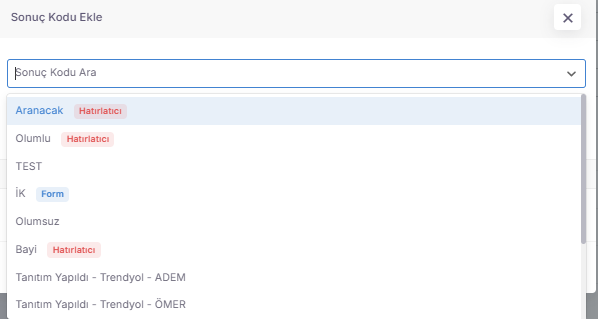
I have brought these technical details you shared to a professional structure as the final touch of our guide:
⚙️ Advanced Result Codes and Automation
Choosing a result code in Spechy is not just a label; it can trigger complex workflows running in the background.
🛠️ Mandatory Areas and Integrations
You can define the following "mandatory" actions behind the strategic result codes you have determined:
- Reminder & Calendar: Depending on the selected code, the system may set up an automatic reminder for the user or open a date field in the calendar.
- Form & Agreement: If the meeting ends with a sale or contract, it may be mandatory to fill out the relevant form or agreement text.
✉️ Automatic SMS and Email Sending
Thanks to the "Template Triggerer", one of the most efficient features, the process works as follows:
- Definition: Ready SMS or Email templates are attached behind certain result codes (e.g., "Information Provided", "Appointment Approved").
- Trigger: The system activates as soon as the user finishes the consultation and selects the relevant result code.
- Automatic Sending: The notification message defined for the customer (the person who received the interview) is automatically sent in the second when the personal card is closed.
💡 Usage Advantage
- Speed: Eliminates the burden of the representative manually writing emails or SMS.
- Standard: Ensures that all customers receive an error-free response in the same professional language.
- Complete Data: Thanks to mandatory fields, it guarantees that no form or appointment is missed.
💾 Save and Close (Person Card Closure Protocol)
When a meeting or transaction is over, manually closing the Person Card you are working on is the most critical step for the accuracy of your data.
🛠️ Transaction Steps and Critical Rules
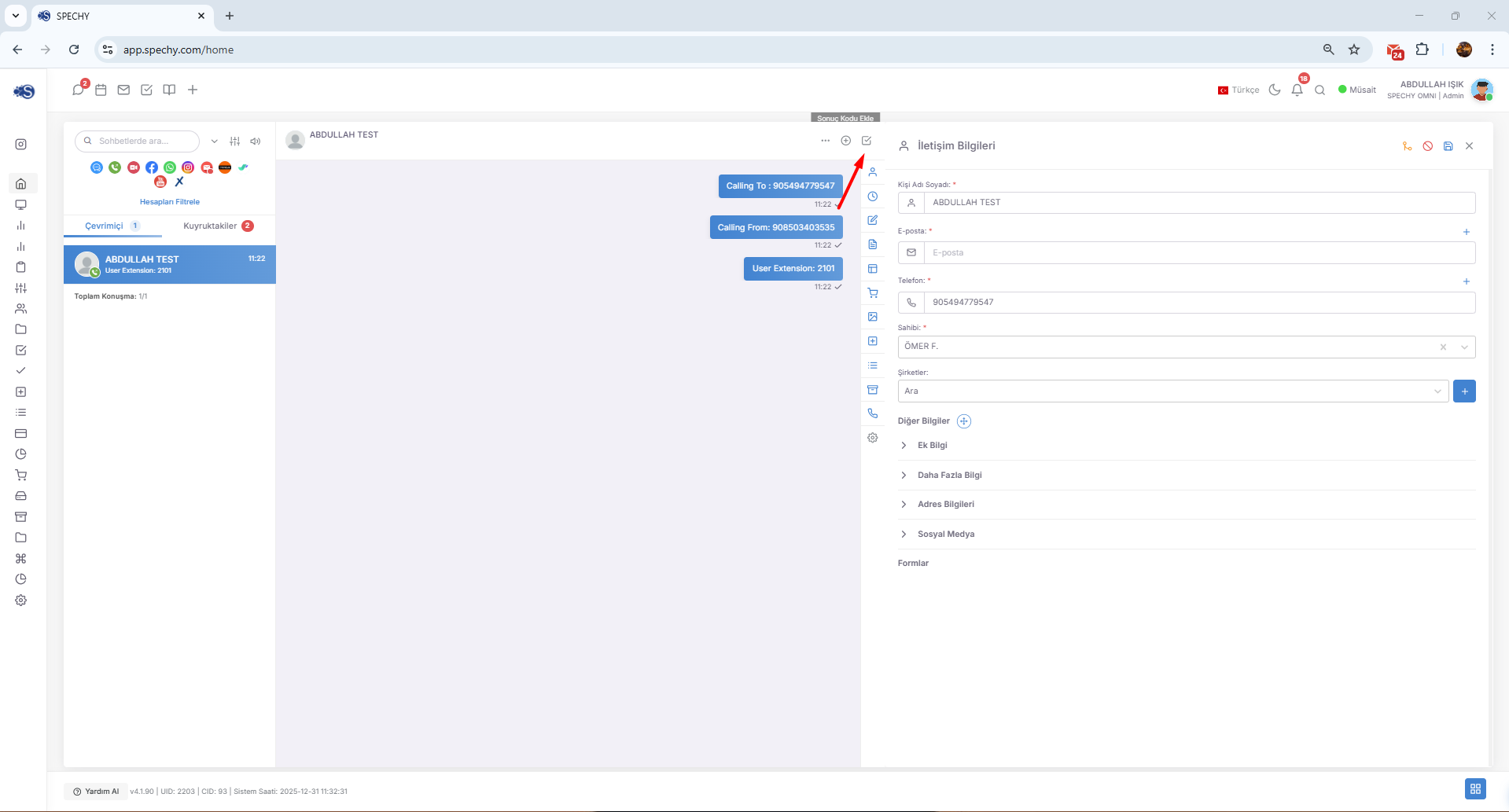
- Manual Close: After making all your note entries, result code selections and adjustments, you must end the card using the "Save and Close" button.
- Data Approval: This process ensures that the changes you make are permanently processed into the database.
⚠️ 24 Hour Rule (Automatic Shutdown)
If a person leaves the card open, a security mechanism applied by the system to protect the data health comes into play:
- Duration: If the period expires within 24 hours from the moment the card is opened, the system card will be automatically closed.
- Result: Cards that are automatically closed are considered terminated without selecting the result code.
- Impact: This situation causes the occurrence of "Uncertain/Incomplete Data" in reports and leads to the erroneous measurement of representative performance.
💡 Why is it Important?
- Instant Reporting: As soon as you close the card, the data for that meeting is reflected in the management panel and statistics.
- Workload Management: Open cards accumulate on the representative's screen and make it difficult to focus.
- System Health: Manual shutdown ensures that automation (SMS/Email sending) works correctly by ensuring that you meet the "Result Code" requirement.
📋 Personal Card and Data Management
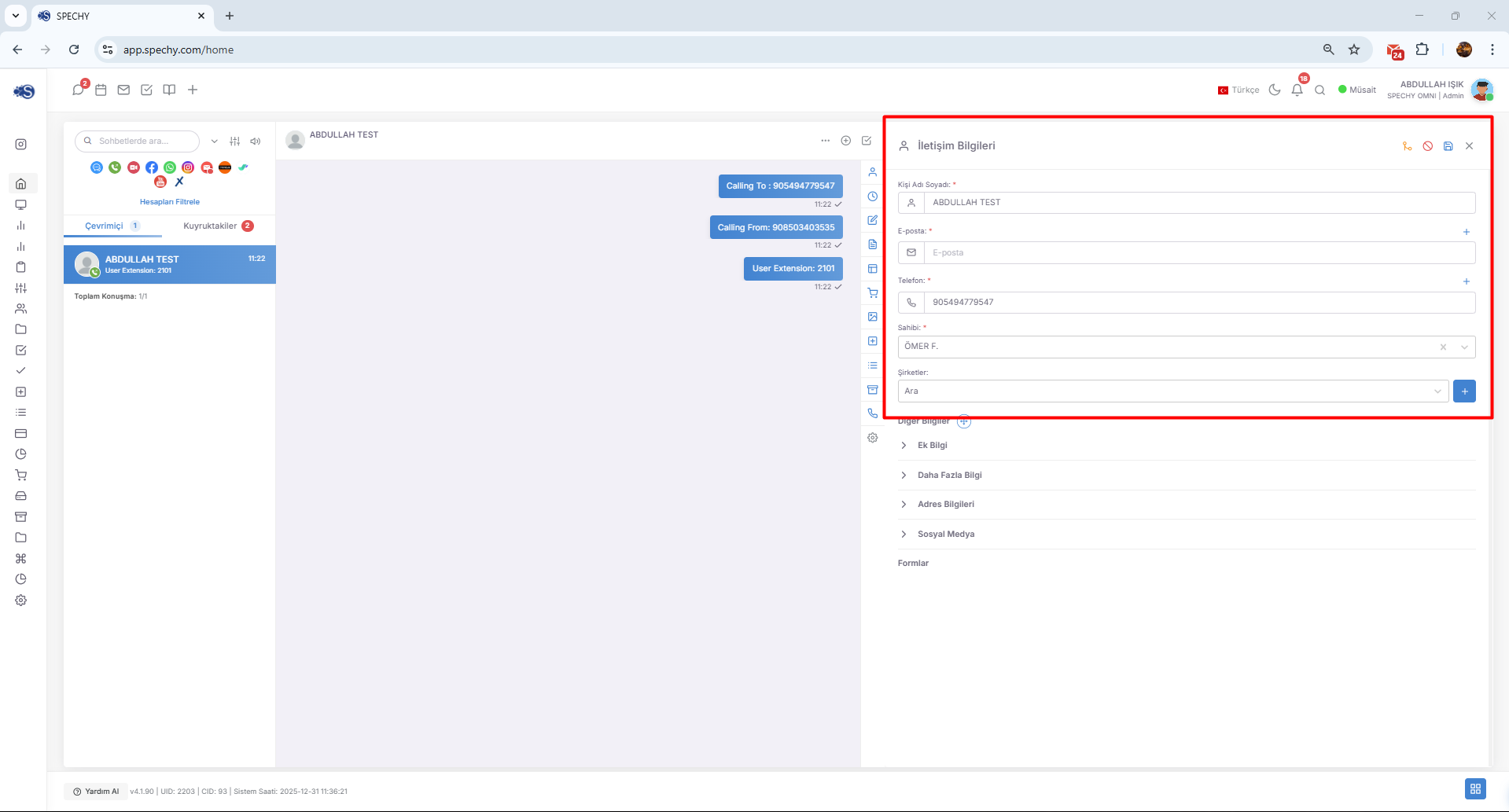
The Person Card, which opens when an interaction begins, is built on three main pillars to identify the customer and manage the process correctly:
🛠️ 1. Contact Information (Contact Info)
You can centrally keep all transportation channels related to the customer in this area:
- Identity: The person's full name and surname.
- Phone World: You can enter more than one phone number belonging to a person into the system, not just one number.
- Digital Addresses: By adding one or more email addresses of the person, you can match the correspondence history with these addresses.
👤 2. Owner of the Second Meeting (Ownership)
There is a ownership structure in the system that operates according to the principles of "responsibility" and "tracking":
- First Contact Rule: The representative who initiates the meeting or provides the first communication by taking the queue is automatically assigned as the "Owner" of that meeting by the system.
- Liability: This structure clearly shows who the recipient is when there is a development related to that customer in the future.
🏢 3. Company Relationship Linkage (B2B Integration)
You can connect individual customers with corporate structures:
- Corporate Relationship: If there is an institution/company that the person works for or is affiliated with, you can add this information to the person card.
- Centralized View: Thus, you can report all meetings made by different people from the same company under a single corporate umbrella.
🔗 Person Card Merging Feature
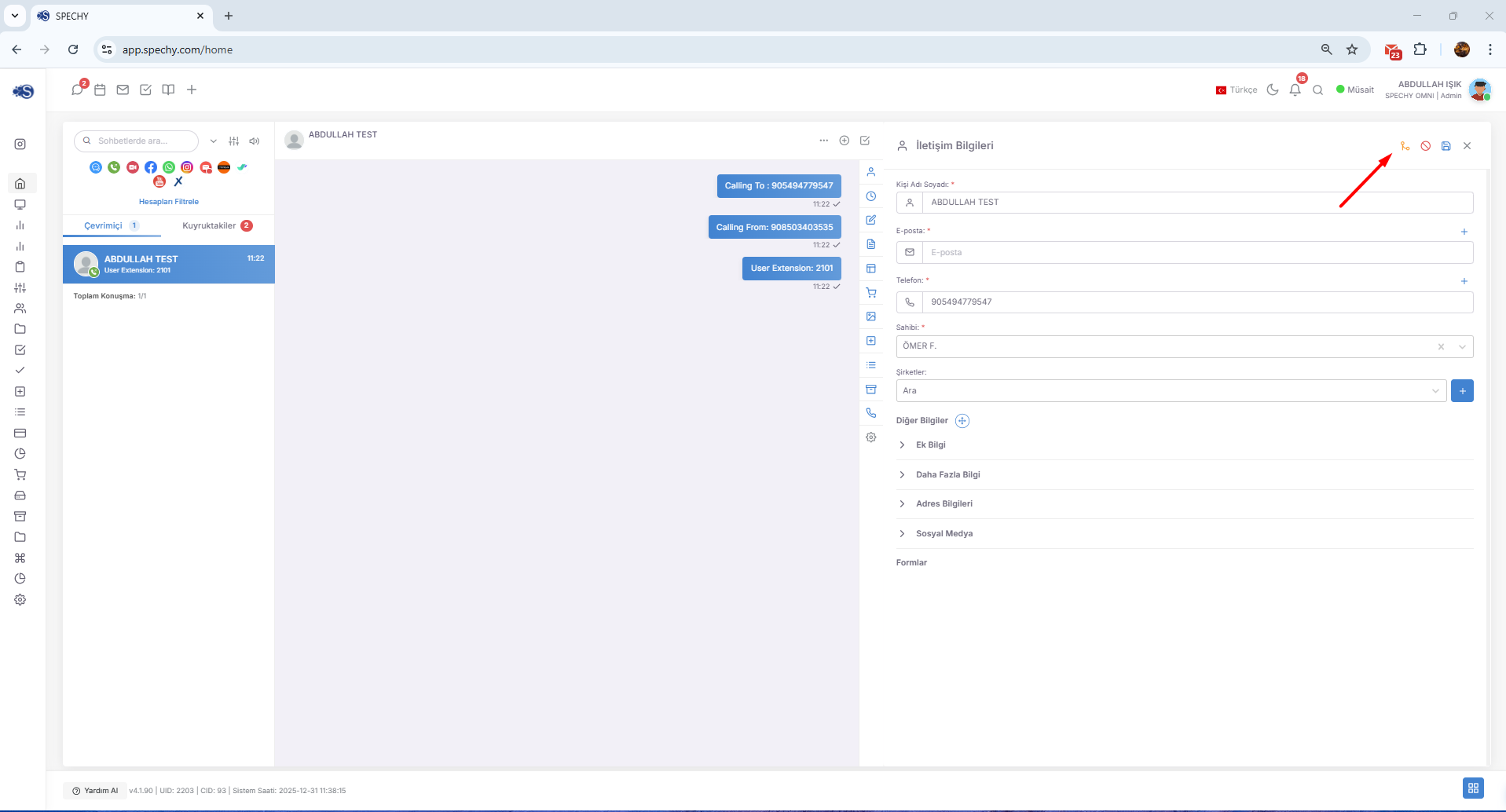
It allows you to collect multiple registrations belonging to the same real person but opened at different times or with different contact information (different phone or email) in a single profile.
🛠️ Why Should You Merge?
- Single View of Customer: It allows you to see all the customer's past correspondence, requests and notes not divided into different cards, but in a single timeline.
- Data Cleaning: By preventing the system from having 2-3 of the same person, it helps the guide stay current and regular.
- Correct Reporting: It prevents data fragmentation when analyzing how many times a customer has called or how long it takes to reach a solution.
🔄 How to Apply?
When you notice that a new registration has been opened with a different contact information belonging to the same person (for example, an old email or a second phone line):
- Matching: You can use the "Combine" command by selecting two records.
- Data Transfer: All contact information and past conversations on the second card are automatically transferred to the main card.
- Single Profile: At the end of the transaction, there is only one "Main Person Card" left in the system and all information is consolidated on this card.
🚫 Block (Block Person and Channel)
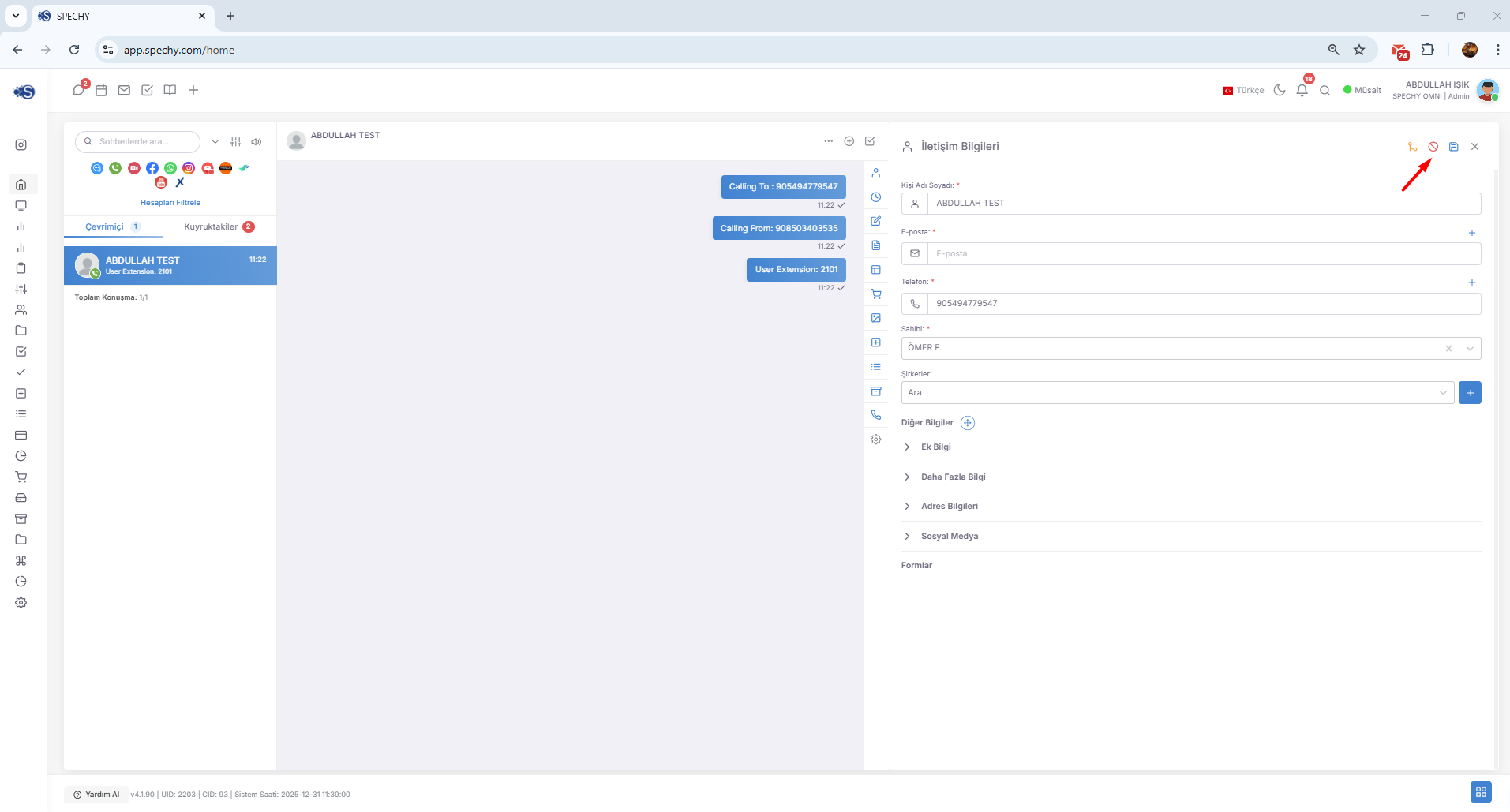
Block is a security tool used to restrict the access of a specific person or number to your system. This way, your teams can focus only on real customer requests.
🛠️ How to Apply and What are the Options?
When you decide to block a person, the following flexible options appear:
- Channel-Based Selection: You can specifically choose which platforms (WhatsApp, SMS, Voice Call, etc.) a person will be blocked from using. If you wish, you can block access from only a specific channel or all communication channels.
- Add Explanation: You can note the reason for the blocking process (e.g., "Spam content", "Incorrect number", "Improper tone") as a note to the system.
- Permanent/Temporary Solution: This process completely prevents that person from wasting time by falling on the screen of the representatives.
💡 Why is it Important?
- Efficiency: Prevents spam (unnecessary) calls or messages from filling the "Queue" structure and causing real customers to wait.
- Representative Motivation: It maintains work peace by cutting off access to the system for individuals who exhibit inappropriate behavior.
- Transparency: Thanks to the statements written, your other team members can also see why the person in question was blocked from their past records.
💾 Save (Instant Data Update)
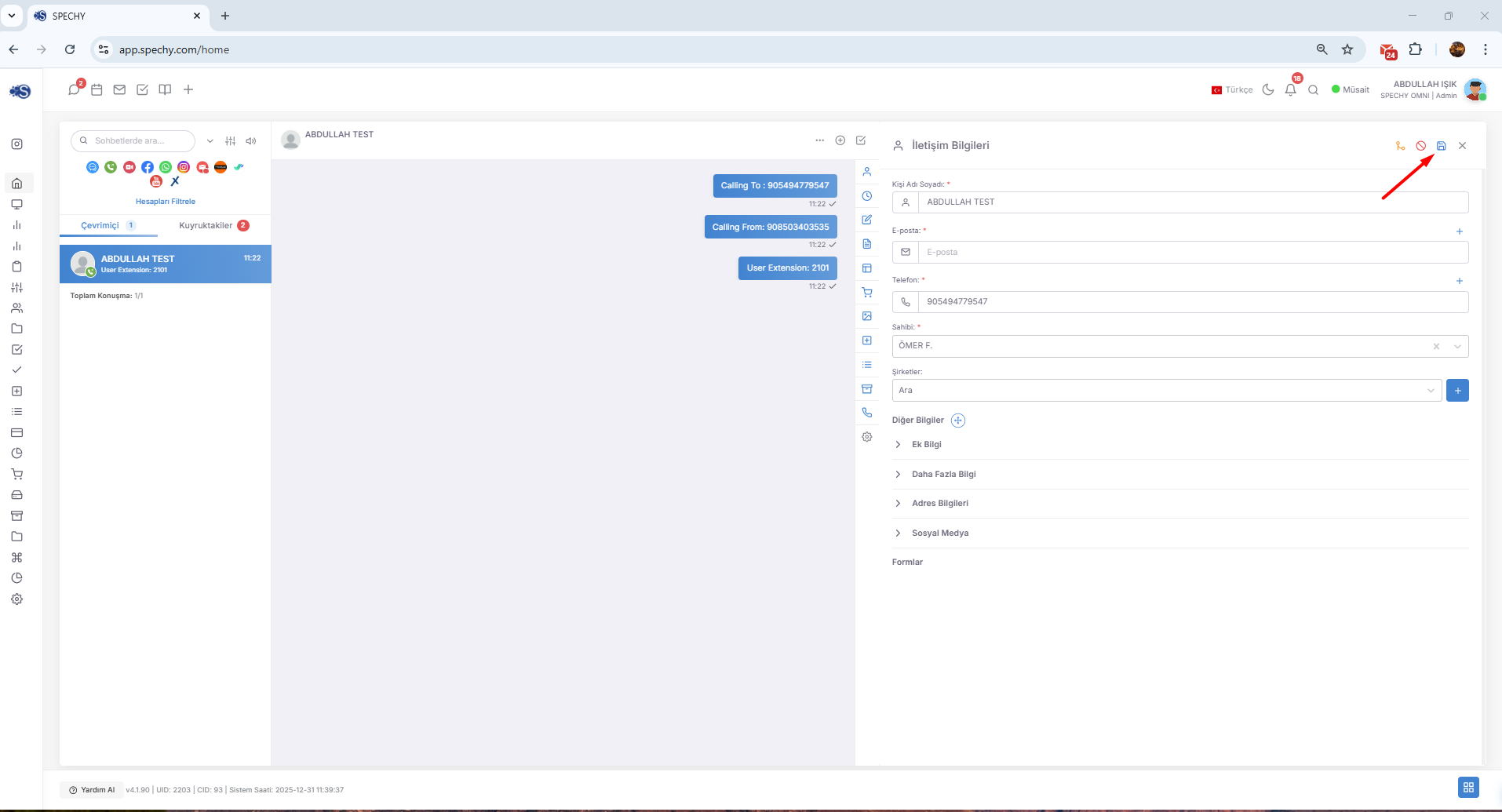
Save is the button that allows information updates such as name, phone number, email or company on your personal card to be processed instantly by the system.
🛠️ The Difference Between "Save" and "Save and Close"
These two processes should not be confused, because both have different purposes:
- Save: It updates the data while the conversation is still ongoing or while working on the person card. It does not close the card, it only writes the current changes to the database.
- Save and Close: It notifies the system that the transaction is completely completed, finalizes the result code and removes the card from the screen.
💡 Why is it Important?
- Prevents Data Loss: By recording the notes you take or the numbers you update during a long meeting instantly, you prevent data loss in case of a possible connection loss.
- Live Update: As soon as you save the information, another team member can access the most up-to-date data when they query the same person.
- Flexibility: It is used to make sure you are comfortable with all the other changes you have made, if you are not yet ready to close the card (for example, if you are still waiting for a file).
📋 More Information (Segmentation and Title)
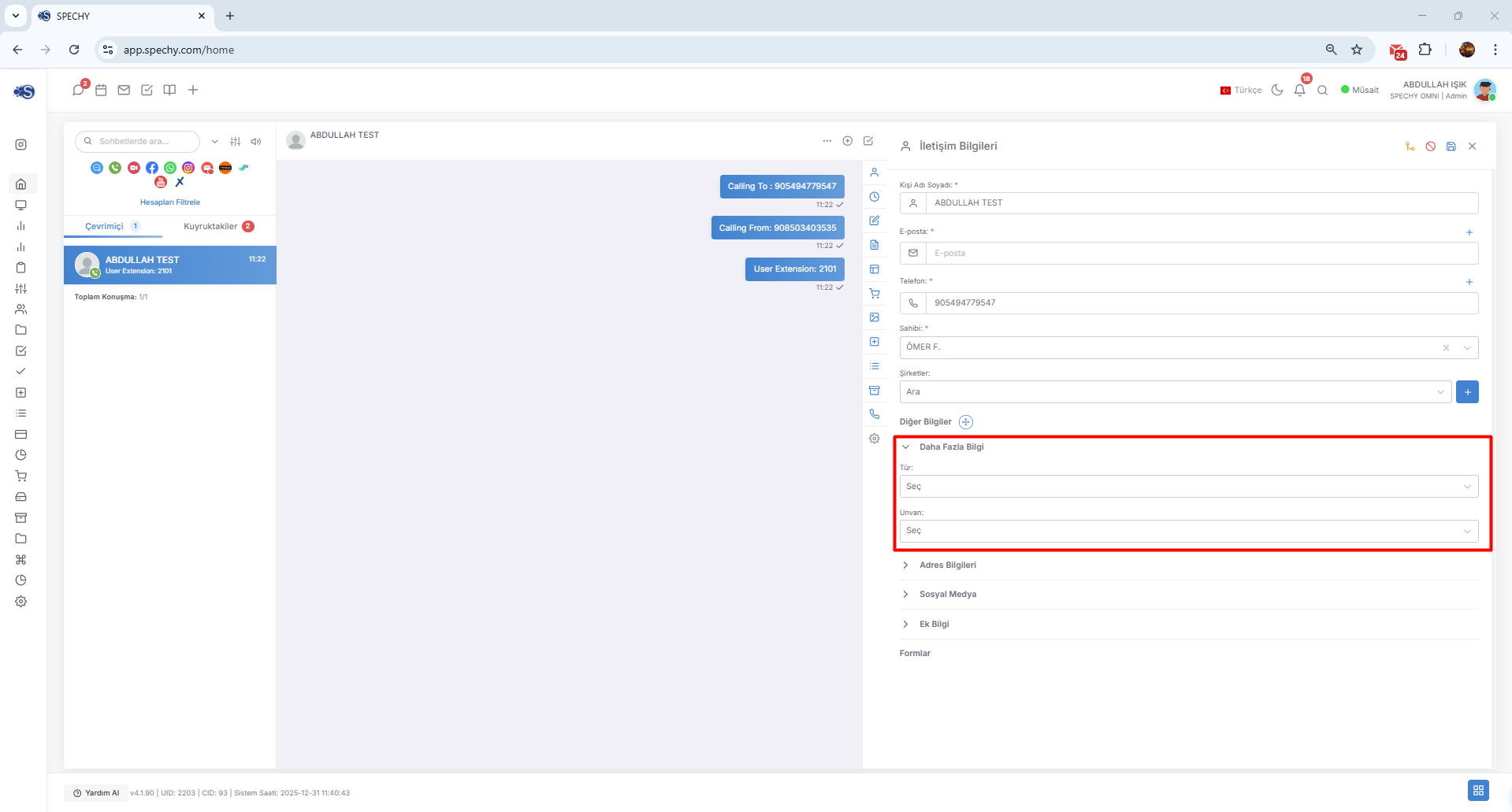
More Information allows you to detail your customer's profile beyond the basic contact information on the person card. This field is especially critical for marketing and correct targeting strategies.
🛠️ What can you define?
You can process the following data using the title and category fields under this tab:
- Customer Type: You can determine service priority by categorizing your customer into categories such as "Potential", "Loyal Customer", "Supplier" or "VIP".
- Professional Group: By selecting the person's field of expertise (e.g., Doctor, Engineer, Lawyer, etc.), you create a basis for offering them special campaigns or information.
- Title Selection: You can determine how to address the person during the interview or their position in the corporate hierarchy (e.g., General Manager, Operations Manager, etc.) from here.
💡 Why is it Important?
- Personalized Experience: Knowing your customer's profession or title allows you to establish a more professional and personalized communication language with them.
- Targeted Reporting: It helps you get answers to specific questions such as "How many engineers are registered in our system?" or "How many meetings were held with our VIP customers this month?"
- Segmentation: It facilitates sales or marketing teams to go to the right professional groups with the right offers.
📍 Address Information and Map Integration
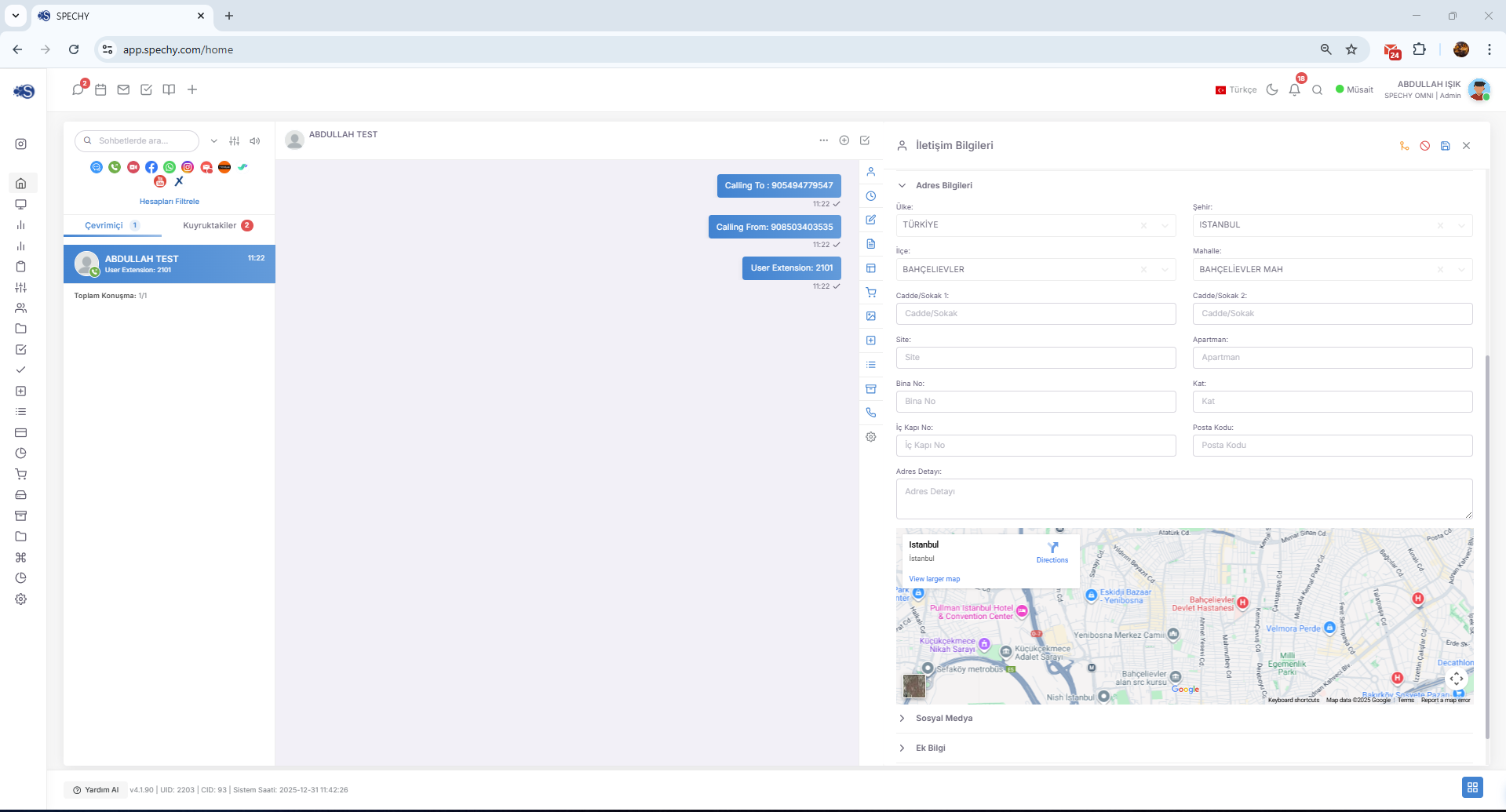
Address Information allows you to record your customer's physical location on the personal card to the finest detail and visualize this location instantly.
🛠️ Features and Usage
- Detailed Registration: You can process all address components such as country, city, district, neighborhood, street and door number in separate fields or in the description section in detail.
- Smart Map Zoom In: When you start typing the address or enter the full address, the system processes this data in the background and automatically zooms in the map panel on the side to that location.
- Verification: Thanks to the marking on the map, you can visually confirm the accuracy of the address you entered instantly.
💡 Why is it Important?
- Logistics and Field Management: If you provide technical service, courier or on-site support service, it allows your staff to transfer accurate location information.
- Quick Action: Seeing the customer's location on the map makes it easier to locate the nearest field team or dealer.
- Regional Analysis: You can develop regional marketing strategies by seeing the locations where your customers are concentrated.
🛠️ Additional Information and Customization (Custom Fields)
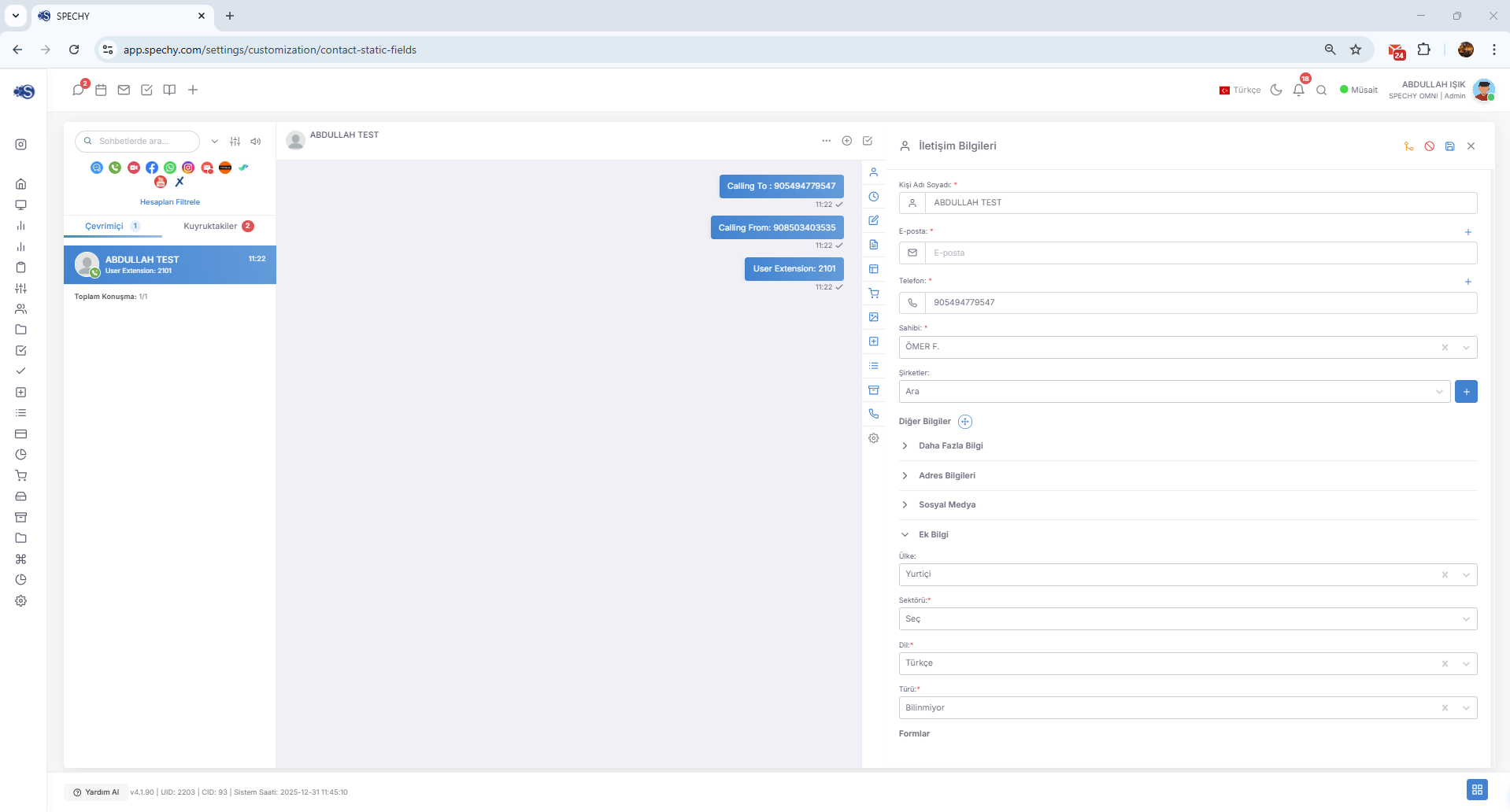
Additional Information allows you to design special data entry fields that your institution needs when standard data fields (first name, last name, phone, etc.) are not sufficient. This section is managed under the Customization menu of the platform.
🧩 Form Elements and Options
You can add these different data entry types according to your needs:
- Text Boxes (Text Box): For entering free notes or special codes.
- Single Selection (Radio Button / Dropdown): For situations where you want only one option to be selected from a specific list.
- Multiple Selection (Checkbox): Areas where multiple features or interests can be checked at the same time.
- Date and Time Selectors: For special reminders or event dates.
🔒 Flexibility and Obligation
- Dynamic Structure: You can open as much optional space as you want, and you can update these spaces as your business processes change.
- Required Fields: You can make any field you want "required to be filled" in order to ensure that critical data is not skipped. This way, the "Save" or "Select Result Code" operation cannot be performed without that field being filled.
💡 Why is it Important?
- Industry Compliance: It integrates sector-specific data such as "Property Type" for a real estate company and "Device Serial Number" for a technical service into the system.
- Data Standard: Thanks to the form elements, it prevents chaos by ensuring that all representatives enter data in the same format.
- Advanced Reporting: By filtering through these customized areas, you can obtain much more detailed and in-depth operational analyses.
📂 Contact Information (Person Card Consolidation)
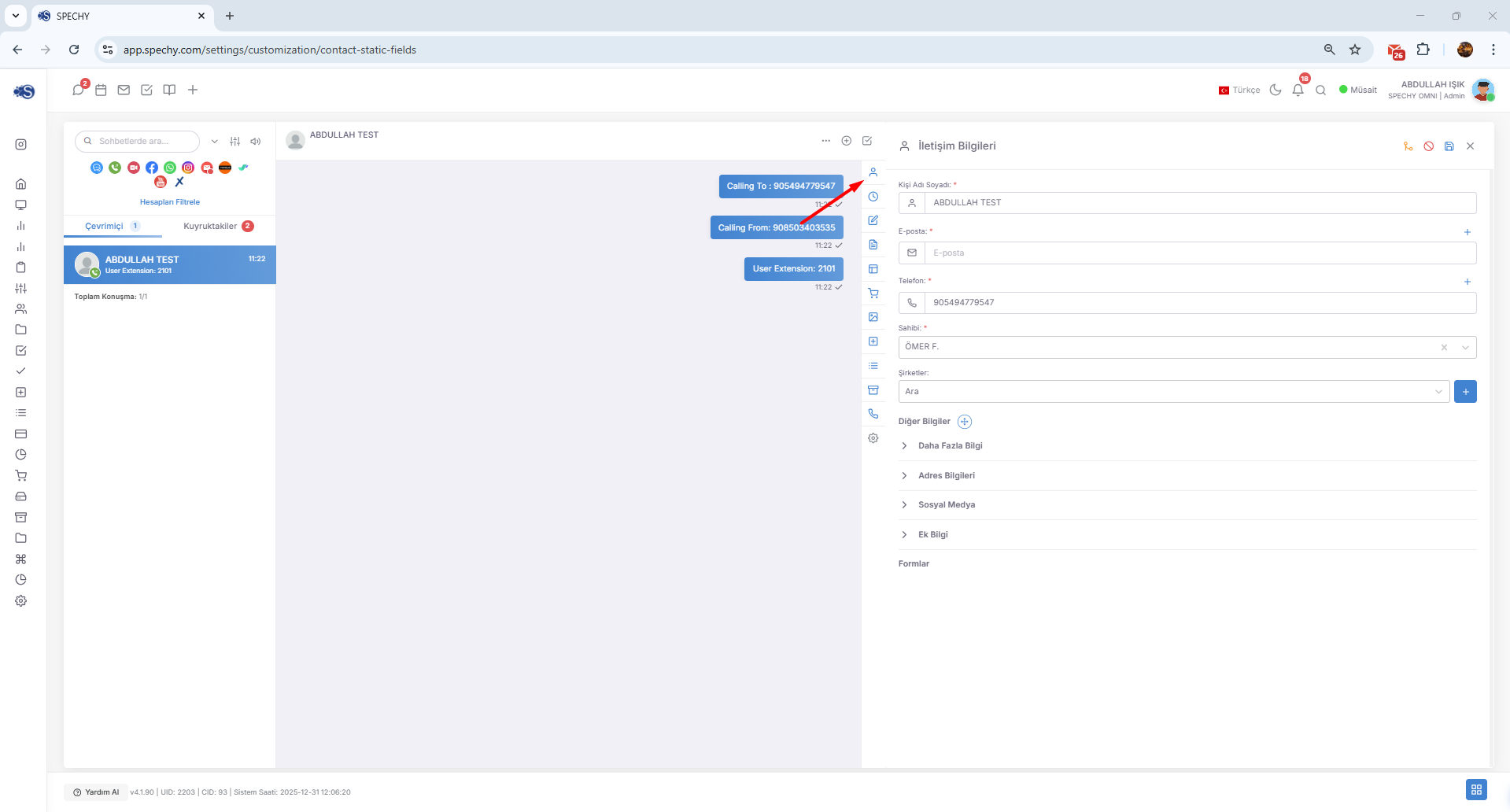
Contact Information is the center of all static and dynamic data recorded in the system about a customer or partner. This area allows the representative to see all kinds of details he may need at the moment of the interview at a glance.
🛠️ What is Included in the Module?
- Basic Personal Information: First and last name, main phone numbers and primary email addresses.
- Location Information (Address): Location detection with physical location details and map integration.
- Social Media Identities: Usernames on digital platforms such as Instagram, X, LinkedIn.
- Corporate Identity (Title): The person's occupational group, position within the company and way of addressing.
- Private Areas (Additional Information): Customized according to your institution's workflow; text boxes, selectable forms and mandatory data entry fields.
💡 Why is it Important?
- Integrated View: It allows the representative to access all critical data about the customer from a single screen without having to navigate between different tabs.
- Consistency: Thanks to the special areas you add to the "Additional Information" section, it ensures that all your team members collect information at the same standard.
- Personalization: Details such as social media and title increase the quality of the approach established to the customer.
🕒 Past (Interview Timeline)
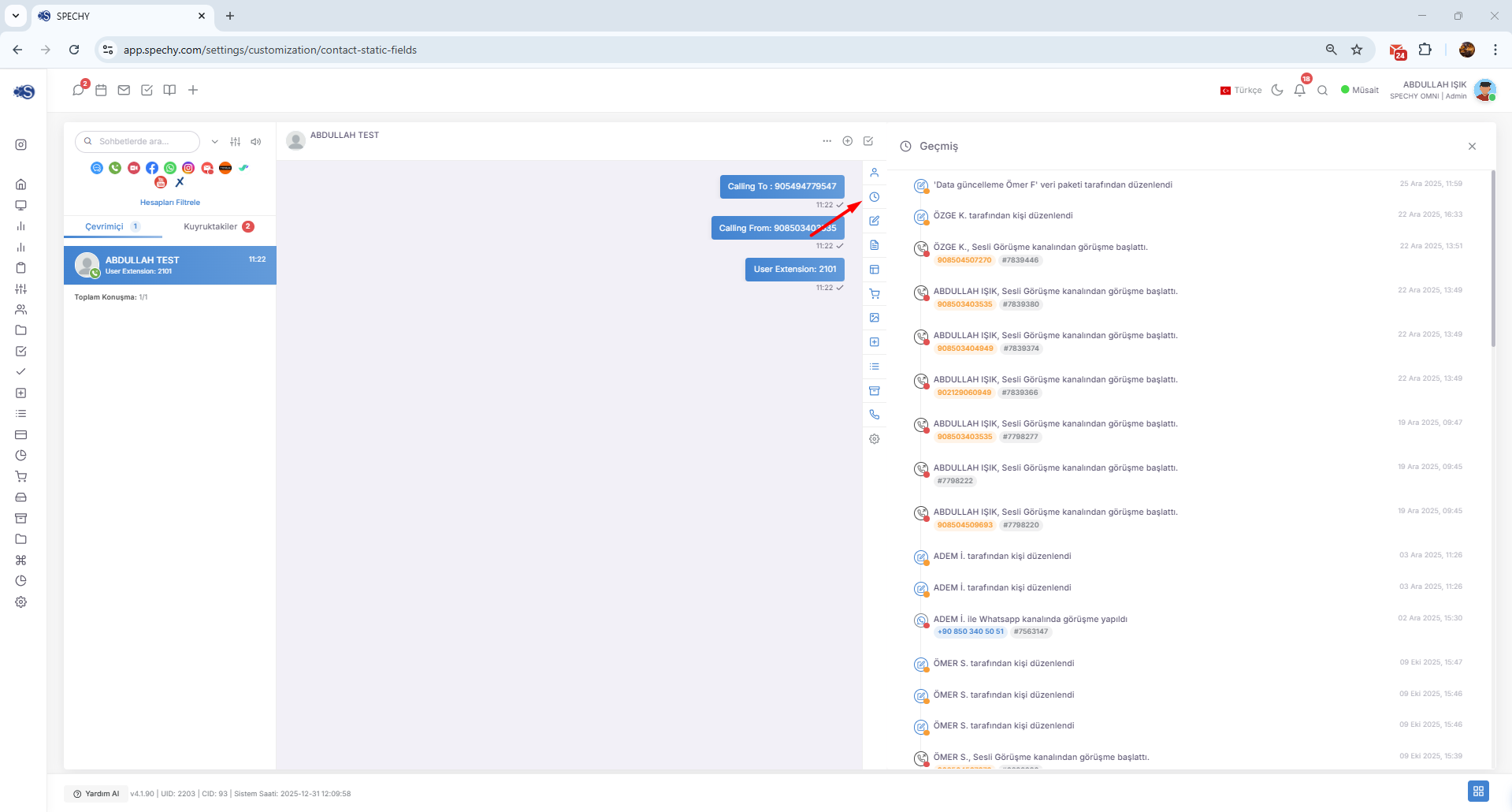
History is like a diary listing all the touchpoints (touchpoints) between that customer and your institution in the person card. A representative can have an overview of the customer's entire journey by looking at this section before starting the interview.
🔍 What Can Be Seen in the History Tab?
- Channel Information: Which platform the interview took place on (WhatsApp, Voice Call, Email, SMS, etc.).
- Representative Information: Which of your team members/representatives has previously spoken to the customer (Accountability tracking).
- Result Codes: How previous conversations ended (e.g., "Complaint Solved", "Offer Pending", "Information Provided").
- Time Stamp: Information about the day and time the interview started/ended.
- Content Access: (If authorized) Quick access to old correspondence content or voice recordings.
💡 Why is it Important?
- Continuity: It allows the representative to continue from where he left off without the customer having to say "I told you this before".
- Context Provides: If the customer's last 3 consultations ended with a "Complaint" code, the representative may adopt a more empathetic approach in this consultation.
- Performance Analysis: It is an unique source to track how many different representatives a request goes to and how many steps it is solved in.
We continue with the Request (Ticketing/Request Management) module, which represents the operational solution center of the Spechy guide. This feature allows you to not leave a conversation only in the "conversation" stage, but to turn it into a followable "business process".
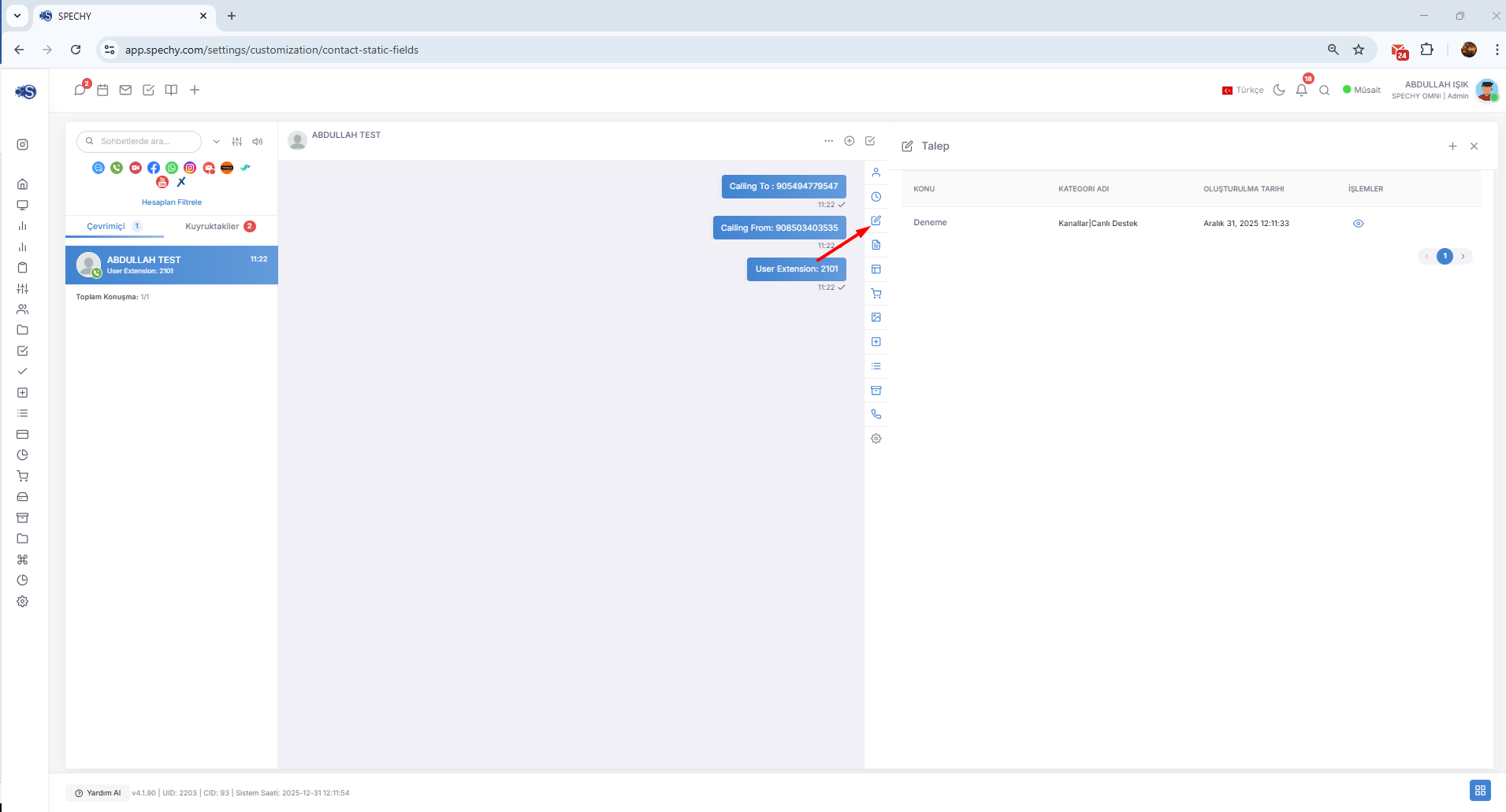
🎫 Request (Ticket) Management and Tracking
Request is the inclusion of issues that cannot be resolved during a meeting with the customer or require a specific process (e.g., Return request, Fault record, Information request) into the workflow by being recorded.
🛠️ What Can Be Done with the Request Module?
- Creating a Request: You can open a new support request (ticket) associated with the person at the moment of the conversation or after it.
- Status Control: You can instantly track which stage the created request is in (New, In Process, Pending, Solved, etc.).
- Process Tracking: You can see in chronological order who is on top of the request, how long it has been waiting and the updates made.
- Customer Information: As the request status changes (e.g., "Your request has been resolved"), automatic notifications can be triggered through the system.
💡 Why is it Important?
- Accountability: Prevents the loss of the customer's request in the system; each request has a owner and a deadline.
- Efficiency: It facilitates the transfer and tracking of complex problems to different departments (e.g. Accounting, Technical Team) based on "requests".
- Customer Satisfaction: When the customer calls back, it allows you to provide concrete information such as "Your request is currently in the review stage, we will get back to you as soon as possible."
📝 Note (Customer Special Notes)
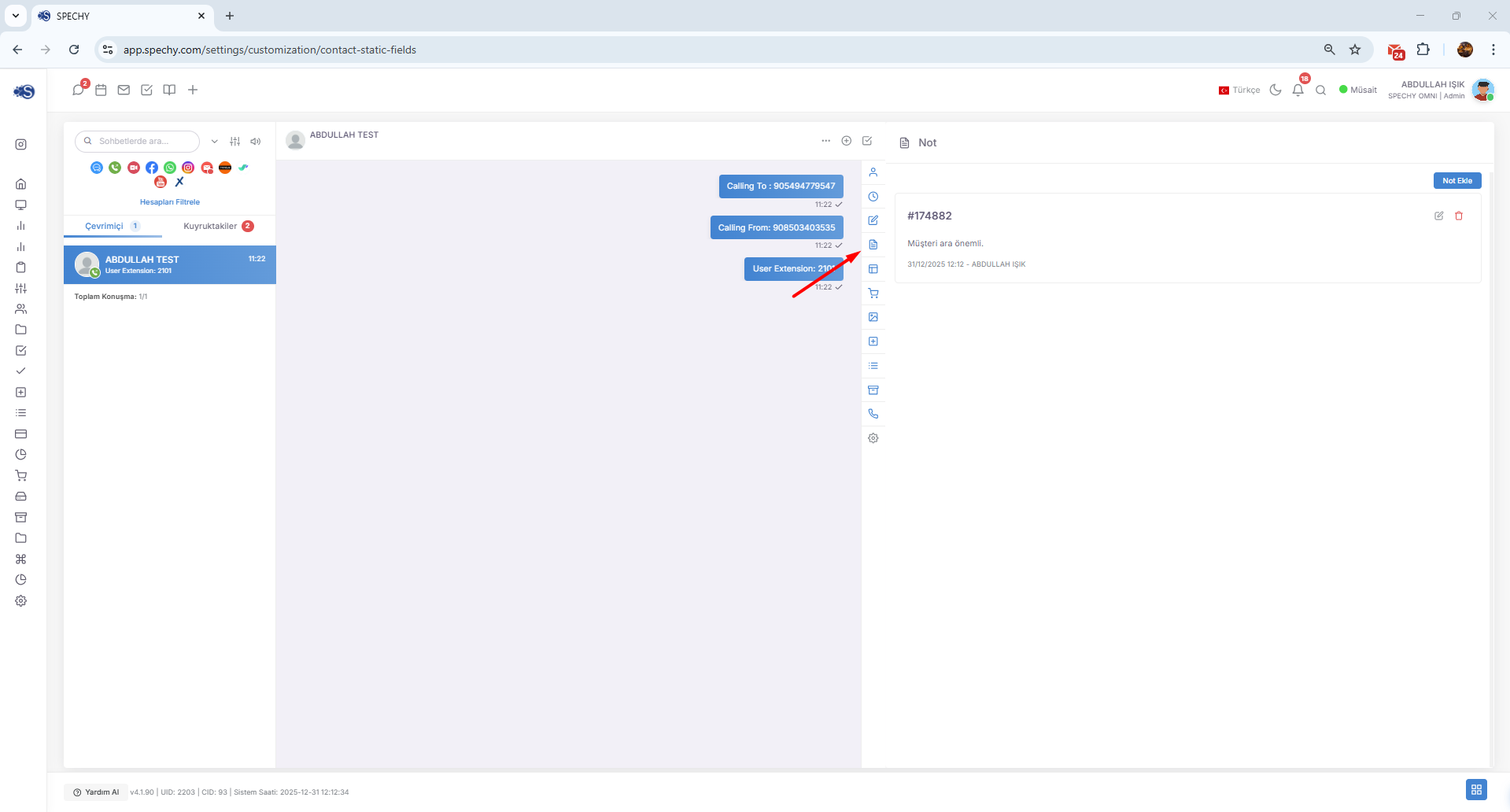
Note is the area where you record special information about that customer that only you or your team can see, which is included in the person card. Unlike the interview texts, this is used for strategic and reminder information.
🛠️ What Can Be Noted?
- Critical Information: Operational warnings such as "The customer only wants to be called in the afternoon", "He is a user with VIP status", "He may repeat the previous technical problem".
- Personal Details: Address and communication preferences such as "Mr. X should be consulted with the brain assistant", "He prefers this template in corporate correspondence".
- Process Information: Additional notes that are not included in the interview but are necessary for the completion of the file.
💡 Why is it Important?
- Team Synchronization: Your team member who will meet with that person after you can instantly see the customer's special sensitivities by looking at the notes section.
- Quick Adaptation: Instead of re-defining the customer every time, you can make him feel special with the small notes you receive.
- Data Depth: It increases service quality by recording "human" or "situational" details that are not included in forms or result codes.
📝 Form (Dynamic Data Collection and Tracking)
A form is a module designed for you to obtain information from the customer within a certain logical framework during an interview or to review forms that the customer has previously filled out.
🛠️ What Can Be Done with the Form Module?
- Data Entry During the Interview: While speaking with the customer (voice or written), you can fill out the form by asking the questions defined in the system in order. This creates a "question-answer" flow, ensuring that no detail is missed.
- Viewing Customer Forms: If your customer filled out a form from your website or another channel (e.g., Application form, Complaint form), this data is listed directly under the Forms tab.
- Standard Information Flow: It creates an institutional standard in data entry by ensuring that all representatives ask the same questions.
💡 Why is it Important?
- Reduces Error Rate: The representative does not need to think about what to ask; he completes the process professionally by filling in the fields in the form.
- Segmentation and Sales: Depending on the answers from the forms, you can correctly segment the customer or instantly capture a sales opportunity.
- Centralized Data: The data entered by the customer himself and the data entered by the representative meet in the same place, thus preventing inconsistencies.
📦 Product (Interest Area and Inventory Management)
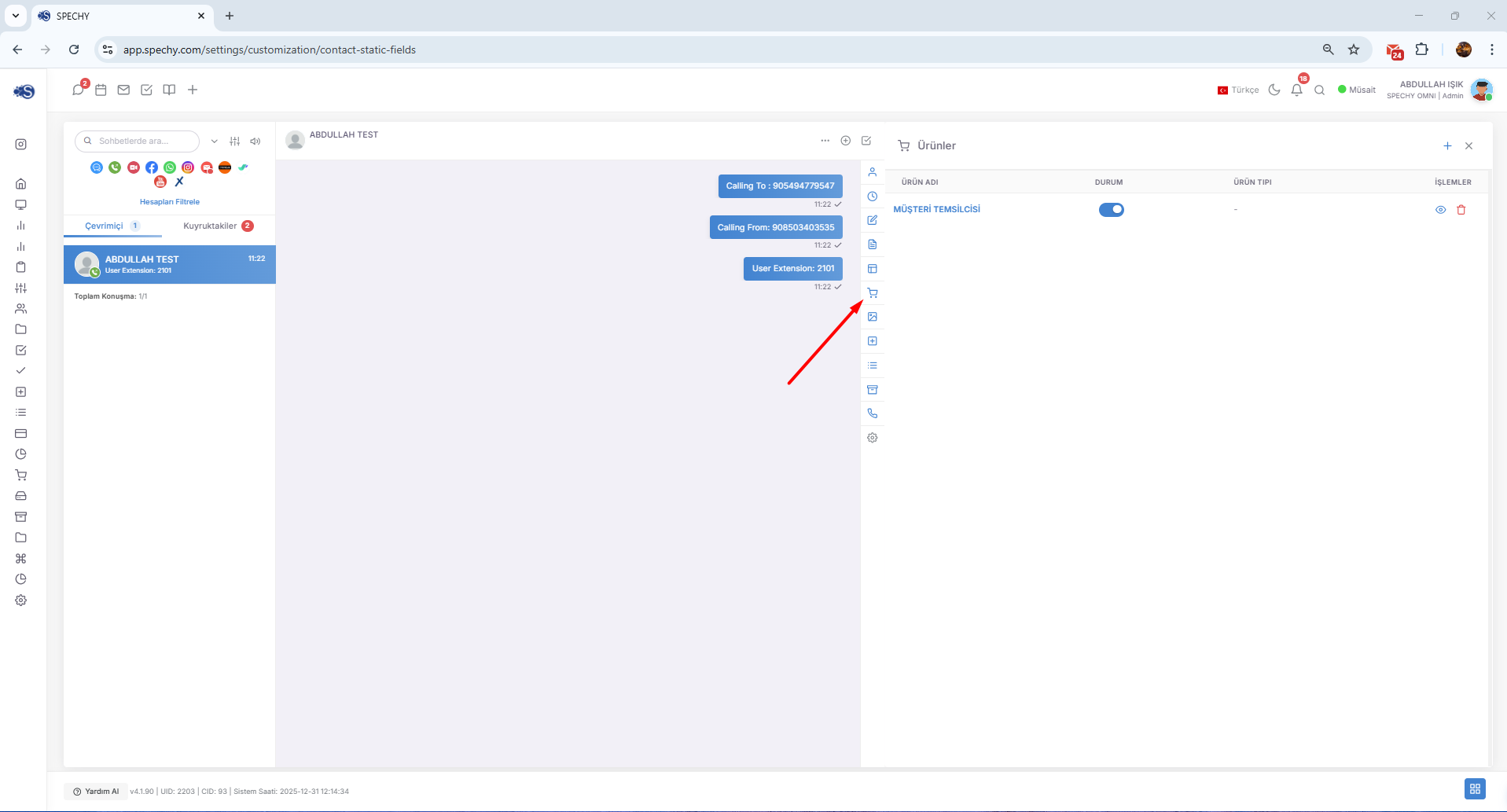
The product is the section in the personal card where you track which services or products your customer is interested in and what they are currently using.
🛠️ What Can Be Done with the Product Module?
- Adding Products: You can link the products that the customer has contacted, purchased or wants to purchase to the personal card by selecting them from your portfolio.
- Interest Level Tracking: If a customer is interested in multiple products, you can see all these products in a list and determine your focus accordingly.
- Capturing Sales Opportunity: During the meeting, the representative adds a product mentioned by the customer here, creating valuable data for the sales team.
💡 Why is it Important?
- Targeted Campaign: It allows you to make filters such as "Send SMS only to customers who are interested in product X".
- Personalized Offer: By instantly seeing which product you are talking about when a customer calls, you can make an effective introduction such as "We have an update about the X product you were interested in last week."
- Strategic Reporting: It allows you to analyze which products you receive the most calls about or which products are more interested in.
📁 Media (Image and File Archive)
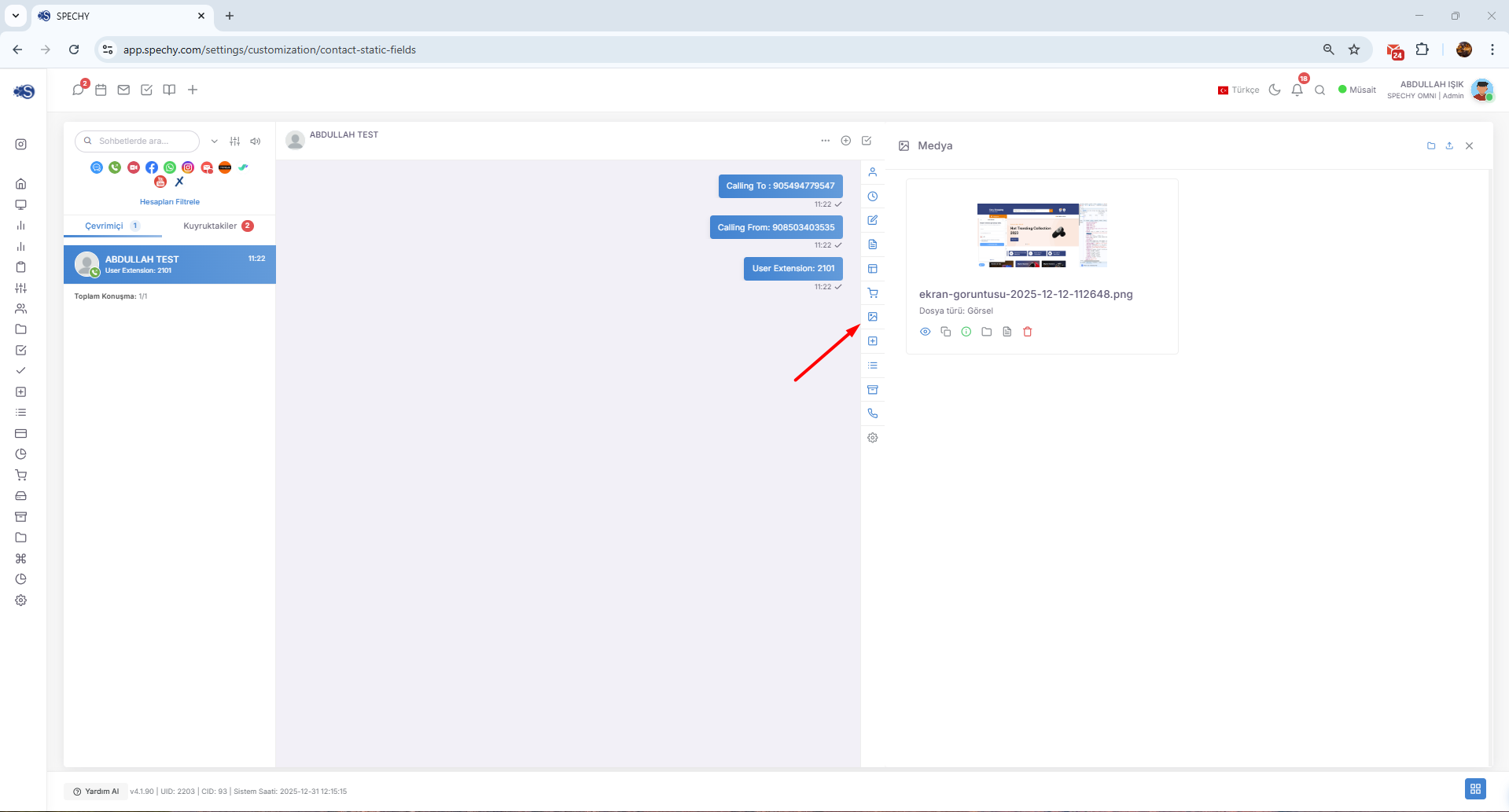
Media is a pool where all files shared by the customer through communication channels such as WhatsApp, Email, Web Chat are automatically collected and displayed.
🛠️ What Does the Media Module Cover?
Any kind of digital material received during correspondence is automatically recorded in this section:
- Images: Photos, screenshots (SS), product images.
- Documents: PDF files, Word documents, Excel spreadsheets.
- Multimedia: Voice recordings (Voice Message), videos.
💡 Why is it Important?
- Quick Access: Instead of searching for a receipt or a malfunction photo in thousands of lines of correspondence history, you can access all files at a glance by clicking on the "Media" tab.
- Data Integrity: No evidence or document sent by the customer is lost in the system; it is permanently matched with the person card.
- Operational Speed: Especially in technical support or accounting processes, it allows you to instantly download and process the shared document.
⏰ Reminders (Timed Returns)
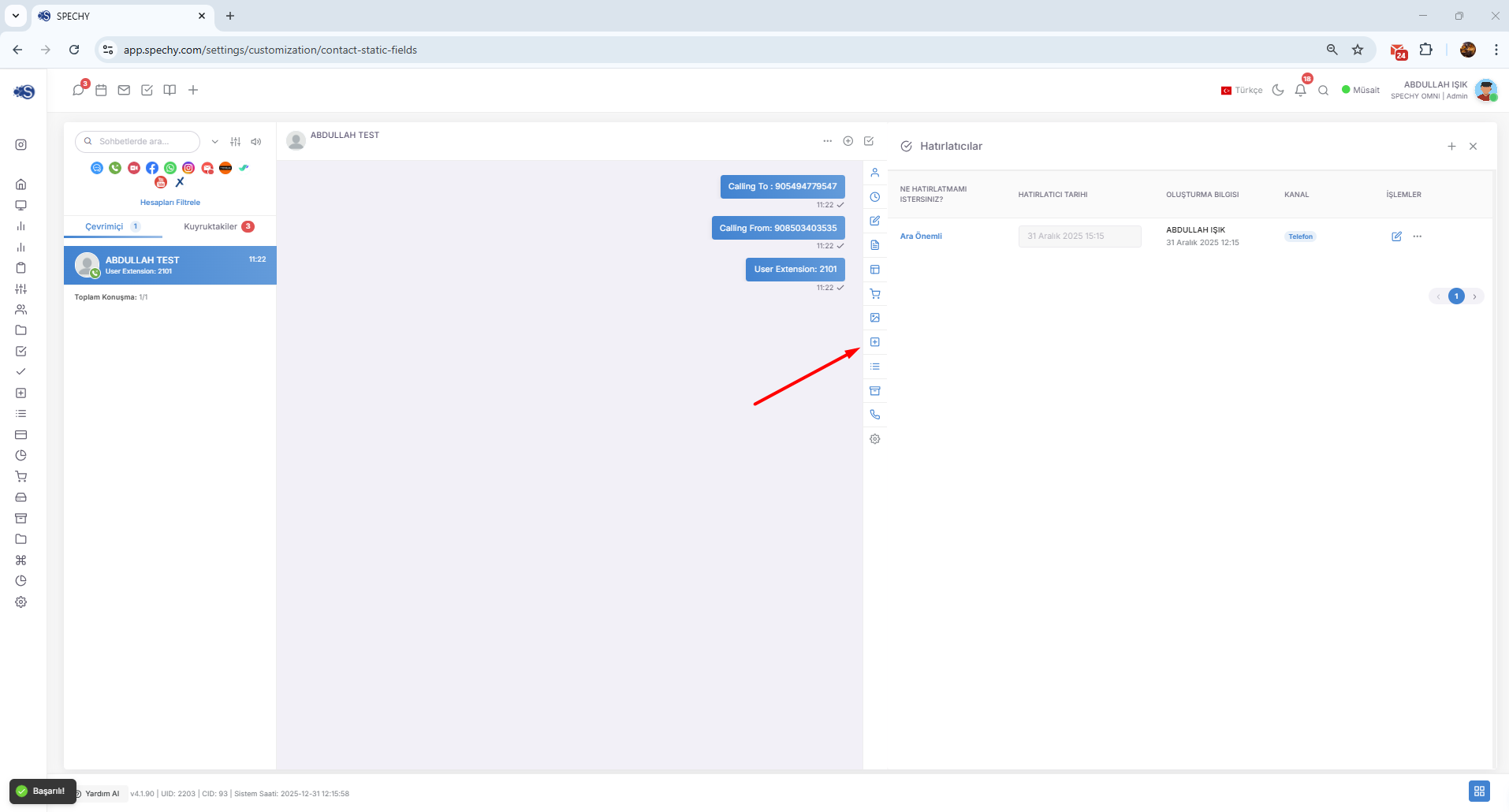
Reminders are an alarm mechanism set up to remind you not to forget to return to the customer on a specific issue (giving a price quote, collecting information, calling back, etc.) after a meeting is over.
🔔 Notification System and Scheduling
The system does not leave you alone when the reminder time you have planned approaches and sends you a two-stage warning:
- 1 Hour Before: The first notification arrives; this is a warning to plan and prepare for the upcoming task (e.g., reviewing the file).
- 10 Minutes Before: The second and final notification arrives; this is an "instant" warning reminding you that you are about to proceed to the meeting.
💡 Why is it Important?
- Customer Loyalty: A customer who is called at the time you promised increases the trust he has in your institution.
- Operational Memory: It takes the burden of remembering when to return to which customer at what time in the busy pace of the day off your shoulders.
- Professional Tracking: Thanks to notifications, a flawless workflow is ensured so that no return request is overlooked.
📄 Agreement and Proposal Management (PDF Proposal Submission)
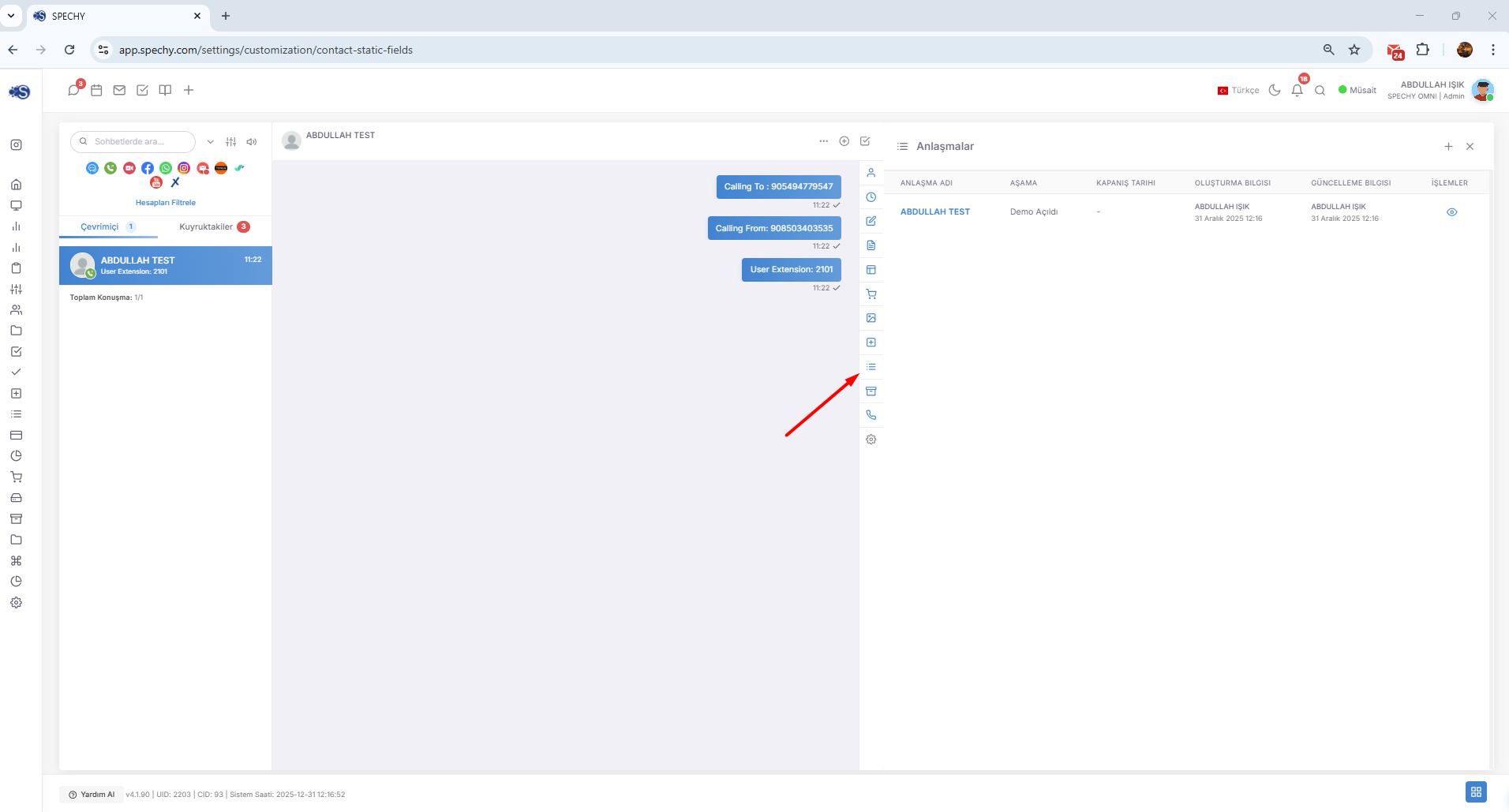
The agreement provides you with a financial basis for an agreement for the product or services a customer is interested in. This module turns the discussion into a verbal commitment into a written commercial offer.
🛠️ Sales Process with Agreement Module
- Creating an Agreement: You can create a digital agreement draft containing price, quantity and discount details for the products the customer is interested in.
- Automatic PDF Production: The agreement details you prepare turn into a stylish and corporate PDF Proposal File in seconds.
- Omnichannel Shipping: You can send the created PDF offer directly to the customer with one click via WhatsApp, Email or other active communication channels.
💡 Why is it Important?
- Corporate Image: Instead of writing a price by hand to the customer, offering a professional PDF offer from the system increases the reliability of your brand.
- Speed and Efficiency: You do not need to use external programs (Word, Excel, etc.) to prepare a proposal; everything starts and ends within Spechy.
- Centralized Tracking: All sent offers remain tied to the personal card. Thus, even months later, the amount of the offer given to the customer can be viewed immediately.
📢 Campaign Tracking and Participation Details
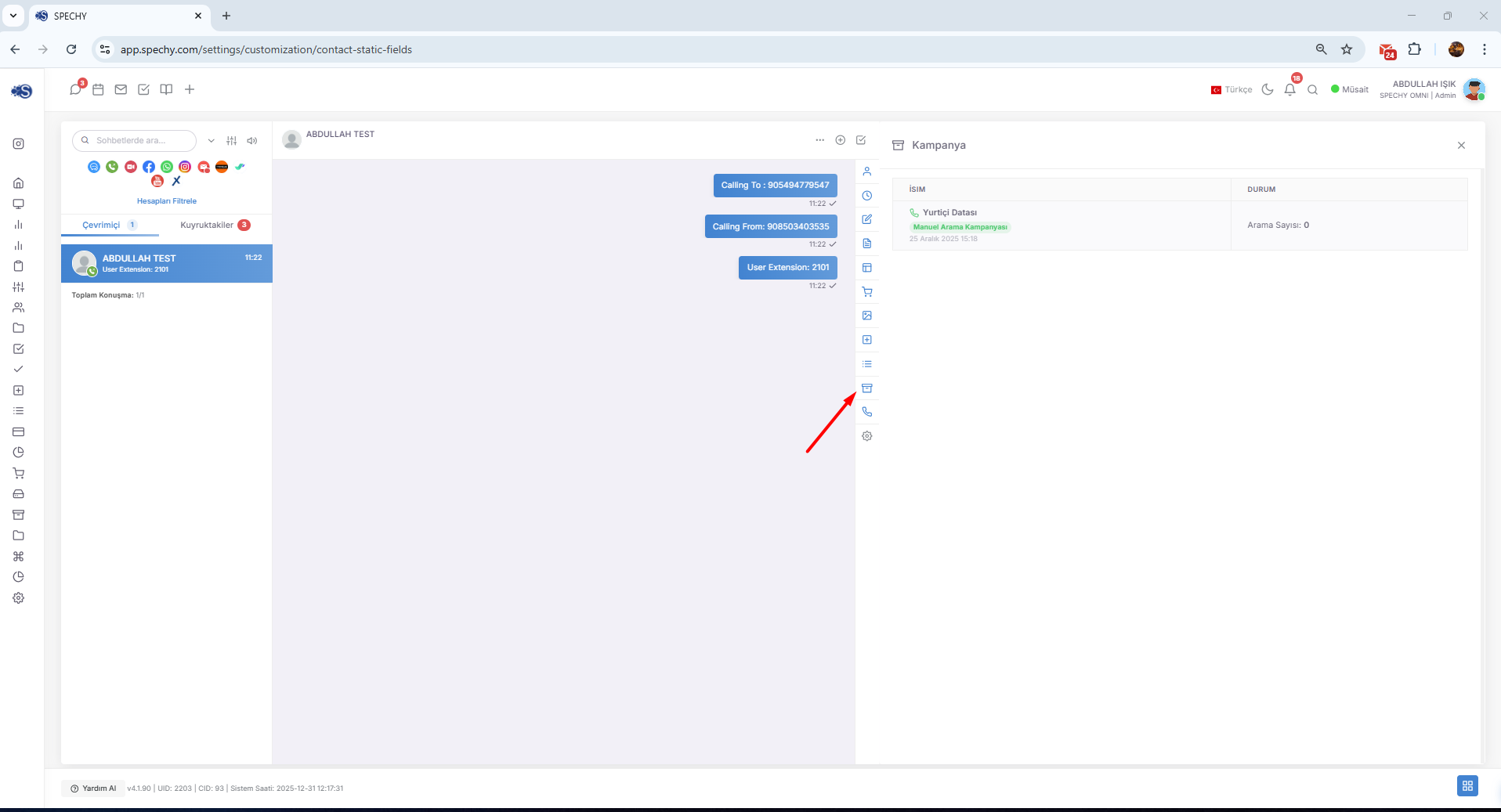
The campaign is the section where you monitor bulk mailing, call lists or marketing operations that include your customer within the personal card.
🔍 What Can Be Seen with the Campaign Module?
- Active Campaigns: Which active campaign lists the customer's number is listed in (e.g., "Spring Discount Calls", "New Member Welcome SMS Group").
- Campaign Status: Information on whether the person has been reached within the scope of the campaign, whether the message has been sent or not, or whether the call has been made or not.
- Operational Context: The representative instantly understands why the customer was called or why the customer returned (based on which campaign message they called) thanks to this field.
💡 Why is it Important?
- Correct Information Flow: When the customer says "I received a campaign message," the representative does not need to ask "Which campaign are you talking about?"; he sees the detail instantly on the card.
- Prevents Repeated Communication: The representative, seeing that the person is already on a campaign list, does not tire the customer by offering the same offer again.
- Marketing Efficiency: This is the most accurate data from the field to analyze which campaigns receive more feedback from which customer groups.
📞 Manual Interviews (Offline Interaction Log)
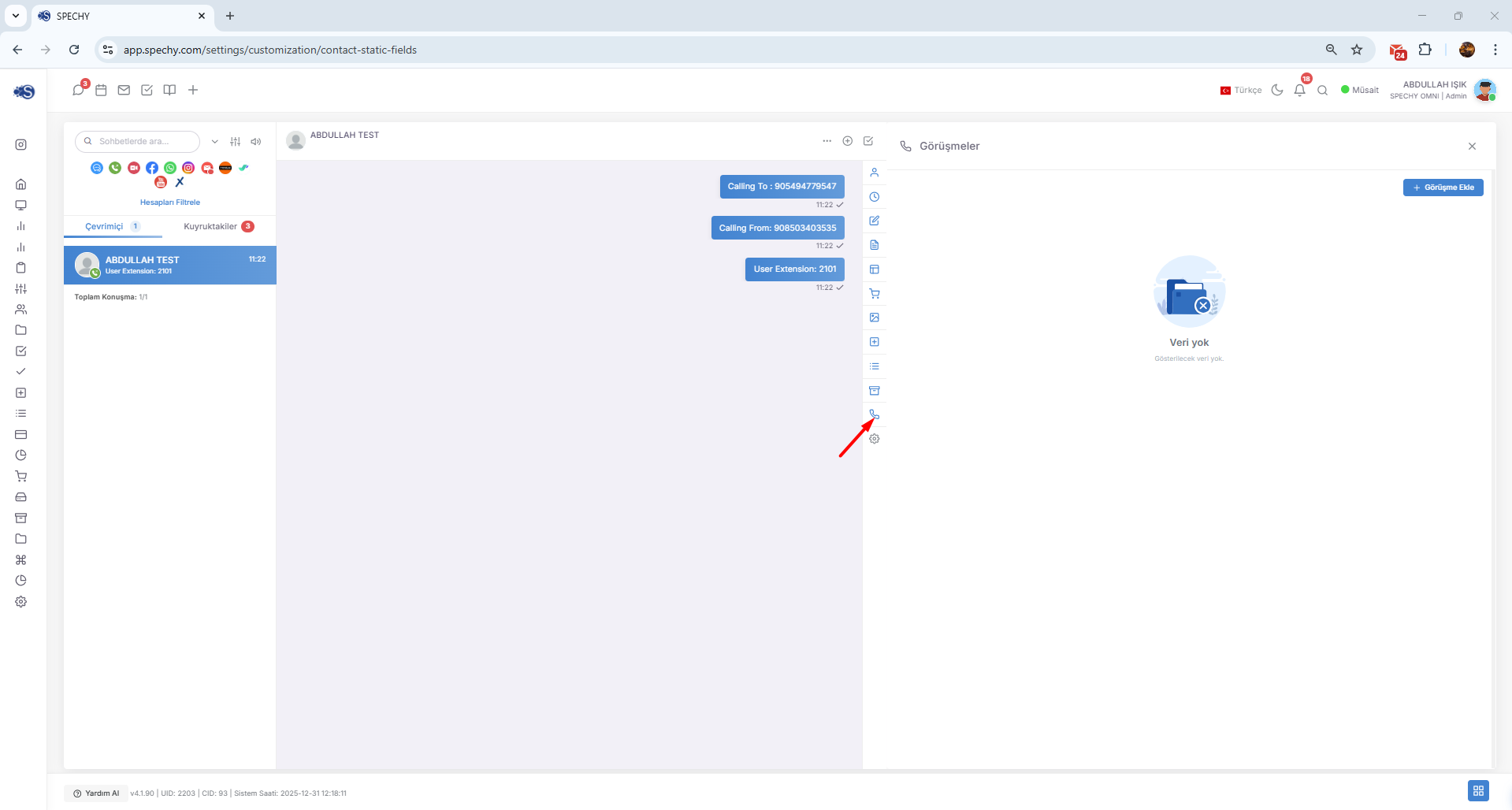
Manual Interviews allows interactions that do not occur automatically via Spechy (e.g., face-to-face interview, call made from an external phone, office visit, etc.) to be processed as a "Log" (record) on the person card.
🛠️ How to Apply and What Does It Cover?
When a communication is provided other than through CRM, you can manually add this meeting to the system:
- Interview Details: You can add a short summary of where and how the interview was conducted.
- Log Entry: This entry is placed in the same chronological order as all other digital interactions (WhatsApp, Voice Call, etc.) in the "History" tab.
- Continuity: The representative keeps the corporate memory up to date by recording that the customer has come to the office or has been called while out.
💡 Why is it Important?
- Complete History: All the customer's contact points are collected on a single screen. The note "He came to the office yesterday, we talked about these" is kept digitally even if it is offline.
- Team Information: Your team member who will meet with the customer after you will be informed about this important meeting that takes place outside the system.
- Performance and Tracking: It allows the efforts of the representative to be visible not only through the system, but also through the field or external channels.
⚙️ Settings (Interface and Column Management)
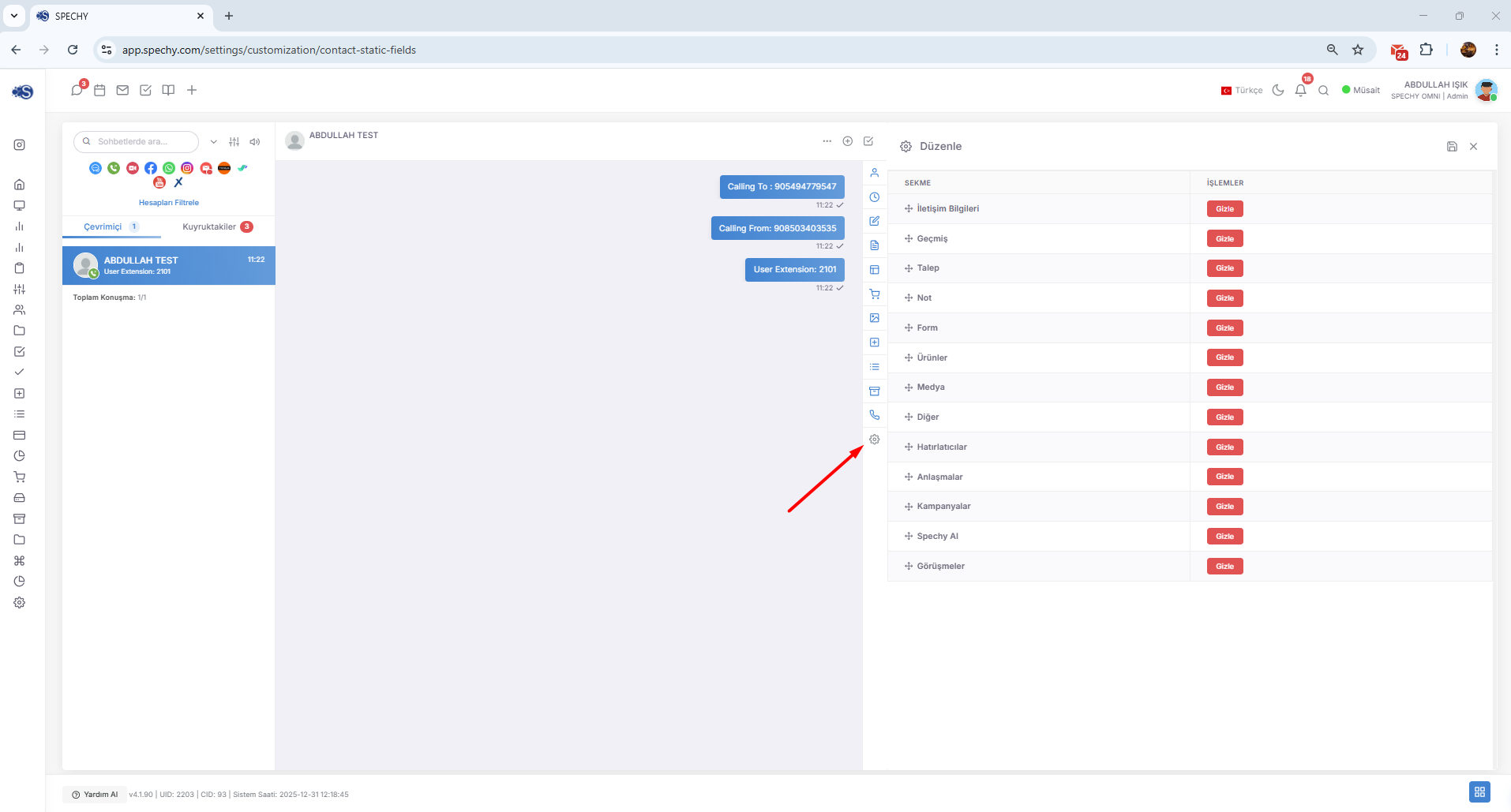
Settings is the control center where you determine which information you will see across the platform or on the person card lists in which order. This section allows you to focus by preventing screen clutter.
🛠️ What Can You Do?
- Field Hide: You can hide data fields (e.g. Social Media, Product, etc.) that are not necessary for your workflow or that you do not need at the moment from the list, and make the screen look simpler.
- Sorting Change: You can keep the columns you use most often (e.g. Result Code or Reminder) at the top by putting them in the front of your eyes.
- Personalized Appearance: By designing your screen according to your own working habits, you can minimize your data search time.
💡 Why is it Important?
- Operational Focus: It only allows you to see the data you need, prevents your attention from being distracted and increases your processing speed.
- Screen Efficiency: Especially on small screen devices, it allows the most critical information to fit on the screen by hiding unnecessary columns.
- Quick Action: Having the data you look at the most in the leftmost column helps you make decisions in seconds.
📊 Create a Panel (Personalized Dashboard Management)
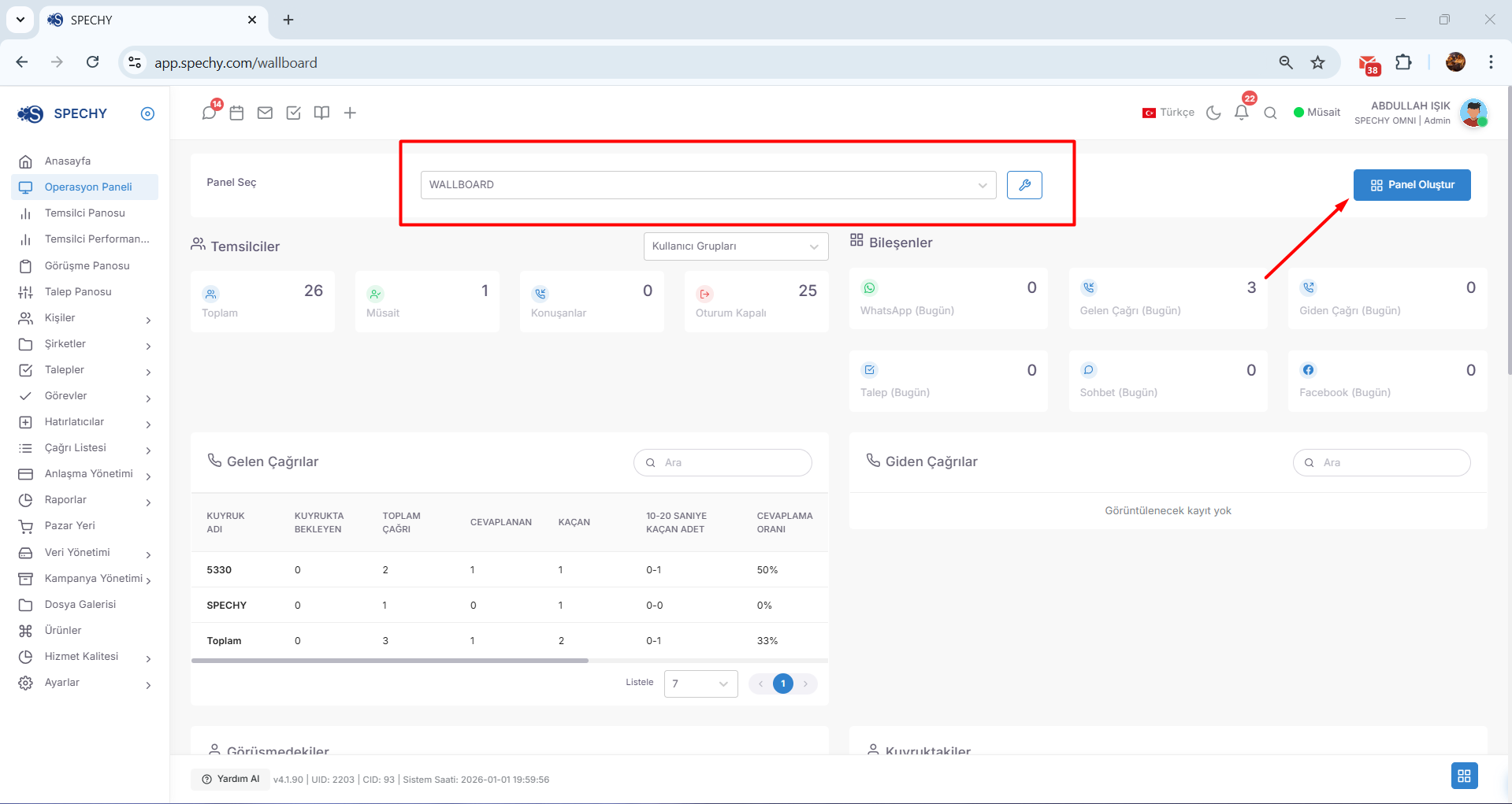
Access URL; https://app.spechy.com/wallboard
Create Dashboard allows you to design your own "dashboard" to instantly monitor your operational efficiency. Each user or administrator can create a different screen according to their own priorities.
🛠️ How to Use?
- Creating a Dashboard: You can build your own custom dashboard by selecting the data areas, graph types or performance metrics you want to see (e.g. Total call count, pending requests, successful sales).
- Selective View: You can create multiple panels (For example: "Sales-Oriented Panel", "Support-Oriented Panel"). From the Panel Selection section, you can instantly activate the dashboard you want to monitor according to your current workload.
- Flexible Widget Structure: You can place the areas you add to your panel as you wish, and make the most critical data the largest and most visible.
💡 Why is it Important?
- Real-time Situation Analysis: You can see the answers to questions such as "How many meetings did we have today?", "How many offers are waiting?" without looking for them in reports, as soon as you open the screen.
- Data-Driven Decision Making: Panels allow you to instantly detect bottlenecks in operations (e.g. increasing waiting requests) and take quick action.
- Personalized Productivity: While a representative tracks their own daily goals, a manager can use a different panel that will track the overall performance of the entire team.
👥 Representatives (Instant Team and Status Tracking)
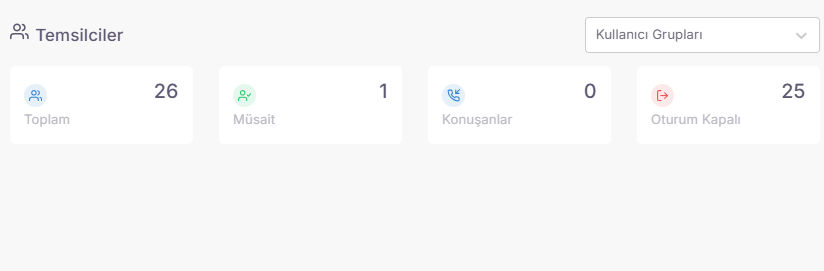
Representatives is the central management area where you can monitor the current status, workload and activity of all users (customer representatives) defined in the system.
🛠️ What Can You Track?
- Instant Status Changes: You can see in real time which representative is in the "Available", "In Discussion", "Break" or "Busy" mode.
- Total Number of Users: You can monitor the total number of personnel registered in the system and how many of these personnel are currently active (online).
- Operational Balance: While there are pending calls or correspondence, you can intervene in the workflow by seeing which representatives are in break status.
💡 Why is it Important?
- Efficient Resource Management: It allows you to direct personnel to the right channels by monitoring team statuses during periods of high call traffic.
- Performance Monitoring: It maintains operational discipline by tracking how much time representatives spend in each status during the day (e.g., total break time).
- Rapid Intervention: You can detect whether there is a technical malfunction by noticing the staff who should be in the system but do not appear active or remain "In Meeting" for a long time.
📊 Components (Daily Transaction and Channel Analysis)
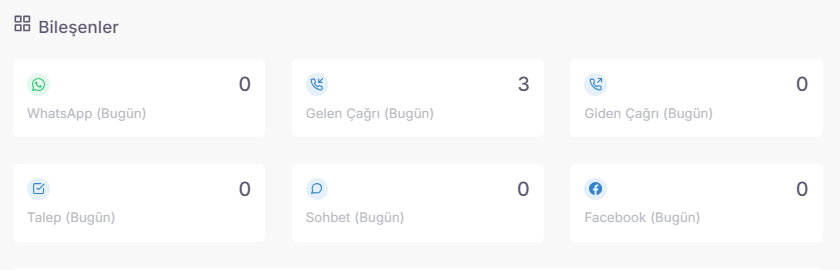
Components are a performance indicator that shows which communication channels representatives use at what intensity during the day and how many transactions they perform in total.
🛠️ What Can You Track?
- Channel-Based Transaction Counts: You can see data such as how many messages were sent via WhatsApp, how many voice calls were answered or how many emails were sent separately.
- User Performance: You can analyze which representative is more active on which channel and how the total workload is distributed among the channels.
- Instant Data: You can access the numerical breakdown of all interactions that have occurred from the beginning of the day until that moment.
💡 Why is it Important?
- Resource Planning: If the "WhatsApp" transaction volumes are much higher than the "Voice Call" volumes, you can manage the intensity by shifting a larger portion of your team to the communication channels.
- Performance Comparison: You can measure the operational speed by comparing the targeted transaction volumes with the actual volumes.
- Omnichannel Visibility: Seeing the performance of all channels in bulk on a single "Components" screen proves how effectively the platform is used.
📞 Incoming Calls (Statistics and Traffic Analysis)
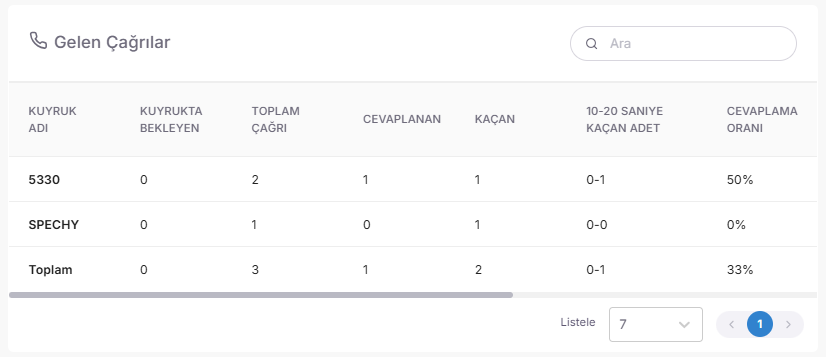
Incoming Calls is the data center where you monitor the performance metrics, density maps and success rates of all calls coming to your central line.
🛠️ What Can You Analyze?
- Call Volume: You can see the total number of calls you received in a certain time period (daily, weekly, monthly).
- Response Rates: You can track critical data such as how many calls reach the representative, how many are abandoned while waiting in the queue.
- Duration Analysis: You can measure average handle times (AHT) and the average speed of answer (ASA) of how long customers wait to connect to the representative.
- Time-Based Density: You can determine which times of the day the call traffic reaches its "peak".
💡 Why is it Important?
- Shift Planning: By looking at call statistics, you can assign more representatives during peak hours and organize break plans during off-peak hours.
- Service Level (SLA) Tracking: It allows you to objectively measure whether calls are answered within the specified period.
- Training Needs: If the speaking times are too long, you can plan trainings to increase the competence of the representatives in the subject.
📞 Outgoing Calls (Outgoing Call Performance Analysis)
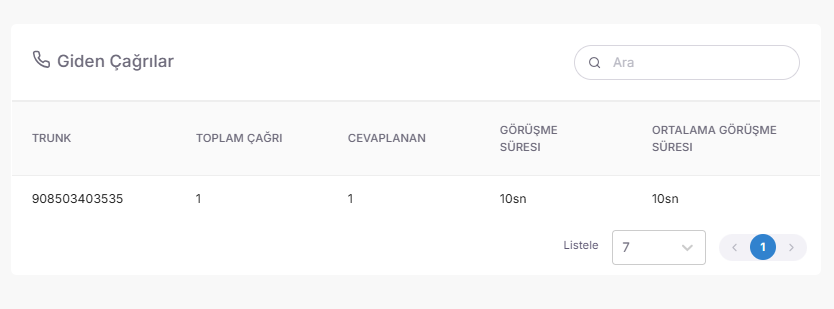
Outgoing Calls is the statistics center where you monitor the results and efficiency of all calls initiated by your representatives (returns, sales calls, information calls, etc.).
🛠️ What Can You Analyze?
- Search Volume: You can see how many outbound searches are made in a certain period of time.
- Accessibility Rate: You can track the information of how many of the calls made are answered, how many are busy or unanswered.
- Representative Effort: You can measure how much time each representative spends on external calls and how long these calls last on average.
- Campaign Efficiency: If external calls are made within a campaign, you can analyze the success rates (conversion to sale/solution) of these calls.
💡 Why is it Important?
- Proactive Tracking: It allows you to monitor how actively your team reaches customers, not just waiting for incoming calls.
- Time Management: It helps you see how efficiently representatives spend their free time with external calls.
- Return Quality: It proves how quickly and effectively calls missed or pending requests are returned (Callback performance).
🎧 Those Not Seen (Live Monitoring and Intervention)
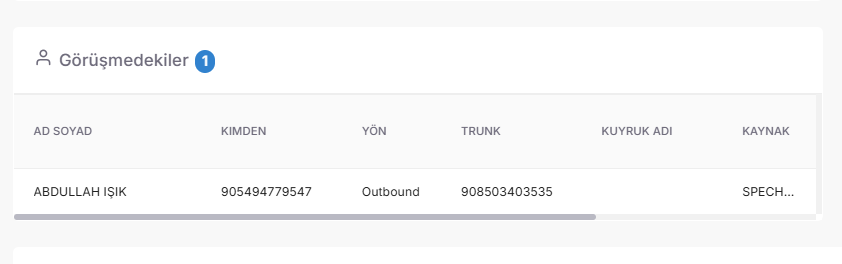
The unconnected is the "live operation room" where you can track all representatives actively on the phone call at that moment and the call details in seconds.
🛠️ Live Tracking and Monitoring Features
- Time Tracking: You can instantly see how long each representative has been on the call, and you can notice calls that are unusually long.
- Queue Information: In inbound (coming) calls, you can view which department or service queue the customer came from (e.g., "Technical Support", "Sales", "English Line").
- Call Listening: You can include the active call in the Transactions menu, listen to the conversation live, and monitor the quality standards.
🚀 Interactive Intervention Tools (Supervisor Tools)
- Whisper: You can provide verbal feedback to the representative during the call. The customer will never hear you; only the representative will hear your voice. This feature is unique for instantly training and directing the representative in difficult conversations.
- Conference (Barge-in): If necessary, you can participate in the call as a third party and join the meeting via conference so that both the representative and the customer can hear it.
💡 Why is it Important?
- Instant Training: You prevent a new representative from making mistakes and increase their confidence by supporting them with the "whisper" feature during their first calls.
- Crisis Management: In a tense meeting, you can involve yourself in the conference at the point where the representative is stuck and solve the problem without escalating it.
- Quality Control: Instead of listening to the recordings of calls later, you guarantee customer satisfaction at that moment by intervening in the live stream.
⏳ People in Line (Live Waiting and Queue Management)
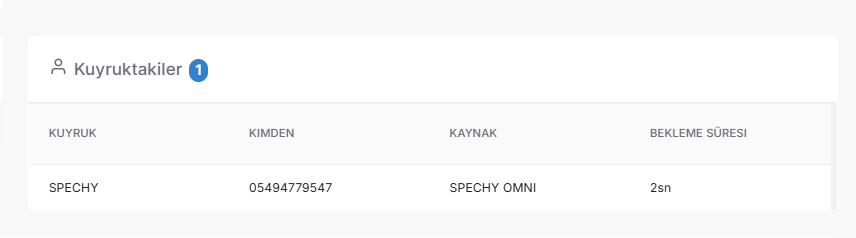
The queue is a live screen listing all customers who have reached your central line but have not yet connected to a customer representative, listening to the waiting music.
🛠️ What Can Be Seen on the Queue Screen?
- Calling Number: You can instantly see the identity information (number) of the customer who is currently on the line or waiting.
- Waiting Time: You can monitor how many seconds/minutes the customer has been waiting with the precision of a chronometer.
- Queue Information: You can prioritize by viewing which department your call is routed to (e.g., "Sales", "Technical Support", "VIP Line").
💡 Why is it Important?
- Preventing Abandoned Calls: You can detect calls that reach a critical waiting time (e.g., 20 seconds or more) and redirect their representatives to this queue.
- Prioritization: If there is a waiting line in a critical queue (e.g., "Emergency Service Notification"), you can temporarily transfer representatives from other channels to voice calls.
- Psychological Management: When representatives see the number of people waiting in line, they gain motivation to end their current meetings more efficiently and quickly.
📞 Phone IVR (Smart Routing and Key Press Analysis)

Telephone IVR is the center where the voice menu that appears before the representative is connected when a customer calls your institution and the keystrokes made in this menu (e.g., "Press 1 for Sales, Press 2 for Support") are managed.
🛠️ What is Controlled with the IVR Module?
- Button Analysis: You can generally control which menus customers use more intensively and which queues they are directed to through which buttons.
- Preparation Before the Interview: Before the interview begins, you can see the customer's selections made in the IVR, ensuring that the representative answers the call in a "knowledgeable" manner.
- Flow Control: You can optimize the customer experience by detecting blockages or misdirections in the voice response system.
💡 Why is it Important?
- Access to the Right Representative: Thanks to IVR, the person calling for a technical issue is not transferred to the sales representative; they are automatically transferred to the correct department.
- Operational Efficiency: The customer declares what issue they are calling about before connecting to the representative, which shortens the representative's time to enter the topic.
- Self-Service: With the information provided via IVR (e.g., "Our working hours..."), customers can find answers to their questions without connecting to a customer representative, which reduces call volume.
📊 Representative Statistics (Individual and Group Performance Analysis)
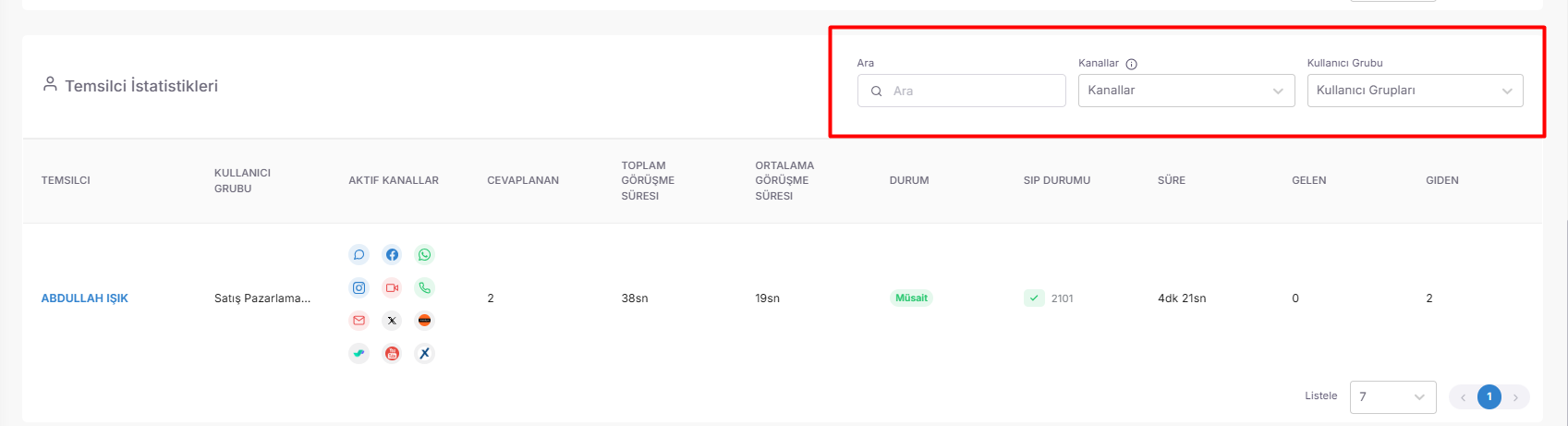
Representative Statistics is a performance mirror that allows you to see the success, workload and development areas of each individual in your team with data.
🔍 Filtering and In-Depth Analysis Options
- User-Based Filtering: By writing the name of the representative you are looking for, you can access the daily, weekly or monthly performance report of that person directly.
- Channel-Based Filtering: Do you want to see only the representative's success on WhatsApp or their performance in voice calls? You can compare by separating the channels.
- User Group Filtering: You can analyze which group works more intensively or more efficiently by drawing department-based (e.g., "Sales Team", "Support Team") aggregate reports.
💡 Why is it Important?
- Fair Performance Evaluation: A data-based reward and feedback process provides your business with not based on rumors.
- Identifying Development Areas: You can plan a special training plan for a representative by noticing that he is very fast in correspondence channels (Web Chat) but slow in voice calls.
- Capacity Planning: By comparing the statistics of the groups, you scientifically determine which team needs more reinforcement.
📊 Representative Statistics and Performance Metrics
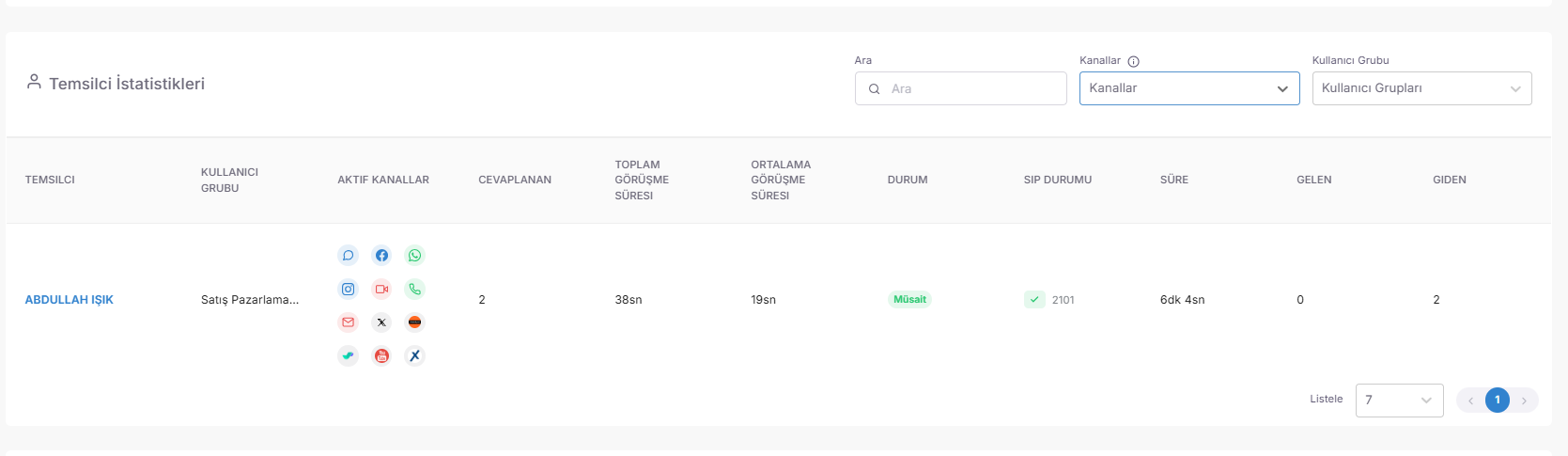
Representative Statistics is a performance analysis center that converts all the activities of your team within the day into numerical data, providing real-time and historical performance analysis. Each column on this screen offers a critical indicator (KPI) to measure the representative's productivity.
📋 Statistical Dictionary and Metric Definitions
|
Metrik / Alan |
Tanım ve Operasyonel Karşılığı |
|
Temsilci |
İşlemi gerçekleştiren kullanıcının sistemdeki adını ifade eder. |
|
Kullanıcı Grubu |
Temsilcinin bağlı olduğu departmanı (Örn: Satış, Destek) belirtir. |
|
Aktif Kanallar |
Temsilcinin o an hangi platformlarda (WhatsApp, Telefon vb.) aktif olduğunu gösterir. |
|
Cevaplanan |
Temsilcinin tüm kanallar üzerinden yanıtladığı toplam işlem/çağrı adedidir. |
|
Gelen (Inbound) |
Müşteriden gelen ve temsilci tarafından karşılanan toplam işlem sayısıdır. |
|
Giden (Outbound) |
Temsilcinin başlattığı (arama/mesaj) toplam işlem adedidir. |
|
Toplam Görüşme Süresi |
Aktif kanallarda yapılan tüm işlemlerin toplamda harcanan süresini ifade eder. |
|
Ortalama Görüşme Süresi |
Toplam sürenin işlem adedine bölünmesiyle elde edilen verimlilik skorudur ($AHT$). |
|
Durum (Statü) |
Temsilcinin güncel çalışma halini (Müsait, Mola, Toplantı vb.) ifade eder. |
|
Süre |
Mevcut durumun (statünün) ne kadar süredir devam ettiğini gösterir. Statü değişince sıfırlanır. |
|
Sip Durumu |
Temsilcinin sesli görüşmelerde kullandığı dahili hat numarasını ifade eder. |
💡 Why is it Important?
- Instant Transparency: It answers questions such as "What is everyone's status?", "How long has everyone been taking a break?" in seconds.
- Efficiency Analysis: By tracking average call durations ($AHT$), you can monitor how quickly customer issues are resolved.
- Capacity Control: You can optimize the representative's workload by monitoring the balance of incoming and outgoing transactions.
📊 Representative Statistics (Detailed Performance Pop-up)
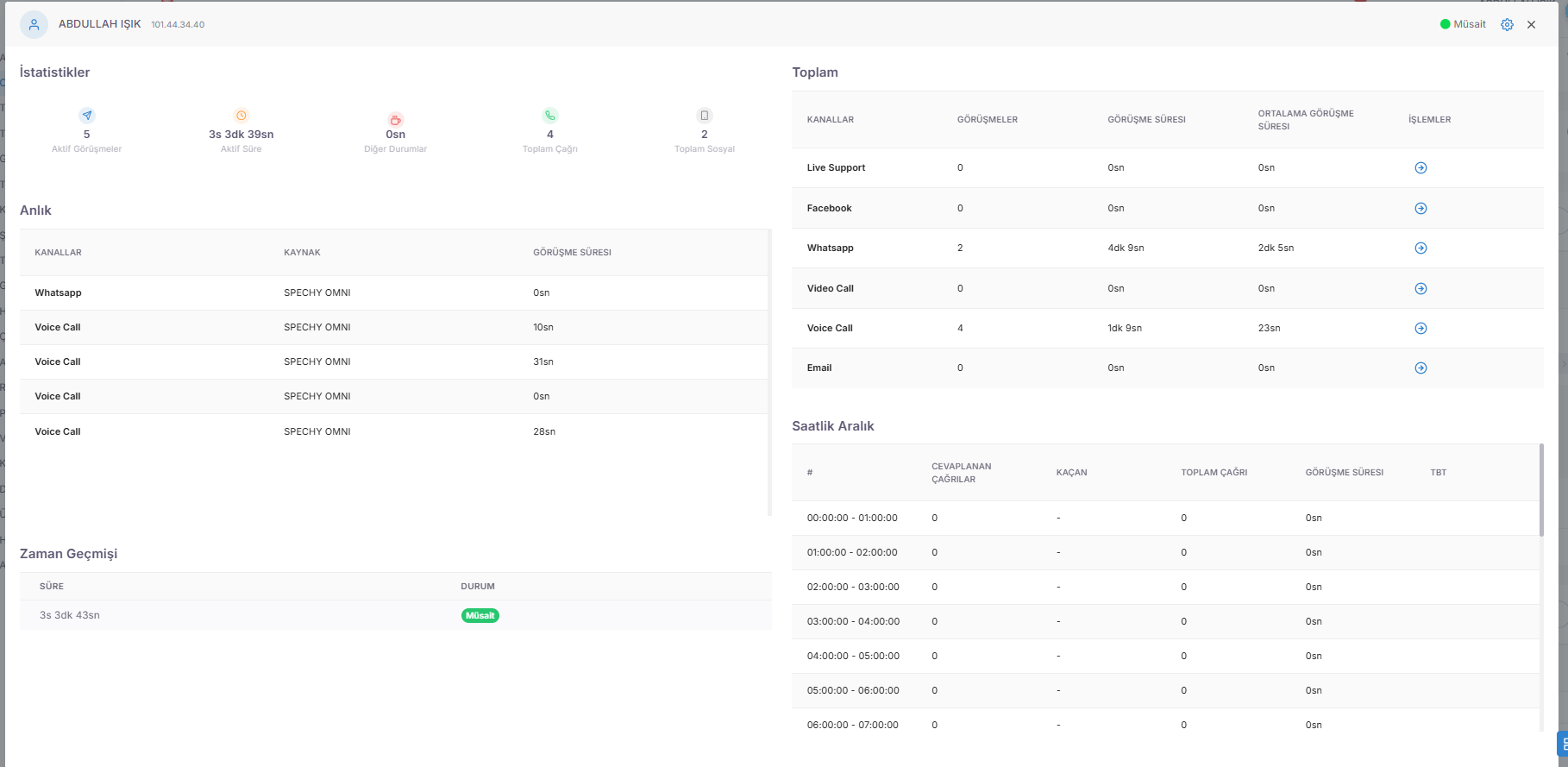
Representative Statistics is not just a list; it is a detailed analysis panel that opens when you click on the representative name, revealing that person's entire digital footprint and performance metrics.
🔍 What Does the Detailed Pop-up Include?
|
Bölüm / Başlık |
Analiz İçeriği ve Operasyonel Veri |
|
Zaman Geçmişi |
Temsilcinin gün boyu hangi statüde (Müsait, Mola, Toplantı, Görüşmede) ne kadar süre kaldığını kronolojik bir akışla gösterir. |
|
Kanal Bazlı Toplam |
Temsilcinin kullandığı her bir kanal (WhatsApp, Sesli Çağrı, E-posta vb.) üzerinden gerçekleştirdiği toplam işlem adetlerini ayrı ayrı listeler. |
|
Saatlik İşlem Dağılımı |
Günün hangi saat aralığında kaç işlem yapıldığını gösterir. Yoğunluk haritasını çıkarmak için kritiktir. |
|
Görüşme Süresi (Saatlik) |
Temsilcinin her saat diliminde yaptığı görüşmelerin toplam süresini vererek, verimliliğin gün içine nasıl yayıldığını ölçer. |
💡 Why is it Important?
- In-depth Time Analysis: It gives a clear answer to the question "Representative took a 2-hour break today, but which time slots did he use these breaks?"
- Productivity Trends: You can determine when the representative is more active or slower during the day (e.g. morning energy vs. evening fatigue).
- Channel Expertise: You can create a special work plan for the representative by seeing the success of his transactions on certain channels (e.g. Only WhatsApp) hourly.
📱 Social Media Statistics (Digital Channel Analysis)
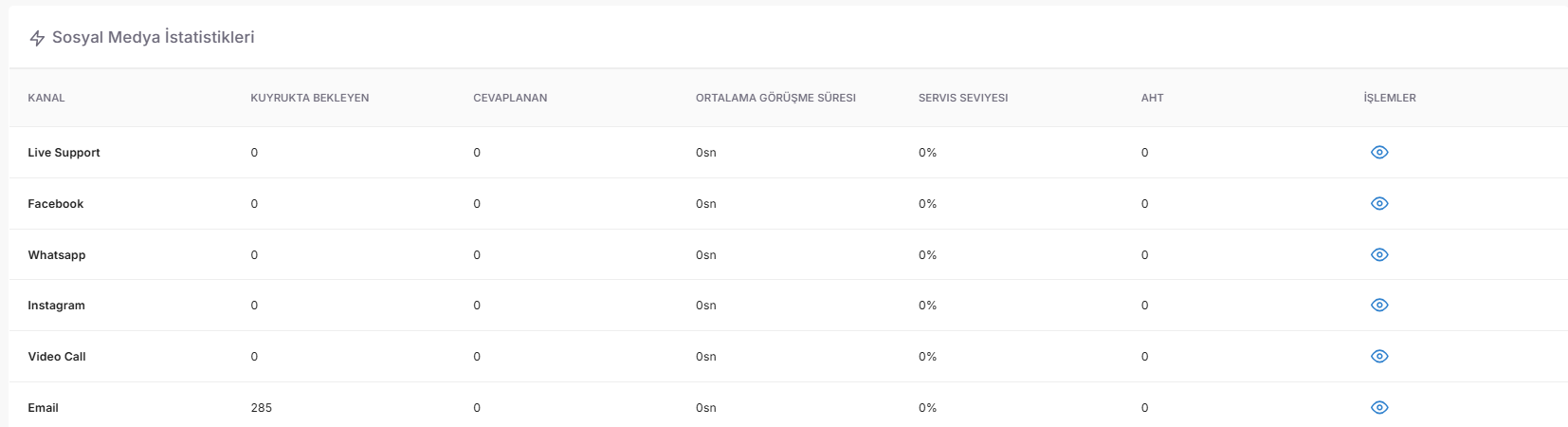
Social Media Statistics is an analysis module that measures the speed, intensity and solution performance of all interactions coming from social media channels such as WhatsApp, Instagram, Facebook.
📊 What Can You Follow?
- Channel-Based Transaction Counts: You can see numerically how many requests you have received from which social media platform (e.g., Instagram DM vs. WhatsApp).
- Queued Messages: You can instantly monitor the number of active "chat" messages waiting to be assigned to the representative on social media channels.
- Interview Durations: You can analyze how long the communications take and how long an inquiry is solved on average.
💡 Why is it Important?
- Digital Trend Analysis: By determining which social platform your customers prefer to reach you the most, you can assign more representatives to that channel.
- Speed Control: Social media users expect a "quick response". By monitoring the number of people waiting in line, you have the opportunity to intervene without reducing customer satisfaction.
- Multi-Channel Productivity: You can compare the performance difference between voice calls and social media correspondence, and measure your team's written communication skills.
📞 Web Phone (Live Call Control Panel)
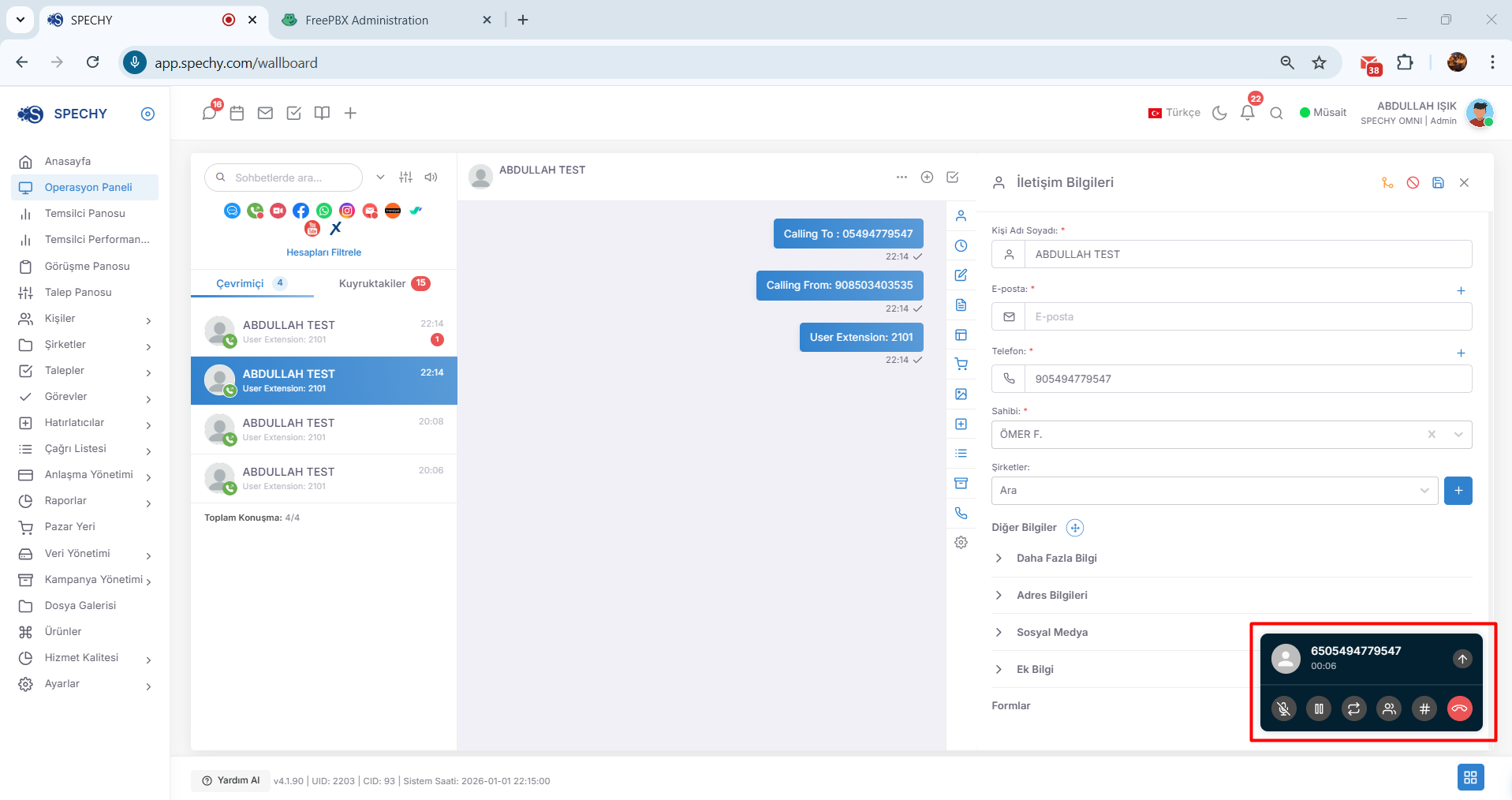
Web Phone is a command center that automatically opens in both incoming (inbound) and outgoing (outbound) calls, allowing the representative to manage the call completely.
🛠️ Call Control and Management Tools
- Silent (Mute): You can turn off your microphone with one click. This feature is used when you need to get information from your teammate while waiting or hide the ambient noise.
- Hold: You can put the customer on hold and play them waiting music. It is ideal for taking a professional break during file review or system checks.
- Transfer to Representative (Transfer): You can redirect the meeting to another team member who is an expert in the subject matter in seconds.
- Conference (Conference): By including a third person (manager or technical expert) in the call, you can hold a three-way meeting without disconnecting the customer from the line.
- Internal or External Transfer: You can safely transfer the call not only to an internal number within the system, but also to a mobile phone or an external number if necessary.
💡 Why is it Important?
- Professional Communication: Using the "Hold" button instead of saying "I'm waiting for you" creates a corporate image.
- Flexibility: The ability of the representative to transfer the call to a mobile phone even if he is not at the desk ensures that the operation continues uninterrupted.
- Fast Solution: Thanks to conference and transfer features, the customer's problem is solved in a single call without navigating between different units (FCR - First Contact Resolution).
🖥️ Representative Panel (Personal Performance Command Center)
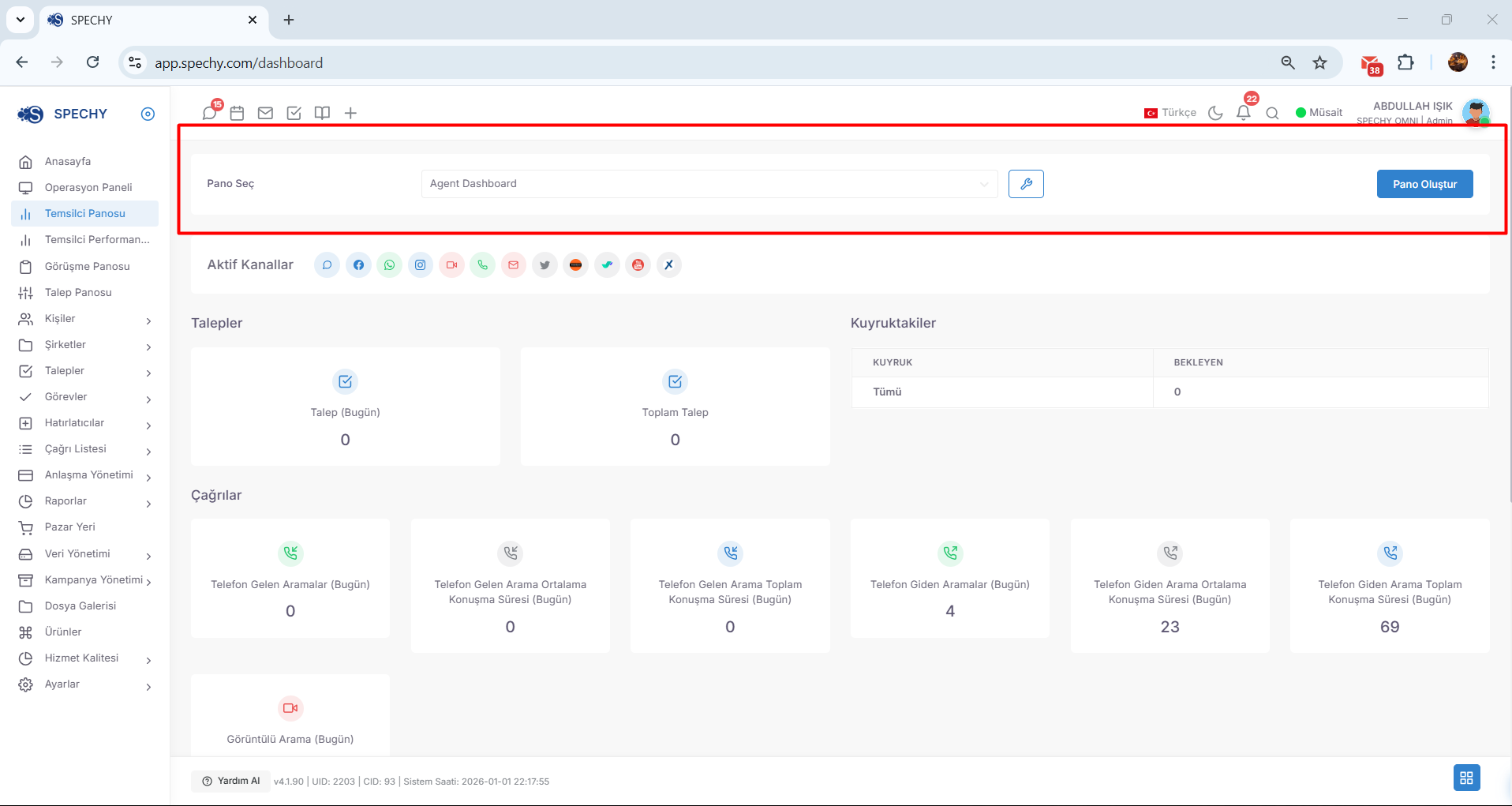
Access URL; https://app.spechy.com/dashboard
The Representative Panel is a fully customizable monitoring screen where the user can instantly track their own transaction volumes, success rates and workload throughout the day.
🛠️ Personal Dashboard Management and Features
- Creating a Custom Dashboard: The Representative can design a unique visual interface by selecting only the data that is suitable for their own workflow (e.g., "WhatsApp messages I answered today", "My closed requests", "My pending reminders").
- Dashboard Selection Option: The user can create multiple dashboards for different focus points (e.g., "Morning Traffic Dashboard" or "End-of-Day Report Dashboard"). From the "Select Dashboard" section, they can activate the most suitable view for their current needs within seconds.
- Individual Tracking: Without needing another administrator panel, you can track how close you are to your daily goals numerically and visually (graph/counter).
💡 Why is it Important?
- Self-discipline and Motivation: The representative gains motivation to improve his performance by seeing the answer to the question "How many calls did I receive today?" instantly.
- Time Management: Thanks to the "Pending Tasks" widget it adds to its dashboard, it immediately notices which request is urgent as soon as it opens the screen.
- Focus: A simple screen that eliminates unnecessary clutter and only contains the data within the representative's scope of responsibility directly increases processing speed (AHT).
Representative Panel: Requests are a numerical performance indicator that shows the current status and volume of cases (tickets) created or managed by the user on the system.
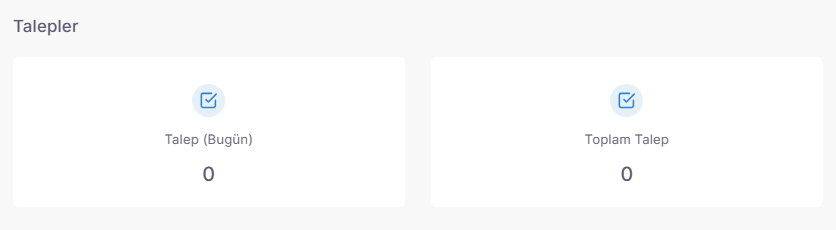
🛠️ Main Indicators Being Followed
- Daily Request Count: Indicates the number of new requests opened/created by the representative from the start of his shift until that moment. This is proof of how "active" the day has been.
- Total Number of Requests: Refers to the cumulative number of all requests that the representative is responsible for across the system or has created from the past to the present.
- Status Analysis: Thanks to these data, the representative can easily establish the balance between pending and completed tasks.
💡 Why is it Important?
- Speed and Efficiency (KPI): The representative immediately realizes whether his average is below or above by seeing the number of requests he opens daily.
- Task Tracking: It is a reference point for the question "How much of my requests have been completed?"
- Administrative Visibility: While the representative sees this data on his own panel, the managers can also correctly analyze the representative's workload capacity (Bandwidth) by looking at this volume.
Representative Panel: The Queueing is an "early warning" widget that shows the instantaneous number of inbound (coming) calls waiting in the queue that have reached the system but have not yet been connected to a representative.
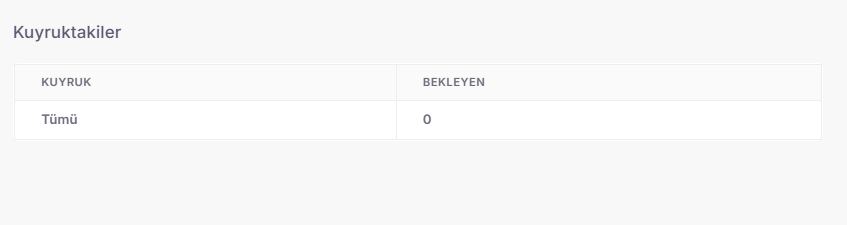
🛠️ Functional Features
- Instant Call Volume: The representative numerically indicates the number of customers waiting in line on his own dashboard.
- Critical Threshold Tracking: The representative can analyze on his own how quickly he should end his current meeting (AHT management) by seeing the general queue status.
- Synchronous Visibility: By presenting a similar version of the queue data that managers see to the representative, it allows the team to work towards the same goal (reducing waiting time).
💡 Why is it Important?
- Quick Action: When the representative sees that the number of calls waiting on the call board has increased, he can postpone his break plan or leave his work on written channels and focus on voice calls.
- Operational Awareness: It strengthens the "team spirit" by ensuring that the representative not only controls his own meeting, but also the burden of the entire operation.
- Service Quality (SLA): As the number of people waiting in line increases, the agility of the representatives increases, which directly reduces the waiting time of customers on the phone.
Representative Panel: It is the basic indicator panel that measures the volume and quality of all voice interactions (Incoming and Outgoing) that the user has made since the start of his shift.
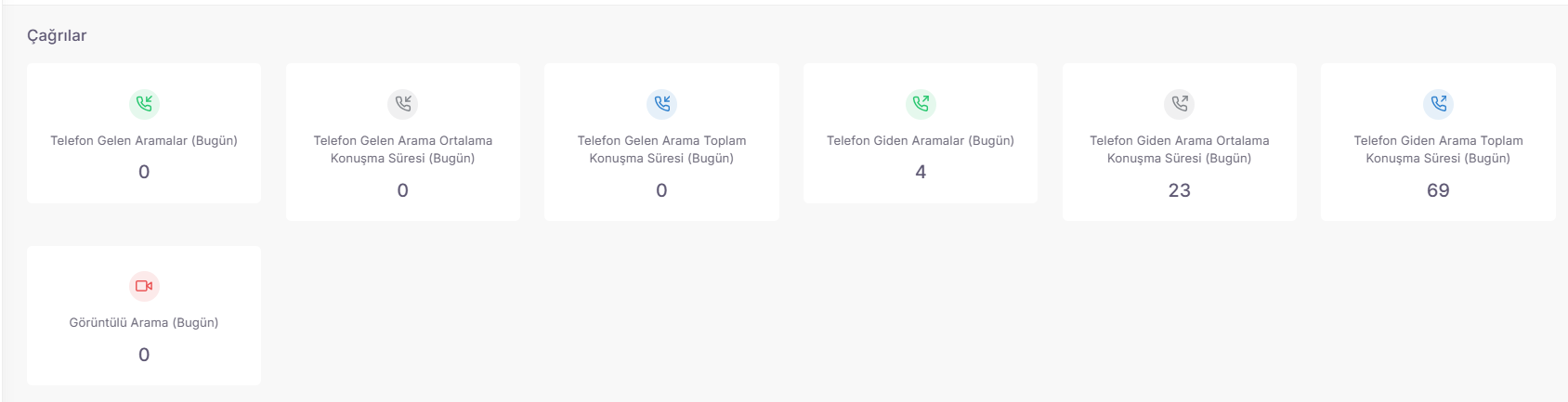
🛠️ Basic Metrics Within the Widget
- Transaction Counts (Incoming/Outgoing): It gives the total number of calls answered (Inbound) and initiated (Outbound) by the representative during the day.
- Total Talk Time: Indicates the active time spent on the phone throughout the day. This data shows the representative's "net work effort".
- Average Talk Time ($AHT$): Calculated by dividing the total time by the number of calls. It determines the representative's average speed to solve a problem.
💡 Why is it Important?
- Time Management: The representative can analyze on his own whether he is prolonging his meetings too much or passing them too superficially by seeing the average speaking time ($AHT$).
- Balanced Operation: By looking at the difference between incoming and outgoing call volumes, it sees whether it gives more weight to proactive calls (Outbound) or incoming requests (Inbound).
- Goal Tracking: He can track how close he is to the daily goal of "X meetings" from his screen without asking anyone.
Representative Panel: The Interview is a "scoreboard" that instantly presents the total number of transactions the user performs through all channels (Voice, Written, Social Media) from the start of his working hours.

🛠️ Widget Functions
- Transaction Volume Tracking: It allows the representative to see the total number of calls he or she has concluded or contacted during the day in seconds.
- Channel Independent Data: It reflects the total load of all active dialogues carried out through the system, not just phone calls.
- Quick Comparison: The representative sets the working pace by comparing this number with the data of the previous day or his own daily target.
💡 Why is it Important?
- Effort Transparency: It gives the power to support the sentence "I was very busy today" with a numerical data (For example: "I completed 85 meetings today").
- Efficiency Awareness: Seeing this number on the representative's own dashboard helps them maintain work discipline and know where they stand in the operational flow.
- Visual Motivation: The reflection of each completed interview in the number is a small indicator of success for the representative throughout the day.
Representative Dashboard: User Status is a personal timeline that allows the representative to instantly monitor the status of the representative throughout the day (Available, Break, Meal, Meeting, Interview, etc.) and the duration spent in each status.
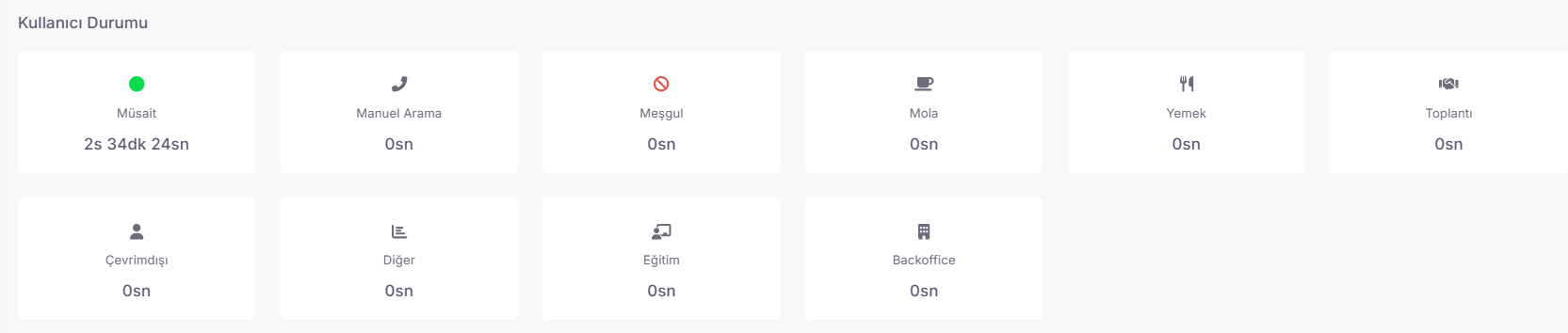
🛠️ Widget Functions and Tracking Areas
- Status-Based Duration Measurement: The user can track how long the current situation (e.g., "Break") has been ongoing like a live timer.
- Status Change History: You can see all status changes during the day and the distribution of time intervals between these changes.
- Personal Time Control: The representative monitors his own screen without needing an external warning to ensure that he does not exceed the break or training periods defined for him.
💡 Why is it Important?
- Self-Discipline: The representative adjusts the working pace by seeing the answers to the questions "How long have I been on break?" or "How long have I been available in total today?" instantly.
- Performance Transparency: By presenting the same data in the executive reports to the representative, it provides a full transparency and trust environment in performance evaluations.
- Operational Efficiency: A representative who tracks status durations acts more consciously to maximize the "Available" duration, which directly contributes to reducing the number of calls waiting in the queue.

🆘 Get Help (Instant Support and System Synchronization)
Help is an interactive communication area located permanently in the lower left corner of every page of the Spechy interface and provides the user with instant technical support and system reference information.
🛠️ Accessible Features and Information Resources
- Contact Us: When you encounter a problem with platform usage or need technical support, you can provide direct access to the Spechy support team through this area.
- System Date and Time: You can verify the current system date and time, which is critical for the accuracy of operational processes (shift, call queue, break times), from this area.
- Quick Access: Regardless of which menu you are in (Dashboard, IVR, Settings, etc.), it offers the opportunity to request assistance without leaving the page.
💡 Why is it Important?
- Operational Continuity: It prevents the operation from being stopped by receiving support without wasting time in the event of a disruption.
- Time Synchronization: Even if the clock on your own computer is incorrect, you can manage your breaks and reports without errors by tracking Spechy's central system clock from here.
- User Experience: Being available on every page gives confidence to the representative in complex transactions; it reinforces the feeling of "support is a click away from where I am stuck".
🏆 Representative Performance Report (Gamification and Reward System)
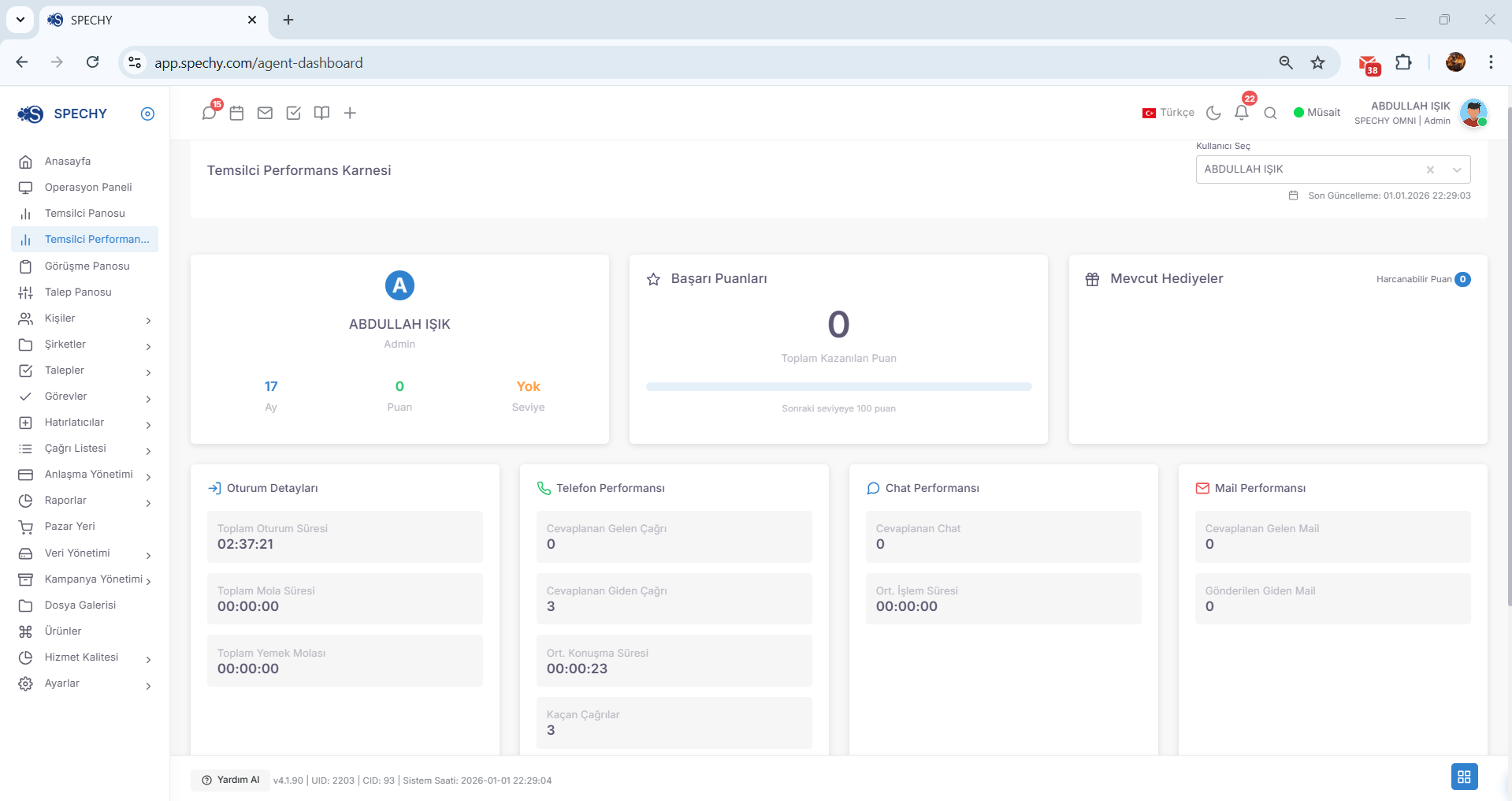
Access URL; https://app.spechy.com/agent-dashboard
The Representative Performance Certificate is an interactive success tracking panel that shows not only that representatives "work" but also that they "compete" and achieve according to the specified goals.
🎮 How Does the System Work?
- Criteria Determination: Managers define various performance criteria according to the institution's goals (e.g., "50 successful calls per day", "Customer satisfaction score > 4.5", "Zero delayed requests").
- Scoring System: The representative accumulates points based on these criteria for each successful transaction. He can instantly monitor how many points he receives from each criterion on his own report card.
- Prize Pool: When the specified score thresholds are reached (e.g., 1000 Points), the system grants the representative the right to win the gift defined by the manager (e.g., "Food voucher", "Extra break time", "Representative of the week title").
💡 Why is it Important?
- Internal Motivation: Seeing that the data is used not only for monitoring but also for rewarding increases representative loyalty.
- Clear Goals: The Representative sees the answer to the question "What criteria am I considered successful by?" in his report card with clear criteria.
- Sweet Competition: It creates a gamified work culture that reduces job stress while increasing performance within the team.
💬 Meeting Board (Digital Correspondence Management Center)
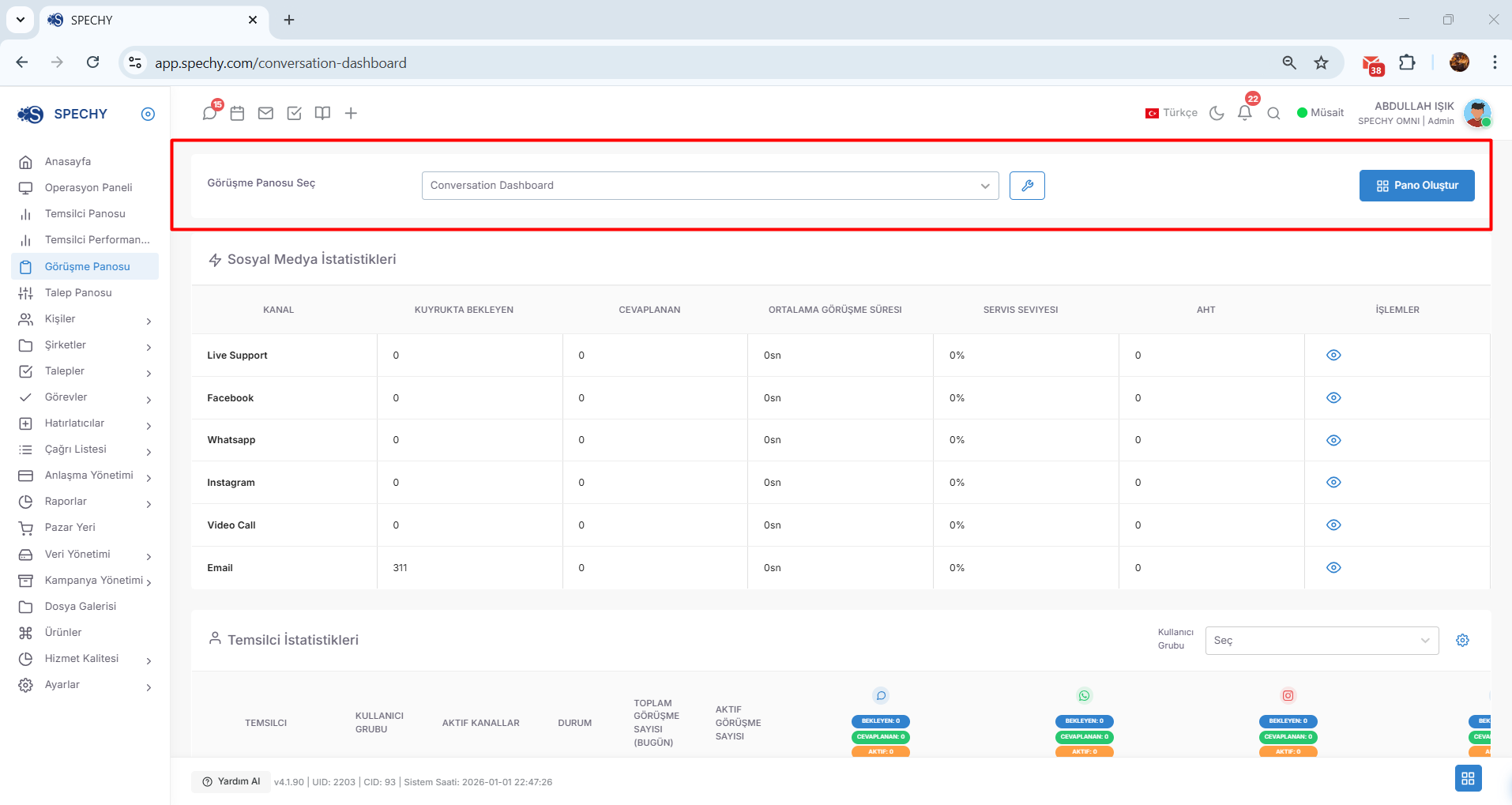
Access URL; https://app.spechy.com/conversation-dashboard
The Meeting Board is a dynamic interface that allows the representative to monitor, manage and prioritize all active communication channels on him from a single screen.
🛠️ Customization and Tracking Features
- Multi-Channel Tracking: The Representative can track all active conversations from different sources such as WhatsApp, Facebook Messenger, Web Chat simultaneously from this panel.
- Creating a Custom Dashboard: The user can design a special layout that displays the data they want to see according to their own working style (e.g., "Pending Replies", "Active Conversations", "Last Logged Out").
- Select Banner: You can make an instant transition between different visual layouts prepared for different intensity levels or campaign periods with the "Select Banner" menu.
💡 Why is it Important?
- Concurrency: While a representative is talking on the phone, it can manage 3-4 different communications simultaneously without errors thanks to this panel.
- Response Speed: Visualizing the status of conversations (pending, being written, answered) minimizes customer waiting times.
- Focus: By ensuring that the representative only focuses on the tasks on his own, it offers a clean working area free from the general system crowd.
📱 Discussion Board: Social Media Statistics
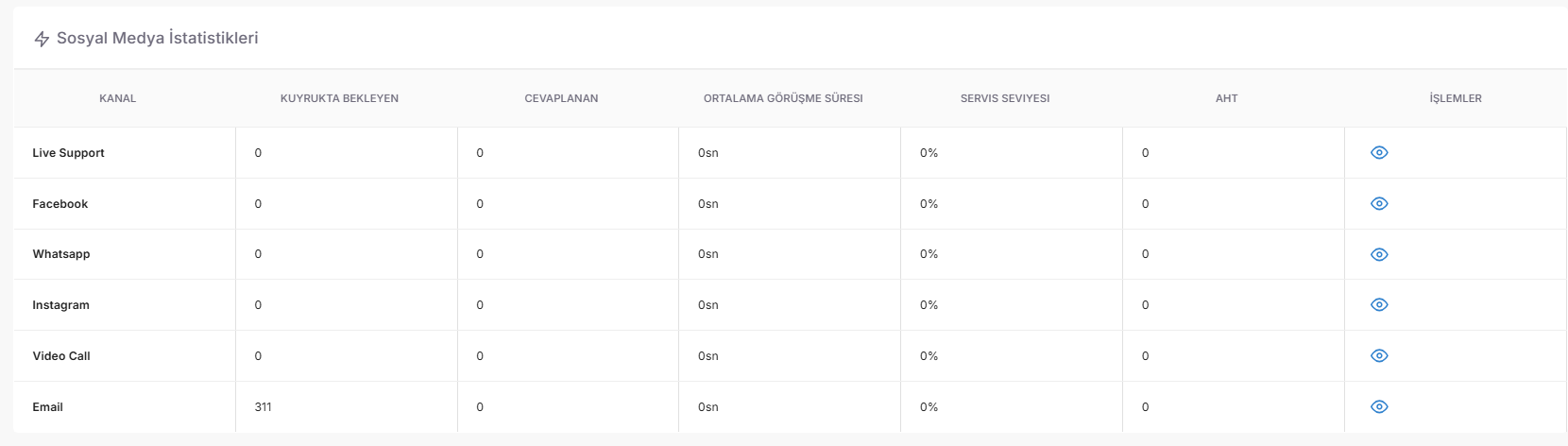
Meeting Board: It is a dynamic data panel that summarizes the volume, speed and waiting status of requests from digital channels such as Social Media Statistics, WhatsApp, Instagram, Facebook on a representative basis or generally.
📊 Critical Indicators (KPI) Observed
- Transaction Counts: Refers to the total number of interactions and messages replied to from social media channels within a specific time period.
- Queued Requests: Shows the number of active social media conversations that have not yet been assigned to a representative and are "waiting for a response". This is the most important data to understand the system's instantaneous load.
- Interview Durations: Measures the active time and resolution speed from the beginning to the end of a digital correspondence.
💡 Why is it Important?
- Speed Management: Social media users expect "instant" feedback. A representative who sees that the number of items waiting in line has increased can increase the pace of correspondence accordingly.
- Channel Balance: It allows the team to channelize its energy in the right direction by seeing which channel (e.g. Instagram DM vs. WhatsApp) is more intensive.
- Customer Experience (SLA): Tracking interview durations proves how quickly the representative resolves the customer's issue, which directly affects the digital brand reputation.
Conversation Panel: Representative Statistics is the control center that allows the user to see all active conversations (telephone, WhatsApp, chat, etc.) he is currently engaged in in a live list and monitor the details of these conversations instantly.
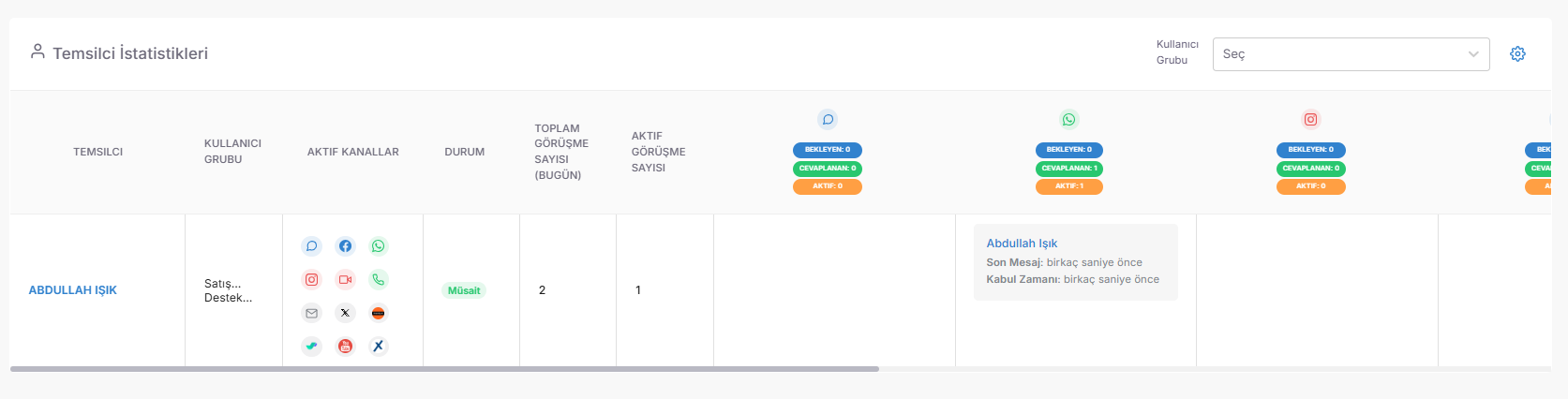
🛠️ Live Streaming and Tracking Features
- Active Conversation Selection: The Representative can select from the active conversations listed on the board and track the duration and status of each one separately.
- Instant Status Check: It can see how long each call has been ongoing, which one is waiting for a response, or which one is on hold (hold) in seconds.
- Focused Performance: It minimizes processing errors by focusing only on the workflow that "it is responsible for" rather than the overall system intensity.
💡 Why is it Important?
- Multi-tasking: A representative who manages 3 different communications at the same time ensures that no customer is left unanswered or that the meeting durations are not exceeded thanks to this panel.
- Prioritization: You can determine the intervention priority by selecting the more critical among the active tasks on it (e.g., those with an extended duration or VIP label).
- Transparent Workflow: Allowing the representative to instantly see the load on themselves, enables them to optimize their working pace according to scientific data.
📂 Request Board (Process and Solution Performance)
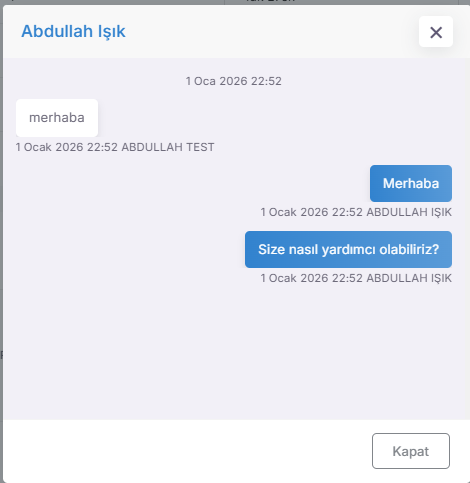
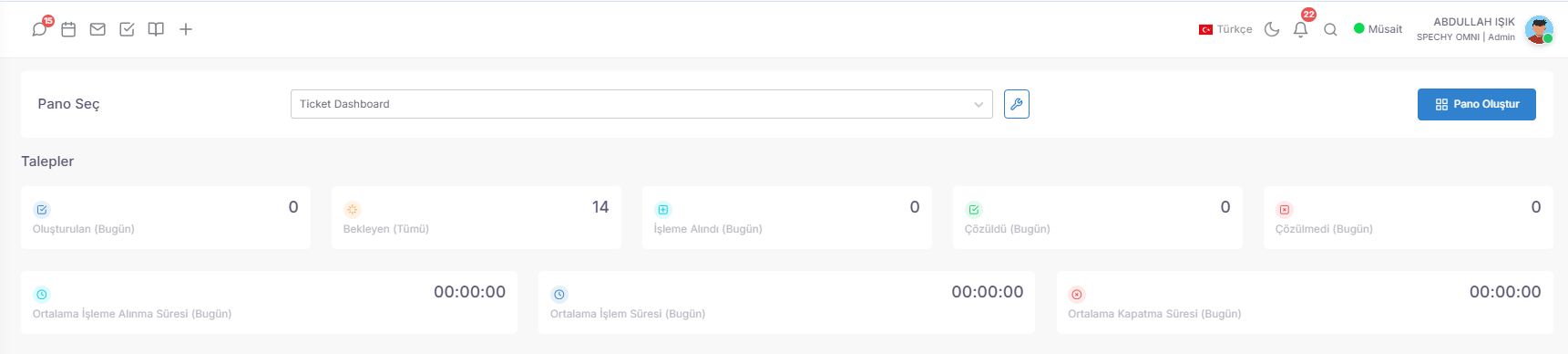
Access URL; https://app.spechy.com/ticket-dashboard
The Request Board is an in-depth analysis panel that shows the life cycle, resolution speed and current status distributions of the requests (tickets) created by the representative or assigned to him/her.
🛠️ Critical Metrics and Conditions Being Observed
- Request Distribution (Based on Status): It numerically lists how many of the opened requests are in the "New", "Processing", "Pending" or "Resolved" state.
- Request Processing Time: The time between the creation of a request and the start of its processing by the representative. It measures the representative's "agility".
- Request Processing Time: Refers to the total time actively worked on the request (hours spent) above the request.
- Average Turnaround Time ($MTTR$): It is the average time taken from the opening of a request to its complete closure. It shows the representative's overall solution performance.
💡 Why is it Important?
- Service Quality (SLA): Tracking processing start and end times allows you to prevent "delays" that directly affect customer satisfaction ($CSAT$).
- Bottleneck Detection: If the "Processing Time" is too long, it can be determined that the representative needs technical support or additional training in that area.
- Workload Balance: Knowing how many requests there are in each situation (e.g., "Waiting for Customer Response") helps determine priorities during the day.
👥 All Individuals (Central Customer and Contact Management)
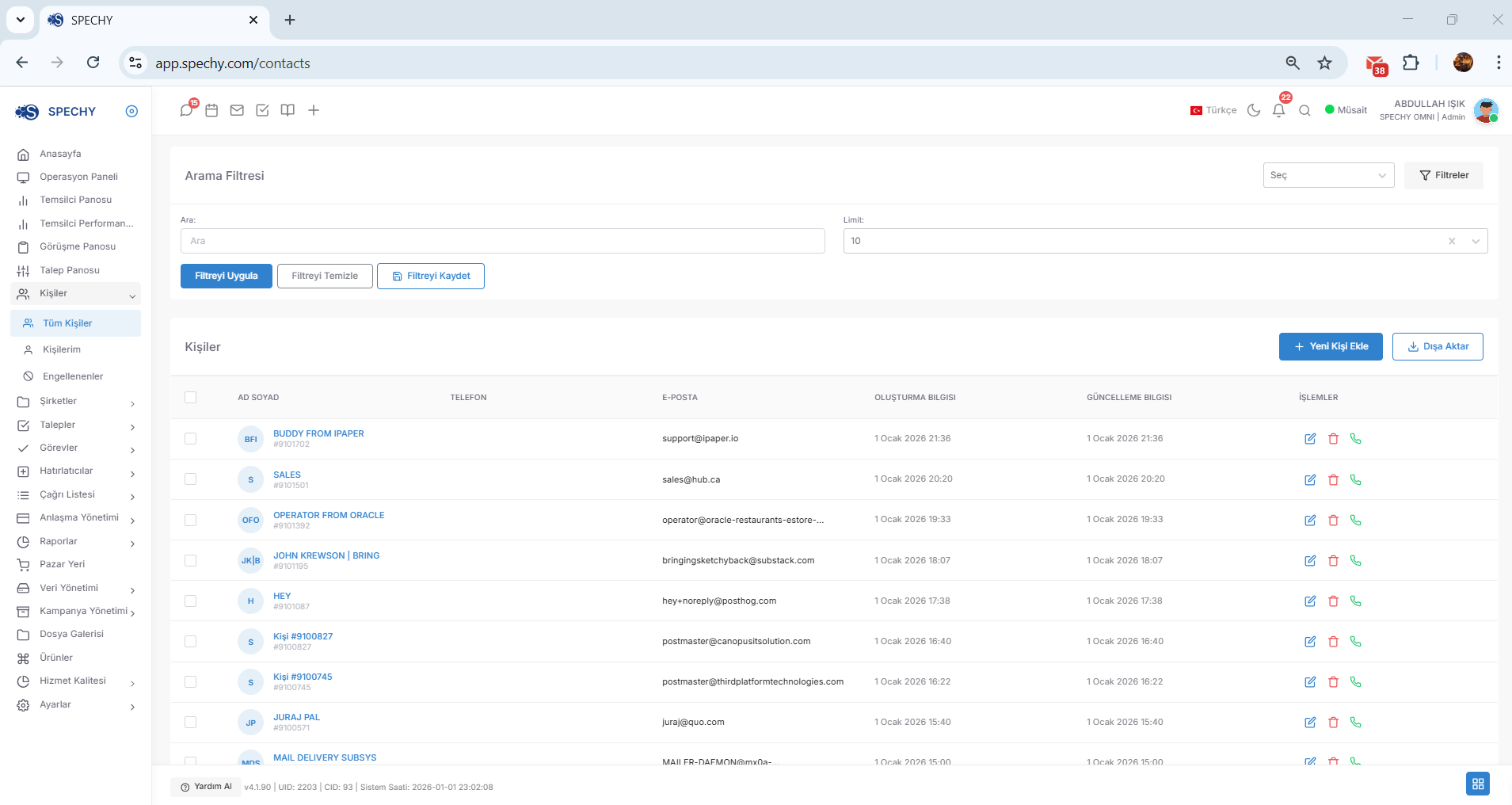
Access URL; https://app.spechy.com/contacts
All People is the database where all your customers, business partners and contacts registered in the system are viewed, filtered and managed from a single center.
🛠️ Advanced Data Filtering and Query Features
- Detailed Search and Filtering: You can instantly narrow down your contact list; by name, phone number, email, tag, city or according to specially defined criteria.
- Save Filters: You can save your frequently used search criteria (e.g., "VIP Customers", "Registrants in the Last 1 Month", "Those with Complaint Tag") by naming them.
- Registered Inquiry: By selecting the filters you have saved with one click, you can access the segment you need from the list of thousands of people in seconds.
💡 Why is it Important?
- Segmentation: You can group your customers and develop personalized strategies for them (e.g. special day celebrations or campaign calls).
- Data Structure: The answer to the question "When was the last time you met with whom?" is hidden on the card of each person in this list.
- Speed and Efficiency: Instead of creating the same filters repeatedly, you minimize operational time loss by using registered queries.
🔍 All Individuals: Advanced Filtering (Personalized Data Query)
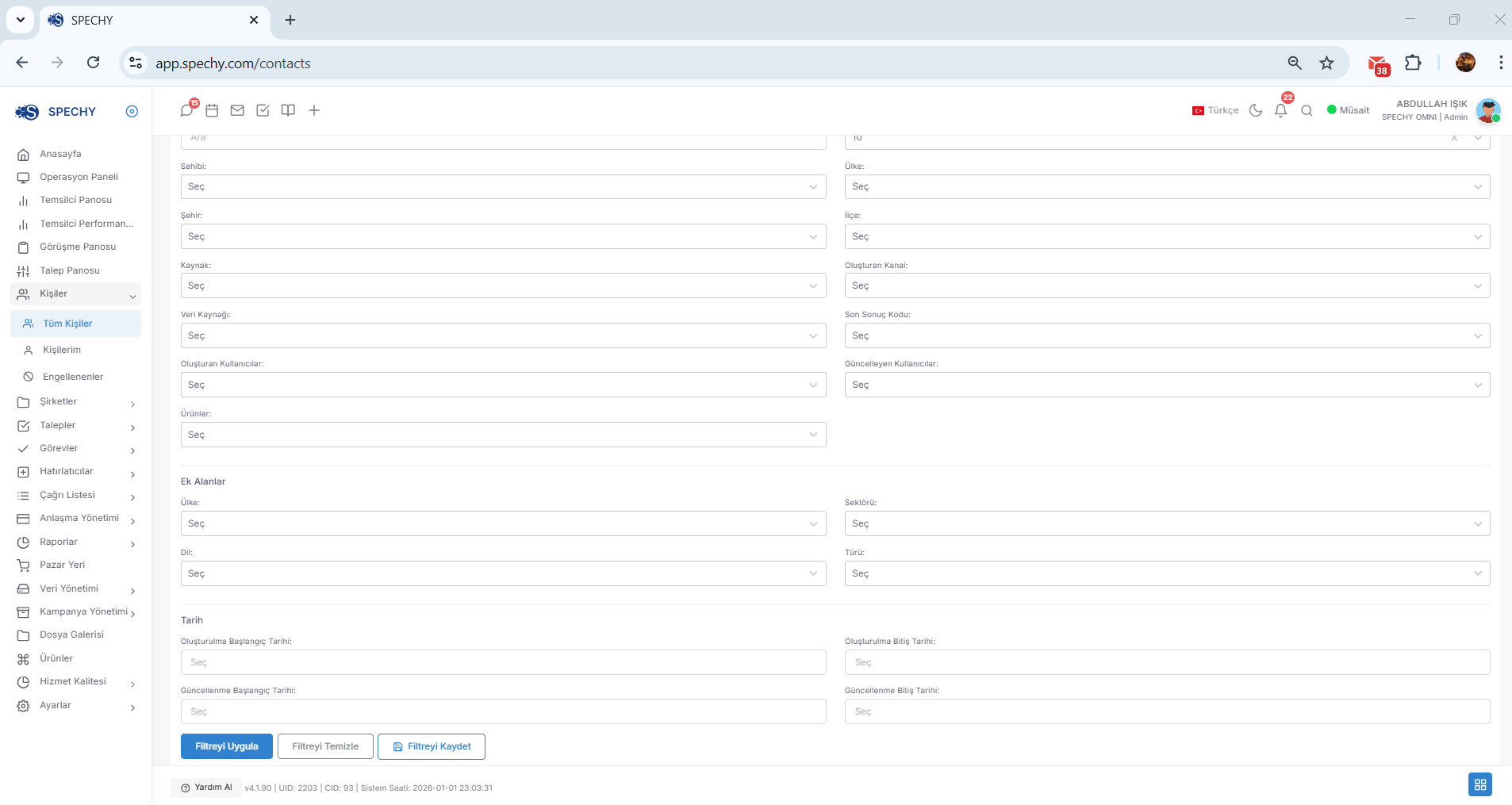
Access URL; https://app.spechy.com/contacts
The Filtering Module is an intelligent filter that instantly presents you with segments that match the criteria you are looking for (e.g., "VIP Customers in Ankara" or "Those who have not been searched in the last 3 months") instead of digging a hole with a needle in your customer database.
🛠️ Functional Features
- Multiple Criteria Selection: You can filter dozens of different data such as name, surname, email, phone, city, tag or user-based private areas at the same time.
- Save Filter: You can save it by giving a name to the set of criteria you specify (e.g., "Potential Sales List"), and you can access this filter with one click later.
- Filter Cleaning: You can return to the main list as quickly as possible by resetting all criteria with a single button.
- Dynamic Update: The filter you have saved automatically includes people who have been newly added to the list and meet the criteria; it does not require manual updating.
💡 Why is it Important?
- Focus: It allows the representative to focus only on a specific region or campaign group instead of making random calls.
- Time Saving: You do not waste time by choosing the same 5-6 criteria every time, thanks to the saved filters, you start the operation in seconds.
- Reduce Error Rate: Thanks to standardized filters, you can ensure that the entire team works on the same correct data set.
Registered Filters is an intelligent library that stores the complex search criteria you have created before under a single name and allows you to apply them to the entire dataset in seconds whenever you need them.

🛠️ Functional Features and Usage
- Filter Viewing: You can see all the special queries you have previously saved (e.g., "Pending Payments", "VIP Istanbul", "Campaign-1 Group") in a list.
- Quick Application: As soon as you click on the filter you choose from the list, the system scans the entire database and only presents you with people who meet those criteria.
- Dynamic Update: A registered filter is not static. For example, if you have a filter named "Today's New Arrivals", it automatically covers new people who have entered the system that day every time you click.
💡 Why is it Important?
- Standard Operation: Ensures operational consistency by ensuring that all representatives work with the same criteria (e.g., with the same "Potential Customer" filter).
- Speed and Agility: Instead of manually selecting 5-10 different criteria every morning, it allows you to get started with just one click.
- Reset Error Percentage: Eliminates criterion errors that can occur in manual selections (e.g., incorrect city or label selection).
👤 My People (Individual Portfolio and Ownership Management)
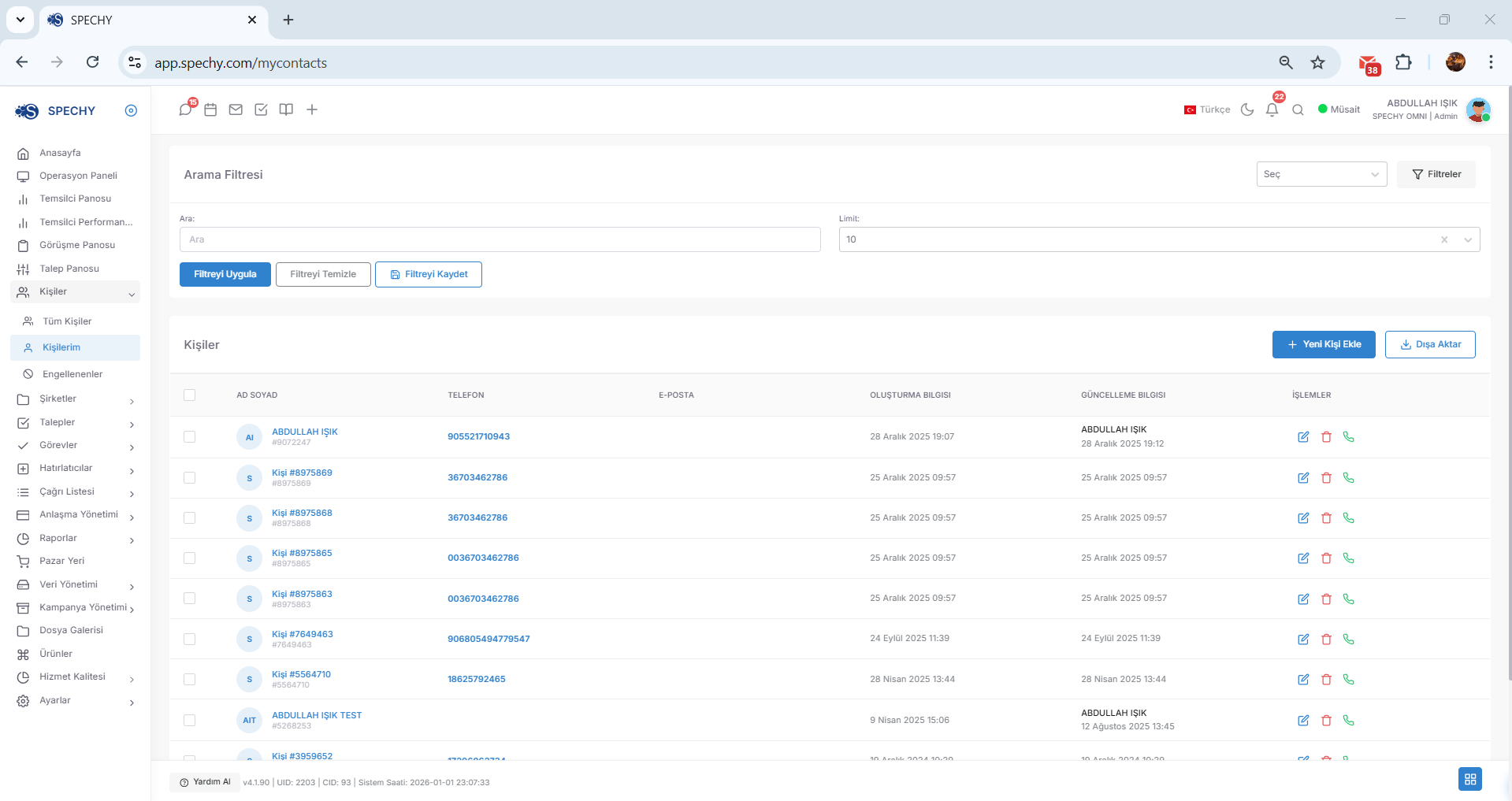
Access URL; https://app.spechy.com/mycontacts
My People is a dedicated workspace that lists the people you have been assigned as "owners" among all customers in the system. This module allows you to filter out the general data clutter and focus only on the relationships you manage.
🛠️ Functional Features and Usage
- Ownership Filter: Automatically brings you customer records that have been assigned to you or created by you.
- Advanced Filtering Power: You can use all the powerful filtering, saving and cleaning tools you have in the "All People" menu exactly in your own list.
- Segmentation: Within your own portfolio, you can also make sub-breakdowns based on criteria such as city, label or transaction history.
💡 Why is it Important?
- Focused Work: This screen is the answer to the question "Who do I need to pay attention to today?" You focus directly on your own workload without wasting time with other representatives' portfolios.
- Responsibility Tracking: Being the "owner" of a customer shows that you are primarily responsible for the quality and continuity of the communication established with that person.
- Operational Efficiency: You can manage your sales or support processes much faster by using filters registered in your own portfolio.
🚫 Blocked Users (Communication Restrictions and Blacklist Management)
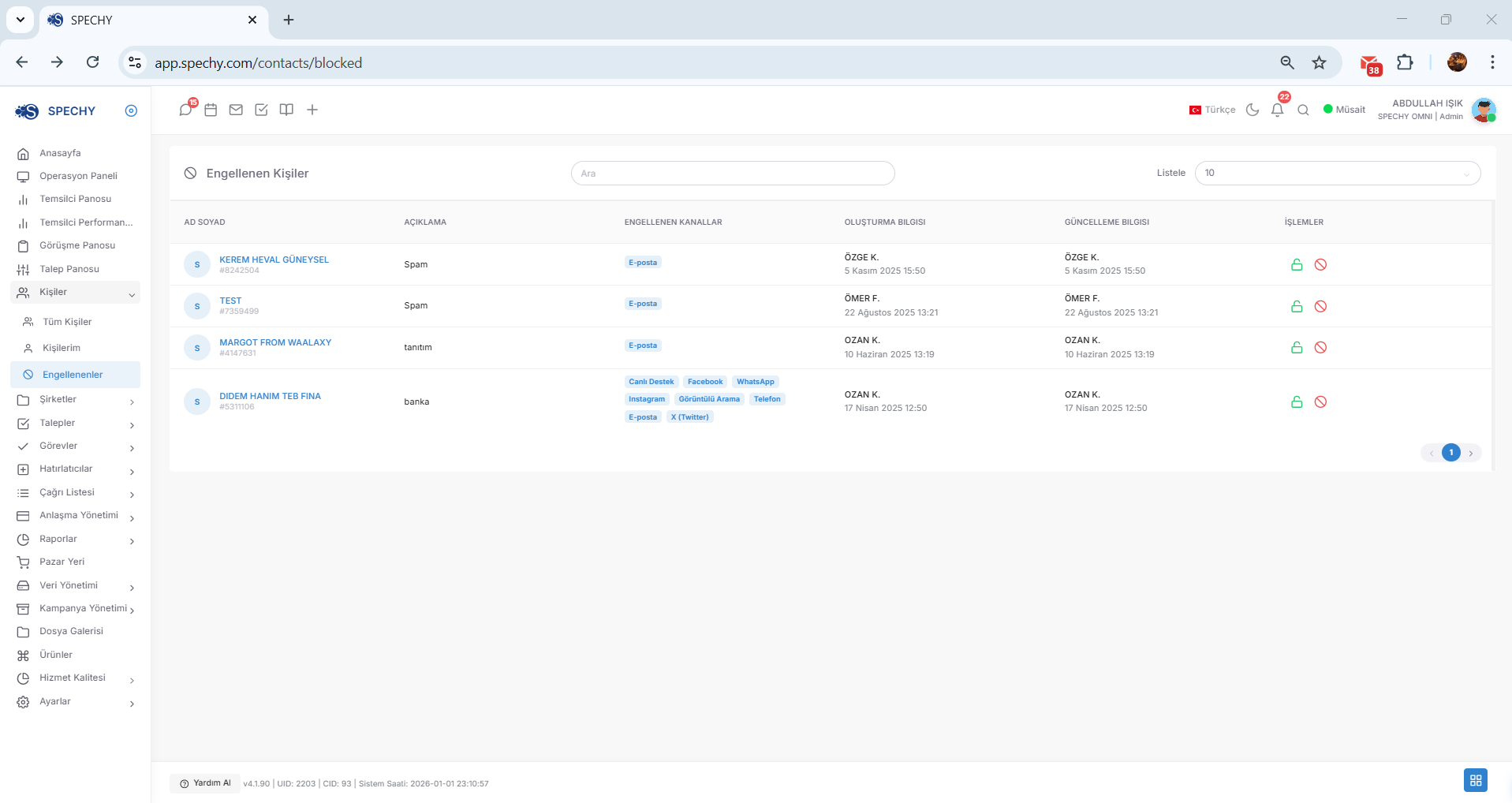
Access URL; https://app.spechy.com/contacts/blocked
Blocked is a security panel where blocked individuals or numbers, whose access to the system is restricted through various channels (Phone, WhatsApp, SMS, etc.), are listed and managed centrally.
🛠️ Functional Features
- Central List: You can see all contacts that have been blocked by any representative or administrator before in chronological order on a single screen.
- Unblocking (Whitelist): You can make a contact that was mistakenly blocked or decided to be unblocked again "Active" with a single click and allow it to communicate with the system.
- Channel-Based View: You can monitor operational security by tracking which number or ID was blocked on which date.
💡 Why is it Important?
- Preventing Productivity Loss: It prevents unnecessary, spam or harassing calls/messages from being queued, allowing representatives to focus on real customers.
- Operational Hygiene: It offers a cleaner dataset by preventing your CRM database from being filled with spam records.
- Control and Monitoring: Tracking blocked users allows you to analyze which external sources the system is being attacked or abused from.
🏢 Companies (Corporate Customer and B2B Database)
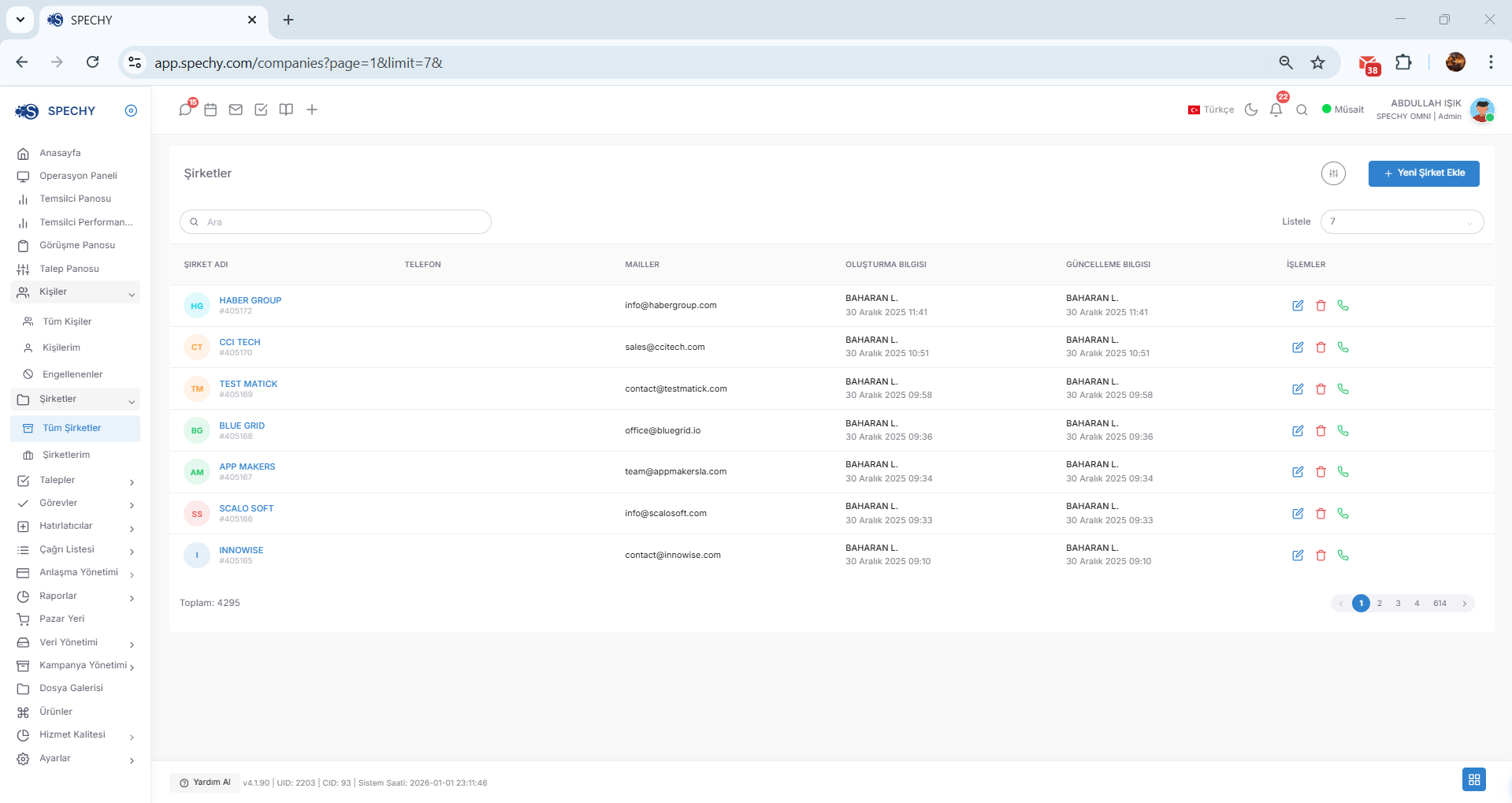
Access URL; https://app.spechy.com/companies
It is the main module where all legal entities (companies, dealers, suppliers) registered in your system are centrally listed and managed independently of or related to individuals.
🛠️ Functional Features
- Central Corporate List: You can see basic information such as the name, sector, tax office/number of all the companies you work for on a single screen.
- Smart Search: You can instantly filter the list of companies according to the sector, region, assigned representative or specially defined corporate tags.
- Individual-Company Relationship: You can strengthen the corporate memory by bringing together all employees (contact persons) affiliated with a company under one roof.
💡 Why is it Important?
- B2B Dominance: If your sales and support processes are focused not only on individuals but also on institutions, you increase corporate loyalty by tracking all history on a "Company" basis.
- Segmentation: You can plan mass campaigns by applying filters according to the size or type of companies.
- Hierarchical Tracking: When multiple people from a company call, you provide a more consistent service knowing that they all belong to the same corporate structure.
My Companies is a personalized corporate monitoring panel that lists the commercial organizations you have been appointed as the "owner" of or directly manage among all the companies in the system.
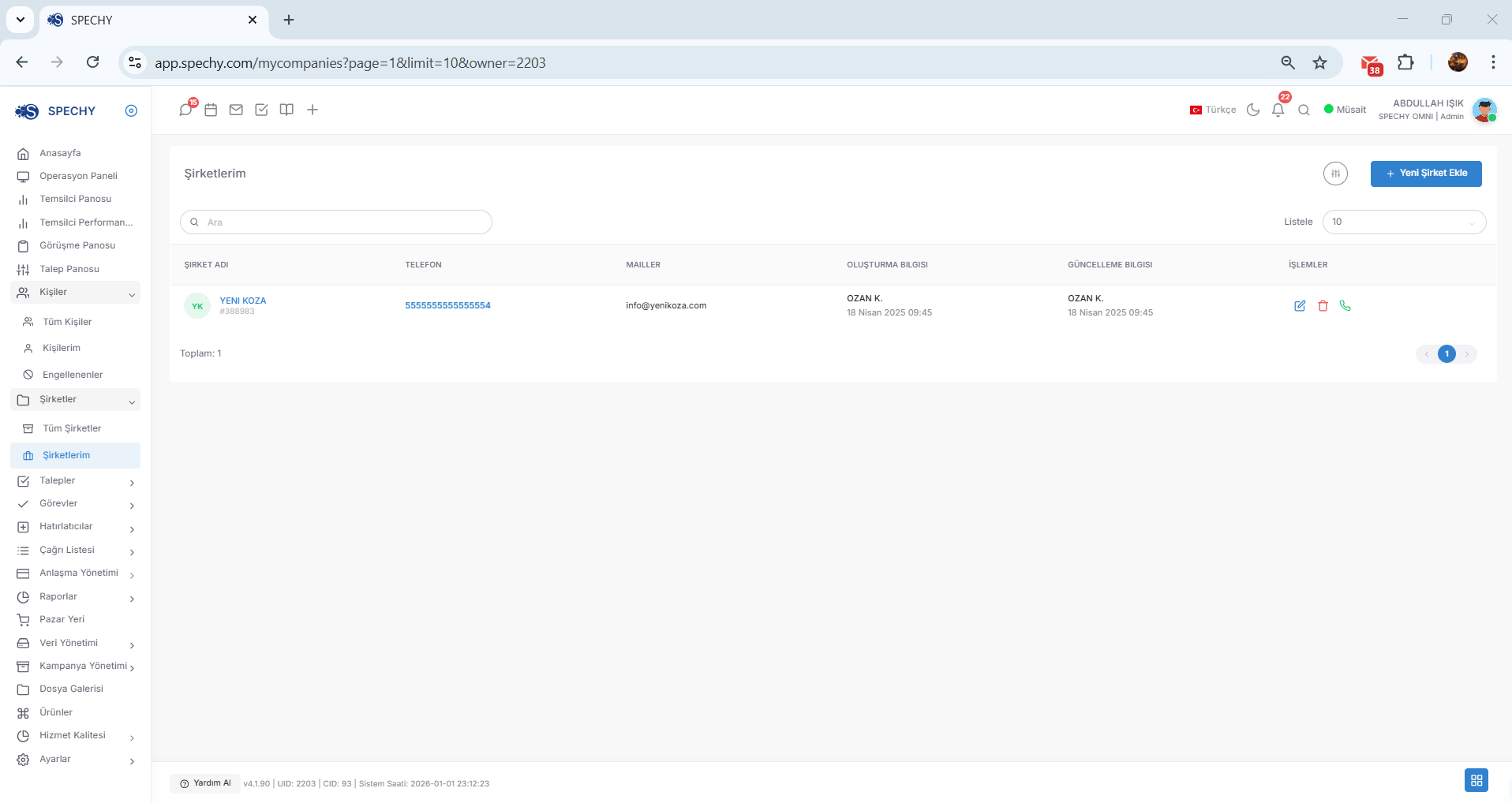
Access URL; https://app.spechy.com/mycompanies
🛠️ Functional Features and Usage
- Responsibility-Based View: It prevents you from getting lost in the general data crowd by only presenting you with companies that are in your portfolio.
- Corporate Filtering: You can apply all advanced filtering features in the "Companies" menu to only your own companies.
- Quick Query: You can perform instant narrowings within your own portfolio according to sector, region or company-specific tags.
💡 Why is it Important?
- Account Management: Being the "owner" of a company means that you are responsible for the quality of the communication established with all employees (contacts) of that institution.
- Prioritization: You can create your daily business plan more efficiently by using filters such as "Upcoming Due Dates" or "Offers Pending" among your own companies.
- Corporate Loyalty: Tracking the company as a whole as a customer allows you to respond to all kinds of requests from that institution more effectively.
All Requests is the main operational pool where all cases (tickets) created regardless of which channel they come from (Voice, Written, Email, etc.) are listed, monitored and updated from a single center.
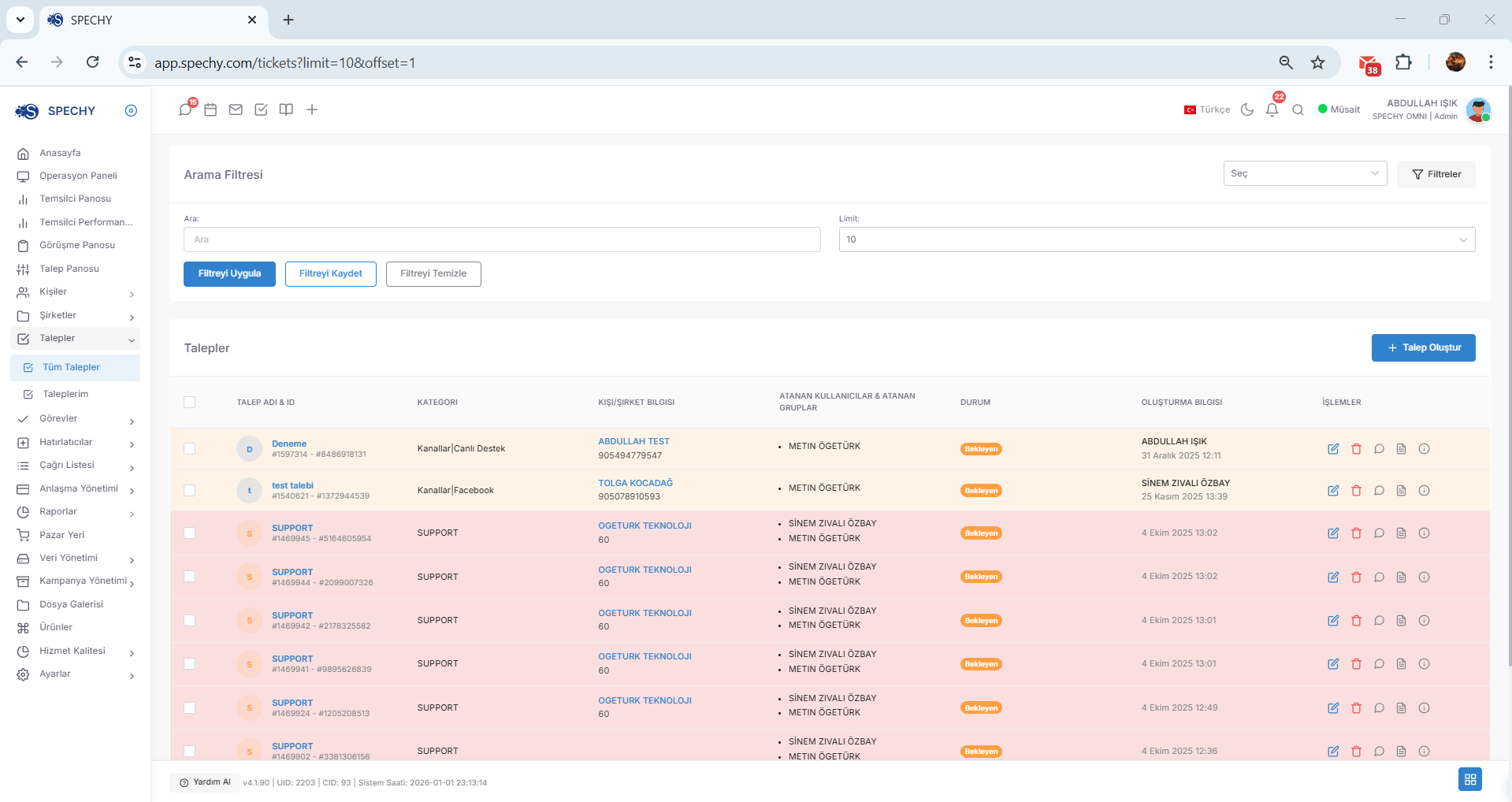
Access URL; https://app.spechy.com/tickets
🛠️ Functional Features and Intervention Power
- Central View: You can see all open, pending or completed requests in the system on a single screen in chronological or priority order.
- Detailed Editing: By entering any request, you can change its status ($New \rightarrow In Progress \rightarrow Solved$), add notes, assign it to another representative or update its priority level.
- Advanced Filtering: Among thousands of requests; you can perform instant queries according to the type of request, the assigned representative, the creation date or the solution time.
💡 Why is it Important?
- Process Governance: Ensures that no request is "missed". You can instantly identify bottlenecks by filtering the status of requests (e.g., "Pending").
- Data Update: Every modification made by entering a request is processed into the corporate memory and increases the quality of the service provided to the customer.
- Flexible Management: Adds agility to operations by providing the ability to re-categorize or route requests according to changes in the workflow.
The Demand Filter is a technical filter that takes the huge demand pool in the system and narrows it down according to specific criteria such as status, representative, date or category, thus raising your operational focus to the highest level.
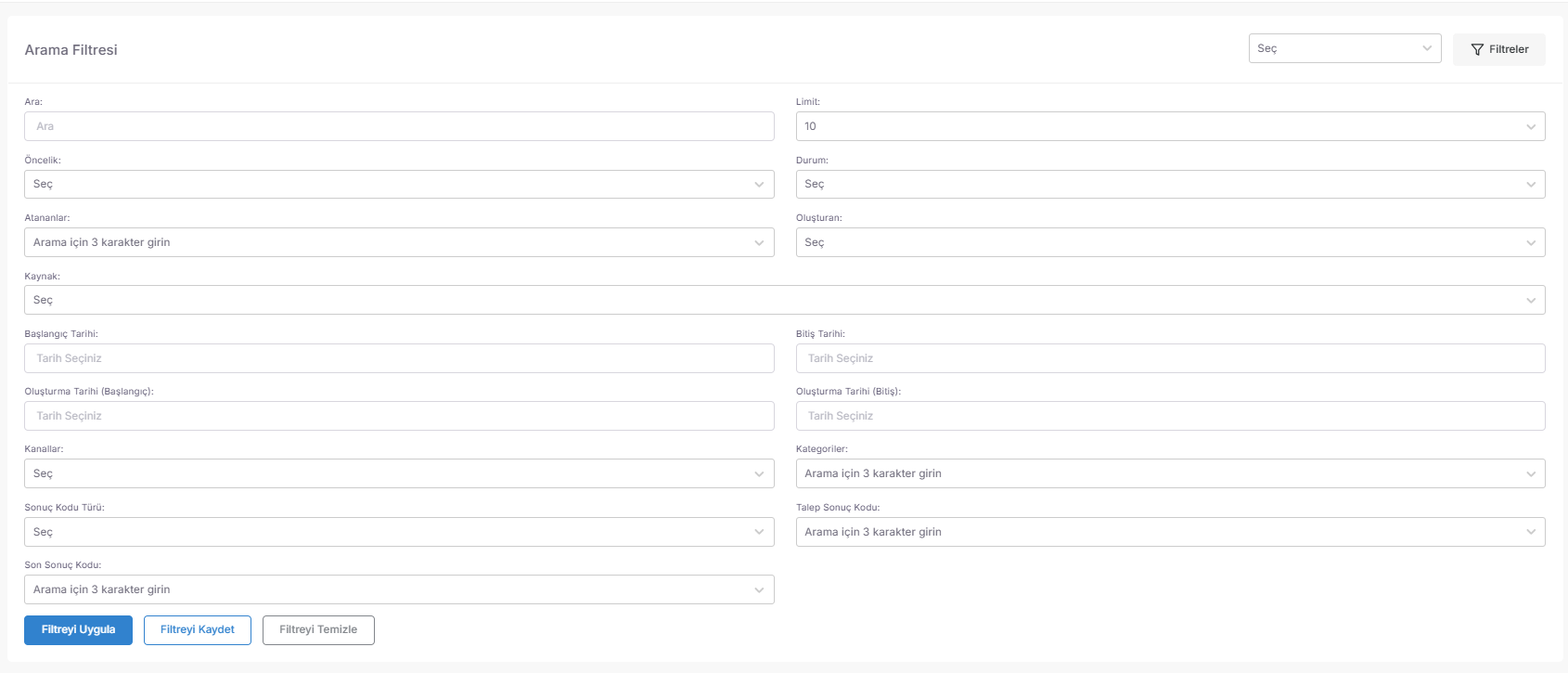
🛠️ Filtering Criteria and Usage Scenarios
- Condition-Based Query: You can determine the urgent tasks of the day by listing only "Open", "Pending" or "Paused" requests.
- Representative and Team Filter: You can see requests assigned to a specific representative or department (e.g., "Technical Support Team") instantly.
- Time-Based Filtering: You can query according to critical time periods such as "Opened in the last 24 hours" or "About to expire SLA period".
- Priority Level: By prioritizing "Critical" and "High" priority requests first, it allows you to respond to the most important customers as quickly as possible.
💡 Why is it Important?
- Bottleneck Detection: By filtering requests accumulated in a specific category (e.g., "Payment Issues"), you can detect whether there is a systemic problem early on.
- Operational Agility: Instead of a mixed list, you minimize processing errors with a filtered clean to-do list.
- Quick Reporting: You can answer a manager's question "How many complaints are waiting for solutions?" in seconds by applying the filter.
Request Operations is a functional set of tools used to update the content of a selected case, review its history and manage its lifecycle.
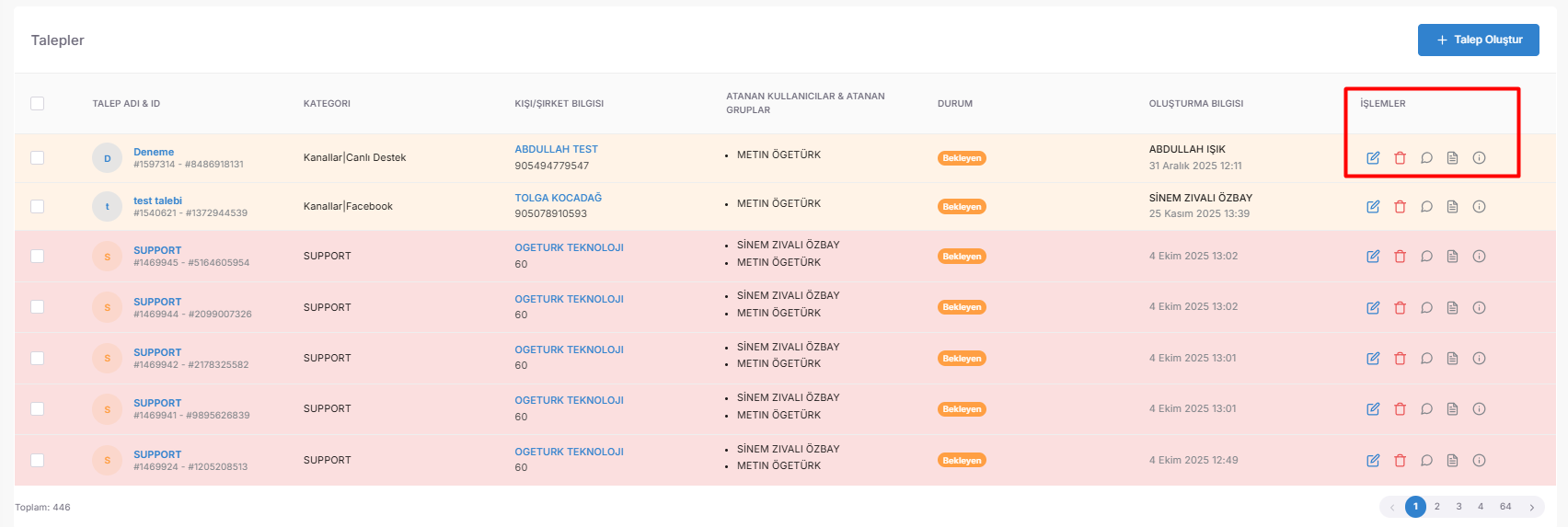
🛠️ Functional Operation Set
- Edit: By updating the title, category, priority level or assigned person of the request, it ensures that the process progresses in the correct venue.
- Delete: Prevents data pollution by removing erroneous or duplicate requests from the system.
- Comment: It includes all interim information, team notes and updates made during the resolution process of the request. It is of the nature of a "solution log".
- Description: Indicates the reason for the origin of the request (customer complaint or technical detail). In case of need, this description text can be updated to clarify the scope.
- Information (Metadata): The request is its digital fingerprint. It provides the following critical data:
- Time Stamps: Opening, last update and target end date ($SLA$).
- Channel Source: From which channel the request came (WhatsApp, Voice Call, Email, etc.).
- Transparency: Thanks to the "Information" and "Comment" tabs, everyone can see who, when and from which channel intervened in a request.
- Flexibility: The "Edit" and "Description" features allow the business order to be revised instantly according to changing customer needs.
- Auditability: The entire life cycle of the request is monitored through these processes, and operational speed and quality standards ($KPI$) are measured.
- Request Name & Description: It is a summary and detailed story of the job. It is clearly defined by the user to prevent confusion.
- Category & Source: Classifies which specialization area (e.g. Technical, Accounting) and which source your request belongs to.
- Find in People (Customer Matching): It provides full integration with the CRM history by determining which customer (contact) the request was opened on behalf of.
- Assignment (User/Group): Ensures that the work is directed to a specific representative or a user group such as a "Sales Team" so that it does not remain unattended.
- Status Management: Tracks the life cycle of the job: Pending, Processed, Solved, Not Solved.
- Priority Level: Determines the urgency of the task: Low, Normal, High, Urgent.
- Timeline (Start/End): Records when the work started and the target completion time.
- Attachments & Additional Areas: Contains document, visual or system-specific additional data fields defined for the request (e.g., "Device Serial Number").
- Responsibility Tracking: Who the request is from and what stage it is in (Status/Assignment) can be seen instantly; work is prevented from getting stuck.
- Criticality Management: It allows urgent priority requests to be filtered and resolved first.
- Data-Based Decision: Thanks to additional fields and attachments, it presents all the data on a single card without the representative having to look at another screen.
- Channel Source View: Clarifies which "Omnichannel" channel the request came from, such as WhatsApp, Web Chat, Instagram DM or Voice Call.
- Full Transcript: Shows all message history on written channels, and the transcribed version of the conversation or the audio recording link (if active) on voice channels.
- Contextual Solution: It allows the representative to see exactly which words the customer used and what emotional tone (complaint, thank you, information request) they approached with while resolving the request.
- Error-Free Solution: Instead of repeatedly asking the same questions to the customer, the representative understands the problem correctly ($FCR$) the first time by reading the transcript.
- Corporate Security: In the event of a dispute (disputes or legal proceedings), the original text or recording of the meeting is kept as the strongest evidence in this field.
- Continuity: A new representative who takes over a request can continue the process from where it left off by reading all the details of the previous conversation without losing any information.
- Do Not Comment: All officials involved in the request may make written notes about the course of the process. This is the answer to the question "Who and when did the request intervene?"
- Voice Note: Instead of writing complex technical details, you can record them as a voice note quickly and clearly and add them to the comment.
- Document and File Sharing: You can directly upload documents such as invoices, screenshots, PDF guides or technical reports that are necessary for the solution to the comment area.
- Chronological Tracking: All comments, voice recordings and documents are arranged in chronological order; thus, the history of the request can be tracked like a "time tunnel".
- Complete Information Transfer: When transferring a request to another representative, instead of just changing the status, leaving all the transactions in the "Comments" section, both verbally and in writing, eliminates the error.
- Evidence and Documentation: The added documents and audio recordings provide concrete data on why the request was resolved in that way.
- Speed and Agility: The voice note feature allows information to be processed into the system as quickly as possible without wasting time writing during intense operational moments.
- History (Audit Log): Lists all kinds of changes made to the request (status change, assignment, note addition, etc.) chronologically who made them and when.
- Result Code: Seals how the interview or request was concluded with standardized codes (e.g., "Sale Completed", "Technical Issue Resolved", "Information Provided").
- Forms and Attachments: It allows you to manage completed survey/form data and all uploaded documents depending on the request from one place.
- Customer Memory (Requests & Media): It brings to your attention not only this request of the relevant customer; but also all his previous requests and all the media stored on the personal card (images, documents, etc.).
- Settings (Personal Interface): You can change the order of menus according to your working habits and create a more minimalist screen design by hiding the sections you do not use.
- Holistic View: Thanks to the "Requests" and "Media" tabs, you do not need to switch between screens to get to know the customer; it is all at the tip of your fingers.
- Standardization: The use of "Result Code" ensures that operational success can be reported and measured.
- User Experience: Personalizing the interface with "Settings" reduces the representative's screen fatigue and allows them to access the tools they use most quickly.
- Ownership Filter: It prevents you from getting lost in the general data crowd by automatically bringing you requests assigned only to you or initiated by you.
- Advanced Intervention Power: You can use all your editing, commenting, adding and finalizing permissions you have in the "All Requests" menu with full authority in your own list.
- Individual Tracking: You can check which stage your tasks are at (In Process, Pending, etc.) from a single screen.
- Focus and Speed: It instantly answers the question "What tasks do I need to solve today?" You focus directly on your own tasks without wasting time on others' workloads.
- Accountability: Every request assigned to you is part of your performance in terms of solution time ($SLA$) and quality. This screen allows you to manage your personal performance metrics.
- Workflow Structure: By filtering your own list in order of priority, you can respond to your most critical customers as quickly as possible.
- Central Control: You can see all active, completed or delayed tasks created in the system chronologically on a single screen.
- Create a New Task: You can define a new job order related to a specific topic, project or customer; you can immediately specify the person responsible, the deadline and the details.
- Advanced Filtering: You can clarify the workflow by filtering tasks according to their priority (Urgent, Normal), status (To Be Done, In Progress, Completed), assigned person or relevant department.
- Inter-Team Coordination: Regardless of a request, you can define and track any internal task (e.g., "Weekly Report Preparation") as a "Task".
- Transparency and Control: The number of tasks assigned to each person and how much of these tasks are completed on time can be monitored transparently through this panel.
- Preventing Job Skipping: Converting verbally agreed-upon tasks into "assignments" eliminates the risk of forgetting and provides operational discipline.
- Detailed Editing: You can reshape the task according to the changing conditions by updating the title, description, deadline or assigned person in charge of the task.
- Task Mobility (Audit Log): You can see all the operations performed on the task (who added notes when, who changed its status, etc.) chronologically. This makes every step of the work in the "kitchen" process transparent.
- Status Control and Update: You can monitor which stage the task is in at any moment (e.g., "Planned", "Ongoing", "Waiting for Approval") and seal the process by updating its status when the task is completed.
- Linked Tracking: If the task is related to a request, you can coordinate the impact of actions on the request on the task and the overall progress from this area.
- Transparency: Without having to ask the question "What is the status of the work?", you can see where the process is stuck or how it has progressed by looking at the activity history.
- Flexibility: The authority to enter the task and make changes ensures that job orders remain current in dynamic operations.
- Reducing Error Rate: Thanks to the history of movements, every change made has a responsible person and a timestamp; this reinforces operational discipline.
- Ownership-Focused View: It filters out general operational noise by only bringing you the tasks you are responsible for and allows you to focus directly on your own goals.
- Request and Task Integration: You can track the tasks or independent work orders related to the requests assigned to you in a single chronological list.
- Status and Movement Management: You can enter your own tasks to update the process, add notes, and mark it as "Done" when the task is completed.
- Time Management: It instantly answers the question "Which project should I focus on today?" by prioritizing tasks with upcoming deadlines, preventing delays.
- Personal Performance: The timely and complete completion of tasks directly reflects the representative's operational reliability and solution capacity.
- Organization and Discipline: Working with a digital and traceable to-do list instead of verbal reminders or notes on paper minimizes the margin of error.
- Two-Level Notification System: The system sends automatic notifications twice in total, once 1 hour before and once 10 minutes before the reminder time, to reduce the risk of forgetting to zero.
- Create a New Reminder: You can create a new record instantly for any action that needs to be done at a later date.
- Data Management (Export & History): You can download your reminder lists in Excel/CSV format and track previous export operations from the past.
- Advanced Query (Filter & Search): You can narrow down reminders according to a specific date range or find a specific reminder with keywords in seconds.
- Status Management (Unreviewed): You can list reminders that have not yet been acted upon (unreviewed) on the page, and you can switch between records that have been reviewed/completed with a single button.
- Proactive Service: Returning to the customer at the promised time raises brand loyalty and trust ($CSAT$) to the highest level.
- Data Mobilization: Thanks to the export feature, you can take your business plan outside the system during the day or use it in reports.
- Discipline: Thanks to the two-tiered notifications, even if the representative is busy with another task, he gains time to prepare for the upcoming task.
- Automatic List Update: When an appointment is made with the customer and the meeting is provided at the scheduled time, the system automatically removes this record from the "Unmet" list.
- Success Confirmation: The fact that a reminder falls on this page is the digital confirmation that the task (ticket or callback) has not been left unattended and that contact has been established with the customer.
- Retrospective Monitoring: You can analyze chronologically through this list which customers were consulted with, when and about what.
- Operational Efficiency: It allows the representative to focus only on pending tasks by preventing the confusion of "Who would I return to?", and collects the people seen on a separate page, eliminating screen clutter.
- Customer Satisfaction ($CSAT$): The disciplined follow-up of reminders and their transition to the "Reviewed" status reinforces corporate professionalism and customer focus.
- Performance Monitoring: For managers, it is the most accurate data that measures how many appointments planned during the day were successfully completed.
- Ownership-Based View: It prevents you from drowning in the general data crowd by only bringing you records such as "Back Search", "Offer Tracking" or "Appointment" that you only need to care about.
- Critical Time Tracking: The two-step notification mechanism (1 hour and 10 minutes before) provided by the system for each reminder assigned to you will activate for your tasks on this menu.
- Proactive Intervention: Using the reminders on your list, you can reach the customer at the exact time you promised and ensure that the record automatically moves to the "Completed Calls" tab when a call is made.
- Personal Productivity: It eliminates the questions "Who would I return to today?" or "Which customer did I promise?" It collects all your individual commitments on one screen.
- Customer Loyalty: Not missing a reminder assigned to you reinforces the image of a "valued and followed person" in the customer's eyes ($CSAT$).
- Sense of Responsibility: Whether the tasks assigned to you are completed on time is one of the most important components of your personal performance metrics.
- Click-to-Dial Convenience: Instead of manually dialing the numbers in the campaign list, you can start the call instantly with a single click and increase your processing speed.
- Live Data Statistics: You can instantly monitor the general status of the data in the "Total Persons" field:
- Total Number of People: General availability in the pool.
- Sought / Unsought Quantities: Completion rate of the campaign ($%$).
- Time Savings: The Click-and-Hold feature eliminates the representative's manual errors and minimizes the call initiation time.
- Performance Tracking: Tracking of unwanted orders allows planning the effort required to complete the campaign.
- Hierarchical Order: Knowing who and when the campaign was updated strengthens data security and order in large operations.
- Recapture Mechanism: When you call a customer listed on the list, the system automatically removes this record from the "Not Found" list and transfers it to the "Found" page. This prevents repeated searches.
- Click-to-Dial Integration: You do not need to dial the number to reach the person who is making an unanswered call; you can start a return call in seconds with the call icon.
- Smart Filtering (Queue & Date): You can prioritize the most urgent returns by filtering out missed calls based on which queue they came from or when they called.
- Data Mobility: You can export (download) runaway call lists and ensure data security by monitoring the download history of these lists.
- Menu Transitions: By quickly switching between the "Not Found" and "Searched" tabs, you can monitor how many unanswered calls have been successfully recovered during the day.
- Preventing Revenue and Satisfaction Loss: Every missed call is a potential loss of a sale or a complaint candidate. A quick response creates a sense of "being valued" in the customer.
- Operational Efficiency: Agents searching for missed calls during their free time (idle time) maximizes workforce efficiency ($Occupancy$).
- KPI Improvement: The call back rate of missed calls is a performance indicator that directly affects the overall service quality ($Service Level$) of the call center.
- Product and Status Filtering: You can see exactly which product or service the customer is interested in; you can query according to the current status of the agreement (e.g., "Offer Given", "Negotiating Phase", "Contract Waiting").
- Kanban View: You can visualize the sales process in columns (Drag and Drop). This way, you can understand at a glance which sales are stuck at which stage.
- Potential Tracking: You can proactively manage not only existing customers, but also candidates who have not yet made a sale but have high potential through this list.
- Revenue Estimation: You can analyze the total volume of sales expected to close next month using the "Agreement Status" filter.
- Sales Focus: The Kanban view prevents the representative from being confused about "Which offer should I make?" and brings the workflow to a clarity of game plan.
- Efficiency: Thanks to the product-based filtering you are interested in, you reach the right target audience in seconds when running a campaign for a specific product.
- Drag & Drop Mechanism: You do not need to fill out a form to change the status of a customer or job. You can update its status in seconds by holding the card with your mouse and dragging it from one column (e.g., "Offer Given") to another (e.g., "Agreement Achieved").
- Visual Filtering: You can filter the density on the Kanban board according to the relevant product, representative or priority level and only display the cards you need to focus on.
- Huni Analysis: By seeing which stage has too much card accumulated (there is bloating), you can instantly detect operational bottlenecks.
- Speed and Agility: The drag-and-drop feature reduces the representative's administrative workload and allows them to focus directly on sales or solutions.
- Psychological Motivation: Moving a card to the "Finished" or "Sold" column is a concrete indicator of success and a source of motivation for the representative.
- Error-free Status Update: Contrary to the chaos in the list view, the stage of a task in the Kanban view is visually sealed; this minimizes the risk of incorrect status assignment.
- Agreement Name & Registration Type: It distinguishes the short description of the sale and whether this opportunity is B2C (Individual) or B2B (Company).
- Customer Matching (Find in People): It provides full integration with the CRM history by determining which contact or institution the agreement was opened on behalf of.
- Stages & Probability ($%$): Indicates the current status of the agreement and the probability of returning to the sale at that stage (For example: 60% probability in the "Offer Received" stage).
- Time Management: * Estimated Closing: When the sale is targeted.
- Agreement Time: How long the process will take in total ($Sales \ Cycle$).
- Actual Closing: The date when the sale is finally sealed.
- Estimated & Total Product Value: Shows the difference between the unit price of the added products and the total sales potential.
- Financial Forecasting ($Forecasting$): Thanks to the multiplication of "Estimated Value" and "Probability", you can calculate in advance the probable turnover that will enter your cash register at the end of the month.
- Correct Resource Management: It allows you to use your time in the most efficient way by focusing on "High" priority and "Highly Likely" agreements.
- Sales Speed Analysis: By analyzing the difference between estimated and actual closing dates, you can measure the performance of the sales team.
- Products & Offers: It is the heart of the agreement. The products that the customer is interested in are selected and the offers prepared automatically in PDF format based on these selections can be sent directly to the customer.
- History & Notes: It includes all the arrangements on the agreement (audit log) and the critical notes taken by the representative regarding the process. It is the answer to the questions "Why was it abandoned?" or "At what stage was it revised?".
- Meetings (Result Codes): Integrates communications outside CRM channels (e.g., face-to-face meeting or external call) with the system; provides tracking by adding a result code to the process.
- Interested Parties (Relationship Map): Connects the company to which the person on the sales side is affiliated or the decision-makers of the company to each other.
- Tasks & Reminders: Schedules the actions to be taken to close the deal (e.g., "Follow the contract").
- Media, Forms & Attachments: Provides quick access to all documents on the customer card, filled forms and files specially uploaded for this agreement.
- Fast Quoting: The integration of product addition and PDF creation increases the sales speed ($Sales \ Velocity$) by eliminating the representative's manual file preparation time.
- Corporate Memory: Thanks to the "History" and "Notes" tabs, a new representative who takes over an agreement can continue the process with no information loss.
- Centralized Data: With the Media and attachments section, all the documents required for sales (brochures, IDs, contracts) are collected on a single card; clutter is prevented.
- Responsibility Filter: By presenting only the agreements that you are "Owned" or assigned to, it offers a clear work list free of other teams' sales processes.
- Personal Pipeline Tracking: You can monitor which stage the deals in your own sales line are at (Offer, Negotiation, Closing, etc.) from a single screen.
- Full Authorized Intervention: You can add products by entering each agreement on your own list, create and send PDF offers, and update the probability rates.
- Performance Optimization: It instantly answers the question "How many sales do I need to close this month?" It makes it easier for you to manage your quota and sales targets.
- Customer Relationship Management: It increases your sales closing rate ($Conversion \ Rate$) by following up on the opportunities assigned to you with regular notes and tasks without leaving them unattended.
- Time Efficiency: It allows you to focus on tasks that will directly "return money" without wasting time in general data clutter.
- Channel-Based Transaction Counts: It compares how much traffic each channel receives, transaction density, and capacity utilization.
- Smart Automatic Reporting: Thanks to this "set and forget" feature, which is valid for all reports:
- Goal: You can define the email addresses to which the report will be sent.
- Timing: You can choose which days (Daily, Weekly, Monthly) the report will be sent.
- Sensitivity: You can determine exactly what time the report will drop into your mailbox.
- Holistic View ($Holistic \ View$): Instead of examining the channels one by one, you will instantly find an answer to the question "Which channel do our customers prefer us the most?" with the combined report.
- Proactive Management: Thanks to automatic reporting, the performance data of the previous day will be sent to your email while you are drinking your morning coffee; thus, you start the day with data-based decisions.
- Error Rate Resetting: Human errors that may occur during manual data retrieval are completely prevented by the system's automatic calculation and sending infrastructure.
- Single Unit Calculation: Even if a customer calls 5 times during the day, this report records that customer as "1 Single Person". This is the most healthy method to measure the actual reach power ($Reach$) of the operation.
- Duplicate Data Filtering: By filtering out "repeated" transactions within the total call traffic, it allows you to analyze the actual customer load per agent.
- Smart Automatic Reporting (Standardized): Like in all reporting modules of Spechy, this data is also:
- Email Integration: Automatically sent to the recipients you specify.
- Timed Delivery: It will be delivered to your mailbox on the day and time you specify (For example: Every morning at 09:00).
- Retrospective Data: Reports the single performance of the day you specified without error.
- True Productivity Measurement: If the total number of calls is high but the number of individual calls is low, it means that constant follow-up calls are being made for the same issues ($FCR$ is low). This report allows you to see this bottleneck.
- Capacity Planning: Knowing how many different customers you serve helps you calculate your future staff (representative) needs more accurately.
- Error-free Reporting: The automatic reporting option offers complex single data calculations at the same standard every time without manual effort.
- CDR (Detailed Conversation Record) Report: It offers the chronological details of the date, time and content of each correspondence and conversation made through the Facebook channel.
- User Performance Report: It allows you to track individual efficiency ($KPI$) by measuring how long it takes your representatives to respond to Facebook interactions and how many transactions they complete.
- Received Call Interval Report: It shows when the Facebook traffic is concentrated at what times of the day in "hourly intervals". You can optimize your staff shift planning by filtering by account or user.
- Lead Report: Lists potential customer ($Lead$) data coming from ads or form-focused leads via Facebook; allows you to analyze the return on investment ($ROI$) of your marketing budget.
- Summary Report: Consolidates the general transaction traffic of all connected Facebook accounts on a single screen.
- Social CRM Integration: It removes Facebook interactions from being anonymous data and includes them in your institution's official reporting standards.
- Timing Strategy: Thanks to the "Interview Time Range Report", you can determine the most active hours of your Facebook users and match your campaign posts to these hours.
- Sales Focus: With the lead report, you can track how many opportunities from social media are converted into "Deal".
- Automation Comfort: As in all Spechy reports, your Facebook data will also reach the email address you specify as an Automatic Report on the specified day and time.
- CDR (Detailed Conversation Recording) Report: It chronologically presents the start, end and content details of each dialogue that takes place through the Instagram channel; it verifies the customer history.
- User Performance Report: By measuring the response speed ($FRT$) and solution rates of your representatives' Instagram messages, it allows you to track the efficiency of your social media team.
- Received Call Interval Report: It generates a density map of Instagram traffic throughout the day in hourly intervals. With this data, you can minimize waiting times by increasing the number of representatives during the hours when your followers are most active.
- Lead Report: Provides a report of potential customer forms and sales leads coming from Instagram. It allows you to directly measure the success of your social media advertising budget.
- Summary Report: Displays the total transaction volume in all your linked Instagram accounts in a single consolidated table.
- Visual Brand Communication: It professionalizes your social media communication by combining Instagram's dynamic structure with Spechy's corporate reporting discipline.
- Lead Conversion Tracking: You can accelerate your sales cycle ($Sales \ Cycle$) by seeing how long it takes to respond to leads from advertisements.
- Shift Optimization: Thanks to the "Interview Interval Report", you will make staff planning based on real data instead of manual estimates.
- Automation Comfort: With the Automatic Report option included in all reports; your data is delivered to the e-mail address you specify, on the day and time you choose (For example: Every morning at 09:00) without any errors.
- CDR & User Performance: You can monitor live chat details ($CDR$); you can measure critical metrics such as the average response time and transaction time of your representatives ($AHT$).
- Chatbot & ChatGPT Report: You can review the time the customer spends on the chatbot before connecting to the representative and the entire communication transcript ($Transcript$). If you have a connected ChatGPT account, you can report the solution success of artificial intelligence.
- Lost Live Chat & Offline Forms: You do not leave any request unattended by tracking customers who leave without replying ($Missed \ Chat$) and "Contact Us" forms left outside of business hours.
- Feedback & FAQ Report: You can analyze customer ratings ($CSAT$) at the end of the interview and usage statistics of the Frequently Asked Questions ($FAQ$) module.
- Received Call Interval (Interval): You can optimize the shift plan of your live support team by seeing when your web traffic is concentrated at what times.
- Summary Report: Provides an overview of the total number of consultations, answered and missed.
- Instant Satisfaction Measurement: Thanks to the feedback report, you turn the customer's hot thoughts about the quality of your service into a digital report.
- Bot Efficiency: With the chatbot report, you can improve your automation by seeing which questions were solved by the bot without being transferred to the representative ($Deflection \ Rate$).
- Artificial Intelligence Audit: The ChatGPT report allows you to audit how well artificial intelligence provides responses that are compatible with your corporate language and solution standards.
- Uninterrupted Communication: Offline forms seal your website's ability to function like a 24/7 request collection center.
- CDR (Detailed Call Log) & Summary Report: It provides a transcript ($CDR$) of each transaction carried out via WhatsApp and the total call/response statistics of the connected accounts ($Summary$).
- User Performance Report: It measures individual productivity ($KPI$) by analyzing the average response time, transaction volumes and call durations of your representatives' WhatsApp messages.
- Chatbot & ChatGPT Report: Shows how long the customer stayed in the WhatsApp bot before connecting to the representative and the entire transcript ($Transcript$). If you have ChatGPT integration in your system, it reports the response quality and solution rates of artificial intelligence.
- Template Sending Report: It allows you to track the sending frequencies, success rates and timings of the official "WhatsApp Templates" (HSM) defined via Meta.
- Received Call Interval (Interval): WhatsApp optimizes your staff planning by generating a density map of your WhatsApp traffic throughout the day in hourly intervals.
- Meta Template Efficiency: Thanks to the template delivery report, you can analyze how much of the bulk messages you send reach the target and which templates receive higher interaction.
- Artificial Intelligence Audit: The ChatGPT report proves how loyal your AI assistant on WhatsApp is to your corporate language and its success in solving customer problems without transferring them to the representative ($Deflection$).
- Quick Response Discipline: The user performance report allows you to monitor the speed of your representatives ($FRT$) in line with WhatsApp's "instant" nature.
- Automation Comfort: With the Automatic Report option included in all reports; your data is delivered to the e-mail address you specify, on the day and time you choose, without any errors.
- Advanced CDR & Voice Analysis: You can receive the transcript of all Inbound (Incoming) and Outbound (Outgoing) calls, listen to, download voice recordings and convert the voice to text (Speech-to-Text) with the power of Spechy.
- Incoming/Outgoing Call & Interval Reports: You can track which number and queue calls came from, the frequency and duration of outgoing calls. You can analyze traffic density with hourly intervals (Interval).
- Customer Journey (IVR & Survey): You can monitor which keystrokes the customer made before connecting to the representative (IVR Report) and the satisfaction survey results after the interview (Survey Report).
- User & Internal Movement Performance: In addition to the number of calls made by the representative and the average call handling times ($AHT$), you can also report even the smallest internal movements such as when the call is transferred to the representative, call duration, acceptance or rejection.
- Central & Spechy AI CDR: You can monitor the performance of AI Voice Agent accounts that greet the customer before connecting to the representative with all the raw traffic reflected in the central.
- Lost Call Report: You can develop recovery strategies by taking the details of unanswered calls.
- Quality Control ($QA$): The feature of converting sound to text allows you to check your quality standards by searching with keywords instead of listening to thousands of hours of recordings.
- Bottleneck Detection: With the internal movement report, you ensure operational discipline by seeing the call handling speed or rejection rates of the representatives.
- Artificial Intelligence Savings: Thanks to the Spechy AI CDR report, you can measure how much of the calls are resolved by artificial intelligence without burdening the representative ($Deflection \ Rate$).
- Automation Comfort: With the Automatic Report option included in all reports; your voice operation data is delivered to the e-mail address you specify, on the day and time you choose, without any errors.
- Advanced CDR & Interval Tracking: You can obtain a breakdown of all incoming and outgoing video calls, and optimize your staff planning by generating a traffic density map of the day in hourly intervals (Intervals).
- User Performance Report: You can measure the individual success of your representatives by analyzing the transaction volumes, average call durations and solution speeds in the video call channel of your representatives.
- Missing Video Call Report: You can develop return strategies by reporting "Unanswered Video" requests that are sent for video calls but cannot be fulfilled due to operator congestion.
- Feedback & Satisfaction: You can seal your service quality by viewing the scores and specific feedbacks (CSAT) given by the customer to the representative after the interview.
- Offline Form Report: By tracking the forms left by customers looking for video support outside working hours, you ensure that no visual support request is lost.
- Trust and Transparency: Video conferencing increases trust in complex technical support or sales processes. These reports prove how efficiently these "high-value" interactions are managed.
- Reset Error Rate: Video call duration is usually longer than voice calls. The user performance report allows you to analyze how much of this time ($AHT$) is used efficiently.
- 24/7 Access Guarantee: Offline forms allow your video channel to continue working as a "Request Collection Center" even after business hours.
- Automation Comfort: As in all Spechy reports, your video operation data will also reach the e-mail address you specified as an Automatic Report on the day and time you choose.
- Incoming & Outgoing CDR Report: It presents who sent or received the emails chronologically, along with the subject line, content summary and processing times. This is the digital archive of official correspondence traffic.
- User Performance Report: Analyzes the transaction volume, average response time and resolution speed made by your representatives through the email channel. It allows you to measure your professionalism standards ($SLA$) in written communication.
- Received Call Interval (Interval): It extracts the times of the day when email traffic is concentrated in hourly intervals. This data helps you optimize the working hours and traffic management of the email team.
- Automation Comfort: As in all Spechy reports, your e-mail operation data will also reach the e-mail address you specified as an Automatic Report on the day and time you choose.
- Response Speed Discipline: While email is not as instantaneous as a voice call by nature, it is critical to respond within a certain timeframe for corporate image. The user performance report ensures that you maintain this discipline ($First \ Response \ Time$).
- Service Quality Control: Thanks to incoming and outgoing CDR reports, you can control the quality of the responses given to customers and their suitability for corporate language by using the sampling method.
- Workload Distribution: Interval tracking prevents the formation of backlog by increasing representative support during peak hours of email traffic.
- Regular Information Flow: The automatic report option eliminates the hassle of manual report generation, providing managers with an "Email Performance Report" every morning.
- Delivery Detail Analysis: It provides the full content of the sent SMS messages, who (number-based) the message was sent to, and which representative performed this operation chronologically.
- User-Based Tracking: By tracking how many SMS messages each user sends, you can measure the operational load on bulk notifications or individual password/confirmation messages.
- Liability and Record Discipline: Each SMS transmission is sealed with a date and time stamp. This creates a critical "digital proof" in terms of KVKK compliance and corporate communication security.
- Automation Comfort: As in all Spechy reports, your SMS operation data will also reach the e-mail address you specified, on the day and time you selected (For example: on the 1st of every month at 09:00).
- Content Review: You can minimize the error margin by reviewing the suitability of the sent messages for your corporate language and templates via the reporting system.
- Cost and Efficiency Control: By tracking SMS sending volumes based on users, you can analyze the budget usage of campaign or operational notifications ($Cost \ Control$).
- Quick Verification: You can verify a customer's statement of "Message did not reach me" in seconds by matching the date and number on the report.
- Regular Information Flow: Thanks to the automatic report option, your SMS traffic report will be delivered to your mailbox every morning without the need for manual querying.
- Channel-Based Measurement: Şikayetvar converts the frequency, intensity periods and development graphs of complaints reaching your brand via Şikayetvar into a digital report.
- Multi-Account Management: If you have multiple Şikayetvar accounts for your different brands or subsidiaries, you can filter this data from a single panel and analyze it comparably.
- Performance Tracking: It allows you to measure how long it takes for incoming complaints to be processed in the system and the speed of your representatives in the resolution process ($SLA$).
- Automation Comfort: As in all Spechy reports, your reputation management data will also reach the e-mail address you specified as an Automatic Report on the day and time you choose.
- Proactive Crisis Management: By monitoring Şikayetvar data in real time, you can prevent a small customer dissatisfaction from turning into a major reputation crisis.
- Brand Health ($Brand \ Health$): By analyzing the issues where complaints are concentrated (Product, Logistics, Communication, etc.), you can identify bottlenecks within the company from an external perspective.
- Account Comparison: If you have multiple accounts, you can see which of your brands is more successful in customer satisfaction or which unit takes action faster.
- Regular Management Information: Thanks to the automatic report option, your brand's credit report is sent to the managers' mailbox every morning without requiring manual querying.
- Single Report (Product-Oriented Analysis): It provides information on what specific product your customers are asking questions about, the full content of the question, the current status of the process (Answered/Waiting) and the date information. This allows you to draw your product-based interest map.
- CDR (Detailed Question Log) Report: Provides a comprehensive summary of the technical details, transaction history and flow of all incoming questions. It serves as a "digital question archive" for operational transparency.
- Status Tracking: By monitoring how much of your questions are answered in time, it allows you to maintain response speed metrics that directly affect your "Seller Score" on Trendyol.
- Automation Comfort: As in all Spechy reports, your Trendyol data will reach the e-mail address you specified as an Automatic Report on the day and time you choose.
- Pre-Sales Conversion ($Conversion$): Customer questions are usually the last step before purchase. By analyzing these reports, you can see what topics customers are most stuck on (Size, Technical Specification, Stock, etc.) and update your product descriptions.
- Store Score Protection: The Trendyol algorithm highlights stores that provide fast and accurate responses. You can improve your ranking (Buybox) by monitoring your response times through reports.
- Product Development Data: If there are too many questions for a specific product, you can detect that there is a "lack of information" or "chronic curiosity" in that product with the data.
- Time Savings: Thanks to the automatic report option, you can review the question traffic of the previous day from your e-mail before entering the store panel every morning.
- Central Question Tracking: You can view and report all questions asked through your Ticimax infrastructure-enabled e-commerce site through Spechy without having to enter the site panel.
- Customer-Oriented Data: It allows you to monitor instantly which user asked the question, which product it is related to and the current status of the question (Answered/Waiting).
- Operational Transparency: By analyzing how long it takes your representatives to respond to requests coming from Ticimax, you can increase your on-site customer satisfaction ($CSAT$).
- Automation Comfort: As in all Spechy reports, your Ticimax data will reach the e-mail address you specified as an Automatic Report on the day and time you choose.
- Full Control on Your Own Platform: It allows you to manage interactions on your own website, which is the main stronghold of your brand, as well as on marketplaces (Trendyol, etc.), with the same professional standards.
- Preventing Sales Losses: When a customer asks a question on the product page of your e-commerce site, they are the closest to making a "purchase" decision. By tracking these questions through reports to establish a fast response discipline, you directly increase your turnover ($Conversion \ Rate$).
- Comprehensive View: By combining Ticimax reports with other channel reports, you can see the total customer load in all your digital sales channels from a single table.
- Time Savings: Thanks to the automatic report option, instead of shuttling between the management panel of your website and Spechy, you can review all performance data from your email.
- Advanced Result Code Report: It provides a detailed report of how each interview ended. You can analyze this report in depth according to the following criteria:
- User & Channel Based: You can see which representative gets what kind of results on which communication channel (Voice, WhatsApp, Live Chat, etc.).
- Result Code & Final Result Code: You can filter the main result of the interview and if the process went through more than one stage, the "final" result.
- Root Cause Analysis ($Root \ Cause$): It is the most clear answer to the question "Why are we looking for it?". If the "Information Request" code is very high, you will understand that you need to improve the FAQ section on your website.
- Sales Conversion Tracking ($Conversion$): For sales teams, you can measure how close you are to your sales targets by tracking the frequency of codes such as "Order Received" or "Negotiating Phase".
- Identification of Training Needs: If the "Unresolved" or "Complaint" codes of a specific representative are above average, you can prepare a special development plan for that representative.
- Strategic Decision Support: Summary reports are the most concrete data source for the "Operational Achievement Certificate" to be presented to senior management.
- Person & Company Manual Call Report: It lists the result codes selected by your representatives as a result of manual calls or transactions made directly via Person Card or Company Card. This allows you to track "special customer contacts" other than systematic automatic calls.
- People & Companies Final Result Code Summary Report: Summarizes the most current status (Final Status) in customer or company files on a per-unit basis. It allows you to see in bulk which decision a file was closed with last or what stage it is in (e.g., "Waiting for Payment").
- Data Hygiene Audit: It is used to monitor the quality of manual entries and how up-to-date CRM records are kept.
- Automation Comfort: As in all Spechy reports, this data will also reach the e-mail address you specified as an Automatic Report on the day and time you choose.
- Measuring Invisible Operations: Measuring "B2B Sales Representative" or "Customer Representative" activities outside of call center queues is the clearest way to measure them.
- Customer File Status (Pipeline): Thanks to the "Final Result Code" summaries, you can instantly report how many people in your portfolio are "Potential", how many are "Lost" or how many are "Active Customers".
- Representative Discipline: You prevent data loss by seeing how regularly representatives end their manual processes (Result Code selection).
- Personalized Service: By analyzing company-based final result codes, you can determine at what point communication with which institutions is blocked and develop an institutional strategy.
- Login-Logout & System Login Report: It provides when users are included in the system (Login) and when they leave (Logout). It allows you to measure continuity discipline by tracking the total number of sessions within a month.
- Status & Status Detail Report: It is the heart of operational transparency. It offers users how long they are in "Break", "Meeting" or "Training" during the day chronologically and cumulatively. It details what time range they were in which status.
- Gift Usage Report: Represents Spechy's gamification ($Gamification$) and motivation power. It reports the usage history of the rewards (Extra break, early exit, etc.) earned by representatives who achieve their goals in the performance report.
- Filtering Power: You can analyze all this data in depth by filtering it according to the day, the user or a specific user group (based on Team).
- Automation Comfort: As in all reports, your personnel data will reach the e-mail address you specified, as an Automatic Report, on the day and time you choose.
- Time Management ($Workforce \ Management$): Thanks to the "Status Report", you can clearly see how much of the operation is spent in "Productive" (Meeting) and how much in "Non-Productive" (Break/Meeting) periods.
- Shift Compatibility: By tracking the entry-exit times, you can instantly detect operational disruptions such as lateness or early departure.
- Fair Reward: The gift usage report ensures that the reward mechanism, which increases employee motivation, is managed transparently and free from abuse.
- Capacity Planning: By analyzing the frequency of system usage of users, you can plan your future licensing and personnel needs with data.
- Result Code Form Report: It provides the data of the special forms you attached to the back of the result code selected at the end of the interview. You can download and analyze these forms, which detail the reason for the process.
- Person & Company Form Report: It reports the question-answer, satisfaction or need analysis forms filled out during the interview with the customer or institution. It converts the live data on the CRM card into statistics.
- Request & Agreement Form Report: It is a report of the specific forms filled out when a request (Ticket) is created or when a sales agreement is finalized. It contains the technical details of the operational process.
- Survey Form Report: It presents the results of the evaluation forms sent to the customer by matching them with customer information. It is an external confirmation of your service quality ($CSAT$).
- Webform & Jotform Integration Report: * Webform: Reports data from forms you design and add to your website via CRM; it can transfer this data directly to campaign searches.
- Jotform: With the external Jotform integration, it allows you to report form data coming with it in a matched manner with your personal card.
- Qualitative Data Analysis: It allows you to report not only "how many minutes were spoken", but also "what was spoken" and "which boxes were checked in the form".
- Automatic Lead Flow: Thanks to the webform report, you can instantly drop potential customers who fill out forms from your website onto the screen of your sales team as a "Search List".
- Customer Experience Measurement ($CX$): Person and survey forms seal your customer's expectations and satisfaction level with numbers.
- Error-free Archiving: All forms can be selected, viewed and downloaded in Excel/PDF format to be included in presentations based on name.
- Comprehensive Request Report: Provides a detailed breakdown of all requests created by users. It includes critical data such as the duration of the request (Transaction Duration) and the current status of the request, such as the user who initiated the request.
- Request Outcome Code Report: Reports the outcome codes that determine how requests are resolved (e.g., "Resolved", "Denied", "Information Provided"). This is the primary data source for measuring the success of your service quality ($SLA$).
- Request CDR (Control Trace) Report: It is the pinnacle of operational transparency. It provides all the movements of a request in its life cycle chronologically:
- Who updated it? (Each user who touched the request).
- When did you update it? (Full date and time stamp).
- What changed? (Comparison of previous value and new value).
- Performance Monitoring ($KPI$): You can perform productivity analyses by seeing how long it takes for your representatives to solve their requests on average.
- Process Transparency: Thanks to the "Request CDR Report", you can instantly detect operational errors or bottlenecks by seeing why a request is delayed or who updated it at which stage.
- Root Cause Analysis: By analyzing the result code reports, you can measure which topics are most in demand and how many of these demands are successfully fulfilled.
- Error-Free Reporting: The automatic reporting option eliminates the burden of manual data collection, allowing you to see your service performance in your email every morning.
- Comprehensive Agreement Report: Provides a general overview of all active and passive agreements created by users. It allows you to monitor the total volume of work and success rates in your hands as a sales team.
- Agreement Products Report: Shows which products or services are more demanded by customers. It is a critical data source for inventory management and marketing strategies.
- Agreement Proposal Report: It lists all records where the negotiation process has turned into a concrete "Proposal" document. You can track the total amount and validity periods of the prepared proposals through this report.
- Agreement Stage CDR (Control Trace) Report: It is the pinnacle of commercial transparency. It chronologically presents the stages (e.g., Meeting, Needs Analysis, Negotiation) that an agreement goes through until it reaches the proposal stage.
- Automation Comfort: As in all Spechy reports, your sales data will reach the e-mail address you specified, as an Automatic Report, on the day and time you choose.
- Sales Pipeline ($Pipeline$) Efficiency: You can accelerate your sales cycle ($Sales \ Cycle$) by identifying which stages of deals are stuck with the "Stage CDR Report".
- Product-Oriented Strategy: By reporting the products that are most agreed upon, you can seal which services you should invest more in with data.
- Offer Conversion Rate: By measuring how many deals are converted into offers, you can analyze the "convincing ability" of your sales team and the quality of the process.
- Regular Revenue Estimation: Thanks to the automatic report option, you can make financial projections by tracking your potential sales volume and the status of the prepared offers from your e-mail every morning.
- Dialers Performance Analysis: Provides instant and historical details of the created automatic search campaigns. It allows you to monitor how aggressive or balanced the system searches.
- Comprehensive Campaign Titles: All the critical metrics required for an outbound search campaign are included in these reports:
- Total Search Count: Total number of search terms tried within the scope of the campaign.
- Answered/Unanswered Ratio: Basic data that measures your reachability ($Reachability$).
- Representative Speech Durations: Analysis of representatives' efficiency ($AHT$) in the context of their campaigns.
- Campaign Result Codes: How many of the calls resulted in "Sale", "Appointment" or "Call Back".
- Proactive Sales Management: By measuring the real-time success of your outbound search campaigns, you can instantly detect underperforming lists (Data) and change your strategy.
- Cost/Efficiency Balance: You can reduce your operational costs by balancing the representative idle time ($Idle \ Time$) with the speed of automatic dialing (Dialers).
- Data Quality Measurement: You can seal which of your search lists from different sources you receive more conversions ($Conversion$) with campaign reports.
- Error-free Reporting: Without the need for manual calculations, you can present your campaign end reports to your managers with just one click or with an automatic email.
- Platform Diversity: National and international marketplace companies that work fully integrated with Spechy in the menu are listed.
- API and User Authentication: The integration process is carried out securely within seconds with the API Key, Secret Key or corporate user information provided by the relevant platform.
- Centralized Data Flow: From the moment the connection is established; customer inquiries, order details and messages begin to flow to Spechy's "Inbox" (Omnichannel).
- Status Control: You can instantly check the activity status, data synchronization speed and authorization durations of your current connections through this menu.
- Full Control from One Panel: It eliminates the need to log in separately to each marketplace's own management panel, ending operational complexity.
- Fast Action: After integration information is entered, the system starts working automatically; this minimizes your time-to-market for switching to a new sales channel.
- Data Consolidation: It allows you to obtain comparable statistics by converting the scattered data from different platforms into Spechy's standard reporting format.
- Customer Satisfaction ($SLA$): Having all questions fall on one screen shortens your response times, bringing your "Store Score" to the top level on marketplace platforms.
- Excel-Based Fast Transfer: To introduce your existing lists to the system, simply select your Excel file and say "Upload File". The system processes the data into the CRM structure by automatically matching the columns.
- Portfolio & Owner Identification: Using the "Owner" field of the data you upload, you can directly identify these people/companies to a specific user inside (Sales representative, Customer manager, etc.).
- Individual and Company Separation: Whether it is individual records or corporate company details; you can upload in bulk in accordance with the Spechy hierarchy.
- Data Integrity: It ensures that your CRM database remains clean and up-to-date by checking for duplicate records during the upload process.
- Time Savings: By completing operations that would take days with manual data entry in minutes, it allows the operation to start immediately.
- Instant Ownership ($Ownership$): It is clear when each uploaded data belongs to whom as soon as it is uploaded to the system. This prevents it from remaining a "Unclaimed Lead" and clarifies accountability tracking.
- Strategic Campaign Preparation: By quickly uploading newly purchased or collected data, you can prepare these lists instantly for a Dialers Campaign or Email Sending.
- Zero Error Margin: Direct transfer of structured data on Excel minimizes manual keyboard errors (typos, missing numbers, etc.).
💡 Why is it Important?
Request Management is the detail panel that covers all the identity information, responsible parties, timeline and additional documents of a work order, and is the "solution kitchen" of the operation.
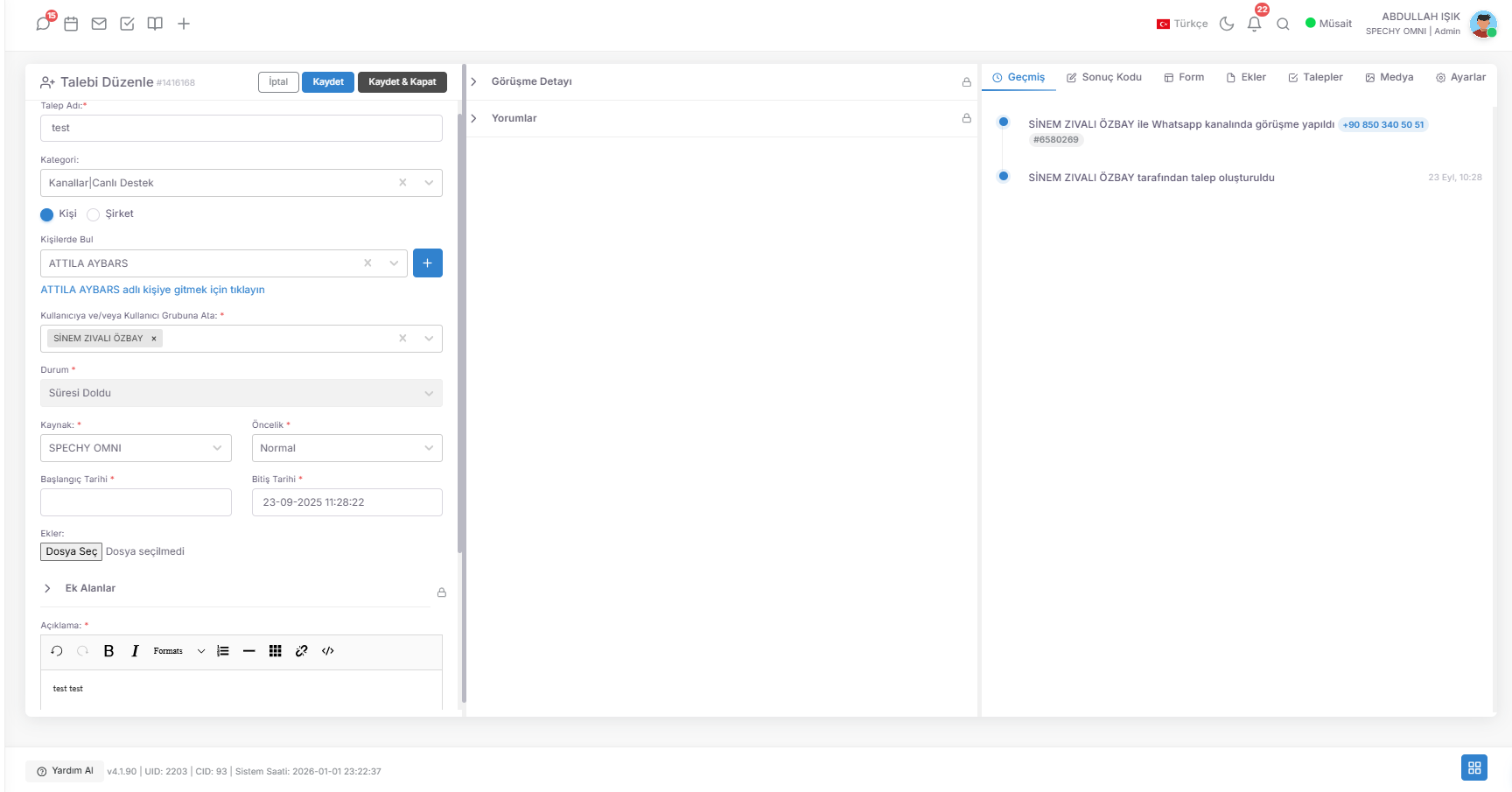
🛠️ Request Card Components and Management
💡 Why is it Important?
Interview Detail is not only determining which communication channel a request (ticket) was triggered through, but it is also a digital memory center that offers the entire content of that interview (email text or voice recording) as a transcript.
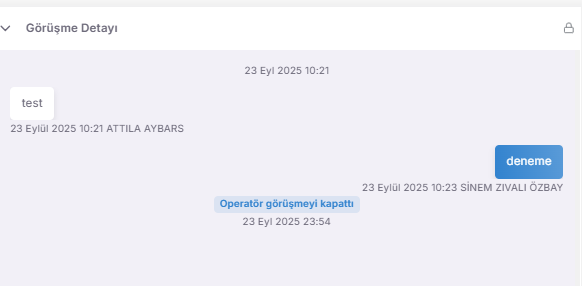
🔍 Functional Features and Content
💡 Why is it Important?
Comments are a "solution diary" that chronologically records all intermediate steps, technical notes and updates shared with the customer during the solution journey of a request.
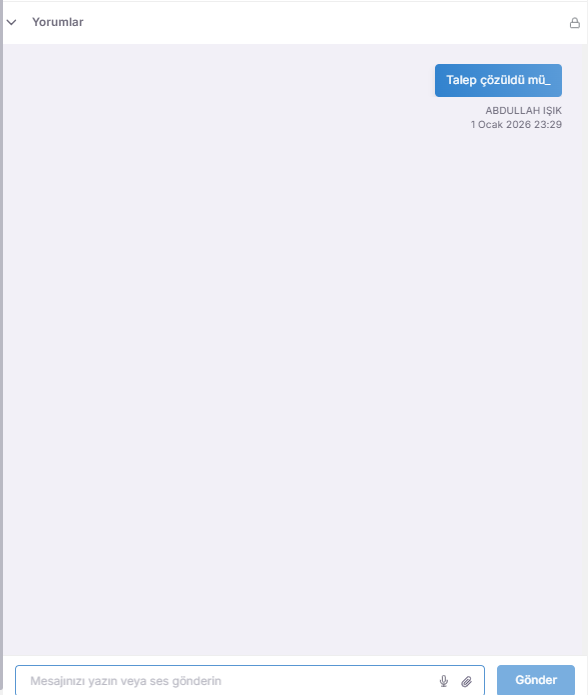
🛠️ Rich Content and Sharing Features
💡 Why is it Important?
This module is a comprehensive analysis set that manages not only the current status of a request; but also its past, related data and the way the representative views this data.
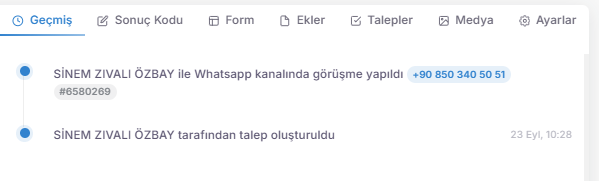
🛠️ Analysis and Data Components
💡 Why is it Important?
My Requests is a special workspace where all requests created directly by you or assigned to you to produce a solution among all cases in the system are listed.
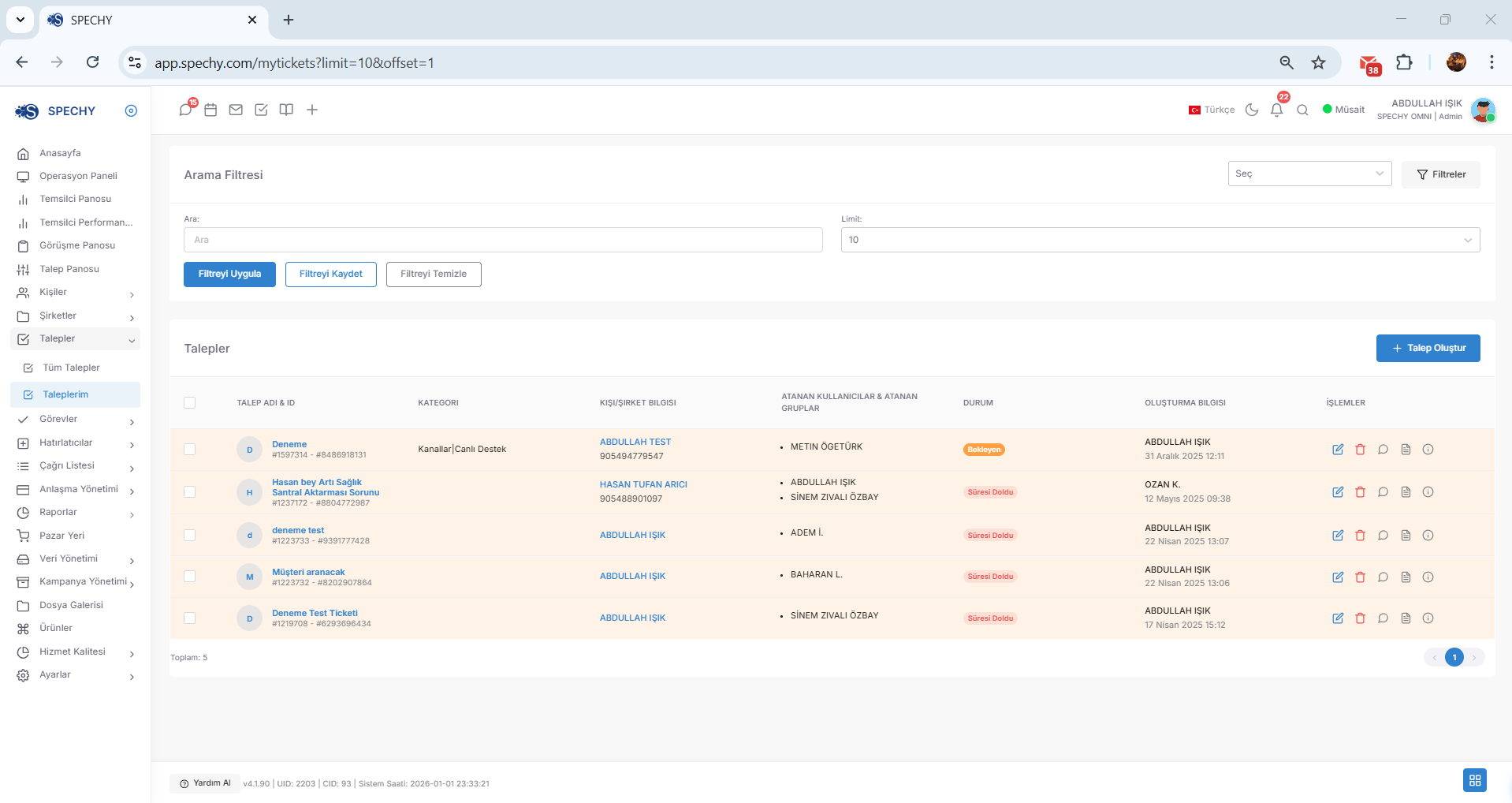
Access URL; https://app.spechy.com/mytickets?limit=10&offset=1
🛠️ Functional Features and Usage
💡 Why is it Important?
All Tasks is the main pool where all projects carried out within the institution, assigned specific tasks and actions to be followed are created, monitored and controlled from a single center.
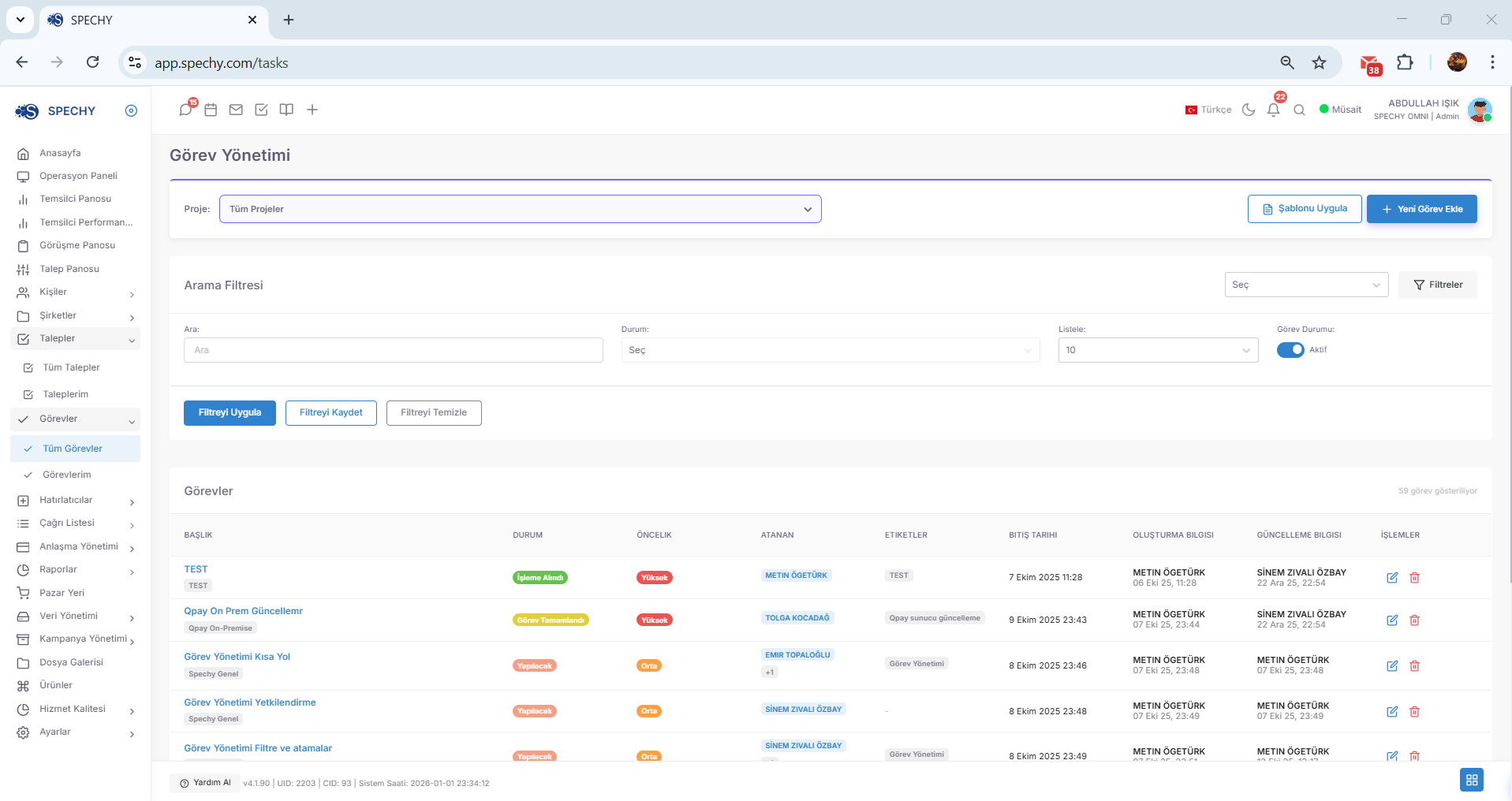
Access URL; https://app.spechy.com/tasks
🛠️ Functional Features and Management Power
💡 Why is it Important?
Task Detail allows you to monitor every stage of the process, make the necessary revisions and instantly track the "life cycle" of the work by entering a created work order.
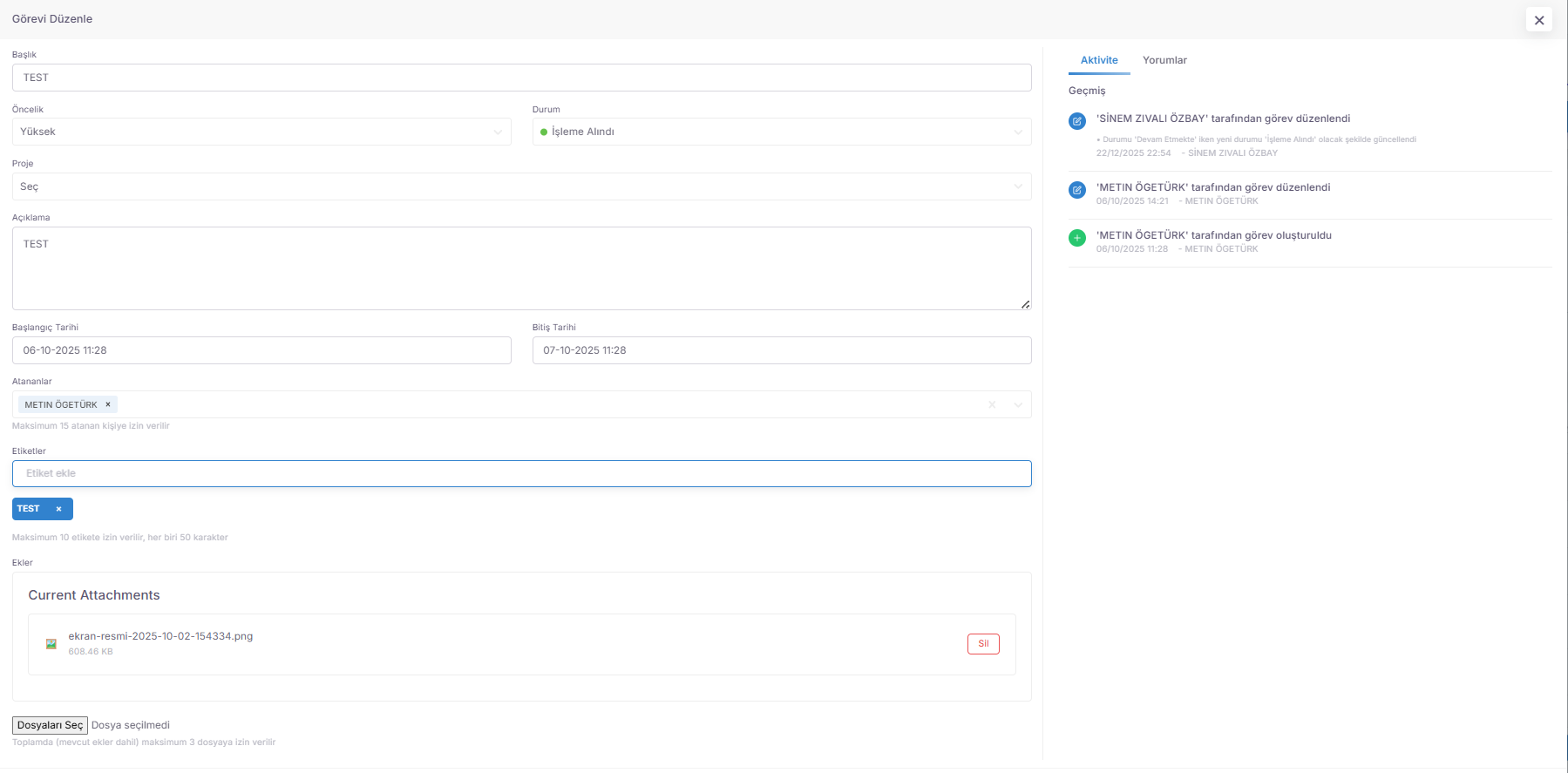
🛠️ Functional Control and Monitoring Features
💡 Why is it Important?
My Tasks is a special "task list" panel that lists the tasks assigned directly to you from the projects and job orders throughout the system or created by you.
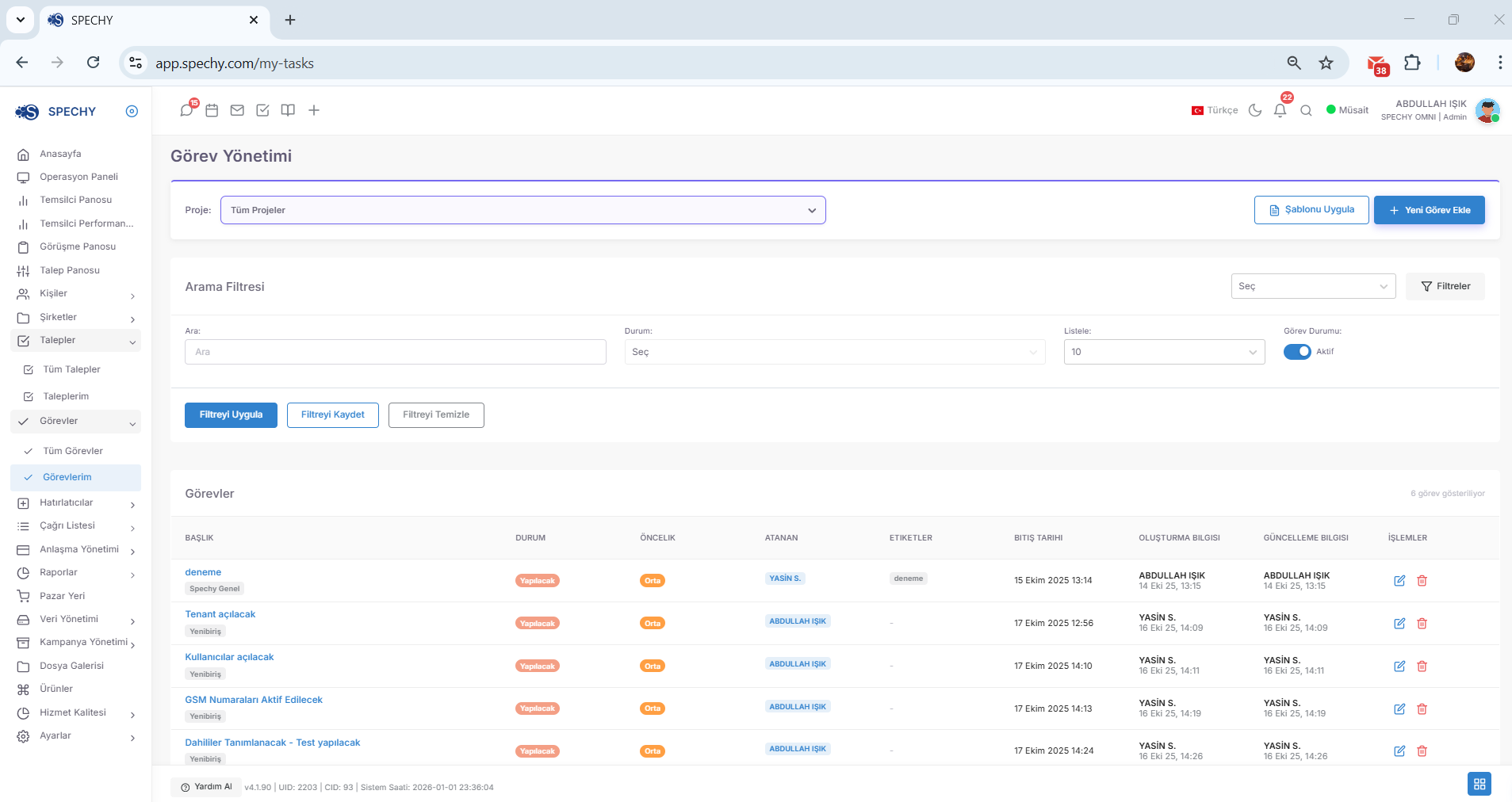
Access URL; https://app.spechy.com/my-tasks
🛠️ Functional Features and Usage
💡 Why is it Important?
All Reminders is an operational control panel supported by smart notifications, where all appointment, call back and follow-up notes created across the system are managed centrally.
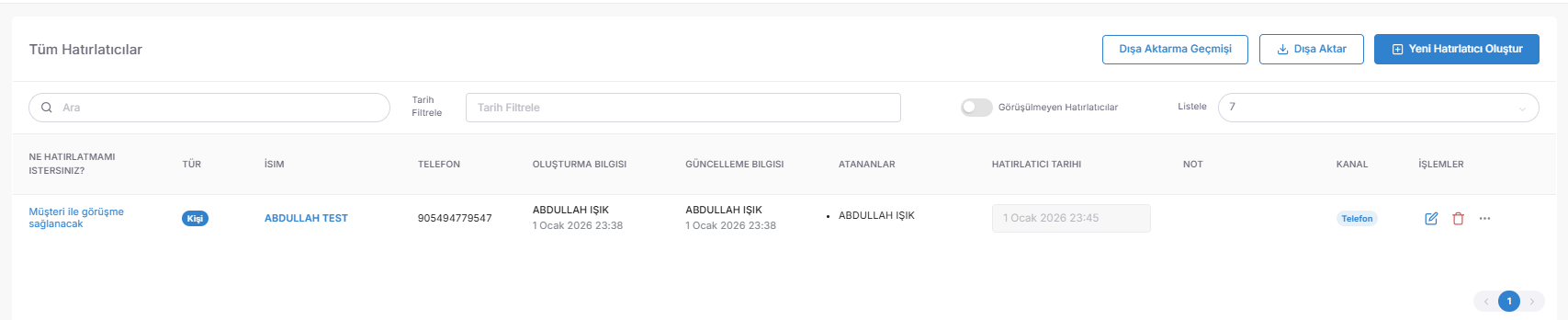
Access URL; https://app.spechy.com/all-appointments
🛠️ Functional Features and Smart Notifications
💡 Why is it Important?
Viewed Reminders are the "Transaction Complete" pool where records that have successfully completed the action when the appointment or callback time determined with the customer arrives are collected.
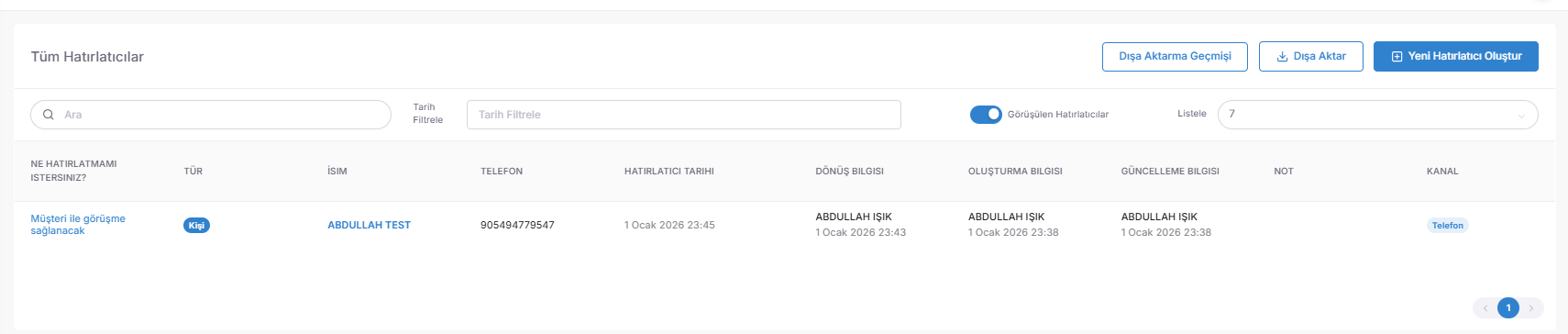
🛠️ Smart Status Transition and Functionality
💡 Why is it Important?
My Reminders is a special monitoring panel that lists all scheduled actions throughout the system, including the reminders you have created yourself or assigned to you for you to resolve/follow.
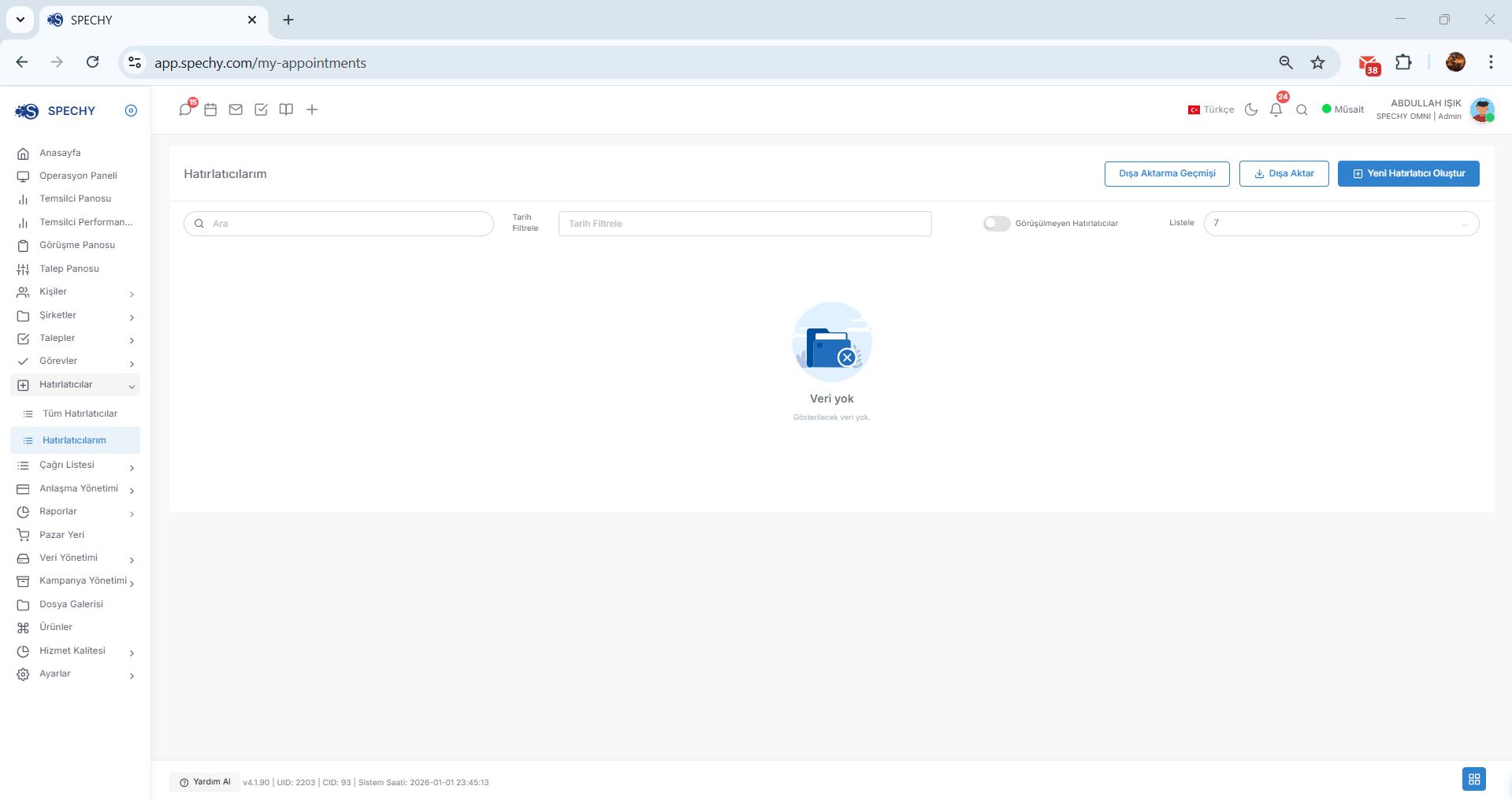
Access URL; https://app.spechy.com/my-appointments
🛠️ Functional Features and Usage
💡 Why is it Important?
📞 Call List (Campaign-Focused Outbound Call Management)
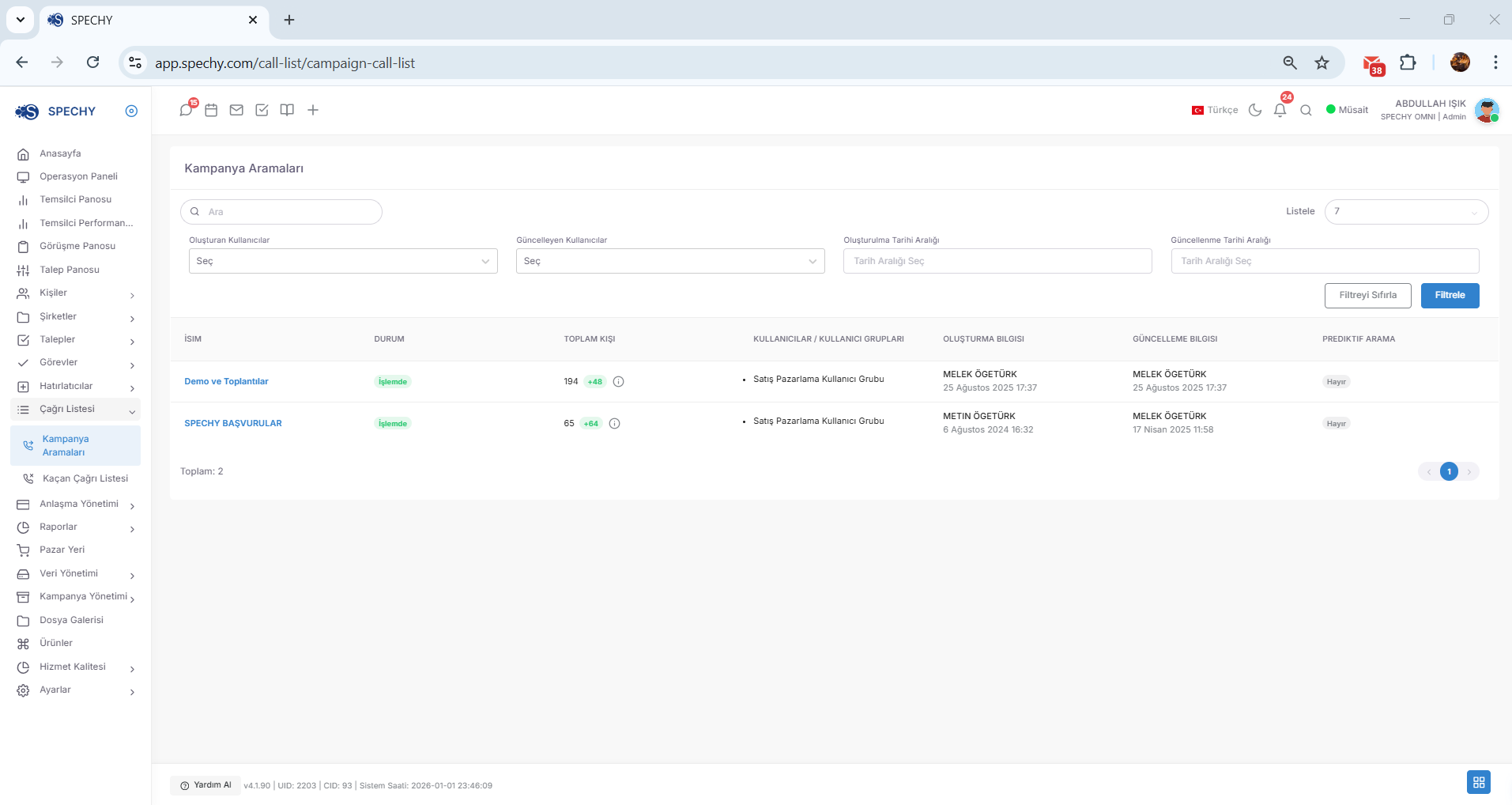
Call List is a proactive communication center where guides created for a specific purpose (Sales, Satisfaction Survey, Information, etc.) are managed collectively and representatives make calls in turn.
Access URL; https://app.spechy.com/call-list/campaign-call-list
🛠️ Functional Features and Operational Power
💡 Why is it Important?
📞 87. Lost Call List (Recovering Missed Calls)
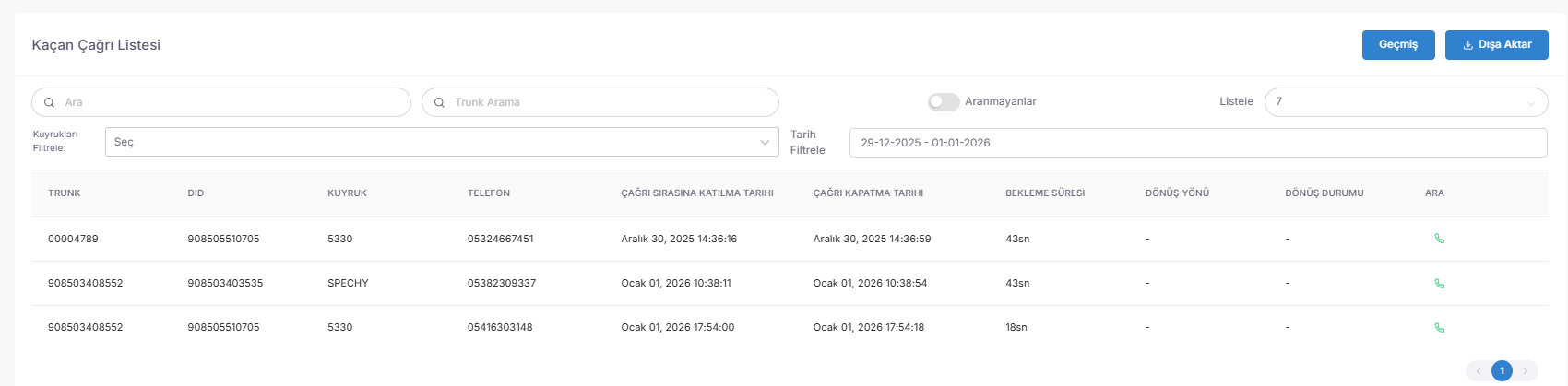
The Lost Call List is a strategic management panel where customers who have not been able to reach the representative for various reasons (those who closed the line while waiting in line or called after hours) are automatically accumulated and are waiting for a "return".
Access URL; https://app.spechy.com/call-list/missed-call-list
🛠️ Functional Features and Smart Streaming
💡 Why is it Important?
🤝 Agreements (Sales Opportunity and Pipeline Management)
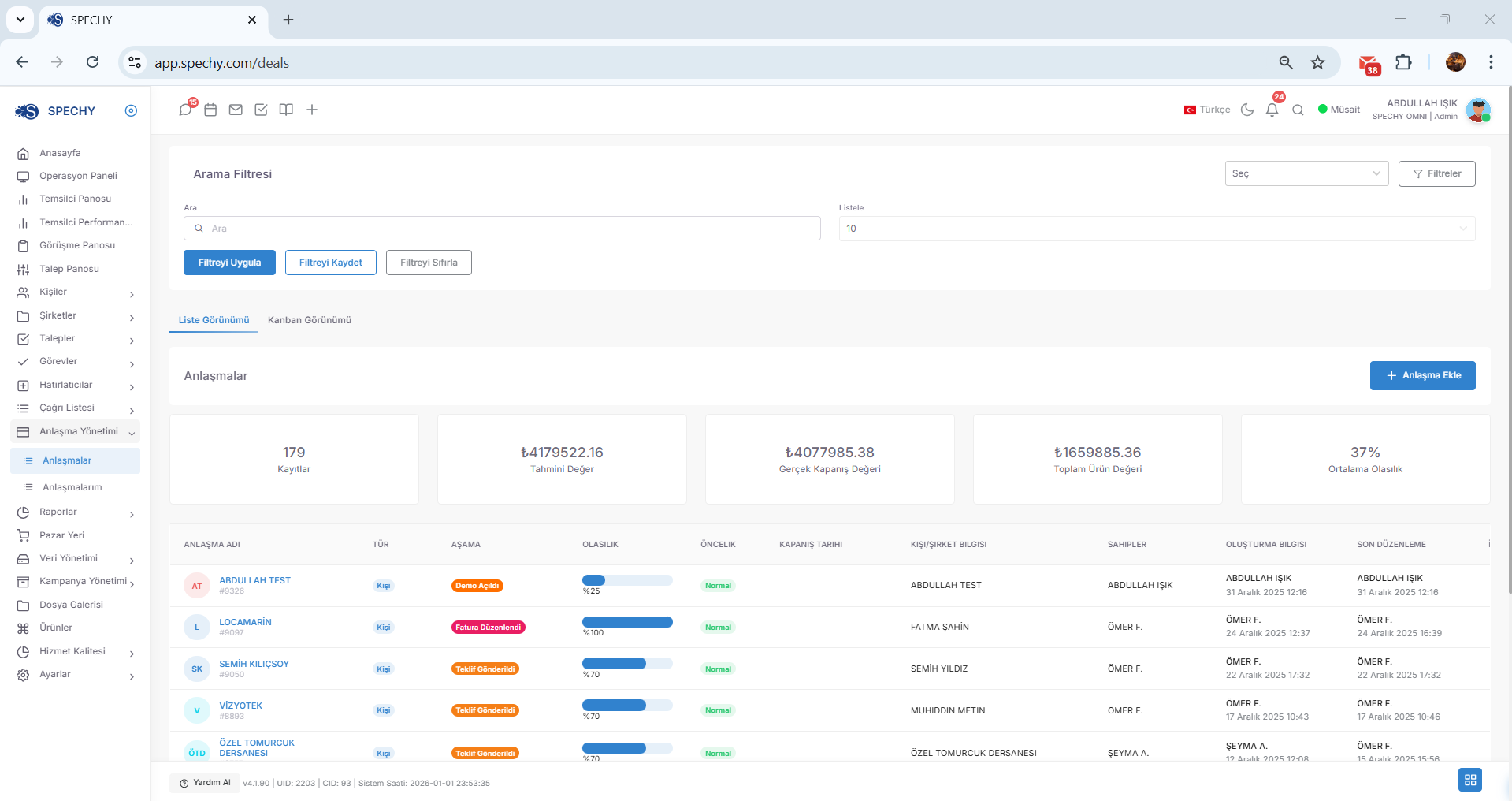
Agreements is a central management panel that allows you to track potential sales opportunities (leads/opportunities) from the first contact to the closing, and enables you to create revenue forecasting ($Forecasting$).
🛠️ Functional Features and Sales Funnel
💡 Why is it Important?
Kanban View is an interactive panel that presents the different stages of agreements or requests in vertical columns, allowing you to understand the workflow at a glance.
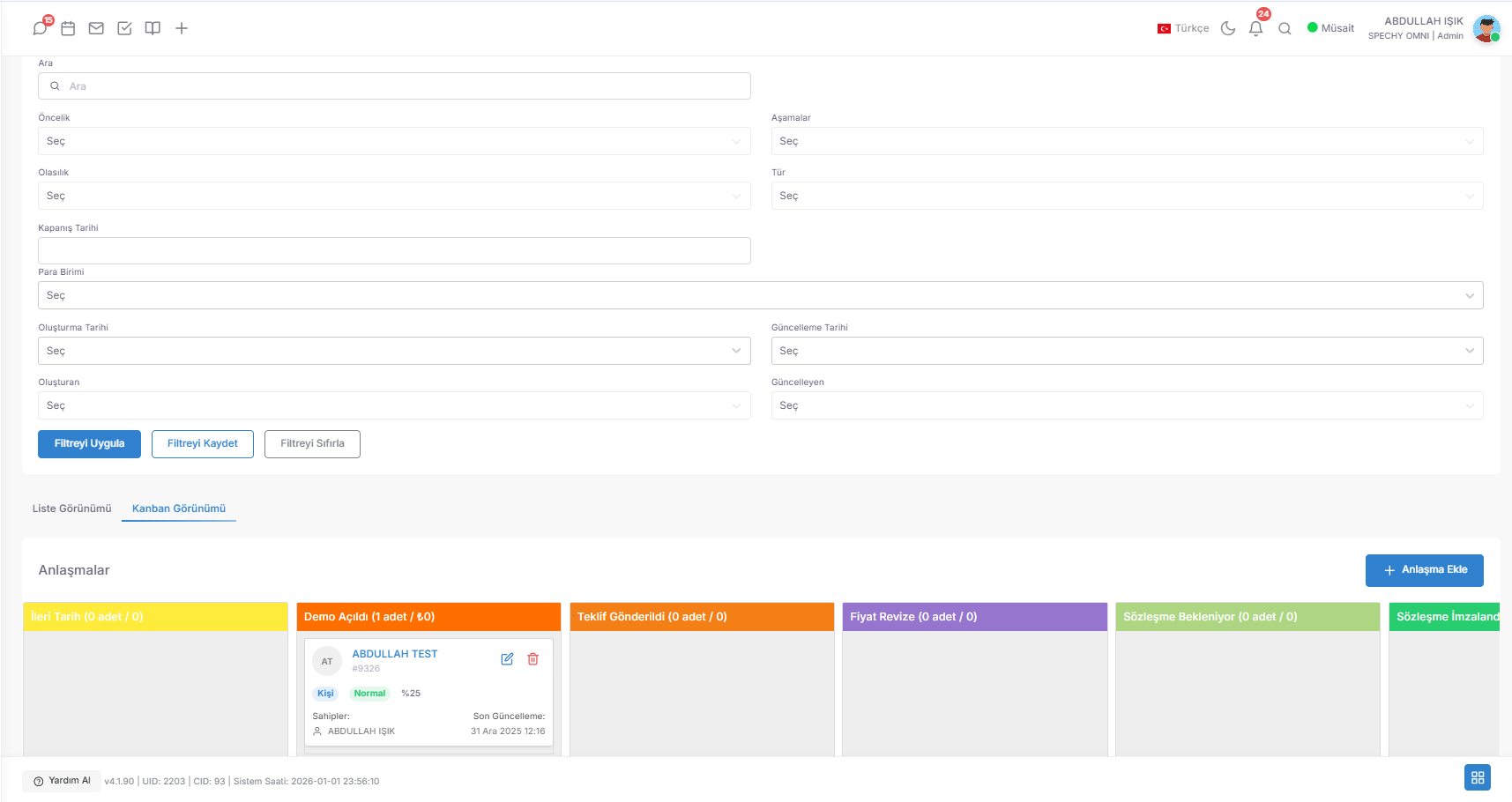
🛠️ Functional Features and Dynamic Management
💡 Why is it Important?
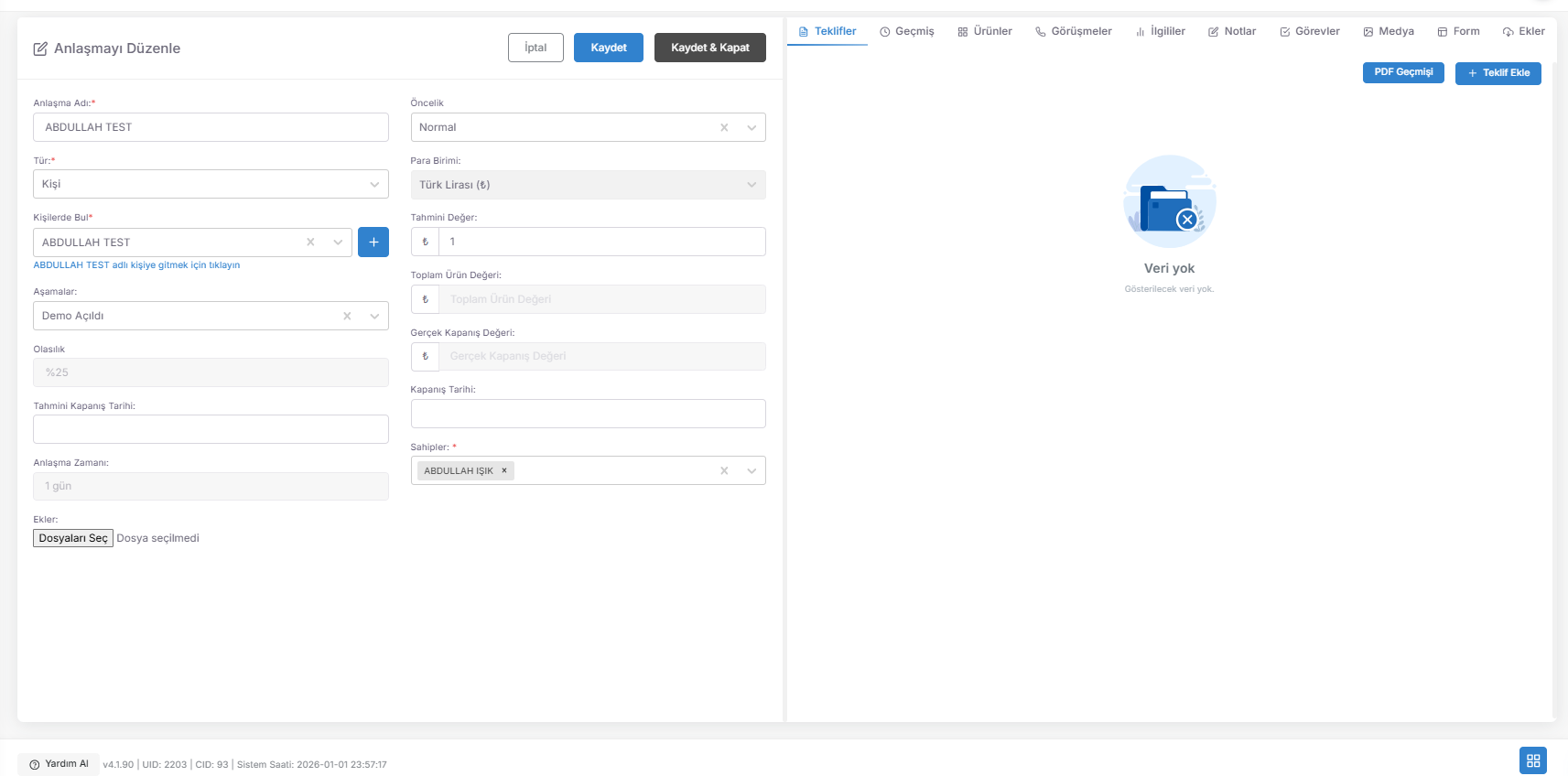
💡 Why is it Important?

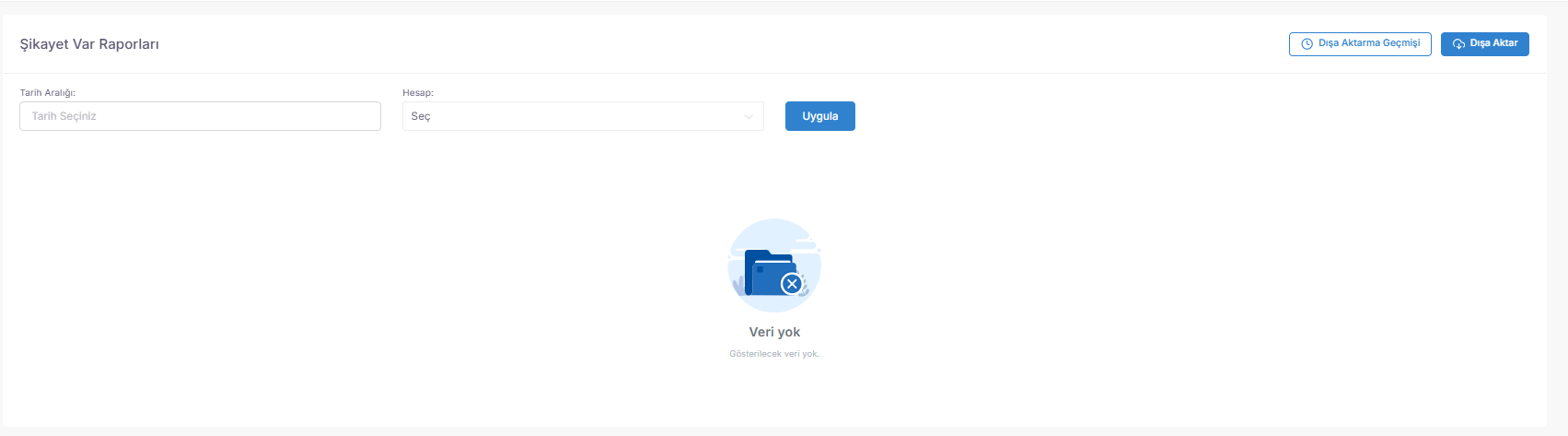
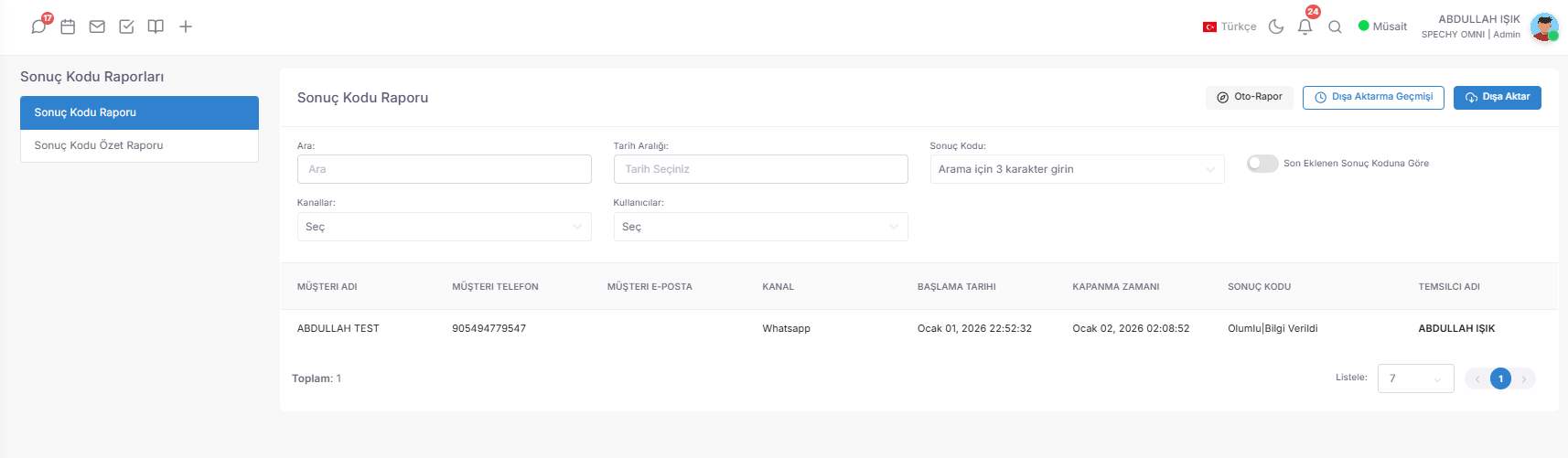
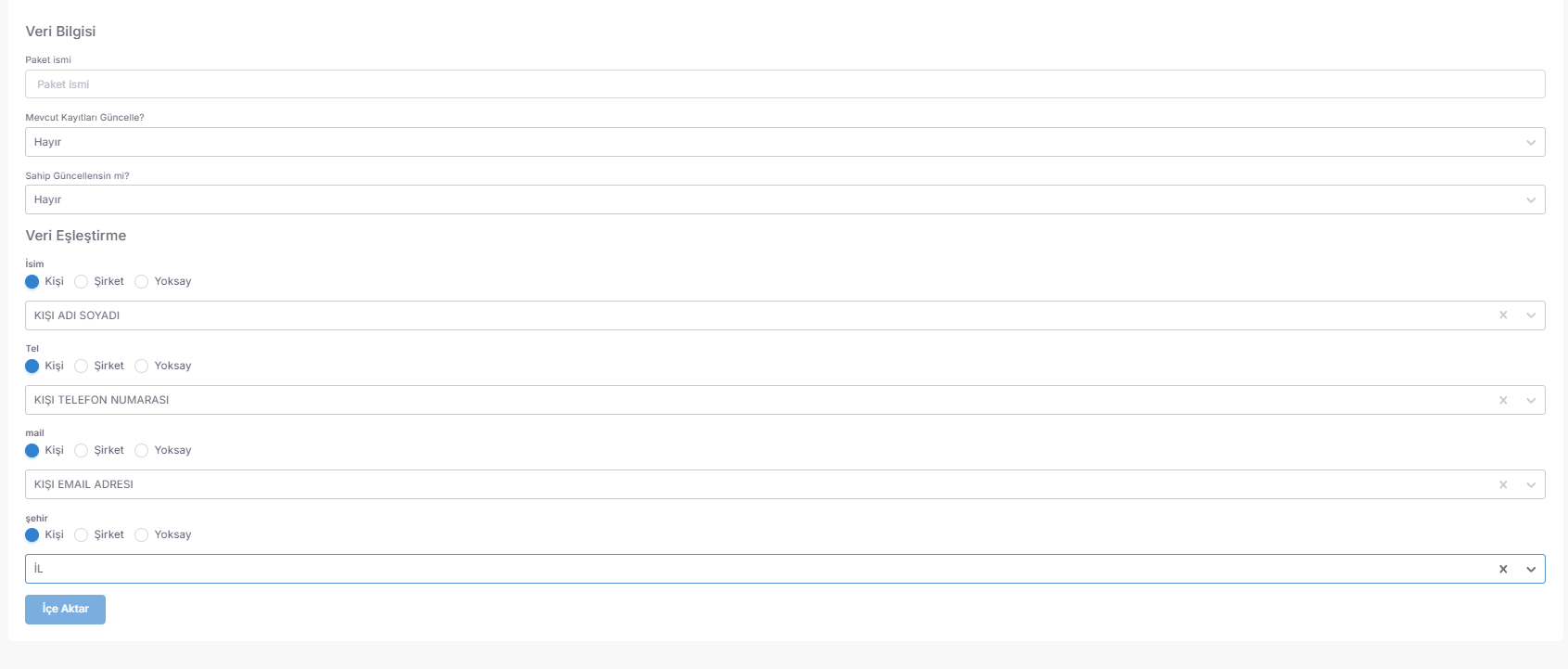
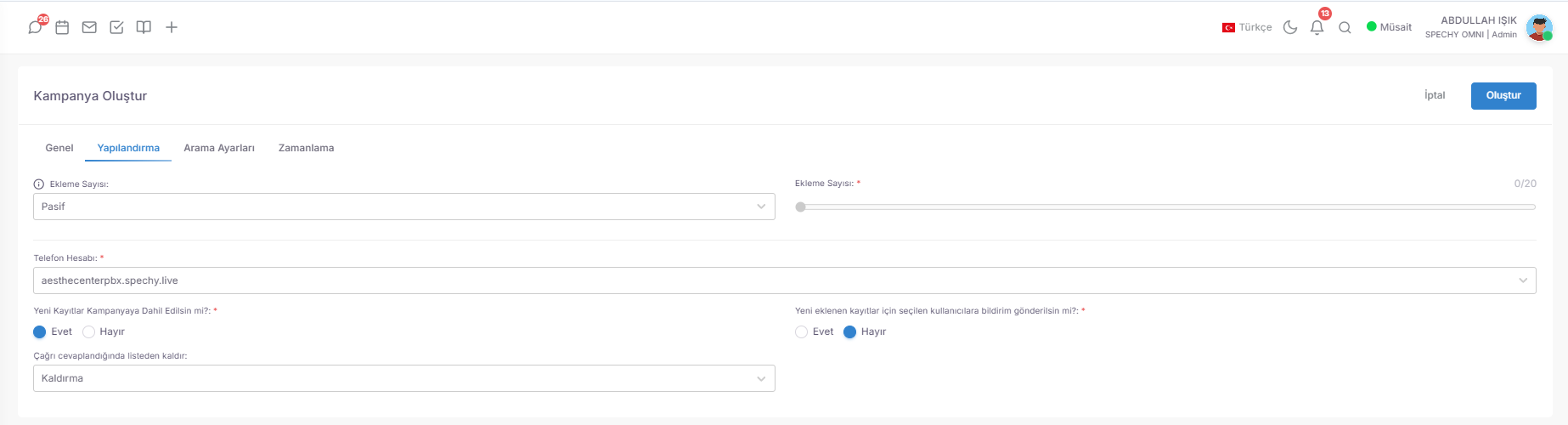
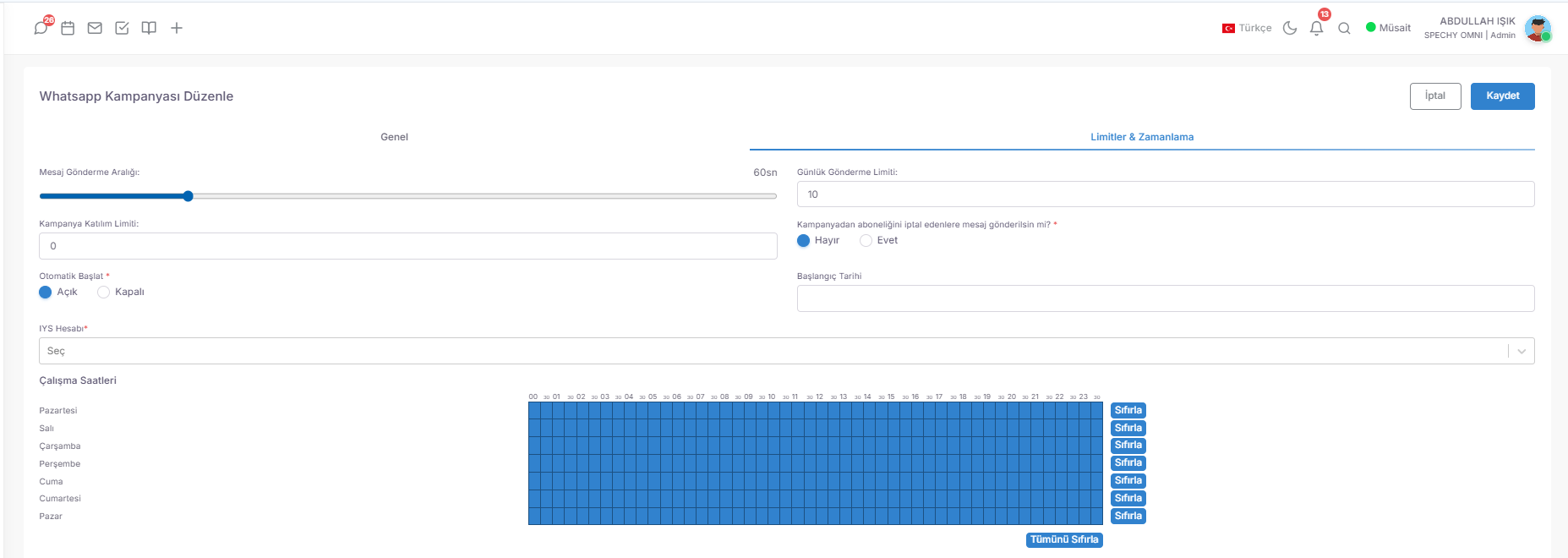

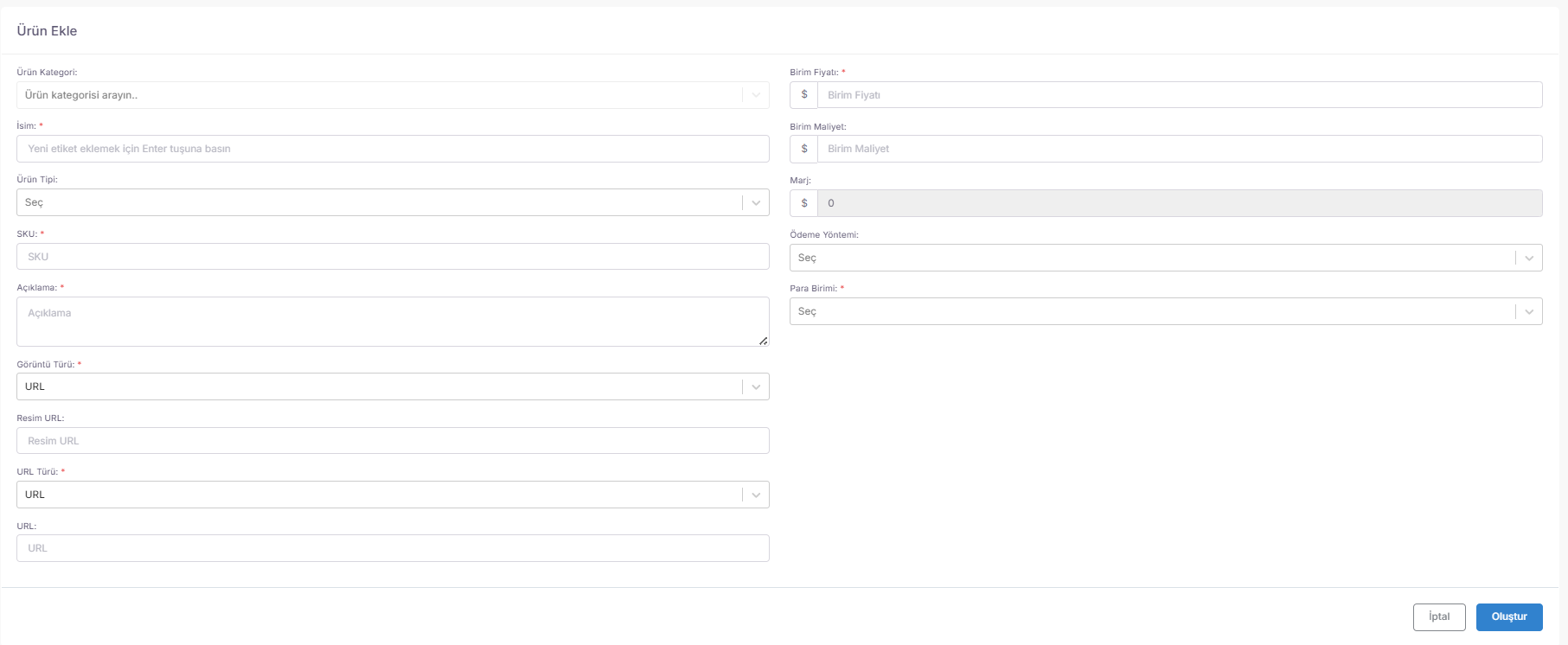


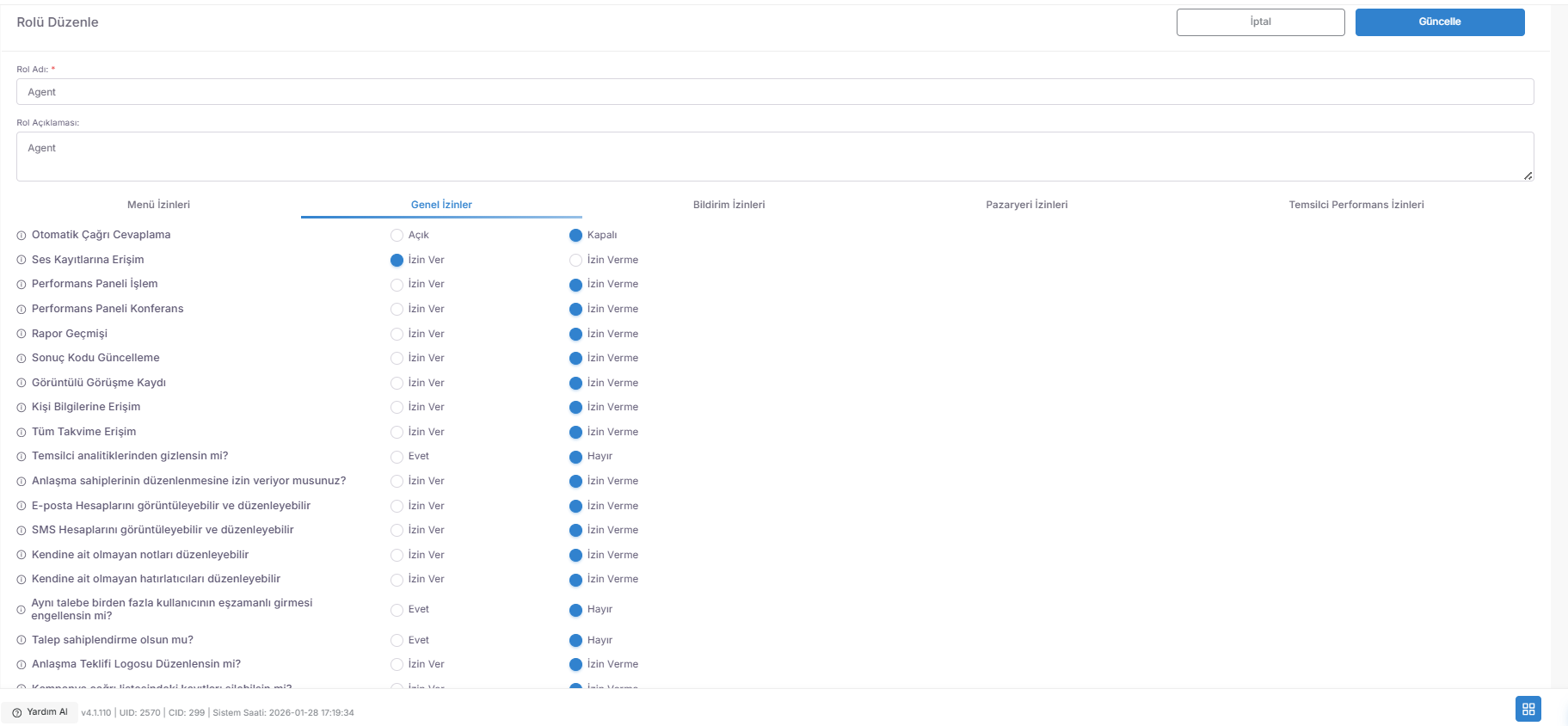

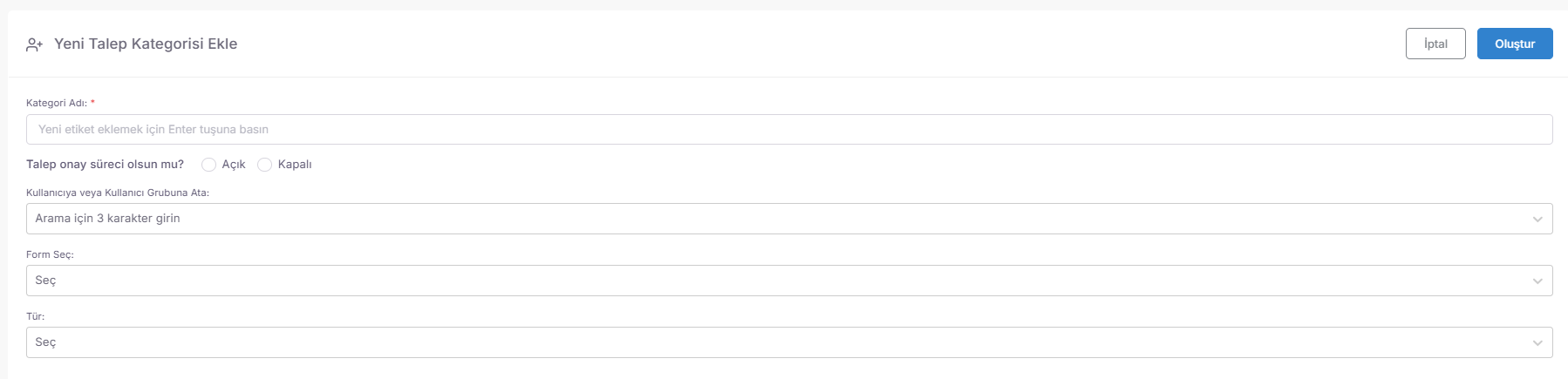

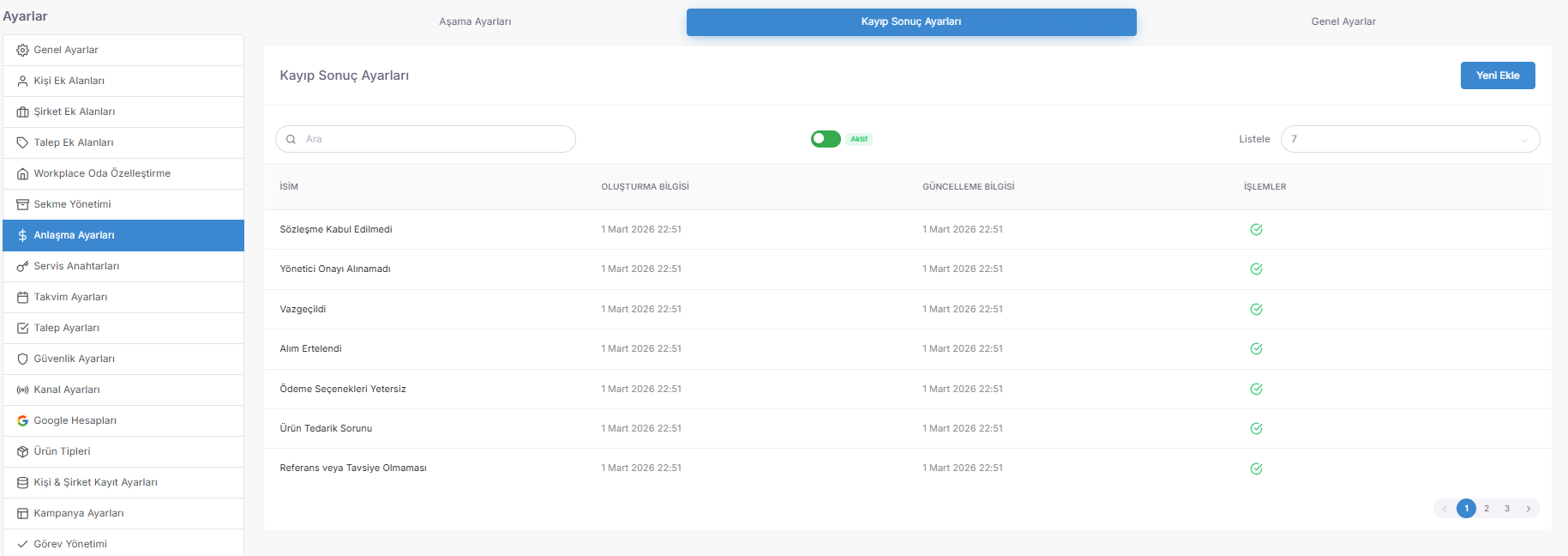
📄 Agreement Management (Proposal and Relationship Process Control)
Deal Management is an operational control panel that surrounds a sales opportunity 360 degrees, from sending offers without adding products to assigning tasks without taking notes.
Access URL; https://app.spechy.com/deals
🛠️ Operational and Relational Tool Set
💡 Why is it Important?
My Agreements is a special "Income Tracking" panel that lists all potential opportunities across the system, including those you have created yourself or assigned to you for completion.
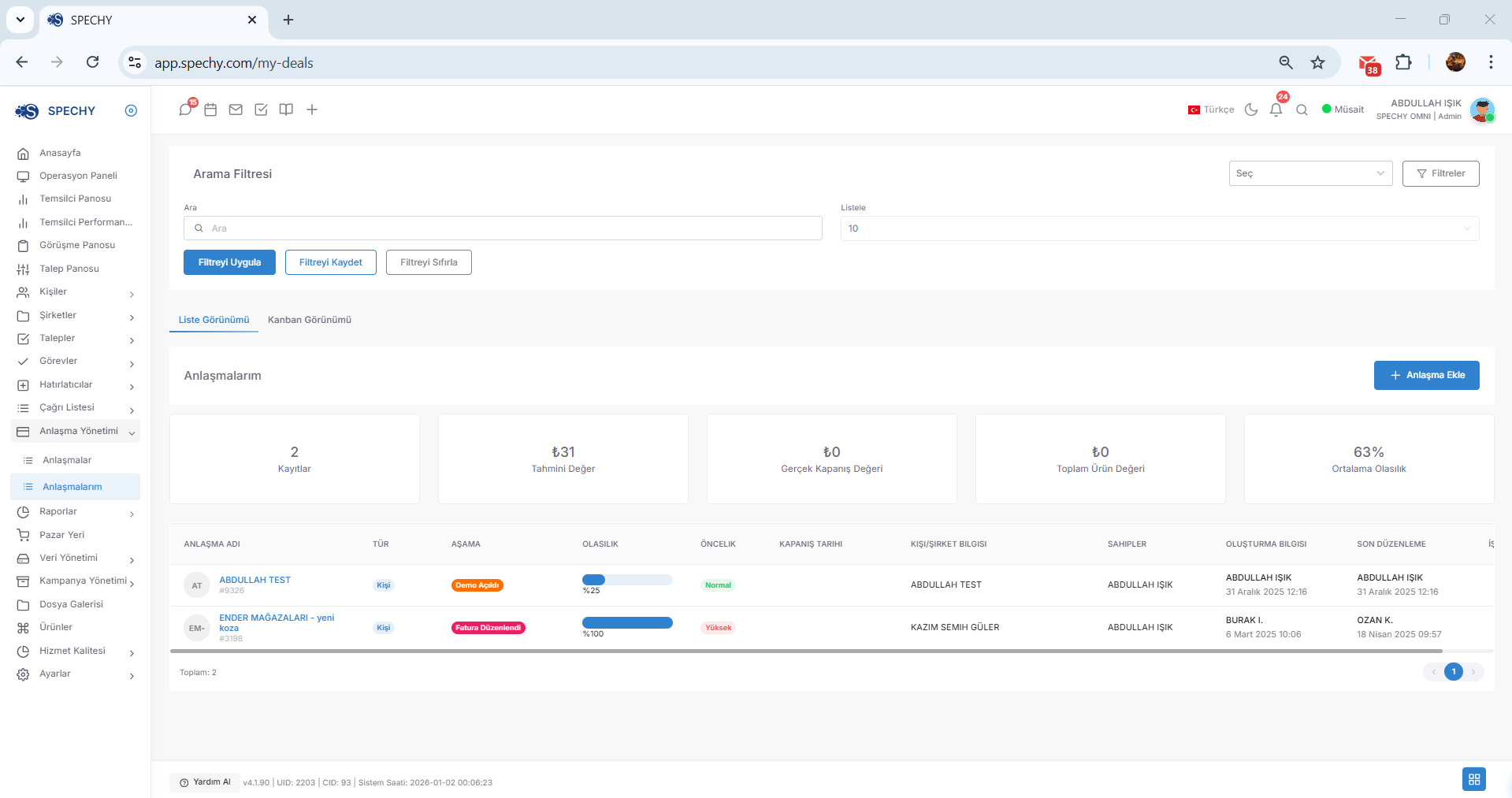
Access URL; https://app.spechy.com/my-deals
🛠️ Functional Features and Individual Focus
💡 Why is it Important?
📊 Consolidated Channel Reports (Data Consolidation and Automatic Sending)
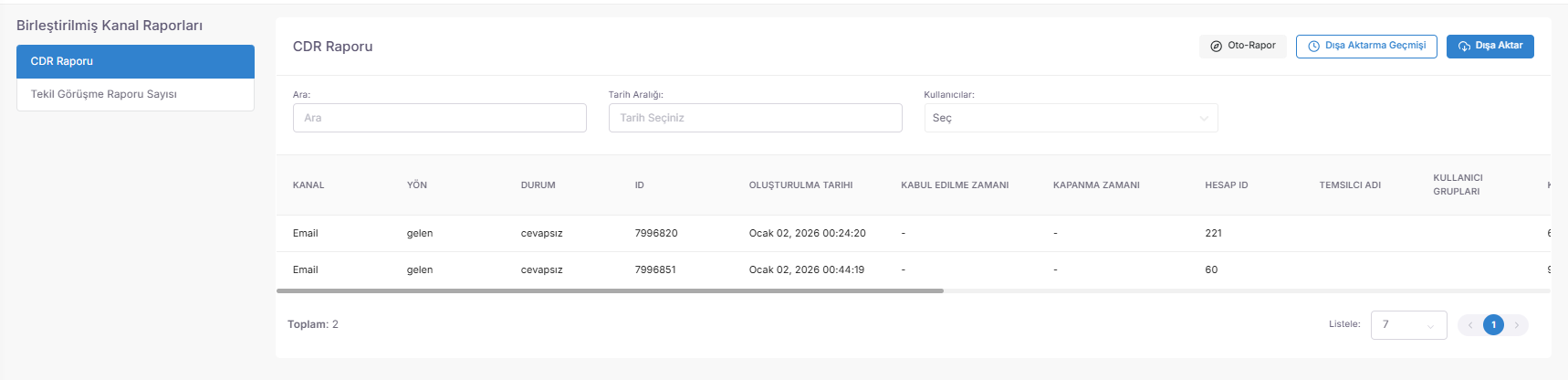
Integrated Channel Reports is an "operational intelligence" panel that collects the transaction volumes from all communication channels connected to the system (Voice, WhatsApp, Email, Social Media, etc.) in a single table and reports this data periodically.
Access URL; https://app.spechy.com/reports/combined
🛠️ Analytical Skills and Automation Power
💡 Why is it Important?
📊 Single Interview Report (Customer-Based Net Contact Analysis)
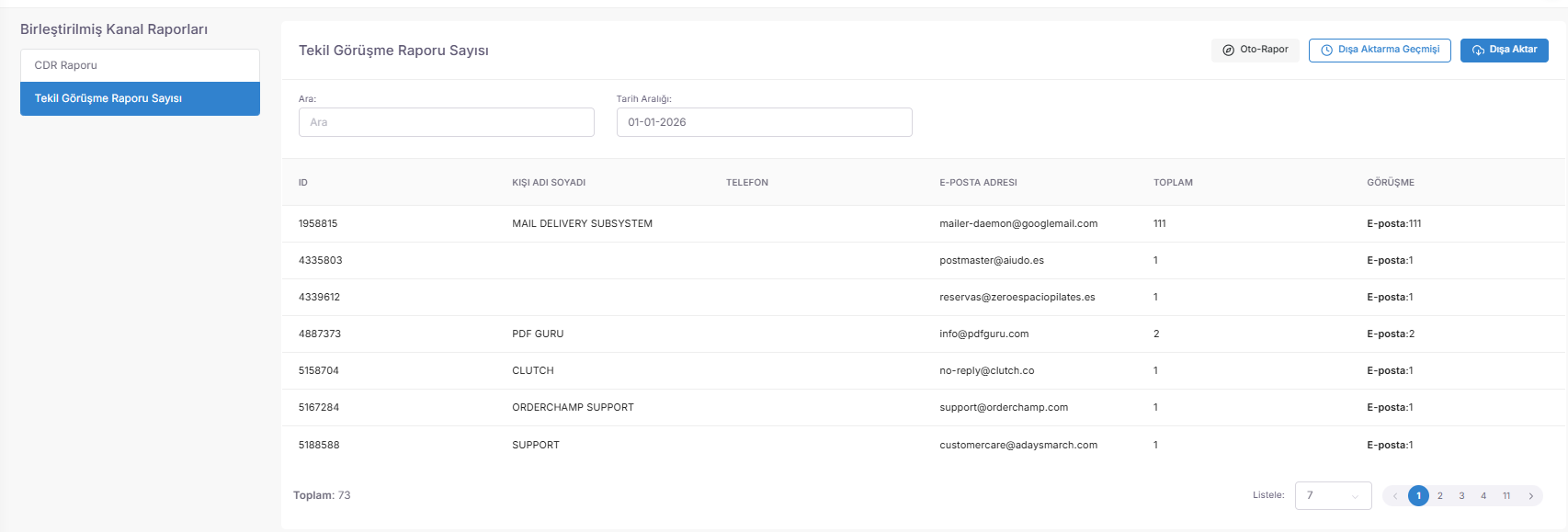
Single Interview Report reports the total number of unique customers reached by the operation by counting multiple interviews with the same customer within a specific time period as a single record.
🛠️ Analytical Depth and Data Cleaning
💡 Why is it Important?
📱 Social Media Reports: Facebook Analytics and Performance Management
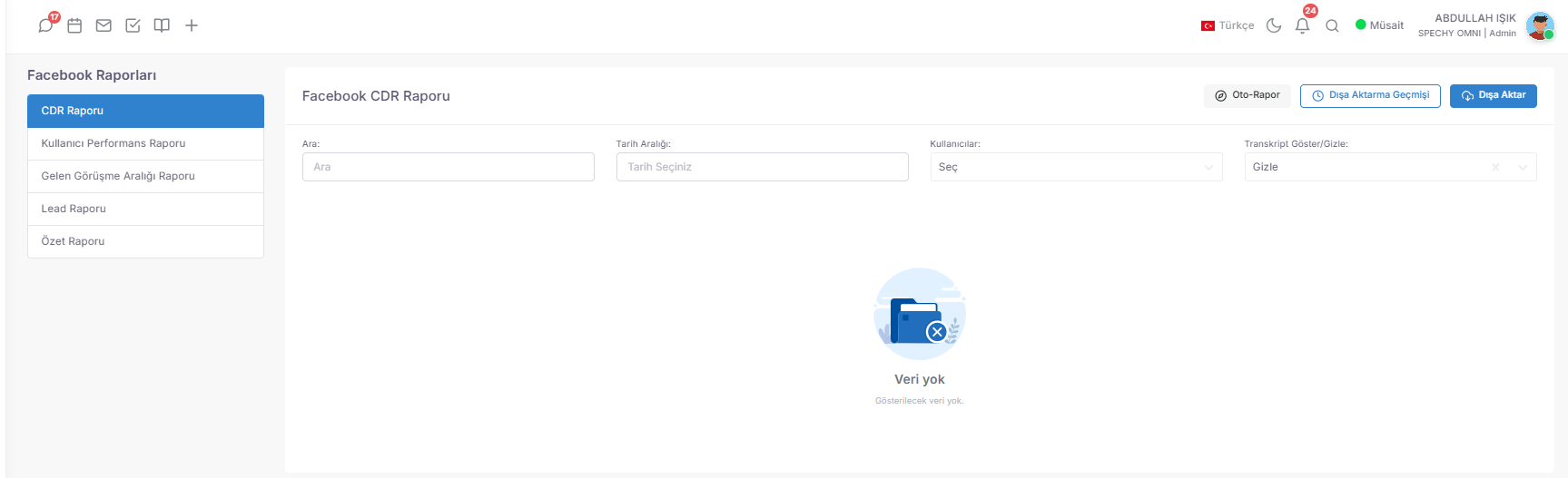
Facebook Reports is a strategic panel where all interactions coming from Facebook page or Messenger are monitored 360 degrees, as well as their sales potentials (leads) and representative performance.
Access URL; https://app.spechy.com/reports/channel/social-media-reports/facebook
🛠️ Facebook Data and Operations Analysis
💡 Why is it Important?
📸 Social Media Reports: Instagram Analytics and Interaction Management
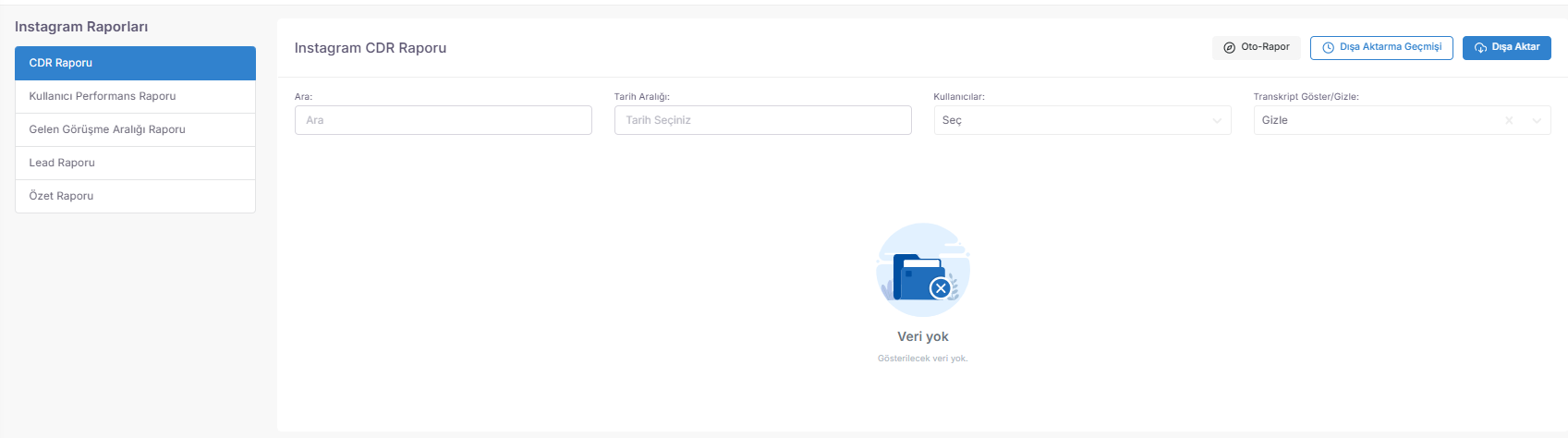
Instagram Reports is an analytical control panel that tracks all communications received via Instagram Direct (DM), opportunities (leads) collected through ads, and representative performance end-to-end.
Access URL; https://app.spechy.com/reports/channel/social-media-reports/instagram
🛠️ Instagram Data and Operation Analysis
💡 Why is it Important?
💬 Communication Reports: Live Chat and Artificial Intelligence Analytics
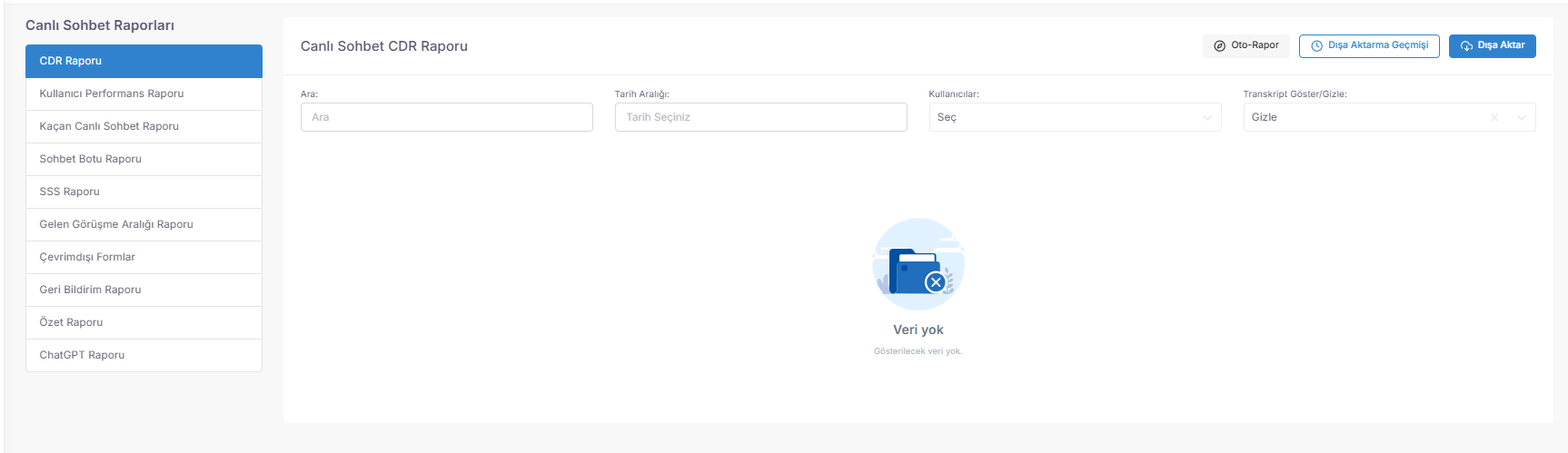
Live Chat Reports report every pixel movement from the live support bubble on your website; from bot interactions to ChatGPT responses, from user performance to transactions that escape.
Access URL; https://app.spechy.com/reports/channel/communication-reports/live-chat
🛠️ Live Chat, Bot and AI Operation Analysis
💡 Why is it Important?
🟢 Communication Reports: WhatsApp Business and Artificial Intelligence Analytics
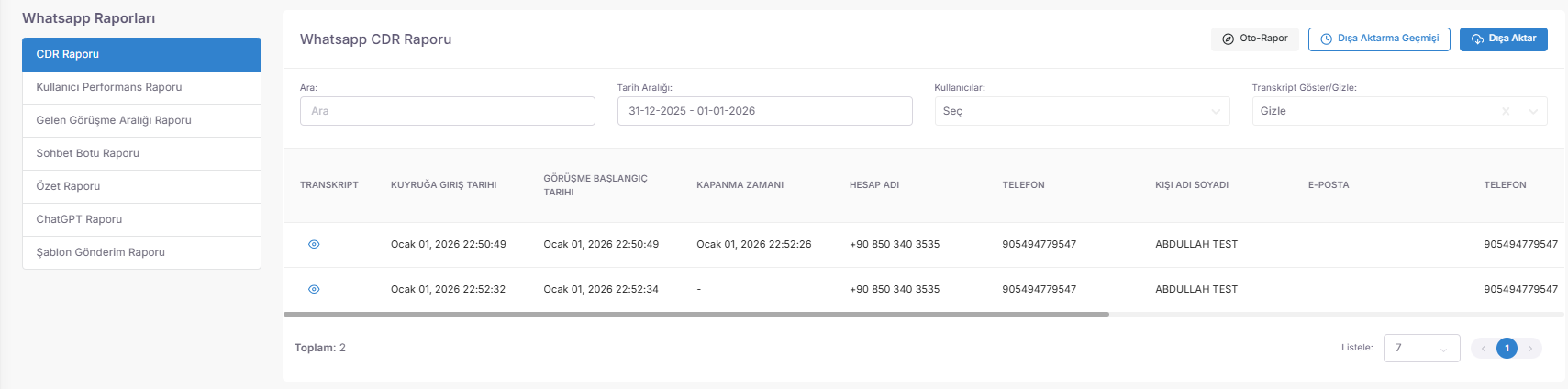
WhatsApp Reports thoroughly monitors all traffic flow coming through the WhatsApp Business API; from representative performance to bot interactions, from Meta template successes to ChatGPT responses, 360 degrees.
Access URL; https://app.spechy.com/reports/channel/communication-reports/whatsapp
🛠️ WhatsApp Data and Operation Analysis
💡 Why is it Important?
📞 Contact Reports: Phone, Call Center and Spechy AI Analytics
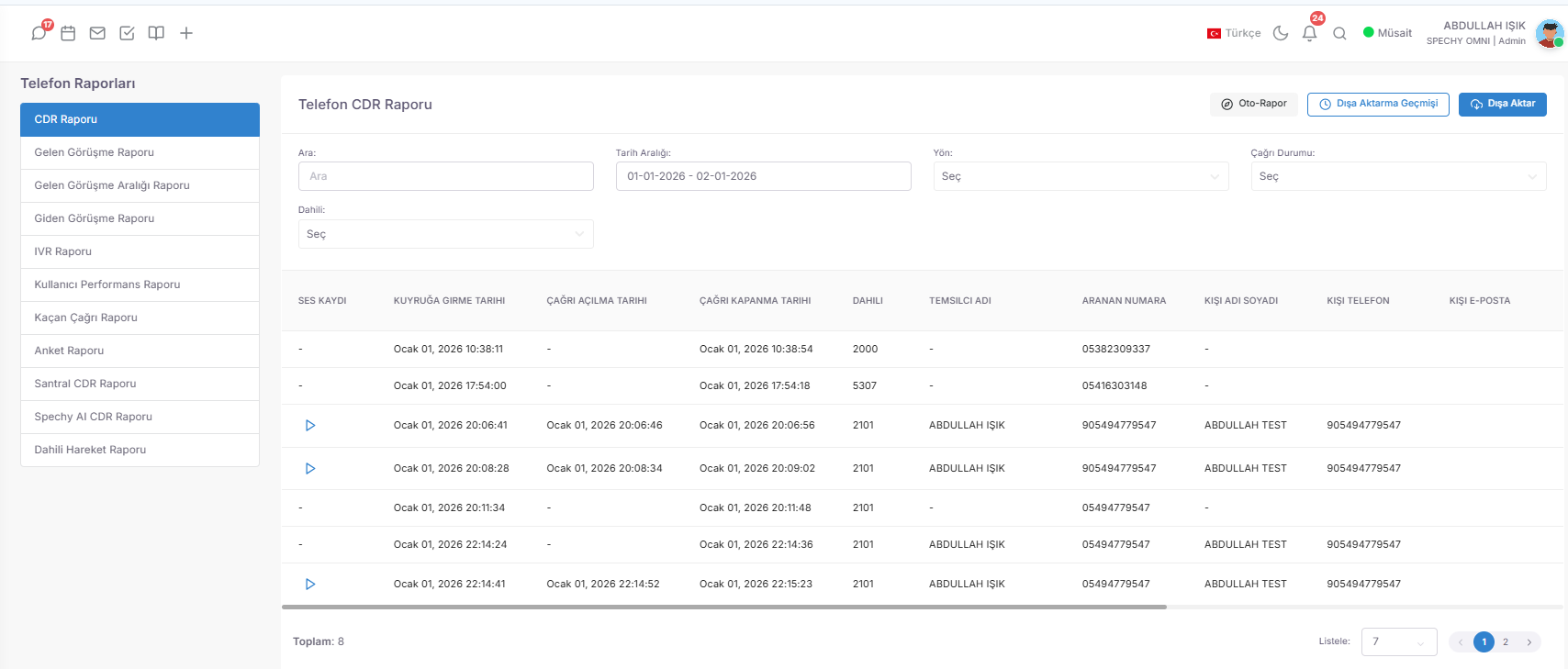
Phone Reports monitors all incoming and outgoing voice traffic; from representative speed to customer dials, from voice recordings to text conversion to artificial intelligence (AI) responses, 360 degrees.
Access URL; https://app.spechy.com/reports/channel/communication-reports/voice-call
🛠️ Voice Communication and Operational Analysis Tools
💡 Why is it Important?
📹 Video Interview CDR Report (Visual Communication and Performance Analysis)
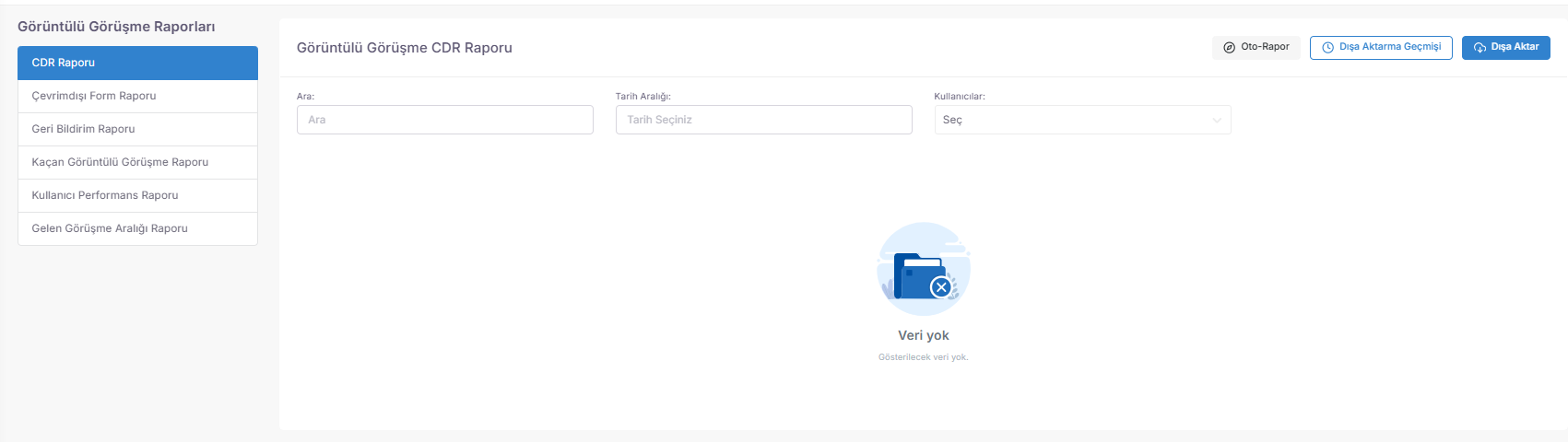
Video Call Reports monitors all traffic from video conferencing and live visual support channels; from representative efficiency to customer satisfaction, from missed calls to off-hours forms, end-to-end.
Access URL; https://app.spechy.com/reports/channel/communication-reports/video-call
🛠️ Visual Communication and Operational Analysis Tools
💡 Why is it Important?
📧 Email Reports (Written Communication and Performance Analysis)
Email Reports monitors all traffic of the system through its email channels; from topic details to representative speed, from outgoing message content to traffic density analyses, end-to-end.
Access URL; https://app.spechy.com/reports/channel/communication-reports/email
🛠️ E-Mail Data and Operation Analysis Tools
💡 Why is it Important?
📱 SMS Reports (Fast Communication and Sending Inspection)
SMS Reports is an inspection panel that reports all short message traffic sent via the system end-to-end; from the message content to the sender identity, from the target number to the sending time.
Access URL; https://app.spechy.com/reports/channel/communication-reports/sms
🛠️ SMS Data and Monitoring Analysis Tools
💡 Why is it Important?
📢 Şikayetvar Reports (Brand Reputation and Crisis Management Analysis)
Şikayetvar Reports is a strategic monitoring panel that reports all feedback coming to your brand through Turkey's largest complaint platform; from account-based traffic to solution performance, reporting end-to-end.
Access URL; https://app.spechy.com/reports/channel/marketplace/sikayetvar
🛠️ Reputation Management and Operational Analysis Tools
💡 Why is it Important?
🛍️ Trendyol Reports (E-Commerce Customer Audit and Question Analysis)
Trendyol Reports is a commercial audit panel that reports all customer questions received through the marketplace end-to-end; from product-based interest to response details, from transaction status to timeline.
Access URL; https://app.spechy.com/reports/channel/marketplace/trendyol
🛠️ E-Commerce Support and Operation Analysis Tools
💡 Why is it Important?
🛒 Ticimax Reports (E-Commerce Infrastructure and Question Management)
Ticimax Reports is an operational audit center that consolidates and reports all customer questions and requests coming from your website; from product interest to response details in a single panel.
Access URL; https://app.spechy.com/reports/channel/marketplace/ticimax
🛠️ Infrastructure Support and Data Analysis Tools
💡 Why is it Important?
🏁 Result Code Reports (Interaction Output and Productivity Analysis)
Result Code Reports are an audit panel that captures the "final picture" of all processes, from sales success to technical issues, from information requests to complaints, of the categories selected by representatives at the end of each interaction.
Access URL; https://app.spechy.com/reports/conversations/reason-code-report
🛠️ Output-Oriented Data and Analysis Tools
💡 Why is it Important?
Quality evaluation report; You can receive a report of the conversations you have evaluated. You can filter by the user who evaluated, the evaluated user and date.
Access URL; https://app.spechy.com/reports/conversations/quality-assessment-report
Manual Call Reports is an analysis panel where transactions and assigned result codes carried out directly via the customer or company card, without being tied to a call queue, are subject to an institutional review.
🛠️ CRM Based Result and Data Analysis Tools
💡 Why is it Important?
Reports> User reports
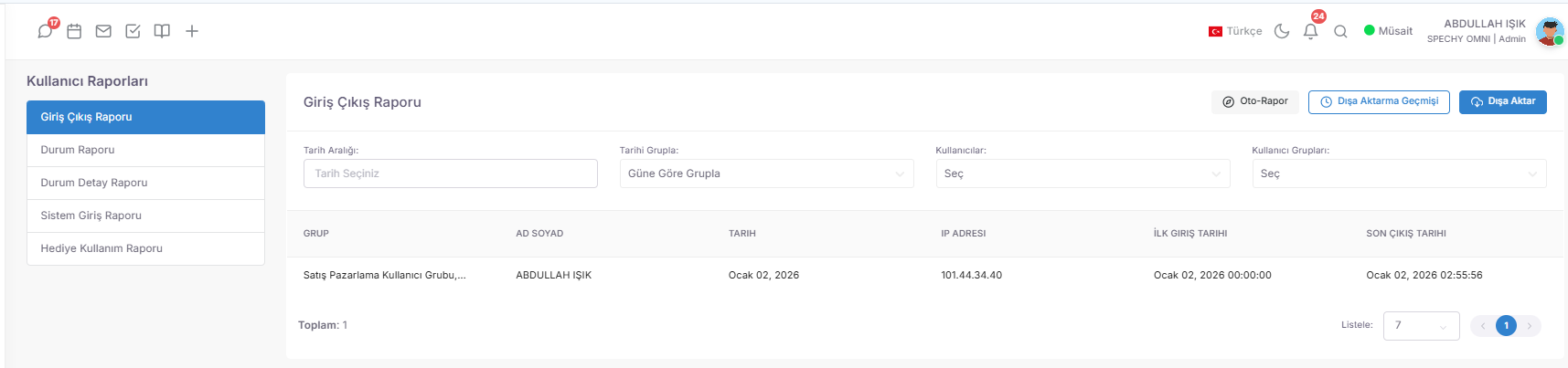
User Reports are a "productivity mirror" that reports the system-related commitments, time management and earned entitlements of representatives as a result of their performance goals end-to-end.
Access URL; https://app.spechy.com/reports/user
🛠️ Personnel Management and Motivation Analysis Tools
💡 Why is it Important?
📝 Form Reports (Structured Data and Field Analysis)
Form Reports is the "Corporate Information Bank" where all custom-designed forms, surveys and data from external integrations in the Spechy ecosystem are reported in a central language.
Access URL; https://app.spechy.com/reports/form
🛠️ Form-Based Data Collection and Analysis Modules
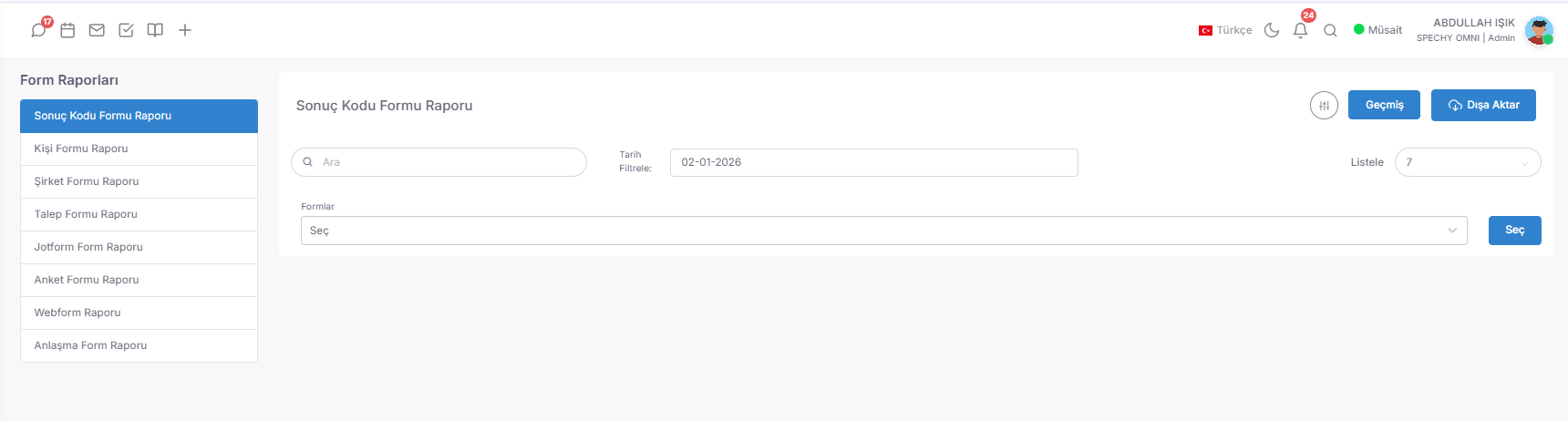
💡 Why is it Important?
Reports> Request Reports
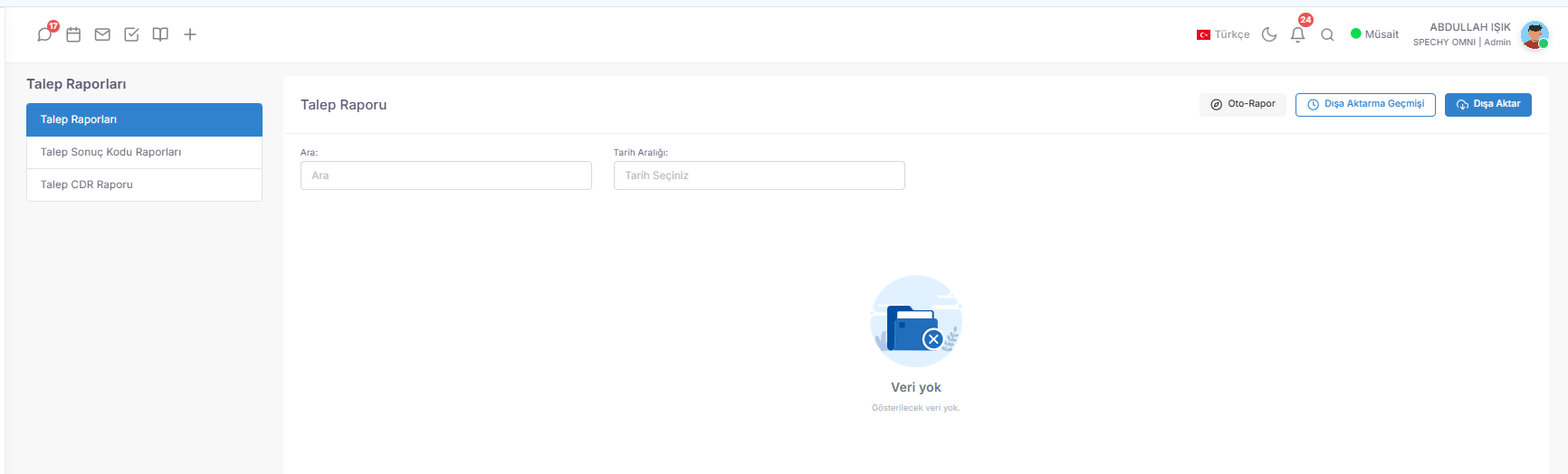
🎫 Request Reports (Process Tracking and Solution Analysis)
Request Reports report all support, complaint or business requests created in the system; 360 degrees reports from the moment of opening to the final result, from user interventions to historical value changes.
Access URL; https://app.spechy.com/reports/ticket
🛠️ Demand and Process Analysis Modules
💡 Why is it Important?
Reports> Agreement Reports
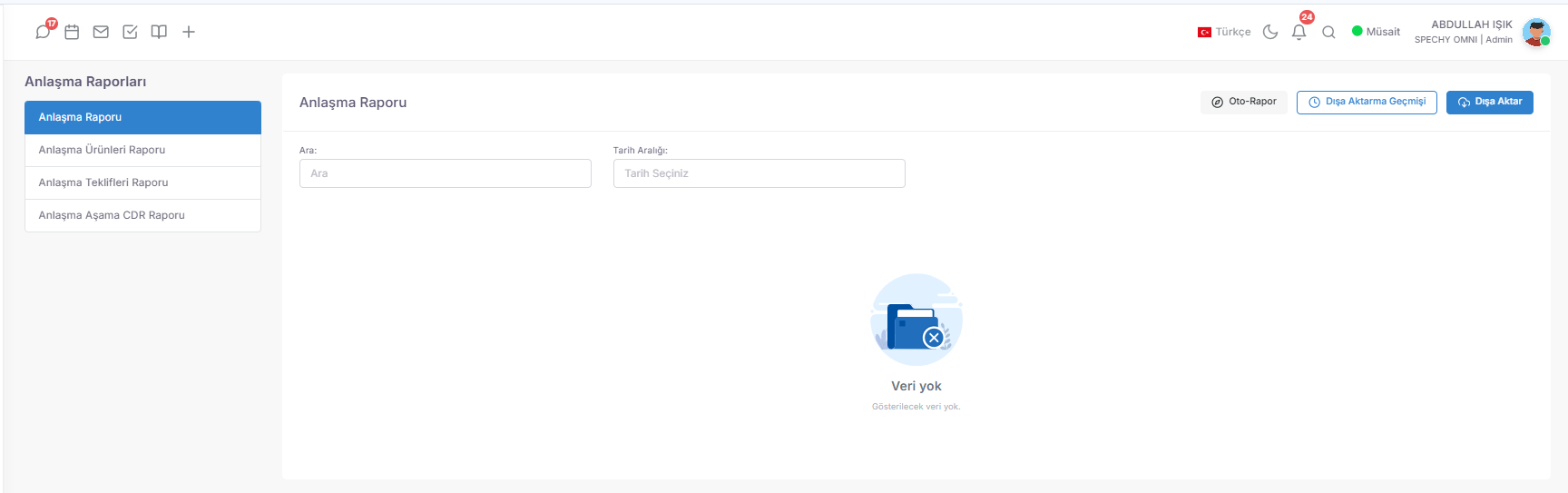
🤝 Agreement Reports (Sales Funnel and Proposal Process Analysis)
Agreement Reports are a "Sales Audit Center" that reports 360 degrees on all commercial processes initiated in the system; from product preferences to offer conversions, from stage transitions to historical movement details.
Access URL; https://app.spechy.com/reports/deal
🛠️ Sales and Commercial Process Analysis Modules
💡 Why is it Important?
📞 Campaign Reports (Automatic Search and Dialer Analysis)
Campaign Reports collects all the data of all Dialers (Automatic Search) campaigns created in the system; from the number of calls to the response rates, from the representative efficiency to the campaign results, all data in one central place.
Access URL; https://app.spechy.com/reports/predictive-dialer-report
🛠️ External Search and Campaign Analysis Modules
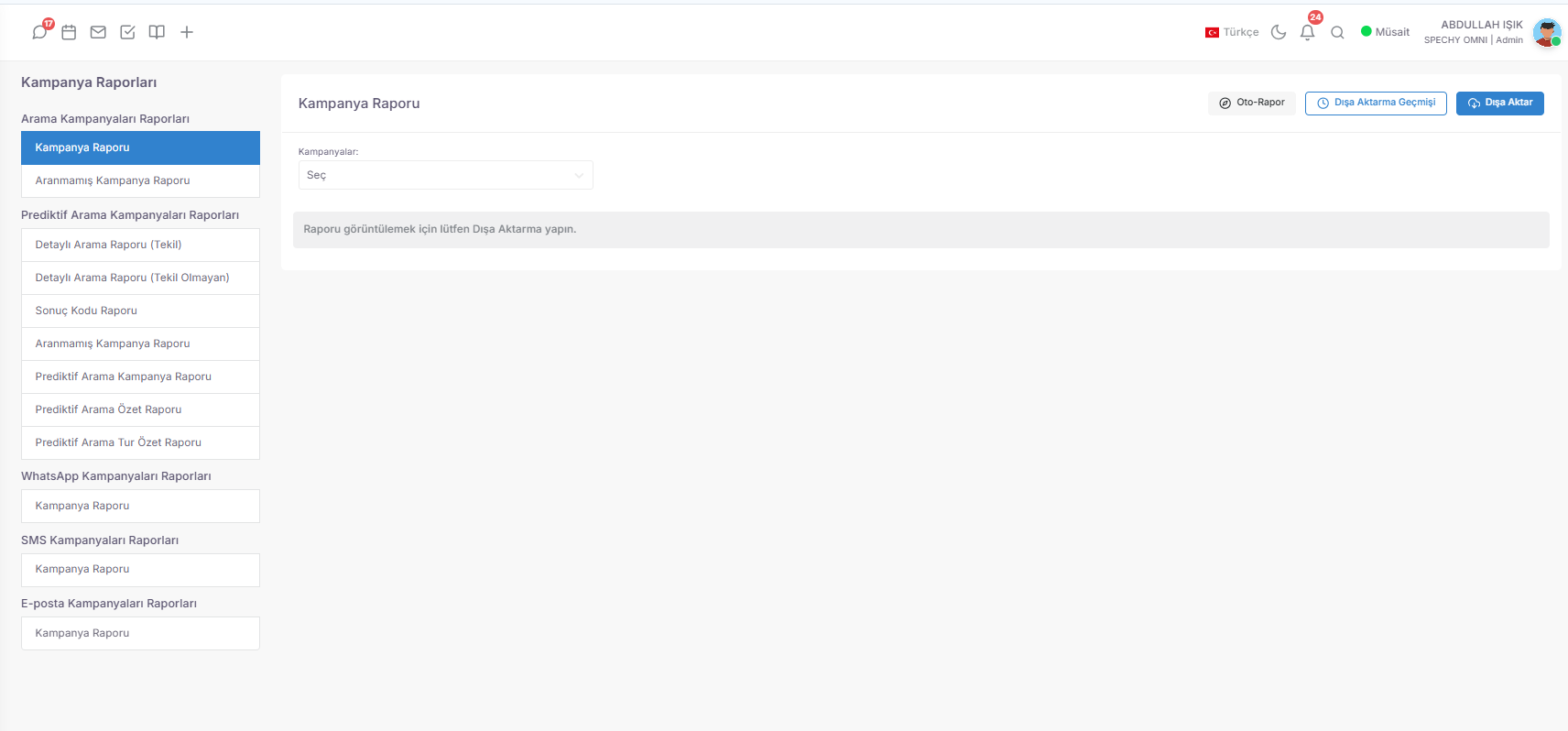
💡 Why is it Important?
🛒 113. Marketplace Menu (Multichannel Integration and Connection Management)
Marketplace Menu is the central integration area where you connect your brand to the major external platforms (Trendyol, Hepsiburada, Amazon, etc.) where your sales are made, and manage API and user permissions.
Access URL; https://app.spechy.com/marketplace
🛠️ Integration and Connectivity Architecture
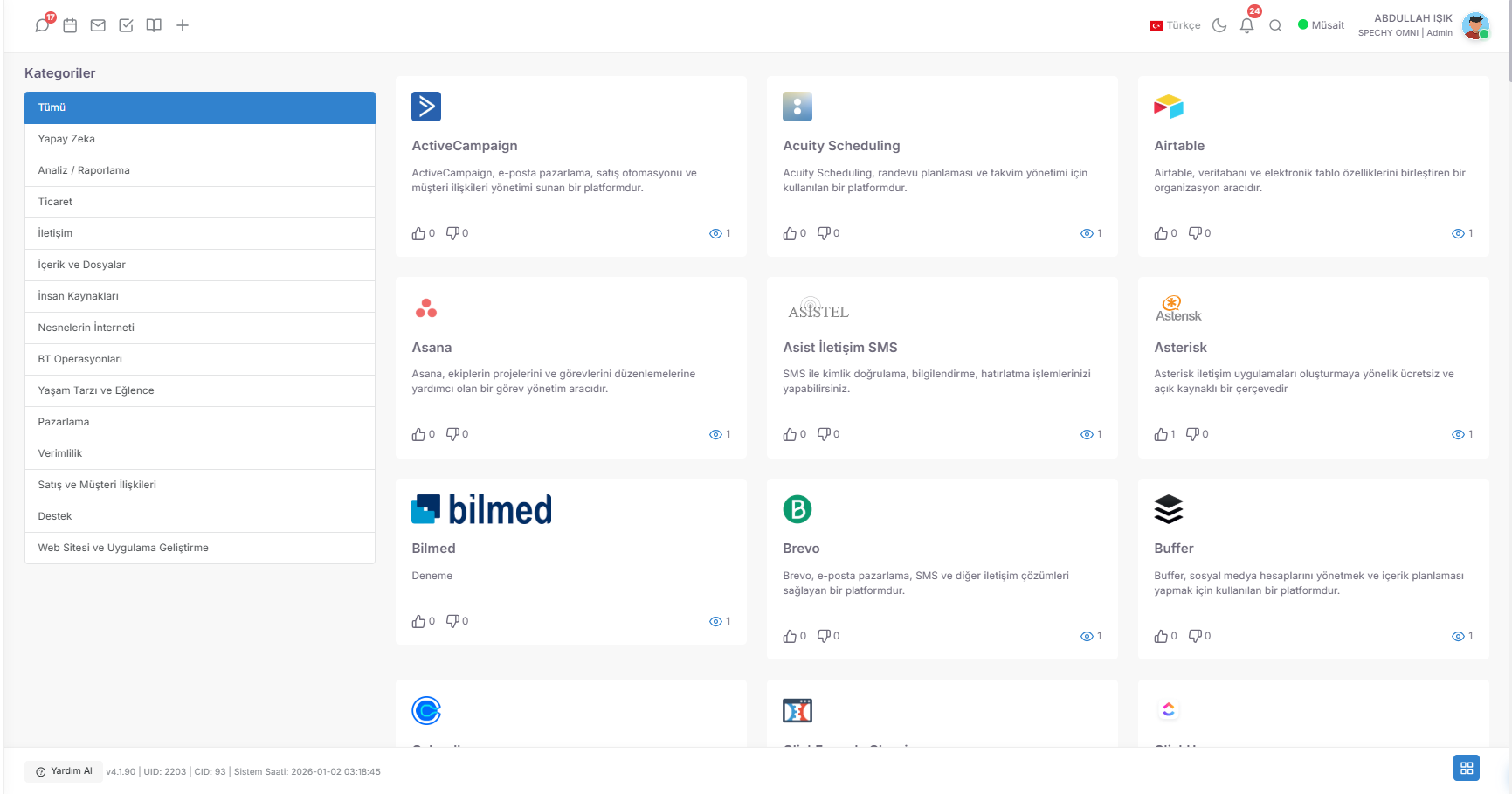
💡 Why is it Important?
📥 Upload Data (Mass CRM Login and Ownership Management)
The Data Upload Module is the central data entry gateway that allows you to transfer your existing customer (Person) or institution (Company) lists in Excel format to the Spechy ecosystem in bulk and instantly share this data with the relevant representatives.
Access URL; https://app.spechy.com/settings/datamanagement/importdata
🛠️ Data Transfer and Management Features
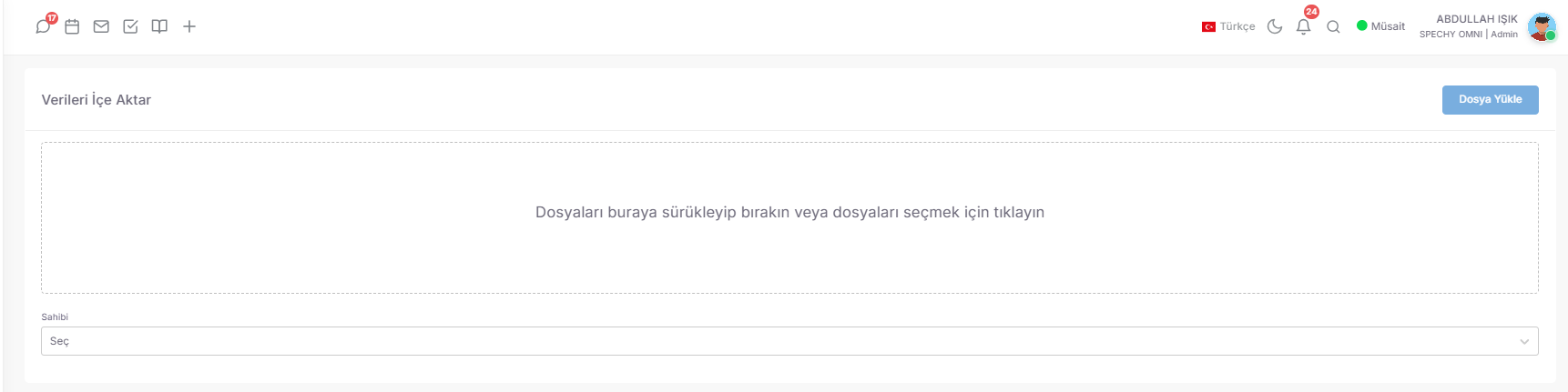
💡 Why is it Important?
📊 Data List (Smart Column Matching and Data Package Management)
The Data List Module is the "Data Architect" area where you manage the bulk data packages loaded into the system and configure the data by matching Excel column headers with Spechy CRM fields (First Name, Last Name, Phone, Company, etc.).
Access URL; https://app.spechy.com/settings/datamanagement/datalist
🛠️ Data Configuration and Matching Steps
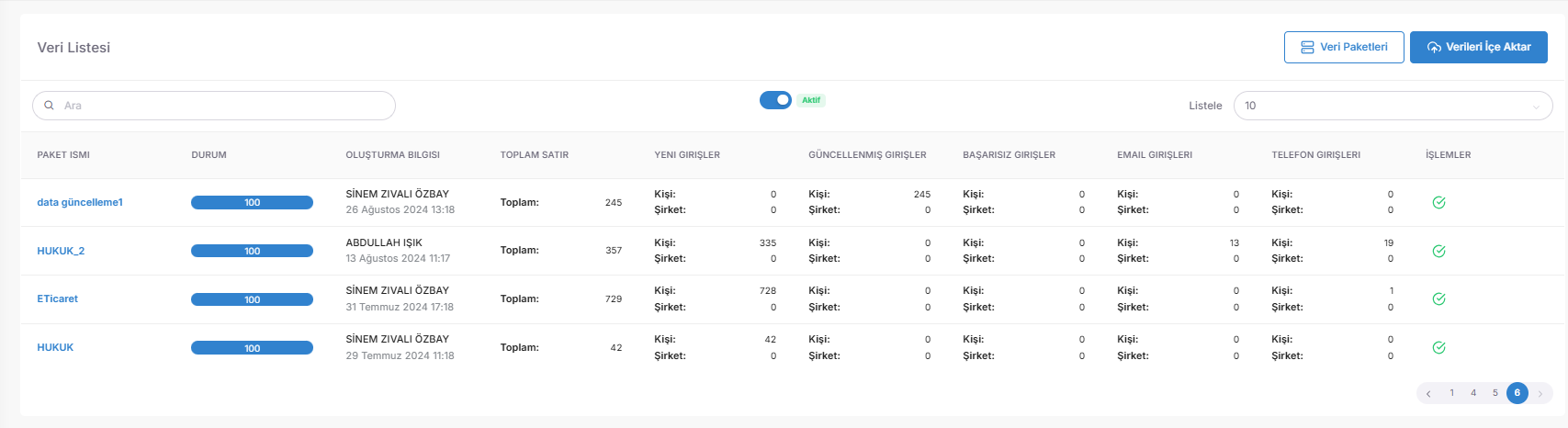
- Data Package Tracking: It allows you to see the packages created after "Data Upload" in bulk and track their upload status.
- Smart Column Matching (Data Mapping): You match the column headers in the file you upload (e.g., "Customer No", "GSM", "City") with their corresponding values in Spechy CRM. This step allows the system to learn which data to store in which cell.
- Operations Area: Through the operations menu specially provided for each data package; you can match, filter out erroneous records or transfer matched data to the live CRM database.
- Visual Verification: The system offers a visual matching interface to minimize user errors; thus, it clearly verifies which Excel column is transferred to which CRM field.
💡 Why is it Important?
- Flexible Data Structure: Regardless of the format of your Excel file, you can adapt the file to the system without corrupting it thanks to Spechy's flexible matching engine.
- Data Consistency: Thanks to matching, phone numbers are recorded without errors in the "Phone" field and addresses in the "Address" field; this directly increases the reporting quality.
- Error Transfer Prevention: The matching stage is the "last control point" before processing the data permanently into the CRM. It prevents you from assigning the wrong column to the wrong field.
- Duplicate Registration Control: The system prevents data pollution by checking duplicate registrations through unique keys (e.g. TC Number or Email) during pairing.
📤 Download Data (Corporate Memory and Export Management)
The Data Download Module is the central archiving gateway that allows you to export all structured data in the system in bulk, from CRM records to user profiles, from result codes to ready-made answer templates.
Access URL; https://app.spechy.com/settings/datamanagement/exportdata
🛠️ Data Categories and Export Tools
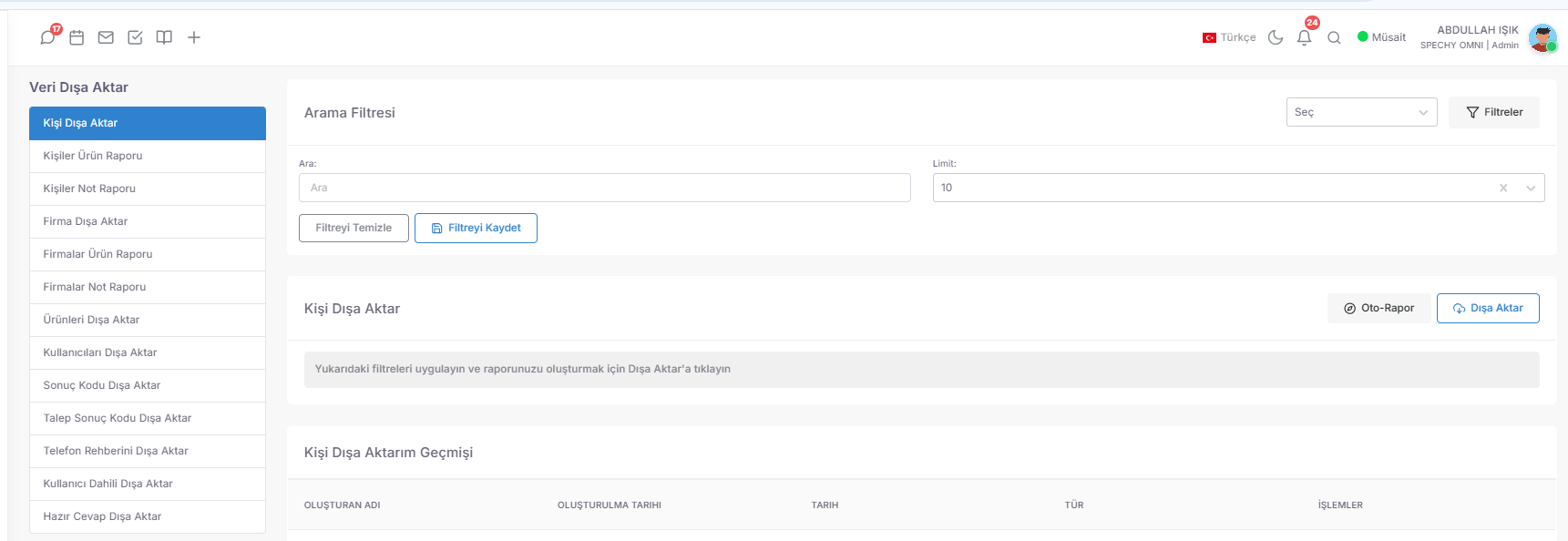
- CRM Assets (Person & Company):
- Basic Export: You can download all registered individuals and companies in bulk.
- Detailed Reporting: You can convert the customer history (History) into a physical file by exporting the Products and Notes associated with person or company cards into separate reports.
- Product & User Lists: You can retrieve all products and user information defined in the system in bulk.
- Internal Line Management: You can perform technical inventory control by listing the internal numbers (Extensions) defined for users.
- Result Code Archive: You can analyze the process by downloading the result codes of both general interactions and requests (Tickets) in bulk.
- Ready Answers: You can create documentation by exporting all ready answer templates that reflect your corporate language.
- Data Privacy and Backup: Your data in Spechy belongs to you. You can regularly export it and keep your corporate data backed up in your own local archives.
- In-depth Analysis: By downloading the data in Excel or CSV format, you can perform more complex cross-analyses in BI (Business Intelligence) tools.
- Quick Audit ($Audit$): You can check your system configuration in seconds and detect missing items by exporting user lists, internal numbers and result codes.
- Offline Work Capability: You can carry customer notes and product information for field teams or meetings with you as a physical or digital file.
- Importing Call & Request Result Code: You can load all the categories you have defined for your call center or request management processes (e.g., "Information Provided", "Sale Closed", "Technical Issue Resolved") in bulk.
- Sample Template Guidance: The system offers a "Sample Template" for the error-free processing of data. Using this template, you can make your hierarchical or flat list structure compatible with Spechy standards.
- Import Tracking Lists: It offers special tracking areas where you can track the result code packages you have uploaded and the success status of these packages (How many codes were uploaded, which ones overlapped, etc.).
- Fast Update Capability: When a new campaign or process starts, you can instantly update your operation with a new Excel list instead of manually changing the result codes in the system.
- Speed of Setting Up an Operation from Scratch: In a new Spechy installation or the opening of a new department, it minimizes your "Go-Live" time by preparing hundreds of result codes within minutes.
- Standardization ($Standardization$): Uploading via Excel template prevents spelling errors and duplicate code formation, allowing you to obtain clean data during the reporting stage.
- Centralized Process Management: You can plan the result tree, which allows all teams to speak the same language, on Excel and spread it to the entire system with a single "Upload" command.
- Easy Monitoring: Thanks to the import lists, you can retrospectively monitor which date and which result codes were included in the system.
- Import Products: You can introduce the product list you have (Name, SKU, Price, Category, etc.) to the system at once through an Excel file. This process creates an automatic "Product Card" for each product in the CRM.
- Sample Template Guidance: The system offers a "Sample Template" for the flawless matching of data. Using this template, you can organize product codes and descriptions in accordance with Spechy standards.
- Exporting Products List (Monitoring): It allows you to view the product packages you have previously uploaded and the product lists within these packages in bulk, and to check upload errors.
- Quick Catalog Update: When a new product series comes out or price lists change, you can refresh your entire catalog in seconds with a new Excel list instead of updating the products in the system one by one.
- Preparation for Sales Operation: It allows you to build the product pool necessary for representatives to identify the product on the customer card during the meeting in minutes.
- Data Consistency: It prevents spelling errors that may occur in manual entries (e.g., model names, serial numbers) and allows you to obtain clean data during the reporting stage.
- Large Inventory Management: It digitizes catalog entries that are impossible to manage manually for e-commerce or retail companies that work with thousands of different products.
- Audit and Transparency: Thanks to the "Export List", you can track in retrospect which product group was included in the system on which date.
- Import the Phone Directory: You can introduce all the people and numbers (First Name, Last Name, Title, Phone, etc.) that you want to include in your corporate directory to the system at once through an Excel file.
- Sample Template Guidance: The system offers a "Sample Template" for processing numbers and names in the correct format. Using this template, you can organize your guidance data in accordance with Spechy standards.
- Import Tracking List: It allows you to view the guide packages you have previously uploaded and the person lists within these packages, and to check the success status of the uploads.
- Centralized Access: The numbers uploaded become instantly accessible for all authorized representatives in the system, increasing communication speed.
- Quick Access and Search: It maintains operational speed ($AHT$) by preventing agents from wasting time when calling fixed numbers outside CRM or external business partners.
- Communication Standardization: By preventing incorrect number registrations that may occur in manual entries, it ensures that the guide is always accurate and up to date.
- Big Data Management: It digitizes thousands of records in seconds for companies with extensive guides such as supplier networks or dealer lists.
- Audit and Updates: Thanks to the "Import List", you can track in retrospect which dates and who were included in the corporate guide.
- Import Request Category: You can introduce all main and subcategories in your corporate support processes (e.g., "Technical Support > Hardware Failure", "Accounting > Invoice Objection") to the system at once through an Excel file.
- Sample Template Guidance: The system offers a "Sample Template" to process categories in the correct hierarchical order (Parent Category - Subcategory). Using this template, you can make your complex process trees compatible with Spechy standards.
- Import Tracking List: It allows you to view the category packages you have previously uploaded and the hierarchical lists within these packages, and to check the success status of the uploads.
- Instant Distribution Preparation: The uploaded categories become instantly selectable when your representatives create a "Ticket", increasing the operational speed.
- Perfect Reporting ($Granular \ Reporting$): It allows you to see the correct loading of categories and the number of requests for which department or topic you have received without errors through "Request Reports".
- Time Savings: When a new business sector or project starts, you prepare all the support infrastructure with a single Excel installation instead of manually entering dozens of categories.
- Process Standardization: By preventing the name confusion that may occur in manual entries (e.g., "Invoice Problem" vs. "Invoice Issue"), it ensures that all teams use the same corporate language.
- Job Assignment Automation: After uploading the categories in bulk, you can make it easier for requests to go to the correct experts by defining automatic assignment rules specific to these categories.
- Import Coupons: You can introduce thousands of unique coupon codes you have created for special campaign periods (Black Friday, Holidays, Anniversaries, etc.) to the system at once through an Excel file.
- Sample Template Guidance: The system offers a "Sample Template" to ensure that coupon codes, expiration dates, and discount amounts are processed correctly. By using this template, you can make your promotional data compliant with Spechy standards.
- List of Transferred Coupons (Monitoring): It allows you to view the coupon packages you have previously uploaded, which coupon was uploaded to which series, and their usage status in bulk.
- Personalized Communication Preparation: The uploaded coupons become instantly accessible when your representatives want to offer a "special offer" to the customer during a meeting or live chat.
- Fast Campaign Launch: Instead of manually defining coupons one by one, it increases your marketing speed ($Time-to-Market$) by creating a massive promotion pool in minutes.
- Customer Retention ($Retention$): It allows you to regain customer satisfaction by immediately assigning a coupon to a complaining or about-to-leave (Churn) customer during the interview.
- Error Code Blocking: Performing controlled uploads via Excel ensures financial integrity by preventing incorrect codes or invalid discount rates from entering the system.
- Audit and Transparency: Thanks to the "Internal Transferred Coupons List", you can track retrospectively how many coupons were included in the system in which campaign and how these resources were distributed.
- Rule-Based Segments: You can create dynamic pools by defining specific rules for your internal data (Person/Company).
- Example: You can create automatic lists with rules such as "those who have not shopped in the last 3 months" or "VIP customers in the Ankara location".
- Passive Management: You can take over segments that have expired or are no longer strategic, and you can always access this archive with the "Passive Build" button.
- Point-of-Sale Marketing ($Targeted \ Marketing$): You reduce your campaign costs and increase your success rate by focusing on a "Segment" that is interested in that product, not a general audience.
- Integration Power: Instead of manually transporting hot data in your e-commerce infrastructure (Ticimax, T-Soft, etc.), you automatically include it in the campaign pool with Spechy's service connections.
- Dynamic List Management: Data packages do not remain static; every new record that complies with your rules is automatically included in the relevant segment, so your campaign list is always up to date.
- Operational Flexibility: When you do not like the performance of a segment, you can instantly take it passive and re-process the data with a different set of rules (with the Segment).
- Call (Dials) Campaigns: You can automatically call people in the segment you create with the dial type you specify ($Predictive, Progressive, Preview$). It instantly turns the hot data in your sales team's hands into live video calls.
- WhatsApp Campaigns: By sending WhatsApp message templates specific to your segment, you can run highly interactive ($Open \ Rate$) campaigns with your customers through the world's most popular messaging platform.
- SMS Campaigns: Without internet access or application addiction, you can send instant notifications, verification codes or campaign reminders to your target audience.
- Email Campaigns: You can reach your visually rich, informative and long-lasting content (Newsletters, Special Offers) to your segment in bulk.
- Channel Diversity ($Reach$): Each customer's preferred communication channel is different. Spechy maximizes your reach by reaching the same segment from different channels.
- Operational Integrity: Instead of using different platforms for different channels, it prevents data loss and centralizes reporting by managing all campaign traffic from a single panel.
- Conversion-Focused Approach: You can increase your chances of closing a warm sale by immediately including the customer who opened an offer you sent via email in a Call Campaign.
- Time and Cost Management: Thanks to bulk shipping and automatic search features, it delivers the thousands of man-hours of labor that would be spent in manual processes to the result in seconds.
- Campaign ID & Ownership: It provides "Audit Trace" data such as the Campaign Name, who created it and who last updated it.
- Mass and Assignment Management: Clearly shows the Total Number of People in the campaign and which User or User Group this task has been assigned to.
- Performance Statistics: By clicking on the button next to the number of people; you can instantly see critical data such as how many searches were made, how many were answered and how many were successful.
- Dialer Control Center: You can monitor whether the campaign is a Predictive (Automatic) call and start and stop calls instantly with the Call Status button.
- Update Segment Data: If there has been a data change or a new transfer in the connected segment, you can synchronize the campaign with the latest data with one click.
- Campaign Management & Passive Management: You can update campaign rules according to operational needs or prevent chaos by taking completed campaigns passive.
- Reporting & Archiving: You can download the results with Campaign Reports, and from the History tab, you can access all previously received reports from a single point.
- + Create Campaign: You can start a new call script in seconds for a new sales or support target.
- Instant Operational Agility: When call traffic intensifies or data quality decreases, you can intervene in the operation instantly with the "Stop/Start" feature.
- Data Freshness ($Data \ Freshness$): Thanks to the "Segment Refresh" feature, you ensure that a new lead coming from your website enters the campaign pool without waiting.
- Responsibility Tracking: You can optimize the workload balance between teams ($Load \ Balancing$) by seeing which group the campaign is assigned to and who manages it.
- Analytical Decision Making: The Statistics button and report history allow you to build the strategy of your next campaign on past data.
- Campaign ID: A special Name is defined for the campaign to facilitate operational tracking.
- Target Audience Type & Selection: It is determined whether the recipient of the campaign is B2C (Individual) or B2B (Company) and the relevant Segment previously created is connected to the system.
- Validity Period: By determining between which dates the campaign will remain active, it is ensured that projects that expire automatically stop.
- Assignment Type (Group/User): It is selected whether the job will be assigned to a single expert or a large group of users.
- Duplicate and Addition Control: Determines how many times the same person or company can be included in the campaign. By activating "Number of Additions", the number of rounds the list will cycle (Recycling) is controlled.
- Dynamic Data Flow: With the option "Include new registrations in the campaign?", you can ensure that every new potential customer falling into your segment is instantly and automatically added to the active campaign list.
- Real-Time Notifications: When a new data is included in the campaign, an instant notification is sent to the assigned representatives, triggering the "Instant Lead Response" ($Instant \ Lead \ Response$) mechanism.
- Smart List Cleaning (Cleanup Logic): Operational efficiency is increased with the "Remove from list when call is answered" feature:
- Remove when answered: It is removed from the list as soon as contact is established with the customer.
- Delete When Returned: If the customer returns to the unanswered call himself, the system detects this and automatically deletes the person from the list to prevent repeated calls.
- Operational Efficiency: Automatically removing answered or returned calls from the list prevents your representatives from calling the same person repeatedly, ending time loss and customer inconvenience.
- Speed Advantage ($Lead \ Speed$): Automatic inclusion and notification of new registrations allows you to reach the potential customer before your competitors.
- Financial Control: You prevent uncontrolled calls that exceed the validity period of the campaign and your advertising or campaign budgets.
- Reset of Error Rate: Parameters such as the number and type of additions ensure that the operation runs with a predetermined "Algorithm" by eliminating the representative initiative.
- Login Delay (Minutes): * After the Last Call: Determines how long an unreachable record will be "rested" before the system attempts to retrieve it again without success.
- New Data Entry: It defines how many minutes it will take for a newly dropped data in a segment to be included in the list without losing its temperature but also without exhausting the system.
- Daily Maximum: It maintains customer satisfaction by determining how many times the same number will be disturbed in a day (e.g., at most 2 times a day).
- Trial Range (Per Hour): Sets the time intervals (e.g., every 4 hours) at which unanswered records will be retried.
- Type & Queue Selection: It determines the line you will be connected to, the internal operator, or the expert Queue where your call will be transferred.
- Call Volume per Representative: It is the Predictive power that determines how many calls the system will initiate at the same time to ensure that the representative is not left idle (e.g., 3 simultaneous calls for 1 representative).
- Telesecretary Control: By detecting operator telephones, it offers the option to prevent the representative from being connected to a machine instead of a live human.
- Prefix and Other Numbers: It selects which institution number the call will originate from and decides whether to call the customer's other registered phones as well.
- Sort Type: Determines whether the list will be sorted (according to the order of data loading) or randomized (random data).
- Dynamic Campaign Transfer: It is the highest level of operational flow:
- Forward Unanswered: Automatically forwards unreachable records to the "Cold Search" or "Follow-up" campaign.
- Forward Answered: Directs the people contacted to the "Post-Sales Support" or "Survey" campaign instantly.
- Zero Manual Tracking: The representative does not need to think about "When should I call someone back?"; the system manages the most ideal timing with an algorithm.
- Efficiency Increase ($Occupancy$): Maximizes call durations by minimizing the waiting time of representatives by setting the number of calls per representative.
- Preventing Customer Harassment: With daily trial limits, you protect your corporate image and comply with legal limits (KVKK/ETK).
- Error-Free Process Flow: The automatic transfer of answered or unanswered calls to different campaigns creates an end-to-end "Customer Life Cycle".
- You can set the days and time range during which the campaign will work.
- Cancellation Request List: It protects your brand reputation by automatically filtering customers who say "I do not want to receive messages".
- Live Statistics & History: It provides instant data such as how many messages were sent and how many were read; archives past reports.
- Send Test Message: It allows you to verify the appearance of the message on your own number before starting the campaign.
- Operations: It grants the authority to organize active campaigns, acquire passive ones, or download detailed success reports.
- Smart Targeting: It is determined whether the campaign is for Individuals or Companies (B2B/B2C) and the relevant Segment is connected.
- Dynamic Data Flow: The automatic addition of new people included in the segment to the campaign and the number of times (Number of Additions) they will be included are controlled.
- Rich Message Content: Pre-approved templates are selected, personalized with parameters (e.g., "Dear [Name]"), and enriched by adding files/images.
- Account Selection: It is determined which of the multiple WhatsApp numbers belonging to your organization will be the sender.
- Sending Algorithm: To minimize the risk of messages being blocked (Spam), Message Sending Range and Daily Limits are defined.
- IYS Integration: Legal compliance is ensured by ensuring the control of data authorized via the Message Management System (IYS) in marketing-related messages.
- Timed Operation: With the Campaign's Automatic Start feature, it is planned in advance which days and times (Working Hours) it will be active.
- Subscription Control: Certain rules are established on whether messages will be sent to those who have created an cancellation request.
- High Return on Investment ($ROI$): WhatsApp messages have a much higher reading and interaction rate compared to Email and SMS.
- Legal Security: Thanks to the İYS account and cancellation list management, it reduces the risk of sending messages in violation of the KVKK and ETK legislation to zero.
- Spam Protection: Smart sending intervals and limits prevent your WhatsApp number from being restricted by the platform.
- Full Automation: A campaign with set working hours and start dates continues to sell in the background without requiring staff intervention.
- Be passive; You can make the campaign passive.
- Edit; You can edit the campaign you created.
- Statistics; You can view campaign statistics.
- Campaign report; You can download the created campaign report.
- History; You can see the downloaded past reports.
- Create SMS campaign; Used to create a new campaign.
- Campaign Monitoring: You can instantly turn active campaigns into Passive or organize them according to strategy changes.
- Statistics & Reporting: You can track how many messages were successfully delivered and how many failed due to incorrect numbers with visual graphics.
- Past Archive: You can perform retrospective performance analysis by accessing all previously received campaign reports from a single point.
- + Create SMS Campaign: It is a fast entry portal used to start a new announcement or promotion wave.
- Targeting and Identity: A name is given specifically for the campaign and it is determined whether the recipient is an Individual or a Company.
- SMS Account Selection: The sender is selected from different SMS service providers or titles depending on the system.
- Segment Integration: The target audience to be sent SMS is drawn from a pre-prepared Target Audience (Segment) pool within seconds.
- Message Content: The message text, which is suitable for character limits, is created in this area.
- Timed Delivery: Instead of starting the campaign at that moment, you can distribute your operational workload by planning a future Start Date and time with the "Auto Start" option.
- Universal Accessibility: Does not require a smartphone or internet connection; it works instantly on any phone, from the oldest generation to the most modern.
- High Visibility: SMS is one of the channels that attracts the most attention and has the shortest reading time, even among SMS and notification pollution.
- Emergency Management: It is the most ideal "Rapid Response" ($Rapid \ Response$) tool for system outages, emergency announcements or short-term flash discounts.
- Cost and Efficiency: It is one of the most economical ways to reach a very large audience in a very short time; it relieves the burden of manual dialing (Dialers).
- Mass and Queue Tracking: You can instantly monitor the total number of people in the campaign and the number of people waiting in the queue during the shipment. This allows you to monitor the shipment speed and server load.
- Campaign Status Management: You can start, stop or put the campaign in Passive Mode with one click, if a strategy change is needed.
- Statistics & Analysis: You can measure your content quality by analyzing the opening, click and bounce rates of emails.
- Transactions and Preview: You can preview the final state of the email before sending, edit the campaign information or download performance reports.
- Targeting: A special Name is given to the campaign and it is determined whether the recipient is an Individual or a Company (B2B/B2C).
- Segment Integration: The target audience for which the emails will be sent is drawn from a pre-refined Target Audience list.
- Shipping Type and Infrastructure: It is the most technical and flexible part of the operation:
- System Email: Refers to individual or small-scale transmissions made through your corporate email accounts affiliated with Spechy.
- Provider Services: It allows you to benefit from the power of bulk email sending companies (Relay/SMTP services) specialized for very high volume shipments.
- Low Cost, High Impact: It is the most economical method to reach the most detailed information (images, files, long texts) to very large audiences.
- Brand Authority: Creates a reliable brand image in the customer's mind with professional templates and corporate email headers ($Trust \ Building$).
- In-depth Measurement: Knowing how many times a customer opens your email or clicks on which link allows you to plan your next sales step.
- Sustainable Communication: Unlike instant messaging, email serves as a permanent information source because it is a data that can be stored in the customer's mailbox.
- Drag and Drop Convenience: You can upload photos, contract drafts or product catalogs on your computer to CRM in seconds.
- Folder Structure with Hierarchy: You can create special Folders to save the files you upload from chaos; you can categorize them based on department (e.g., "Sales Presentations") or file type (e.g., "Logos").
- Quick Access: When communicating with a customer or creating a campaign in CRM, you can select it directly from your library instead of searching for a file you uploaded to your galleries.
- Uninterrupted Synchronization: By connecting your Google account to Spechy, you can access all your images and documents on Drive without leaving the CRM panel.
- Storage Freedom: You can manage your large files over the cloud without straining local servers, and you can instantly use the latest file revisions.
- Access Security: Thanks to the secure connection made with your Google account, you can only include documents that you are authorized to in CRM processes.
- Operational Agility: Prevents the representative from losing files in folders on their computer to send a "price list" to a customer; everything is ready under one "Gallery".
- Corporate Memory: Since all current presentations, visuals and documents belonging to the company are collected on Spechy, there is no "information loss" even in case of staff changes.
- Multi-Channel Usage: You can upload a file you uploaded to the gallery to both an Email Campaign and a WhatsApp Message at the same time.
- Location and Time Independence: Thanks to cloud integration, you can access all your corporate documents through Spechy even if you are outside the office.
- Central Product Pool: It is the main list where all added products are displayed with their name, description and price details.
- Active / Passive Control: You can hide products that are out of sale or out of stock from the system without deleting them (Passive), and you can activate them again during strategic periods.
- Favorite Filtering: By marking the most preferred or promotional products as Favorites, you can ensure that representatives can access these products in seconds within the intensive data.
- Operations Menu: Provides the authority to instantly edit product details, change status or update favorite status.
- Identity and Classification: The database structure is provided with the Category to which the product belongs, unique SKU (Stock Code) and Name information.
- Visual and Media Management: Rich catalogs are created by selecting whether the images to be added to the product cards will be a local file or an external URL.
- Cost and Profitability Analysis ($Financial \ Intelligence$):
- Unit Price & Unit Cost: Clarifies the difference between the selling price and the purchase cost.
- Margin ($Margin$): It allows you to automatically calculate and monitor the profit margin to be obtained from the sale of the product.
- Payment Method: Payment periods are defined as Weekly, Monthly or One-Time according to the product's sales model (critical for SaaS or subscription models).
- Currency: Pricing can be done through different foreign currencies (₺, $, €, etc.) for global trade.
- Precise Financial Reporting: Thanks to cost and margin entries, you can report not only your turnover but also your actual profitability.
- Quick Quote Preparation: Representatives instantly access SKU and current price information, offering customers quotes with zero margin of error.
- Operational Flexibility: With payment method options, you can manage your installment, subscription-based or prepaid sales processes from a single panel.
- Professional Customer Experience: The images and detailed explanations on product cards enable the representative to provide the customer with much more informed information.
- Form Configuration: The form name, total score and which channels (Call, WhatsApp, Live Support, etc.) this form will be valid for are determined.
- Question & Category Architecture: Questions are categorized (e.g., "Diction", "Problem Solving", "System Usage") and a Score is defined for each question.
- Automatic Notification: Special email addresses can be defined for the evaluation results to be sent to the administrator or training department other than the representative.
- Advanced Filtering: Records that will be checked for point-in-time inspection according to date, user, channel, Result Code and call direction (Incoming/Outgoing) are selected.
- Search Power: You can instantly reach a specific meeting via name, surname or phone number.
- Call Control: Voice recordings can be listened to or message history (Chat) can be read simultaneously.
- Detailed Analysis: Customer information, interview date and the result codes left by the representative are examined to check consistency.
- Scoring and Feedback: While scoring through questions, development notes specific to the representative can be added for each criterion.
- Re-evaluation: In case of objection or when development is observed after training, old scores and grades can be revised.
- Objective Performance Tracking: The success of representatives is measured with predetermined scores, not "by feelings".
- Continuous Training Cycle: Reporting errors to the representative with notes standardizes service quality by preventing the repetition of the same errors.
- Customer Experience Assurance ($QA$): The monitoring of interviews ensures that representatives always act in accordance with corporate language and procedures.
- Data-Based Decision Making: Thanks to quality reports, it is clearly determined which department needs training in which area (Example: "Product Information").
- System Settings: Determines the general operating rules of the platform, language options, working hours and corporate identity parameters (Logo, color, etc.).
- Result Codes Management: You can manage which tags will be used to end conversations and transactions, and how the reporting hierarchy will be established from this area.
- Dynamic Form Management: You can design special data entry fields and form structures to be used in customer records, request opening processes or quality controls.
- General Settings and Integrations: All components that make up the system's "neural system", such as API connections, external service integrations, user authorization schemes and notification settings, can be accessed here.
- Flexibility and Customization: It turns Spechy into a flexible "Operational Software" that can be shaped according to your business model, not as a ready-made template.
- Data Standardization: Thanks to result codes and form settings, it allows the entire team to use the same terminology and the same data entry discipline.
- Security and Permission Control: It allows you to centrally monitor critical security layers such as who can see which data or which settings can be changed.
- Centralized Management ($Single \ Point \ of \ Control$): It allows you to manage a complex call center or CRM operation from a single panel, without the need to write code (No-Code).
- Data Classification: You can label and isolate all data registered in the system (Excel installation, Web Form, API, Advertisements, etc.) according to the Source they come from.
- Multi-Project Control ($Multi-Tenancy \ Logic$): You can manage multiple different projects, brands or departments through a single Spechy account.
- Source-Based Reporting: It allows you to analyze which source (e.g., "Instagram Ads", "Website Contact Form", "Field Sales") provides more quality data.
- Operational Prioritization: You can process data according to its origin by assigning special workflows or different result codes according to the source.
- Preventing Confusion: It creates a structured database structure ($Data \ Integrity$) without confusing which of thousands of data sets was collected for which campaign or project.
- Marketing Efficiency ($ROI$): It allows you to direct your advertising budgets to the right channels by clarifying which data source provides higher sales conversion.
- Flexible Operation: While managing projects of different brands within the same team, it supports the use of the correct corporate language by ensuring that representatives know which customer they are talking to from which "Source".
- Centralized Control: While controlling different projects from a single panel, you can filter and analyze the data of each project according to its own "Source".
- Communication Channels Integration: Covers all messages received via WhatsApp, Telegram, Live Support and Social Media.
- Person/Group Based Assignment: Automatically redirects incoming conversations to a specific User or a User Group specializing in that area (e.g., "Support Team", "Sales Representatives").
- Data Isolation and Privacy: It is the most powerful security feature of the system: When a call is automatically assigned to a representative, other users cannot view this call on the panel. This maximizes customer privacy and representative focus.
- Uninterrupted Response Speed: By preventing the conversation from "hanging in the air", it ensures that the customer matches with the recipient as soon as they send a message.
- Fair Workload Distribution ($Load \ Balancing$): Prevents operational bottlenecks by balancing the number of calls assigned to agents.
- Operational Security: Minimizes the risk of data leakage (KVKK compliance) by ensuring that customer data is only seen by the relevant representative.
- Responsibility Tracking: Since every conversation has a "Owner", the problem of messages left unattended or answered late is eliminated.
- Customer Satisfaction: It prevents the customer from waiting for minutes to connect to a representative; it starts interaction with the relevant representative immediately after the "Welcome" message.
- Operational ID (Name): Management is facilitated by assigning a special name (e.g., "Night Shift WhatsApp Distribution") specific to the assignment rule.
- Channel-Based Matching (Account): The assignment rule is selected which communication channel (Specific WhatsApp line, Instagram account or Web Chat) will be applied to.
- Smart Assignment Types ($Routing \ Intelligence$): It is the most critical decision-making mechanism of the system:
- Record Owner Priority: If the customer has a defined owner in the CRM, the system directs directly to that representative.
- Pool System: If the customer does not have a host, the meeting will be fairly distributed among the user group determined during the meeting.
- Selected Users: The interview is only transferred to specific experts defined for this rule.
- Working Hours: The assignment rules are designed to be active on which days of the week and in which time slots (e.g., 09:00 - 18:00). Different assignment rules (e.g., Shift Representative) can be defined for off-duty hours.
- User Assignments: It is determined in this area which personnel or personnel groups the rule will cover.
- Personalized Service ($Client \ Loyalty$): Thanks to the "Account Holder" feature, the customer is prevented from telling his problem to a different representative every time; the customer is matched with the representative he knows directly.
- Speed and Efficiency: The "Auto Start" option minimizes the first response time by initiating the interaction without the representative having to manually say "Accept the Call".
- Continuous Operation: Thanks to the scheduling of working hours, messages received on weekends or at night are routed to the correct duty pools or automatic answering systems without error.
- Auditable Distribution: The naming and registration of assignment rules allows for the retrospective analysis and optimization of distribution errors.
- Name & Surname: It is the official identity that will appear in reports, call panels and correspondence of the staff.
- Corporate Email: It is the user's key. The system password is sent to this address and used as the login ID.
- Phone & Title & Department: It defines the position of the staff in the organization by clarifying the internal hierarchy and communication network.
- Role Selection ($RBAC$): Provides data security by determining the user's authority level in the system (Admin, Supervisor, Agent, etc.).
- Resource & Group Assignment: Seals which projects (Resources) the personnel are included in and which operational Group they will work in.
- Multichannel Authorization (Omnichannel Access): The user's authority to manage which communication channels (WhatsApp, Voice Call, SMS, Email) is selected individually.
- Language Preference: Determines which language the staff will use the system in; as soon as they log in, the entire interface is loaded in the selected language.
- Working Hours (Access Restriction): It is one of the most powerful security walls of the system. It allows staff to access only during defined working days and hours; it prevents unauthorized access outside working hours.
- Birth Date Automation: It allows automatic congratulatory notifications to be sent by the system on birthdays to increase employee engagement ($Employee \ Engagement$).
- Gender & Personal Data: Completes profile details for demographic reporting and addressing styles.
- Zero Security Risk: Thanks to working hours and role-based authorization, it becomes impossible for personnel to access data outside of working hours or unauthorized data.
- Personalized Experience: Language and channel settings prevent confusion by ensuring that the representative focuses only on their own field of expertise.
- Corporate Discipline: The name, department and title information displayed in reports ensures that performance analyses are conducted accurately and professionally.
- Automatic Password Management: Password sending via email offers a secure login process by eliminating the risks of manual password determination.
- Group Identification: Special Group Names are created according to operational needs (e.g., "VIP Support Line", "Field Sales Team", "Complaint Management").
- Easy Membership Management: Users to be included in the group are selected from the list and the team structure is completed in seconds.
- Mass Request Assignment ($Ticket \ Routing$): By assigning an incoming support request not to a single person, but directly to a group, you can ensure that all authorized personnel in that group are aware of the issue.
- Campaign List Targeting: When creating call or message campaigns, instead of selecting names individually, you can target your target audience directly to a specific group of users.
- Advanced Filtering and Reporting: In performance analyses, you can measure departmental efficiency by obtaining group-based outputs instead of personal reports.
- Flexible Workflow: Instead of updating the campaign or request individually in case of staff changes (resignation, vacation, etc.), you ensure that the operation continues uninterrupted by updating only the group ($Business Continuity$).
- Hierarchical Structure: Eliminates the risk of "unclaimed work" by clarifying who is responsible for which job in complex organizations.
- Time Savings: It minimizes the administrative burden by performing bulk operations through a single "Group" instead of assigning authority or tasks to dozens of people separately.
- Hierarchical Reporting: It strengthens the control mechanism by ensuring that team leaders (Supervisors) only see and manage their own groups.
- Menu Permissions (Visibility Control): Determines which modules (e.g., Only CRM, Only Reports or Only Settings) the user will see in the left panel. By hiding unnecessary menus, it increases the representative focus ($Focus$).
- General Permissions (Action Authorization): Seals whether the user can perform critical actions such as deleting data, exporting, editing records or viewing numbers across the system.
- Notification Permissions (Communication Control): Manages whether critical system events will be reached by the user via E-Mail or as System Notification (In-App).
- Marketplace Permissions (Integration Access): Specifies which roles can access the data of the external marketplace or partner companies to which the institution is affiliated.
- Performance Permissions (Data Isolation): It is a critical audit that determines whether the representative will only see his own statistics or be able to monitor the performance of the entire team or the general operation.
- Maximum Data Security ($Cyber-Security$): With the principle of "Minimum Authority", it makes it impossible for personnel to access sensitive data (customer lists, financial reports, etc.) outside their authority.
- Operational Simplification: By removing complex menus that the representative does not use from the screen, it reduces the risk of errors and makes the system more user-friendly ($UX$).
- Hierarchical Discipline: While preserving the supervisory authority of team leaders (Supervisors), it ensures that representatives focus only on their operational work.
- Performance Privacy: Provides individual focus with the permission of "Only Your Own Performance" to prevent unnecessary competition or data comparison between teams.
- Individual/Company Forms: You determine which information (e.g., "Turkish Identity Card", "Industry", "Purchasing Power") will be mandatory or optional on customer cards.
- Survey Forms: You can create dynamic question sets to manage customer satisfaction ($CSAT$) or market research.
- Web Forms: With forms designed to be integrated into your website, you ensure that the information left by visitors flows directly into Spechy CRM (as Leads).
- Request & Result Code Forms: You configure the technical details that need to be filled out when opening a support request or ending a conversation.
- Drag and Drop Editing: You can add text boxes, dropdowns, date pickers and file upload fields to the form without writing code (No-Code).
- Conditional Dependencies ($Logic \ Dependency$): It is the most powerful feature of the system. For example; If you select "Software" in the "Product of Interest" section, you reduce the complexity of the form by opening a submenu immediately below it that contains only software packages.
- Quick Sharing: You can share the forms you create with others through a link or embed them on your own platforms with an iframe code.
- Data Quality and Consistency: It provides a clean database thanks to mandatory fields ($Required \ Fields$) that prevent representatives from entering data incorrectly or incomplete.
- Customer-Centric Experience: With its addiction feature, it shortens the form filling time and increases conversion rates by asking the customer only the questions that concern him.
- Flexible Workflows: As your industry changes or you release a new product, you can create new data entry fields within seconds without waiting for technical support.
- Automation Triggering: Depending on the responses from the form, you can prepare the system for automatic actions (e.g., "Send SMS when potential customer is added").
- Hierarchical Structure: You can collect result codes under main headings and define project-specific codes (Attached Resource).
- Favorite and Quick Access: By adding the most frequently used codes to your favorites, you can reduce the processing time ($ACW - After \ Call \ Work$) in seconds after the representative's correspondence or interview.
- Passive Acquisition: You can now archive unused codes and remove them from the current list without disrupting the data integrity in the reports.
- Communication Automation: An instantly defined SMS or Email template is sent to the customer. In fact, a WhatsApp Call can be automatically started as soon as the code is selected.
- Data Collection and Forms: You can make it mandatory for the representative to enter additional details by attaching a special Survey or Result Code Form to the back of the code.
- Operational Requirements ($Hard \ Constraints$): The Request, Reminder, Calendar Event or Deal screen is automatically displayed on the representative's screen. The person card cannot be closed without these forms being filled out, thus preventing data loss.
- Sales funnel management: Depending on the selected code, the customer's current Agreement Stage (e.g., from "Waiting for Offer" to "Sales Closed") is automatically updated.
- Technical Integration (Webhook URL): Conversation details are sent instantly to an external software or API address (ERP, Accounting, etc.).
- Usage Frequency Control: Prevents representative errors by preventing the selection of the same result consecutively or at specific intervals.
- Zero Error Margin: Thanks to mandatory forms and calendar events, there are no transactions that the representative "forgets"; processes are disciplined.
- Marketing Transformation: A "Thank you" SMS or survey form sent immediately after the interview professionalizes the customer experience ($CX$).
- In-depth Reporting: It allows you to analyze not only the number of meetings, but also 100% accurately which commercial results (Sales, Appointment, Complaint, etc.) these meetings have led to.
- Accelerated Workflow: Reduces 5 different processes that the representative will perform manually (Send email, write appointment, open request) to a single result code selection.
- Default (Default) Configuration: You can start quickly using the basic types included with the system (e.g., Successful, Failed, Pending).
- Unlimited Category Addition: You can discipline your result codes under these headings by creating new "Types" (e.g., "Collection Process", "Technical Support Closed", "Marketing Refusal") specific to your sector.
- Smart Matching: When adding a new result code, you ensure that the reports are automatically written to the correct column by selecting which "Type" that code belongs to.
- Reporting Speed and Clarity: Instead of counting the number of codes one by one among thousands of meetings to the question "How many ended in a sale?", you can see the total data under "Sales Type" in seconds.
- Operational Analytics ($Big Data$): By collecting similar results in different projects (in Sources) under the same type, you can compare the success rates across the organization.
- Preventing Clutter: By simplifying the data clutter created by hundreds of different codes selected by the representatives under 5-6 main "Types", it allows you to prepare executive summaries.
- Flexibility: As your company strategy changes (For example: If you are now focused not only on "Sales" but also on "Customer Experience"), you can update the system's reporting language by adding new types.
- Title Definition: Catchy titles are created (e.g., "Our Account Numbers", "Shipping Tracking Information", "Greetings") that allow the representative to understand the content of the response in seconds while searching or selecting from the list.
- Description (Message Content): The main text to be sent to the customer is written in this area. A language that is appropriate for corporate identity, polite and solution-oriented ($Tone \ of \ Voice$) is sealed here.
- Quick Access: In the correspondence screen, the representative does not need to write long texts; he can send the message instantly by selecting the relevant title from the list of ready-made answers.
- Response Speed ($Velocity$): Increases operational capacity by allowing the representative to send a complex technical explanation or address information that would otherwise take 2 minutes to write in 2 seconds.
- Corporate Language Union: Prevents different representatives from giving different (or incorrect) answers to the same question; all customers receive information of the same quality and accuracy from your brand.
- Spelling Error and Error Checking: Eliminates spelling errors that may occur during manual typing or the risk of sharing incorrect information (e.g., incorrect IBAN or phone number).
- Representative Motivation: By reducing the repetitive and monotonous correspondence load, it allows the representative to focus on more complex customer problems ($Problem \ Solving$).
- Operational Identity (Title): Management is facilitated by assigning a unique name to each live support account (e.g., "Main Website Support", "Mobile Application Help").
- Status Control: If necessary, you can control visitor traffic by turning the channel on/off with one click.
- Code Integration (Iframe/JS): After customizing your widget, you can bring the generated code to life in seconds by pasting it right before the </body> closing tag of your website.
- Visual Inspection (Preview): You can test how your chat window will look on your site before you know the color matching and position without context.
- Management and Cleaning: With the Edit option, you can update widget behaviors and delete channels you do not need with the Delete button.
- Live Communication: Accelerate your customers' purchase decisions or instantly solve their technical problems by communicating with them "in real time" ($First \ Contact \ Resolution$).
- Proactive Help: Start the communication by sending automatic "How can I help you?" messages based on the visitor's duration on the site or the page they are visiting.
- Self-Service Options: Reduce operational load by presenting frequently asked questions (FAQs) or transaction menus to the customer before connecting to the representative.
- Conversion Rate Increase ($Conversion$): Providing an instant response to a customer who has a question during the purchase stage significantly reduces cart abandonment rates.
- Corporate Accessibility: It increases customer satisfaction ($CSAT$) by providing the fastest and most modern communication method beyond traditional channels such as phone or email to your customers.
- Mobile Compatibility: It provides a seamless user experience (UX) by working flawlessly on mobile applications as well as on the website.
- Central Management: All incoming web chat messages are collected in the same Spechy panel (Omnichannel) together with WhatsApp and SMS.
- Multilingual Header Structure: You can provide global services by defining the widget name and its headers separately in Turkish and English.
- Visual Branding: You can add your company's logo, and with the selection of icons and primary colors, you will perfectly match your corporate design.
- Access and Security: By ensuring that the widget only appears on the websites you specify in the Valid Domain Names section, you can prevent unauthorized use.
- Legal Compliance (GDPR/KVKK): By adding language-sensitive elements to the information texts, you will fully comply with data security legislation.
- Proactive Triggering: You can increase conversion by automatically opening the chat after a certain period of time (in seconds) after the visitor enters the site.
- Inactivity and Welcome Messages: You can send automatic alerts when the user remains silent or automatically send system messages when the representative is connected.
- Data Collection: Before the interview begins, you automatically feed your CRM database with name, email and phone number settings.
- Calendar: You can visually organize your weekly work plan with half-hour intervals (Blue Blocks).
- Offline Form Mode: If there is no representative outside office hours, you can offer the "Leave a Message" option by converting the chat icon into a Contact Form.
- Chatbot Management: You can automate routine questions by ensuring that the bot is activated before representatives are included in the chat.
- Video Search (Video Call): You can activate the Video Conference initiation feature through the system to solve complex problems or provide a more personalized sales experience.
- ChatGPT Integration: With OpenAI support, you can create a customer experience based on artificial intelligence ($AI-CX$) by ensuring that the bot provides more natural, intelligent and context-based responses.
- Hybrid Feedback: You can measure the quality by offering surveys (Stars, smiling face, etc.) at the end of both chatbot and live representative conversations.
- S.S.S. Module: You create a self-service layer that reduces operational load by providing a ready-made question-answer list before connecting to the representative.
- Technological Leadership: You will display a digital vision that distinguishes you from your competitors with features such as ChatGPT and Image Search.
- 24/7 Active Operation: With chatbot and ChatGPT support, your representatives ensure that your brand responds to customers even when they are sleeping.
- High Resolution Ratio ($FCR$): Video conferencing allows you to maximize customer satisfaction by accelerating complex technical support processes.
- Centralized Management: You will gain speed by answering messages from your pages directly through Spechy without entering them into the Facebook interface.
- Automatic Registration Creation: Every new person who sends you a message is automatically created as a Potential Customer (Lead) or User in the system.
- Smart Assignment: You can direct Messenger messages directly to the relevant team or sales representative with the Automatic Assignment Rules you have set in advance.
- Contact History: You provide a seamless experience by tracking all the messages the customer wrote on Facebook in the past through the CRM card.
- Fast Response Capacity: By managing the heavy influx of Instagram messages with Spechy's multi-user support, you eliminate the problem of "unanswered messages".
- Responsibility Distribution: By forwarding incoming messages to the right person, you ensure that representatives focus only on Instagram requests within their own authority area.
- Profile Synchronization: Users who send messages are immediately recorded in the Spechy guide; thus, you start the process of turning a follower on Instagram into a real sales opportunity.
- Easy Connection: You can include all Instagram pages you have access to permissions through the "Connect" button in the ecosystem in seconds.
- Omnichannel Perfection: Whether your customer writes from WhatsApp, Web Chat, or Instagram; your representative manages all of them at the same standard through a single screen.
- Data Loss Prevention: Social media messages are usually lost on personal devices or in scattered accounts; with Spechy, every interaction is recorded in the corporate memory ($Knowledge \ Base$).
- Customer Journey Tracking: You can see the communication journey of a customer starting from Facebook and ending on WhatsApp in a single timeline.
- Speed and Conversion: Responding quickly on social media directly affects the purchase decision by 70%.
- Rich Media Support: Not only text; voice messages, images and documents are instantly dropped into the Spechy Inbox ($Inbox$).
- Smart Distribution and Ownership: Messages received are directed to the correct representative with Automatic Distribution Rules and the customer's entire WhatsApp journey is stored in the CRM card.
- Installation and Transition Protocol: * Important: If the number is already active on a phone, the "Delete Account" operation must be performed from within the application.
- Verification: GSM numbers are verified by SMS, while landlines are verified by phone call. (IVR should be temporarily disabled on landlines.)
- Centralization Architecture: Centralization installation information (IP, Port, Protocol) is matched with CRM to provide voice access to the system from the outside world.
- Internal and Caller Management: Inbound calls defined on the central side are matched with Spechy users. Incoming calls (Inbound) and outgoing calls (Outbound) are managed through these inbound calls.
- Dynamic Queue Structure: Queue management can be dynamically shaped via the CRM panel according to operational needs.
- Full Integration: The automatic opening of the customer card ($Pop-up), listening to call records and matching them with result codes, come to life with this item.
- Legal and Operational Recording: All WhatsApp and voice calls are recorded, creating evidence in case of disputes and enabling quality control.
- Corporate Memory: Even if your customer representative leaves the company, all WhatsApp communications and voice recordings made through that number remain the property of the company.
- IVR and Smart Routing: It increases efficiency by ensuring that incoming calls and messages reach the correct department (Sales, Support, etc.) without manual intervention.
- Cost Savings: The VoIP-based centralization structure offers a much more economical and scalable communication infrastructure compared to traditional lines.
- Widget ID: It is identified with the Widget Name, which facilitates tracking within the system, and Turkish/English titles that address the user.
- Legal Security ($Compliance$): Full compliance with the Personal Data Protection Law is ensured by introducing the mandatory KVKK Consent Box requirement before video calls, ensuring the protection of personal data.
- Data and Registration Management: The security and accessibility of the data are ensured by defining the Video Call URL where the conversations will take place and the Remote Registration Address where the records will be stored.
- Time Table: Weekly work plan is structured in 30-minute blocks (Blue Blocks). During off-duty hours, the system automatically switches to "Offline" mode.
- Online Welcome: The user experience ($UX$) is kept warm with Waiting Screen Messages such as "You will be connected to our Customer Representative shortly..." when the user connects.
- Information URL: An external redirect link can be added for documents or details that the customer needs to review before the interview.
- Continuous Communication: When video calls cannot be made outside office hours, a Offline Form is presented to the user to leave a message; thus, potential requests (Leads) are not missed.
- Service Quality Measurement ($NPS$): The user's experience is scored with the Feedback screen activated at the end of the interview and corporate development data is collected.
- Corporate Aesthetics: The cover image, logo and brand colors (primary/secondary) ensure visual cohesion between the widget and your website.
- Mandatory Settings: Before starting the interview, the mandatory status of information such as First Name, Last Name, Phone and Email to be requested from the customer is determined, and the CRM data quality ($Data \ Integrity$) is increased.
- S.S.S. Integration: Before the user starts the search, they can be redirected to the Frequently Asked Questions section, ensuring that simple problems are solved without the need for video search (Self-Service).
- Trust and Proximity: Face-to-face communication raises customer trust to the highest level, especially in complex sales processes and technical support.
- Visual Problem Solving: The customer showing a product or problem with a camera reduces the solution time by up to 50% ($TTR - Time \ to \ Resolution$).
- Modern Brand Perception: Offering direct video search from the website puts your brand technologically ahead of your competitors.
- Defined Email: Lists the official email addresses that the system will use as the sender ($Sender$).
- Connection Type ($Delivery \ Method$): Determines the protocol over which emails will be sent. For example; using Gmail API provides a higher delivery rate and security compared to standard SMTP methods.
- Connection Status Monitoring: It instantly shows whether defined accounts are actively connected to the system, allowing for quick intervention against possible interruptions.
- Shipping Management with API: By enabling whether notifications will be sent using modern methods such as the Gmail API, you can minimize the "Spam" risk.
- Source and Account Type Matching: You define which email address will take over notifications from which project (Source) or which operational unit (Support, Sales, etc.).
- Card Closing Email (Automatic Notification): When a customer interaction or business card is successfully closed, it ensures that the customer receives an automatic "Transaction Completed" or "Survey" email.
- Corporate Reliability: The fact that notifications come from corporate and API-approved accounts instead of free services strengthens the professional brand perception in the customer.
- Continuous Information: Automatic email sending at critical steps such as card closure reduces the manual workload of the staff and ensures that the customer is immediately informed of the process.
- Operational Tracking: Thanks to the Transactions (Edit/Delete) menu, notification traffic is ensured to not be disrupted in password changes or personnel updates.
- Google Drive (Cloud Storage): It allows documents, voice recordings or form attachments related to customer meetings to be automatically backed up and shared access to Drive folders.
- Google Calendar (Calendar Synchronization): Ensures that reminders or appointments created with a result code are automatically processed into the representative's Google calendar and prevents conflicts.
- Google Sheets (Data Transfer & Analysis): By allowing form responses or operational reports to flow instantly into a Google spreadsheet, it enables you to create external analyses and live dashboards.
- YouTube (Video Interaction): It expands social media interaction by ensuring that comments and messages from corporate YouTube channels are sent to the Spechy Inbox ($Inbox$).
- OAuth 2.0 Security Standard: It allows only the necessary permissions (Read/Write) to be granted through secure tokens ($Tokens$) without providing the passwords of your Google accounts to the system.
- Central Access Management: Which Spechy user or source is authorized to use which Google service is sealed from this area.
- Connection Status Monitoring: The status of the services can be instantly monitored; accounts that have expired their authorization period can be re-authorized with a single click.
- Operational Speed ($Efficiency$): Eliminates the hassle of the representative leaving Spechy and creating manual calendar entries or uploading files.
- Data Integrity: Provides secure backup of all customer interactions and documents in the cloud (Disaster Recovery).
- Advanced Reporting: Thanks to the Google Sheets integration, you can communicate Spechy data with other business intelligence (BI) tools.
- Personalized Planning: With calendar integration, you do not miss customer appointments and manage a professional follow-up process.
- API Identity Information (Username & Password): With the special API keys obtained through the Trendyol Seller Panel, a secure and encrypted data tunnel is created between systems.
- Supplier ID (Supplier ID): The accuracy of your store data is sealed with the unique number assigned to your store by Trendyol.
- Regional Marketplace Selection: Technical configuration is automatically optimized according to the location served by your store (e.g.: Turkey).
- Authorization Limitation (Users & Groups): This area determines which personnel or department (e.g., "E-Commerce Support Team") is authorized to view messages and order data from Trendyol.
- Source Identification: It is sealed which main project (Source) the incoming data will be fed into and reported in Spechy.
- Single Screen Comfort ($Omnichannel$): It saves time by answering all customer questions from within Spechy without entering the Trendyol seller panel.
- SLA Compliance and Speed: Spechy takes the "Response Time to Customer Questions" criterion, which affects Trendyol's seller score, to an excellent level with its fast response tools.
- Integrated Customer History: If you have a customer who writes from Trendyol, it allows you to see their past WhatsApp or phone calls on the same card, making you approach the customer more personally and solution-oriented.
- Data Mining: It allows you to analyze Trendyol sales data and customer trends with Spechy reporting tools.
- Operational Name: It is a descriptive name that allows you to easily distinguish the integration within the system (Example: "General Directorate Complaint Line").
- API Key ($Security \ Token$): This special code, obtained from the Şikayetvar corporate panel, allows Spechy to access your account securely and cryptographically to retrieve data.
- Marketplace Definition (610 - Şikayetvar): It is the global identity definition that allows the system to process incoming data in a category of "Corporate Complaint" rather than an e-commerce order.
- Authorization Limitation (Users & Groups): You create data isolation by ensuring that sensitive data from Şikayetvar is only seen by "Crisis Management" or "Customer Experience" teams that specialize in this area.
- Resource Identification: It seals which main project or system infrastructure (Resource) the incoming complaints will be reported through and will be matched with CRM.
- Instant Intervention ($Real-Time \ Response$): It allows you to reach the customer as quickly as possible by seeing the incoming notification instantly through Spechy without entering the Şikayetvar panel.
- Brand Score Protection: The speed of quick response and problem solving directly increases your "Customer Satisfaction Score" on Şikayetvar.
- 360 Degree Customer View: By seeing all the past WhatsApp, Phone and Live Support conversations of the person who wrote the complaint on the same card, you understand the root cause of the problem in seconds.
- Corporate Memory: All correspondence and solution processes made through Şikayetvar are recorded in Spechy; thus, even in the event of staff changes, the solution history is not lost.
- Add Ticimax Integration (Gateway): Through this main button, the authorization form that will connect your store to the system will open.
- API and Web Service Security: A secure communication channel ($SSL/TLS$) is established between the Spechy and Ticimax servers with the User Name, Password and Web Service URL information obtained from the Ticimax management panel.
- Automatic Data Flow: From the moment a connection is established, all customer data and past orders on Ticimax are automatically synchronized to the Spechy CRM database.
- Customer Data ($Customer \ Sync$): Every new person who joins your site is created as an instant customer card within Spechy.
- Order Tracking ($Order \ Lifecycle$): When your representative receives a call or message; they can view the customer's last order on Ticimax, the shipping status, and payment details without leaving the Spechy screen.
- Product and Stock Information: While answering product-based questions in support processes, Ticimax stock and product tree data can be used.
- Reset Error: It eliminates the hassle of manually entering order information and the error margin by viewing the order information from the Ticimax panel and entering it manually into Spechy.
- Fast Solution Capacity: Your representative can answer questions such as "Where is my cargo?" or "Has my order been approved?" within seconds without switching to another tab.
- Segmentation and Marketing: You can create special Campaign Lists via Spechy based on data such as "Order Total" or "Shopping Frequency" from Ticimax.
- End-to-End Tracking: Seals the shopping journey of a customer on their e-commerce site and the communication journey in customer service in a single timeline.
- Quick Search ($Search$): It allows the representative to find the correct result (e.g., "Unreachable", "Information Received") within seconds among dozens of manual result codes.
- Smart Filtering (Active/Favorites): Lists only codes that are currently in use. The Favorites filter prioritizes the representative's most frequently used results, minimizing the processing time ($ACW$).
- Name Column ($Labeling$): Lists the clear and understandable result definitions that will appear on the representative's screen.
- New Add Button: Allows you to add new codes for new manual scenarios that vary according to your business processes (e.g., "Field Visit Planned", "Return Expected").
- Statistical Sealing: Each manual selection becomes a dataset in the background, feeding "Offline Search Efficiency" reports.
- Zero Data Loss ($Zero \ Data \ Loss$): It makes 100% of the operation visible by recording the reason and result of the interview even if the customer card is not opened.
- Performance Transparency: It allows you to measure not only the success of the representative's incoming/outgoing system calls, but also the success of the manual efforts he performs (e.g., conversion from manual call to sales).
- Reporting Integrity: It fills in the "Calls we don't know the reason for" field in end-of-month statistics and categorizes all traffic into meaningful categories.
- Operational Discipline: It maintains the hierarchy by instilling in the representative the awareness that he must report even if he takes an off-system action.
- Central Control: You can find certain codes with Search and Filter, and you can prioritize the most frequently used ones with Favorites.
- Data-Driven Closure: Closing every request with a result code allows you to report which department solved which type of problems to what extent at the end of the month.
- Automatic Notification: As soon as a request is closed, an SMS or E-mail template is sent to the customer immediately, depending on the selected code.
- Resource Matching: It is sealed whether the code will be valid for requests coming from which platform (Spechy, Web, Social Media).
- Categorical Discipline: The reporting hierarchy is maintained by selecting the type of code (Complaint, Sale, etc.).
- Approval Process ($Workflow \ Approval$): It may be required for a request to be resolved in critical categories (e.g. Refund) to be approved by a manager.
- Smart Assignment: Requests falling into the category are automatically assigned to a User or Group.
- Special Data Forms: Special Forms that the representative must fill out according to the content of the request (e.g. Fault Report) are integrated into the system.
- Responsibility Awareness: Thanks to automatic assignment and category-based management, the chaos of "this job is not mine" ends.
- Customer Satisfaction ($SLA$): Approval processes and automatic notifications (SMS/Email) ensure that the customer is informed about every step and the quality of the solution.
- Operational Transparency: By seeing which category has more demand accumulated (Bottleneck Analysis), you can transfer your resources to the correct department.
- Dynamic Parameters: You can add variables such as {Customer_Name} or {Request_No} to ensure that the system addresses each customer by their name.
- Technical Configuration: While providing operational transparency with the To / CC / BCC fields, you can automatically send corporate brochures or forms with the Additional feature.
- HTML & Rich Editor: You can design visually rich and professional email bodies suitable for your corporate identity.
- Authorization and Role Management: Which SMS template can be triggered by which department (e.g. Only Logistics) is sealed.
- Variable Support: Increases customer loyalty with messages containing {Customer_Name} that are appropriate for the character limit, but personalized.
- Account Selection: The message will be sent through which SMS header (Structured SMS) is configured here.
- Introduction and Sub-Description (Footer): It provides layout discipline by managing the main body of the contract and its legal footnotes in separate tabs.
- Parameter Power: By embedding parameters such as {Offer_Amount} or {Date} within the contract, you can automatically feed the document from CRM data.
- Role-Based Access: You ensure information security by allowing only authorized (Sales, Legal) roles to view sensitive contract drafts.
- Speed and Efficiency ($Velocity$): The representative does not need to copy and paste text or type manually; everything is ready with one click.
- Error-free Operation: Thanks to parameter usage, the risk of sending the wrong name, incorrect amount or missing request number is eliminated 100%.
- Corporate Prestige: Seeing the same language, the same font and the same professionalism at every contact point of the customer (SMS, Email, Contract) seals your brand value.
- Plan Level: Indicates which capability package of the system it is running in (e.g., Basic, Pro, Enterprise).
- Payment Cycle (Plan Type): Specifies the Monthly or Annual payment periods that reflect your financial planning.
- Capacity Monitoring: You can track your operational volume through the defined Number of Users.
- Sustainability Tracking: By planning subscription renewal processes in advance with the remaining days information, you can prevent service interruptions.
- Flexible Scaling: When your business volume grows, you can instantly switch to higher packages with the Change Plan button or use the End Plan option in line with strategic decisions.
- Financial Identity Accuracy: You ensure that invoices are issued in accordance with official legislation with Tax Office and Tax Number information.
- Official Title: You manage accounting processes flawlessly by sealing the full company name or personal information of the company where the invoice will be issued.
- Logistics and Address Data: You will keep your corporate communication database up to date with country, city and open address details.
- Uninterrupted Operation ($Uptime$): Thanks to the remaining days tracking and automatic renewal processes, it ensures that customer communication (Call Center, WhatsApp, CRM) never stops.
- Budget Control: By seeing the current plan type and number of users instantly, it allows you to optimize software costs (OpEx) department-wise.
- Legal Compliance: Correct invoice information provides full transparency in corporate audits and tax processes.
- Fast Action: It allows you to make transactions without waiting when you set up a new team or to increase the number of users during campaign periods.
- Interview Result Code Requirement: When a phone interview ends, the representative determines whether they can end the call without selecting a result code (e.g., "Sales", "Information Provided").
- Request Result Code Requirement: It sets whether it is mandatory to select a closure reason when customer requests (ticket) are closed.
- Strategy: The "Mandatory" option reduces the "Calls we do not know the reason for" field in your end-of-month reports to zero.
- Interview/Request Result Code Filtering: Determines whether a search bar or filtering mechanism appears on the close screen. In high-volume operations, the "Show" setting dramatically shortens the processing time ($ACW$).
- Result Code Model (Tree): It allows the presentation of codes in a hierarchical structure in the form of main categories and subcategories instead of a complex list.
- Example: Sales (Main) > Hot Sales (Sub) > Collection by Credit Card (Details). This model minimizes the risk of the representative making mistakes.
- Reporting Accuracy: A properly configured "Tree" model and "Mandatory" rule ensure that the efficiency reports presented to senior management are 100% realistic.
- Representative Speed: Thanks to its filtering features, the representative does not waste time looking for the correct code; this allows it to transfer to the next call/request faster.
- Standardization: All representatives operating within the same logical hierarchy (Tree Model) creates a common operational language across the organization.
- Category and Name Requirement: By making it mandatory for the request to have a title and a correct category (e.g., "Technical Support"), you prevent the formation of "Unknown" data in the report.
- Request Form and Result Code Integration: By activating the filling of a special data form when opening a request or entering a result code at the beginning stage, you configure the solution process from the beginning.
- Request Approval Process ($Approval \ Gate$): Determines whether requests will be approved by a manager or quality unit before being marked as "Resolved". This feature reduces false closures to zero.
- Timeout Management: You manage the accumulated workload by ensuring that requests that do not process within the specified period are automatically timed out.
- Should the Closed Request Be Continued?: If the customer responds to a resolved and closed request, the system automatically determines whether to "Reopen and Reopen" this request.
- Open External Requests ($Customer \ Transparency$): Seals whether requests can be tracked through a customer portal or external link.
- Support Request Users: This is the security area where you define who is authorized to create, respond to or manage requests within the system.
- Standardization: It creates an institutional work discipline by ensuring that all representatives request with the same rules (Mandatory form, category, etc.).
- Customer Satisfaction ($CSAT$): Thanks to approval processes and time limit tracking, it guarantees that no customer request remains unresolved or unanswered.
- Efficiency Analysis: Mandatory categorization allows you to clearly see which departments are in high demand.
- Person Webhook Status: Determines whether data will be sent when a new customer is created or an existing card is updated. The "Both" option provides full synchronization.
- Person Webhook URL: It is the target internet address where the person's information (Name, Phone, Email, etc.) will be sent.
- Company Webhook Status: Captures the creation and update moments in company records.
- Company Webhook URL: This is the specific endpoint ($Endpoint$) address where the company data will be transferred.
- Interview Webhook Status: It seals whether the details of the phone interviews (Duration, Result Code, Registration Link, etc.) will be sent to an external system as soon as the interview ends.
- Instant Synchronization ($Real-Time \ Sync$): Eliminates the need for manual transfer of data from one system to another or batch transfer.
- Ecosystem Integrity: Ensures that a phone number updated in Spechy is also updated in the ERP or accounting software used by your company in the same second.
- Automation Triggering: When a conversation is over, you can trigger complex workflows (e.g., "Create Task" or "Issue Invoice") in another application via Webhook.
- Data Security and Accuracy: By eliminating human intervention, it reduces the error margin in inter-system data transfer to zero.
- Data Entry Requirements: CRM data pollution is prevented by making the first name and last name entry mandatory. Company matching is then configured according to operational flexibility (Yes/No).
- Digital Document Standards: Corporate identity is protected with the use of Subtext (Footer) in offers. Sales processes are brought closer to the comfort of digital signature with the web approval mechanism.
- Time Format Standardization: Data literacy is increased by selecting the format Second, Hour:Minute:Second for detailed reports and Second for quick reading of analytical data on dashboards.
- Security and 2FA: With the User Device Verification setting, a second security layer (SMS/Email) is added to system logins, bringing corporate data security to the highest level.
- Channel-Based Toneing: Ring tones (e.g., Ringtone 5, Ringtone 1) are assigned at different frequencies for phone calls, messaging notifications, and general system alerts.
- Operational Focus: This separation improves response time ($FRT$) by allowing the agent to prioritize a "Outbound Call" over a "Live Support" message in seconds.
- Staff Approval Mechanism: The registration processes of users who will be newly included in the system are monitored, ensuring that only authorized personnel have access to corporate data.
- Hierarchical Access: The roles and authority limits of users are shaped in light of these basic settings, ensuring that the system remains in a secure harbor.
- Data Quality ($Data \ Integrity$): Name and format requirements prevent the formation of "garbage data", allowing you to make healthy decisions.
- Representative Comfort: Customized bell sounds and filtering tools reduce staff mental fatigue and allow them to focus on work.
- Cybersecurity: Protocols such as 2FA (Two-Step Verification) protect your company's trade secrets and customer data even in case of password theft.
- Reporting Union: Having the entire team receive reports in the same time format and data hierarchy strengthens interdepartmental coordination.
- Quick Entry Tools:
- Text Entry & Text Box: Provides flexibility for short notes or long address details.
- Selection Button (Radio Button) & Checkbox: It seals definitive decisions such as "Yes/No" or "Active/Passive" without error.
- Dropdown Menu ($Dropdown$): Ensures that only selections are made from the specified list to prevent data corruption (Example: City list).
- Multiple Selection: Allows a customer to mark multiple interests or service categories at the same time.
- Date & Time: With calendar integration, you can manage critical timings such as appointment tracking, birthdays or contract end dates.
- Corporate Data Depth: You can digitize your B2B processes by adding fields for corporate metrics such as "Tax Return Due Date", "Industry Code", "Annual Turnover Volume" to the company card.
- Integrated Reporting: Company-based additional areas provide your personnel with full "Intelligence" about the special commercial status of an institution before they contact that institution.
- Sectoral Adaptation: It transforms Spechy into a special software that follows "Real Estate Type" for a real estate company and "Allergy Status" for a health institution.
- Error-Free Data Entry ($Data \ Validation$): You prevent representatives from entering incorrect or incomplete information at the system level by using restrictive fields such as "Dropdown Menu".
- Advanced Filtering: Thanks to additional fields; you can segment customers who only use the "A" product, live in the "X" city and have an appointment on the "Y" dates in seconds.
- Corporate Memory: Any non-standard information is removed from the representative's memory and sealed into the corporate database.
- Technical Details (Text Entry/Box): Areas that require manual entry such as fault descriptions or serial number.
- Category Selections (Dropdown Menu/Radio Button): Structures that select the sub-breakdowns of your request (e.g., Software Error, Hardware Failure, User Error) without errors.
- Evidence and Timing (Date/File): The time of the event or the sealing of the attached documents with the request card.
- Example: When a request is opened in the "Logistics" category, the "Shipping Number" field becomes mandatory, while in the "General Information" category, this field is hidden. This prevents the clutter (UI Clutter) on the representative's screen.
- Root Cause Analysis ($Root \ Cause \ Analysis$): Thanks to the additional field data in the requests, you can report the chronic problems in your products or the failures in the processes with pinpoint accuracy.
- Speed and Efficiency: The representative does not make mistakes such as "I forgot to get your serial number" when communicating with the customer; the system forces the process to be solved at once ($First \ Contact \ Resolution$) by making the relevant field mandatory.
- Automation Triggering: Data entered into additional fields (e.g., "Return Amount") can provide an automatic data flow to your accounting system via Webhooks.
- Professional Reporting: At the end of the month, you can answer the question "How many screen breakage complaints did we receive?" in seconds without manual scanning.
- Department Rooms: These are isolated areas where official units such as "Customer Service", "Marketing Team" or "Software Development" only discuss their own business processes.
- Hierarchical Rooms: These are strategic decision rooms that are accessible only to individuals with specific levels of authority, such as "Team Leaders" or "Board of Directors".
- Social Interaction Areas: They are free interaction channels that feed the company culture and increase team motivation outside the professional agenda.
- Edit (Blue Pen Icon): It is a quick access tool used to update the name of an existing room, add new members to the room or change the function of the room.
- Room-Based Isolation: The data shared within each room is not visible to other rooms; this provides corporate information security ($Data \ Privacy$).
- Focused Communication: By reducing the noise in the general announcement channel, it allows the relevant team to focus only on their own work.
- Team Synergy: By creating project-based rooms, it allows the staff in different departments to be quickly organized for a single purpose (e.g., "New Year's Campaign Room").
- Corporate Memory: New employees joining a department accelerate the adaptation process ($Onboarding$) by reviewing past correspondence and shared documents.
- Rapid Intervention: Provides all authorities with the opportunity to meet simultaneously in the relevant technical room in critical operational situations (e.g., system failure).
- Operational Name ($Labeling$): Determines what name (e.g., "ERP Inventory Inquiry", "Shipment Tracking", "Bank Payment Screen") it will appear with at the top of the tab's representative panel or in the side menu.
- Iframe Technology (Type): It is a technical method that allows you to view another web page securely within a window directly, without leaving Spechy.
- Source Identification ($Source$): Refers to the main system from which the data is retrieved and the authorization infrastructure.
- Lifecycle Tracking: It allows you to monitor the freshness of corporate integrations by showing who created the tab and when it was last updated.
- Centralized Management: It allows the removal or updating of unnecessary or outdated external systems from the representative panel with one click.
- Maximum Efficiency ($Agent \ Speed$): It increases the call handling and resolution speed ($AHT$) by reducing the representative's time to go to another page and log in (Login) and search for data to zero, thereby reducing the data search time.
- Error-free Data Transfer: It prevents errors that may occur while copying and pasting between two different screens; the representative sees all the data in the same conversation screen.
- Focused Workspace: By eliminating dozens of open tabs that will distract the representative, it allows them to focus only on the relevant customer and the task.
- Corporate Software Integration: It allows you to quickly integrate your company's proprietary software (In-house software) with Spechy without writing code.
- Stage Name and Hierarchy (Order): List the steps of your sales process (e.g., "Meeting Scheduled", "Offer Sent", "Contract Stage") in chronological order.
- Visual Identity (Color): In sales boards, ($Kanban$) are color codes that allow the representative to understand at a glance how much load is in which stage.
- Probability of Success ($Probability$): It is the most critical area for financial forecasting. For example; if the probability of closing a job in the "Offer" stage is defined as 70%, the system calculates your sales revenue expectation according to this mathematical reality.
- Loss Status: Determines whether the agreement that has reached a certain stage (e.g., "Cancelled") is automatically marked as "Lost" by the system. This keeps your focus by clearing your active workload from passive records.
- High Price: Indicates that your marketing and pricing strategy should be reviewed.
- Competitor Preference: It allows you to analyze your competitiveness in the market.
- Technical Insufficiency: Provides direct feedback to the product development ($R&D$) unit.
- Failed: Measures the customer's purchasing motivation.
- Realistic Revenue Estimation: Thanks to the probability settings, you can estimate the money that will enter your bank account "with data", not with "dreams".
- Sales Performance Measurement: You can plan targeted training by seeing which representative is stuck at which stage (e.g., they are making an offer but cannot proceed to the contract).
- Loss Analysis ($Churn \ Prevention$): When you know statistically why sales are leaving, you can develop strategies to eliminate these reasons in the next quarter.
- Unique API Key ($Secret \ Key$): It is a cryptographic code specially produced for each integration, which authenticates the identity of the system and prevents unauthorized access.
- Data Flow Authorization: Through these keys, critical information such as customer data, meeting records and request details can be automatically retrieved ($Pull$) or pushed to the system ($Push$).
- Mobile Application Integration: It allows requests coming from your company's mobile application to be sent directly to Spechy.
- Website Forms: Seals the instant conversion of the "Contact Us" forms on your site into CRM records.
- External Reporting Tools: It allows the live transfer of Spechy data to business intelligence tools such as PowerBI and Tableau.
- Access Control: Service keys are as critical as system login passwords. Every shared key means that a door of your system is opened to that software.
- Key Rotation: In case of security suspicion, keys can be quickly canceled or renewed from this panel.
- Full Automation ($Seamless \ Integration$): It eliminates manual data transfer and allows systems to communicate with each other in real time.
- Operational Integrity: Ensures that all software in your company is fed from the "Single Source of Truth" in Spechy ($Single \ Source \ of \ Truth$).
- Developer Friendly Structure: Enables your software teams to build custom solutions (In-house tools) on Spechy.
- SMS Notification Control: Determines whether an automatic notification SMS will be sent to the customer at the moment of an appointment or meeting added to the calendar.
- Strategic Benefit: Activating this setting increases the appointment participation rate ($Show-up \ Rate$) while eliminating the burden of manual reminder for the representative.
- Smart Workflows: When certain conditions (e.g., requests in the "Complaint" category) are created, it allows the system to automatically define the target audience or take collective actions.
- Operational Speed: Minimizes "waiting times" by automatically routing requests to the correct representative or department within the framework of rules.
- Whitelist: By defining the IP/Domain information of your company office or secure VPN addresses here, it allows the system to be closed off from the outside world (home access, etc.). It is the cornerstone for maximum Data Security.
- Blacklist (Blacklist): It allows you to permanently block IP addresses that are involved in suspicious activities or detected attacks and keep them away from the system.
- Distribution Type (Select and Buy): It offers operational flexibility by allowing representatives to select tasks from the pool according to their competencies instead of automatically assigning incoming tasks.
- Conversation Cleaning (TTL - Time to Live): * Unacceptable: Prevents unanswered conversations from staying in the pool and contaminating the data.
- Accepted: Ensures reporting cleaning by automatically closing active sessions that have been forgotten or not concluded on the representative.
- Cyber Resilience: Thanks to security settings, your call center can only be managed from the physical areas you specify.
- Operational Hygiene: Cleaning intervals prevent "unending conversations" or "phantom calls" from occurring in your reports.
- Cost Savings: Automatic SMS and workflows allow your staff to spend their time on more creative and sales-oriented tasks.
- Customer Trust: Appointment reminders and fast channel management make the professionalism of your brand feel to the customer.
- Google Drive ($Cloud \ Storage$): It allows documents, contracts or incoming attachments from customer meetings to be backed up directly to your Drive folders and retrieved from there. It eliminates the risk of local storage.
- Google Calendar ($Appointment \ Sync$): Synchronizes Google Calendar with Spechy Calendar instantly. An appointment received by the representative is automatically added to the Google calendar on his phone.
- Google Sheets ($Data \ Export/Import$): It allows reports or customer lists to be transferred instantly to a Google spreadsheet. This way, you can perform live data analysis without dealing with complex Excel files.
- YouTube ($Social \ Media \ Interaction$): Ensures that comments and interactions from your brand's YouTube channel are marked as a support request or message in your Spechy Inbox.
- Centralized Authorization ($OAuth$): System security ($Cybersecurity$) is protected by granting access permissions to the relevant Google services without the need for password sharing.
- User-Based Access: Which personnel can use which Google service or access which documents may be restricted by authorization roles.
- Seamless Workflow ($Seamless \ Workflow$): It saves time by preventing the representative from logging into Drive separately to view a file and Calendar separately to check their appointment.
- Real-Time Data ($Real-Time \ Insights$): Thanks to the Google Sheets integration, dashboards are fed with up-to-date data every second.
- Corporate Collaboration: It eliminates communication accidents by ensuring that the entire team works on the same up-to-date documents and calendars on the same day.
- Expanded Access: Allows field teams to access Spechy data indirectly through Google services on their mobile devices.
- Group-Based Management: It allows products to be grouped under main headings such as "Hardware" (Physical products), "Software" (SaaS/License) or "Service" (Maintenance/Training).
- Offer Compatibility: Allows the representative to quickly filter by selecting only the relevant "Product Type" (e.g., "VoIP Hardware") from hundreds of products while preparing an offer.
- Stock Tracking Basics: It allows you to separate product types at the system level, which product group is in stock and which one is service-based.
- Cost and Accounting Integration: By assigning different VAT rates or cost centers to different product types, it prepares the ground for the flawless preparation of financial reporting.
- Sales Speed ($Quoting \ Velocity$): Thanks to a correctly categorized product list, the representative can create complex offers flawlessly in seconds.
- Strategic Reporting: It allows you to get an instant answer to the question "What product type did we generate revenue from and how much?" (Is hardware or service more profitable?) at the end of the month.
- Inventory Discipline: Prevents product chaos within the company; forces every new product to be entered into the system under a defined "Type".
- Service Focus: It allows the tracking of service items such as non-physical "Consulting" or "Support" as professional products.
- Automatic Capitalization Conversion ($Case \ Sensitivity$): Ensures that all names and titles entered into the system are automatically converted to "ALL CAPITAL" or "Capitalized First Letters" format. This prevents names from appearing irregular (e.g., ali, ALI, Ali) in your guide and adds a sense of corporate seriousness.
- Language and Region Settings: The system seals the data entry masks and local settings (Turkish/English) according to your business model.
- Automatic Country Code Addition: For example; when you enter the representative number as 10 digits (532...), the system recognizes this and automatically adds the country code "90" to it.
- Incorrect Entry Blocking: By blocking entries from a certain number of households, either too few or too many, it prevents "dead numbers" that cannot be searched from entering the system.
- Flexible Structure: It can be configured in 5 different levels, ranging from **"None Mandatory"** (for quick registration) to **"All Fields Mandatory Including Address Details"** (for logistics and shipping-oriented businesses) according to your business model.
- Logistics Accuracy: If "Country, City and District" is required, the system will not complete the registration if these fields are empty; this ensures that your cargo and region-based reports are 100% accurate.
- Data Hygiene ($Data \ Hygiene$): Properly formatted names and addresses ensure that professional offers and emails look flawless.
- Operational Automation: Thanks to the automatic formatting of phone numbers, representatives do not waste time with number dialing or SMS sending errors.
- Geographical Analysis Capacity: The address information that is required allows you to get a clear heat map ($Heatmap$) to answer the question "Which district do we have more customers in?" in the future.
- Corporate Identity: Seeing the customer's own name in a professional format reinforces their trust in your brand.
- Example Scenario: A customer may use the name "Ali Yılmaz" on WhatsApp and "aly_99" on Instagram.
- "Do Not Update If There Is a Record" Mode: If there is already a registered name in the system (e.g., manually corrected or formalized), it prevents inconsistent data from external channels (nicknames, missing names, etc.) from overriding this record.
- Data Priority: It protects the data in your corporate guide as "Master Data" and does not allow variable information from social media platforms to corrupt this data.
- Guideline Format ($CRM \ Hygiene$): It maintains corporate seriousness by preventing your customers' professional names from being changed to social media usernames (e.g., "Crazy_Customer_34").
- Error-free Matching: It ensures that even if it comes from different channels, the customer's phone number or email is collected under "Single Identity".
- Trendyol & Marketplace Integration: Prevents the names in the order information from platforms such as Trendyol from overlapping with your own CRM records and causing confusion.
- Operational Security: Ensures that the name displayed on the representative's screen is the "Correct Name" approved by the company.
- Activate Data Destruction: When this key is opened, Spechy becomes not only a data collection system, but also a structure that manages data and securely destroys it when its legal period expires.
- Automatic Deletion and Anonymization: When the specified retention period (e.g., 2 years or 10 years) expires, the data is completely deleted from the system or anonymized ($Anonymization$) in a way that does not compromise statistical reports.
- Legal Risk Management: It prevents you from violating the "not storing excessive data" rule determined within the scope of the Personal Data Protection Law and the GDPR, and prevents possible heavy fines.
- Data Hygiene and Storage Optimization: It prevents old data (Zombie Data), which is no longer active and still has commercial value, from occupying space in your database and reducing system performance.
- Customer Trust: It allows you to promise your customers that their data is stored only during the service period and within legal limits, not forever.
- Cybersecurity ($Blast \ Radius$): In the event of a cyber attack, having only current data in the system minimizes the damage ($Impact$) caused by the leak. It eliminates the risk of data theft from 10 years ago.
- Operational Efficiency: Prevents confusion by ensuring that your representatives only see current and live customers in the search results.
- Audit Ease: It allows you to prove that your destruction policy is automatically processed through the system in data audits conducted internally or externally.
- Dynamic History Filtering: By selecting a specific day, week or month, the total advertising expenditure during that period can be queried instantly.
- Cost Transparency: By ensuring that data collected from advertising platforms is collected in a single center, it provides a data-based answer to the question "Which campaign consumed how much?"
- Budget Tracking (Yes/No): When this feature is activated, the system considers the specified monthly budget limit as a "Security Wall" ($Firewall$).
- Proactive Notification: By sending an instant notification to the administrator when the spending threshold is approached or exceeded, it prevents advertisements from consuming the budget uncontrollably.
- Financial Security ($OpEx \ Control$): It allows you to instantly detect "Budget Explosions" that may occur due to technical errors or incorrect targeting on advertising platforms.
- Strategic Optimization: Rapidly reaching the monthly threshold is an early warning signal that your campaign is receiving more attention than expected or that unit costs ($CPC/CPM$) are increasing.
- Efficiency Analysis: By comparing spending data with sales in the system, it prepares the ground for you to measure the conversion rate of your advertising budget into actual turnover ($Conversion \ Rate$).
- Administrative Peace: Eliminates the need to constantly check the billboards; ensures that you are sure that the system will "Warn" you if you exceed the limit.
- Project-Based Isolation: You can separate the workloads of different departments by grouping their tasks under main projects such as "Marketing Campaign", "X Customer Installation Process" or "Human Resources Purchases".
- Centralized Control: You can manage which project has how much active work on the project list, which ones have been completed, from a single screen; you can receive project-based profitability and performance reports.
- Time Savings ($Efficiency$): Instead of writing the same details every time; ready-made drafts are created for repetitive tasks such as "New Customer Onboarding", "Weekly Server Maintenance" or "Return Process Control".
- Service Quality Standard ($SOP$): When a task is created, using a template prevents team members from skipping a critical step. The "how to do it" is sealed within the template.
- Transparency ($Accountability$): Who has what task, what job is at what stage? The answers to these questions are now based on data, not on guesses.
- Speed and Agility: Thanks to templates, creating a new task only takes a few seconds, which directly increases operational speed.
- Decrease in Error Rate: Thanks to standard processes (Templates), human error is minimized even in the most complex projects.
- Reportable Performance: At the end of the month, you can provide fair performance management with data such as "How many hours did which project take?" or "Which team completed the most tasks?"
- Fast Registration: Critical data such as name, surname, phone number and email are sealed into the system in seconds through the "Add Phone Directory" button.
- Categorical Grouping: Each added number is classified according to the business sector (e.g., "VIP Customers", "Suppliers", "Field Team"), ensuring that the representative focuses on the right audience when searching.
- Caller ID ($Caller \ ID$): Thanks to the current information in the guide, when a call comes in, the representative's screen displays the customer's name and company information instead of "Unknown Number". This allows you to start the meeting 1-0 ahead.
- Duplicate Registration Control: During the addition of a guide, the system prevents data corruption ($Data Duplication$) by preventing the same number from being entered again.
- Global Access: Thanks to its cloud-based structure, a number added to the center is instantly updated in the guide of all authorized representatives.
- Personalized Service: Greeting the customer by name instantly increases the perception of loyalty and professionalism to your brand.
- Quick Access ($Speed \ Dial$): Prevents agents from wasting time dialing numbers; allows for one-click calling ($Click-to-Call$) or SMS sending from the directory.
- Protection of Corporate Memory: Even if an employee leaves the company, all critical contact information in their portfolio continues to stay safe in the Spechy guide.
- Reporting Integrity: By ensuring that both numbers and names appear in search reports, it helps management analyze performance more clearly.
- Logical Grouping: By collecting the contents under main headings such as "Technical Support", "Sales Procedures", "FAQ" or "HR Policies", it minimizes the access time to information ($Time-to-Know$).
- Ease of Access: Thanks to proper categorization, a representative or customer can reach the relevant solution set within seconds when they encounter a complex problem.
- Smart Tagging: The tag structure created by typing the category title and pressing the "Enter" key is the basis for search engine ($Internal \ Search$) optimization.
- Guideline Descriptions: Thanks to the large text area, it is clarified which departments or types of articles the category covers, creating a standard ($Standard \ Operating \ Procedure$) for the content team.
- Content Review: To prevent the information from losing its freshness, you can monitor the status of all articles here and revise outdated documents in seconds.
- Self-Service Resource: This panel is the kitchen of the "Help Center" ($Help \ Center$), which allows customers to solve their problems on their own without connecting to a representative.
- Multimedia Support: It allows the creation of "Practical Guides" with support for not only text but also images, links and additional documents.
- Smart Relationship: The "3 Characters" rule used to link the article to a category ensures that the contents are placed in the correct shelf.
- Rich Editor Tools: By increasing the readability ($Readability$) of information with thick, italic or numbered formats, it allows the representative and the customer to quickly grasp the subject.
- Reduction of Training Costs: For the training of new employees, the Information Bank acts as an "Orientation Book" and accelerates the adaptation period.
- Call Load Defllection ($Call \ Deflection$): Thanks to customers being able to access articles, the need to connect to a customer representative for simple questions decreases between 30% and 50%.
- Accurate Support ($Accuracy$): Using approved "Knowledge Base" articles instead of relying on their own memory ensures that customers always receive accurate and consistent information.
- Corporate Memory: It captures "Corporate Intelligence" into the database by making the expertise knowledge within the company independent of individuals.
- Categorical Focus: By creating main headings such as "Payment Problems", "Return Processes" or "Installation Guide", the user is prevented from getting lost among thousands of contents.
- Quick Access ($Direct \ Path$): Increases "Service Satisfaction" ($CSAT$) by directing the user directly to the solution set they need on your support portal.
- Question-Answer Matching: It is the area where the main texts (Problem and Solution) are sealed according to categories.
- Call Deflection ($Ticket \ Deflection$): Well-structured FAQ content allows a support request to be resolved before it is even opened (in the Self-Service area), which directly reduces operational costs.
- 24/7 Uninterrupted Support: Even if your representatives are not on duty, thanks to the FAQ content, your customers can find answers to their questions in the middle of the night.
- Operational Hygiene: It prevents the representative pool from being occupied by simple questions asked thousands of times, such as "How do I renew my password?".
- Customer Autonomy: Today's consumer prefers to solve simple problems quickly on their own rather than talking to a representative; FAQs provide this freedom.
- SEO and Accessibility: FAQ content is a "Digital Gateway" that allows customers to reach your brand and solutions through external search engines.
- Click Analysis ($CTR \ Tracking$): Reports instantly how many people clicked on a shared offer, survey or campaign link.
- User Experience: It increases the customer's click motivation by providing short and professional links instead of long and unreliable URLs.
- Campaign Efficiency: It allows you to optimize your marketing budget by tracking which channel (e.g., SMS or WhatsApp?) brings more traffic by following it based on links.
- Report Download Logs: Records which personnel downloaded reports containing the company's commercial data (Sales, Customer List, etc.) to the computer. It is vital for Data Leakage Prevention ($DLP$).
- Voice Recording Access Logs: Lists who listened to the voice recordings of customer interviews. It checks whether customer privacy has been violated.
- Video Call Access Logs: Keeps a chronological record of access history to recordings of video calls made.
- User-Based Audit: It answers the question "Which voice recordings did X staff listen to today?" in seconds.
- Time Stamp ($Timestamp$): By recording the exact second of each transaction, it provides legal evidence in the event of a possible security breach.
- Text-Based Search: Allows for quick backward browsing through a specific file name or operation.
- Legal Assurance ($Compliance$): It provides you with official documentation that access to sensitive data is controlled and logged (kept in a log) during KVKK audits.
- Internal Threat Protection: It strengthens the "Data Security" culture by monitoring the tendencies of personnel to access data outside their authority or download bulk data.
- Marketing Intelligence: Thanks to link tracking, it allows you to develop more personalized strategies by understanding the digital behavior of your customers (what they click on, when they click on it).
- Operational Transparency: It provides full control by ensuring that management is aware of all critical movements on the system.
💡 Why is it Important?
🛠️ Upload Result Code (Mass Process Construction and Configuration)
Result Code Upload Module is a fast configuration center that allows you to transfer the result categories required for both standard call traffic and ticket management to the system in bulk via Excel.
Access URL; https://app.spechy.com/settings/datamanagement/reason-code-import
⚙️ Technical Configuration and Import Tools
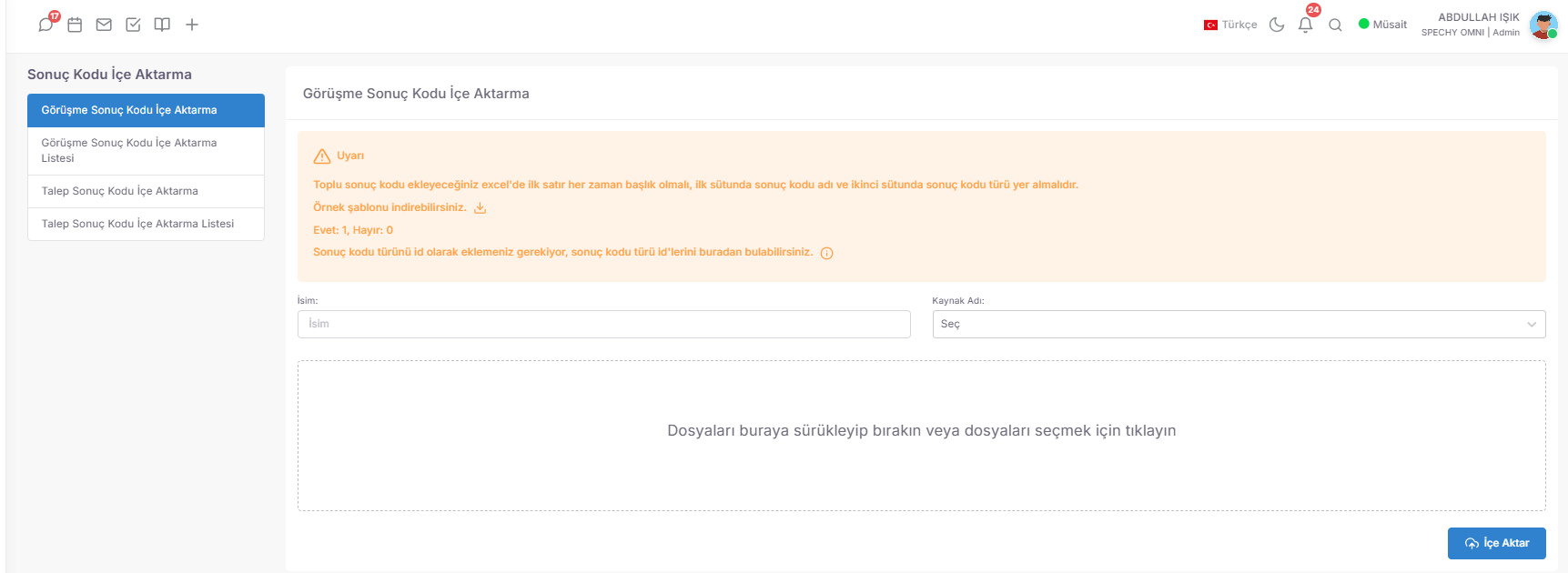
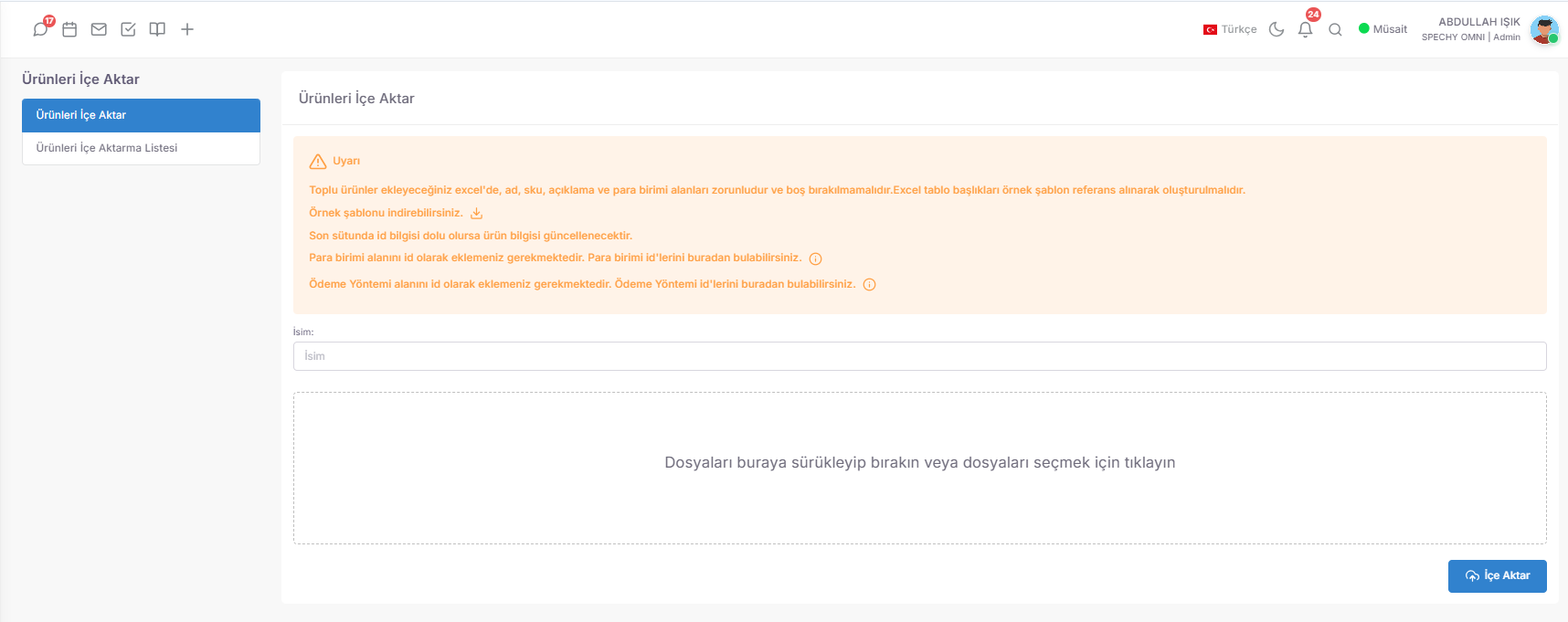
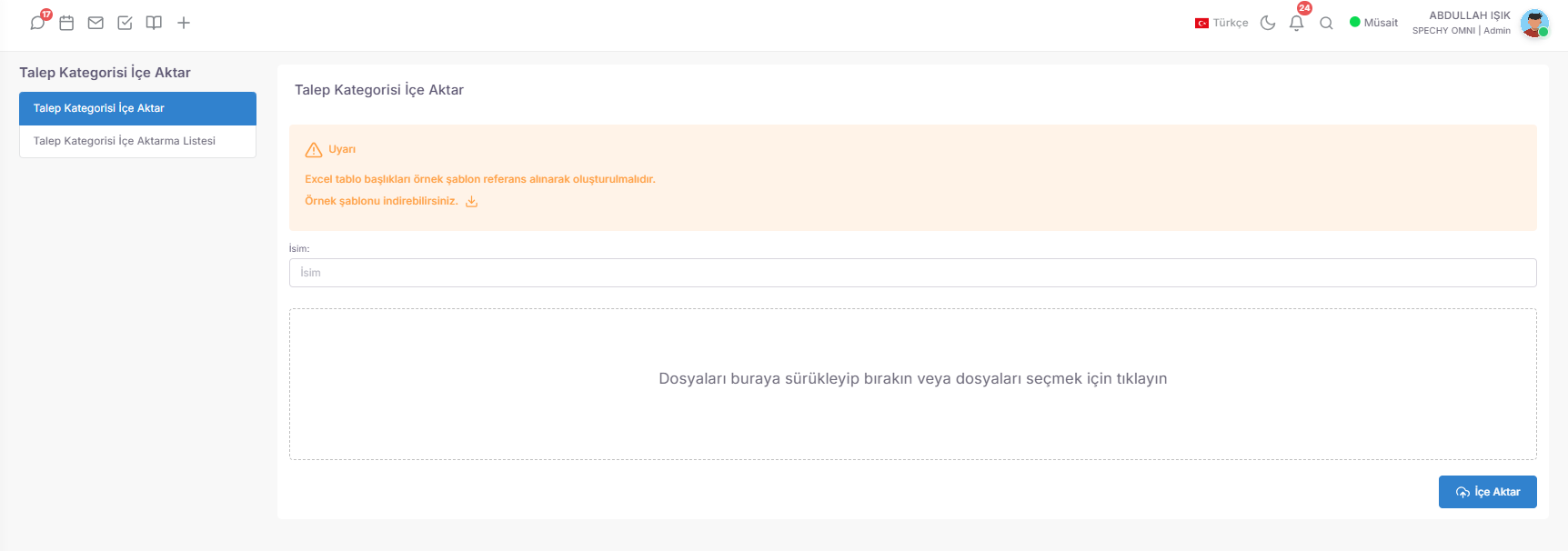
💡 Why is it Important?
📦 Upload Product (Mass Inventory and Catalog Management)
The Product Upload Module is the central data entry gateway that allows you to transfer your product portfolio consisting of thousands of pens, your service packages or your digital assets to the system in bulk via Excel.
Access URL; https://app.spechy.com/settings/datamanagement/product-import
⚙️ Technical Configuration and Import Tools
💡 Why is it Important?
📞 Download Phone Directory (Corporate Communication Network Management)
Phone Directory Upload Module is the central data entry gateway that allows you to transfer all external and internal phone numbers that need to be accessed quickly in operational processes to the system in bulk via Excel.
Access URL; https://app.spechy.com/settings/datamanagement/phonebook-import
🛠️ Guide Configuration and Import Tools
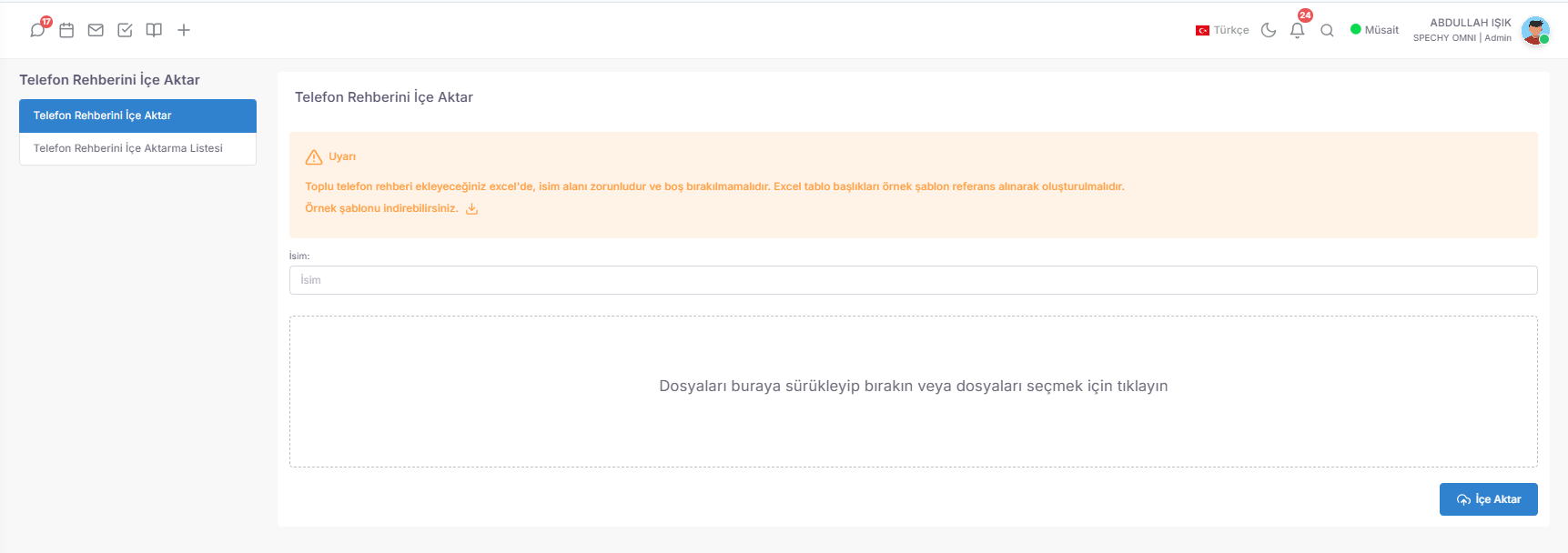
💡 Why is it Important?
📂 Upload Request Category (Support Hierarchy and Workflow Management)
The Request Category Upload Module is the central configuration gateway that allows you to transfer hierarchical structures you use to classify problem, suggestion or information requests from your customers to the system in bulk via Excel.
Access URL; https://app.spechy.com/settings/datamanagement/ticket-category-import
⚙️ Technical Configuration and Import Tools
💡 Why is it Important?
🎟️ Load Coupon (Loyalty Program and Promotion Management)
The Coupon Upload Module is the central data entry gateway that allows you to transfer discount codes, gift vouchers or promotional coupons you have prepared for your marketing campaigns to the system in bulk via Excel.
Access URL; https://app.spechy.com/settings/datamanagement/coupon-import
🛠️ Coupon Configuration and Import Tools
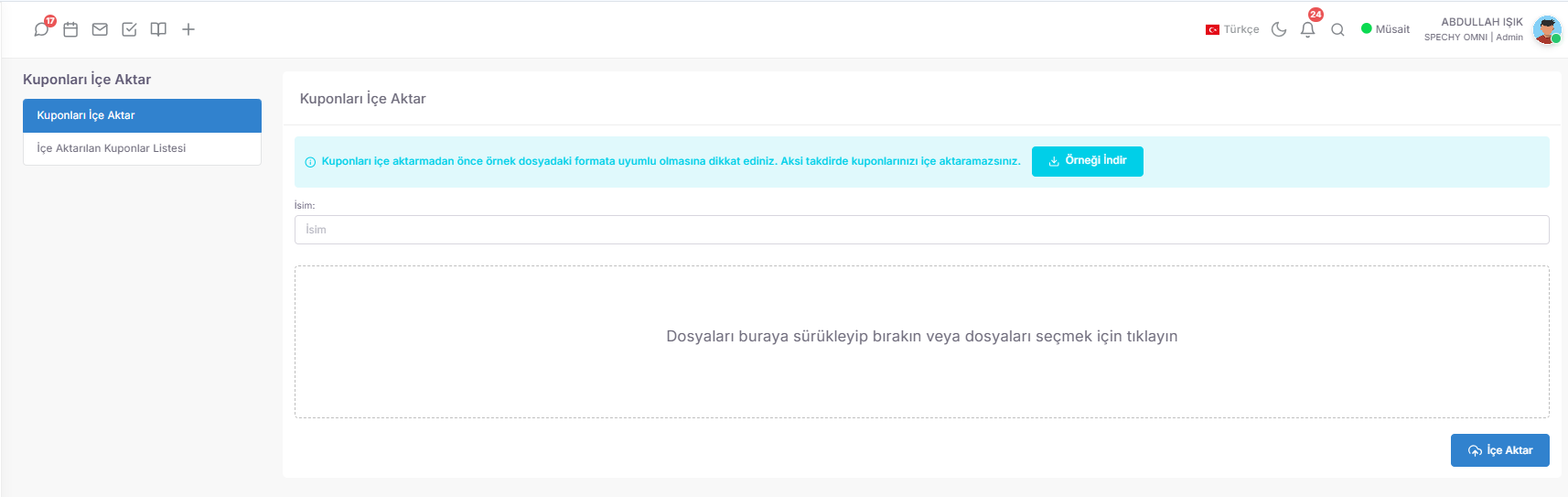
💡 Why is it Important?
🎯 Campaign Management (Segmentation and Target Audience Building)
The Campaign Management Module is a "Data Refinery" that allows you to create high conversion ($High \ Conversion$) campaign lists by grouping the scattered data in CRM within a certain framework of rules.
Access URL; https://app.spechy.com/segments/list
🛠️ Smart Segmentation and Pool Management Tools
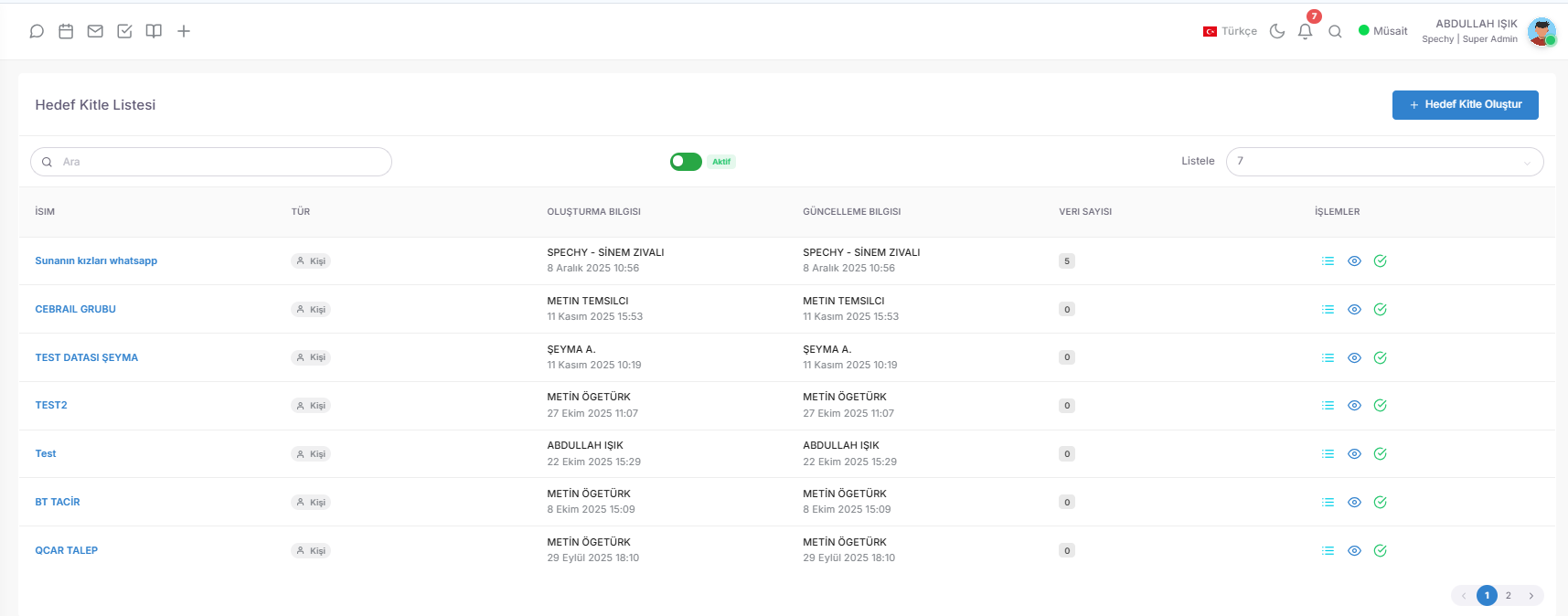
💡 Why is it Important?
🚀 Campaigns (Multichannel Communication and Operational Action)
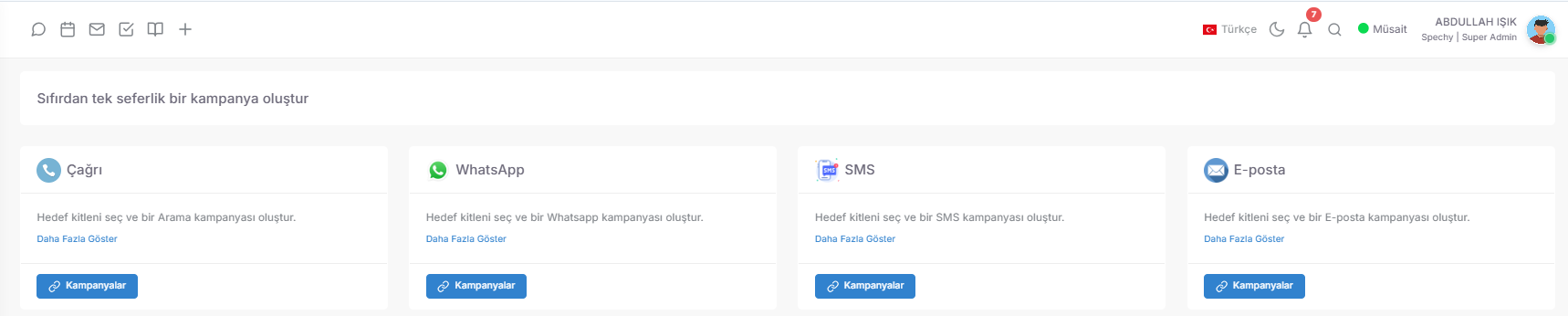
The Campaigns Module is the "Central Communication Engine" that allows you to reach the target audiences (Segments) you prepare for through voice calls, instant messaging or digital notification channels.
Access URL; https://app.spechy.com/campaign/list
🛠️ Multi-Channel Interaction Modules
💡 Why is it Important?
📞 Call Campaign (Operational Control and Dialers Management)
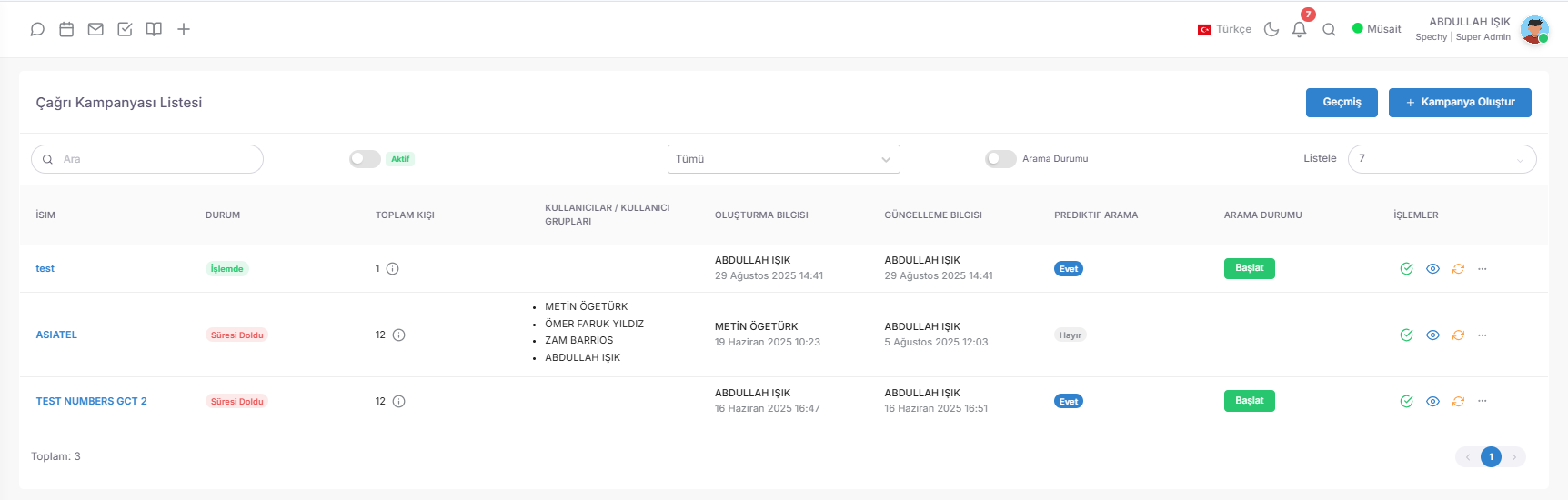
The Call Campaign Module is the central panel that manages all dialer processes, from call transfers to statistics, from instant interventions to data synchronization, keeping track of your voice call operations.
Access URL; https://app.spechy.com/campaign/call
🛠️ Campaign Tracking and Management Metrics
⚙️ Strategic Operations and Intervention Tools
💡 Why is it Important?
🏗️ Creating Call Campaign (Strategic Organization and Notification Management)
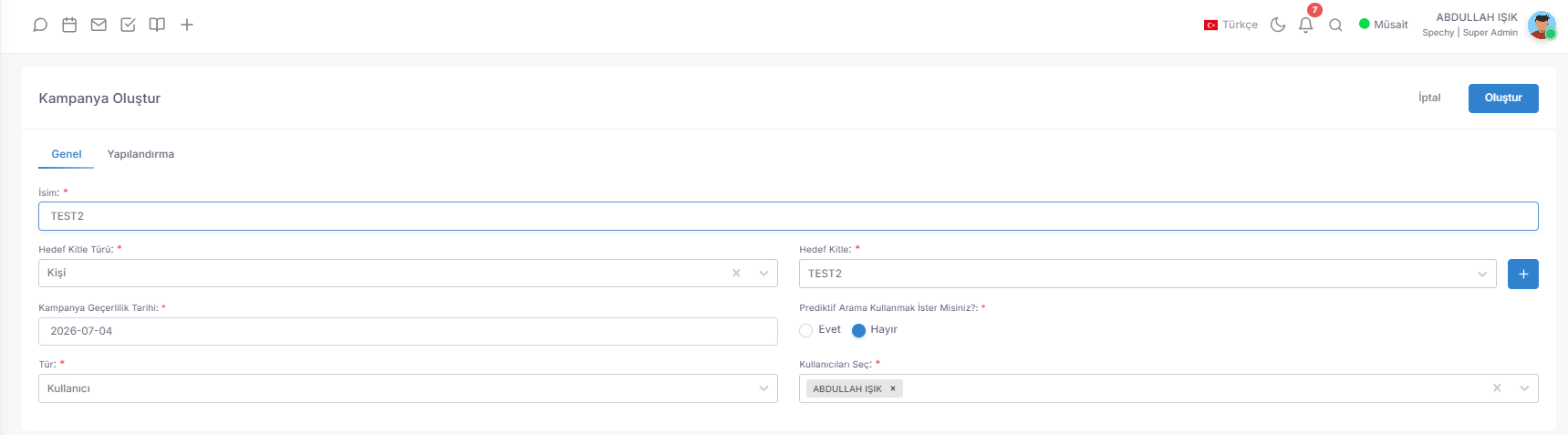
The Campaign Creation Module is the technical area where you write the "Constitution" of the operation, from the type of target audience to the validity period, from data repetition rules to call result actions.
Access URL; https://app.spechy.com/campaign/generate
🛠️ Basic Definitions and Targeting
⚙️ Smart Configuration and Dynamic Flow Rules
💡 Why is it Important?
Advanced Campaign Configuration automates the entire process, from return times for unanswered calls to answering machine recognition, from the call load per representative to data transfers between campaigns.
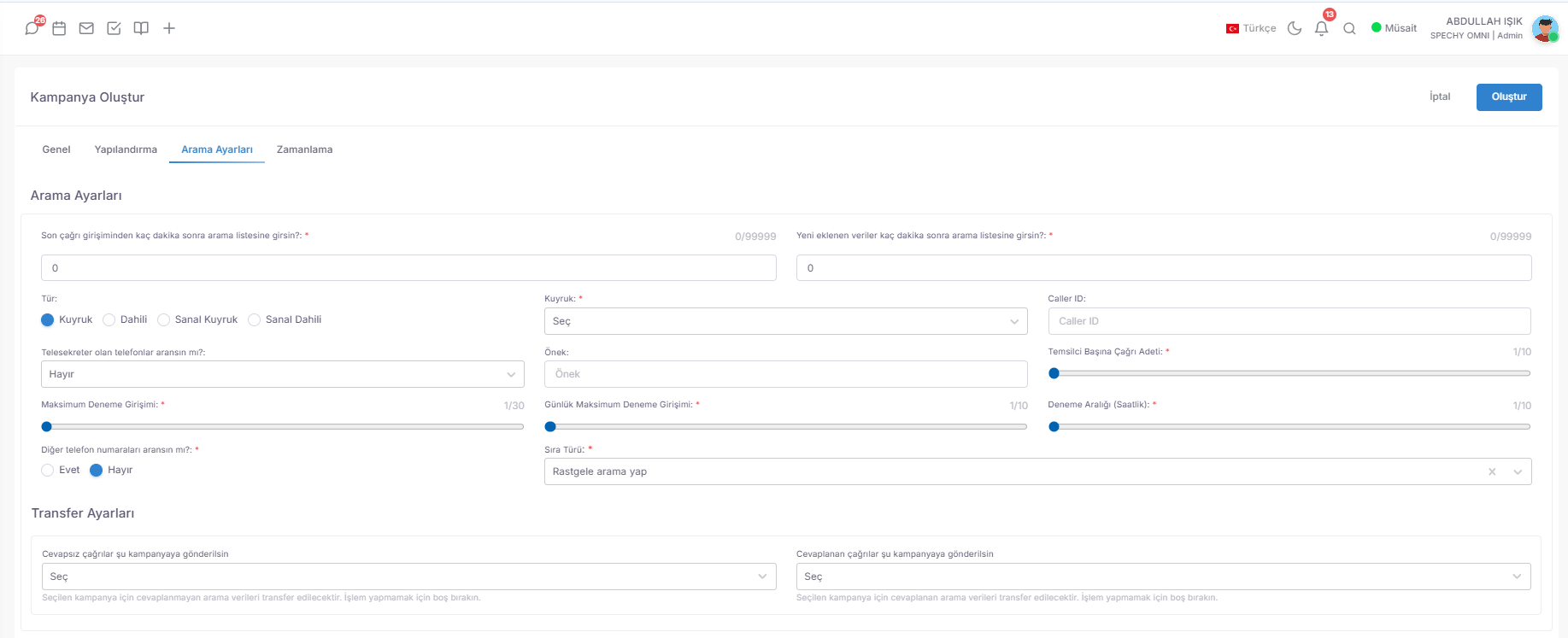
⏳ Scheduling and Data Entry Rules
📞 Technical Search and Line Management
🔄 Smart List and Campaign Transfer
💡 Why is it Important?
Timing;
🟢 127. WhatsApp Campaigns (Mass Interaction and Authorized Marketing)
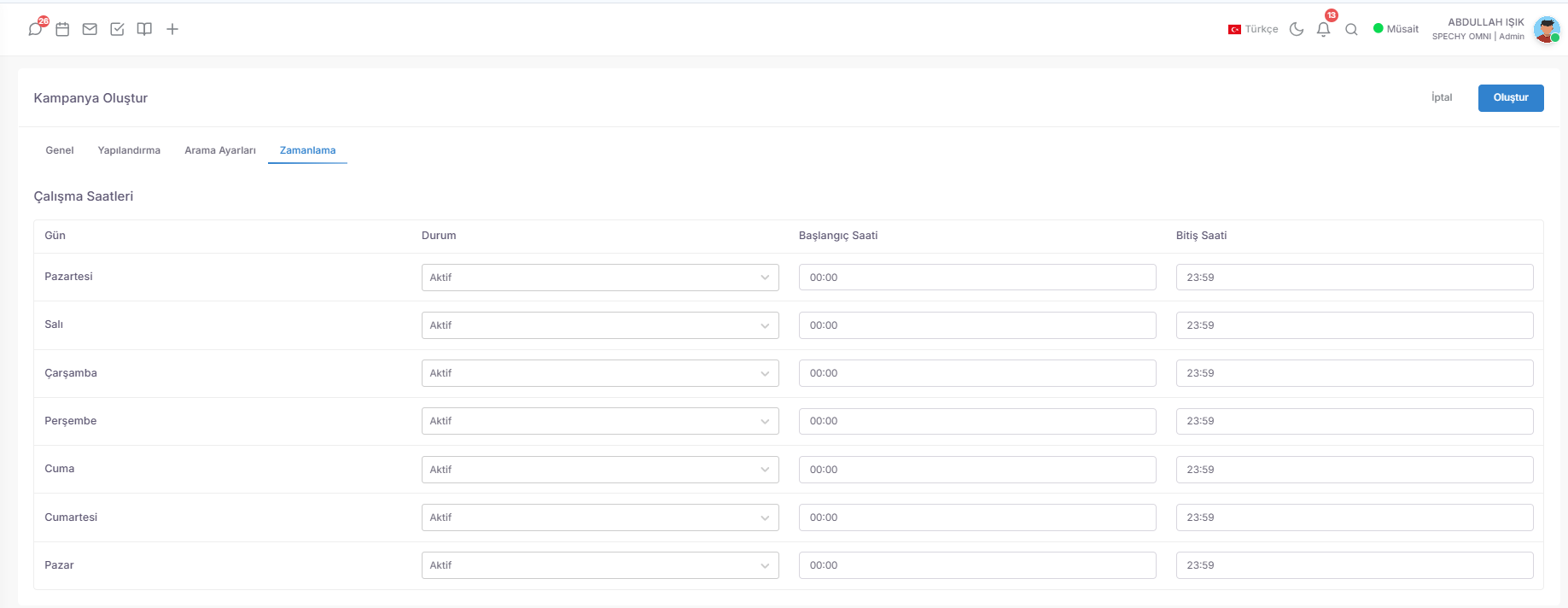
The WhatsApp Campaign Module is a professional automation center that allows you to deliver your rich (media-supported) messages to the right target audience within the framework of legal limits and smart sending limits.
Access URL; https://app.spechy.com/campaign/whatsapp
🛠️ Operational Monitoring and Management Panel
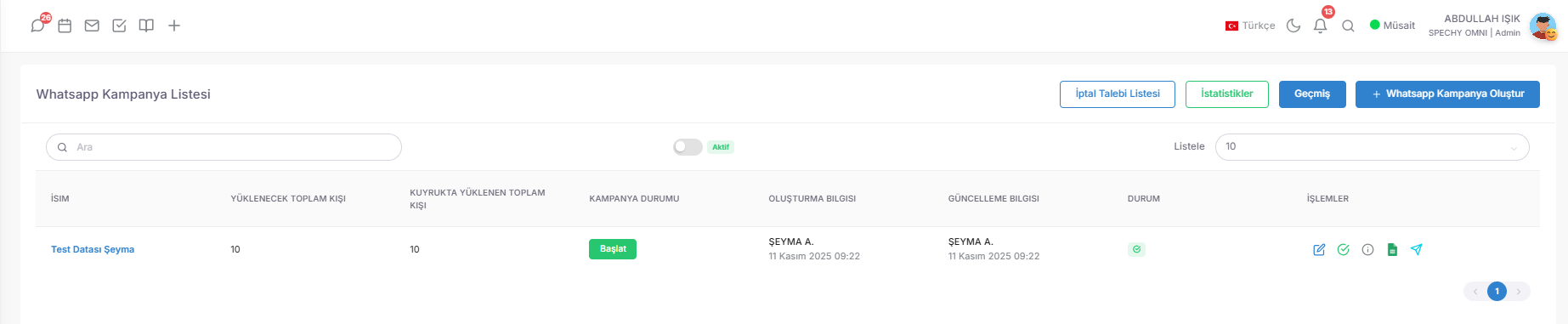
📝 Campaign Creation and Content Design
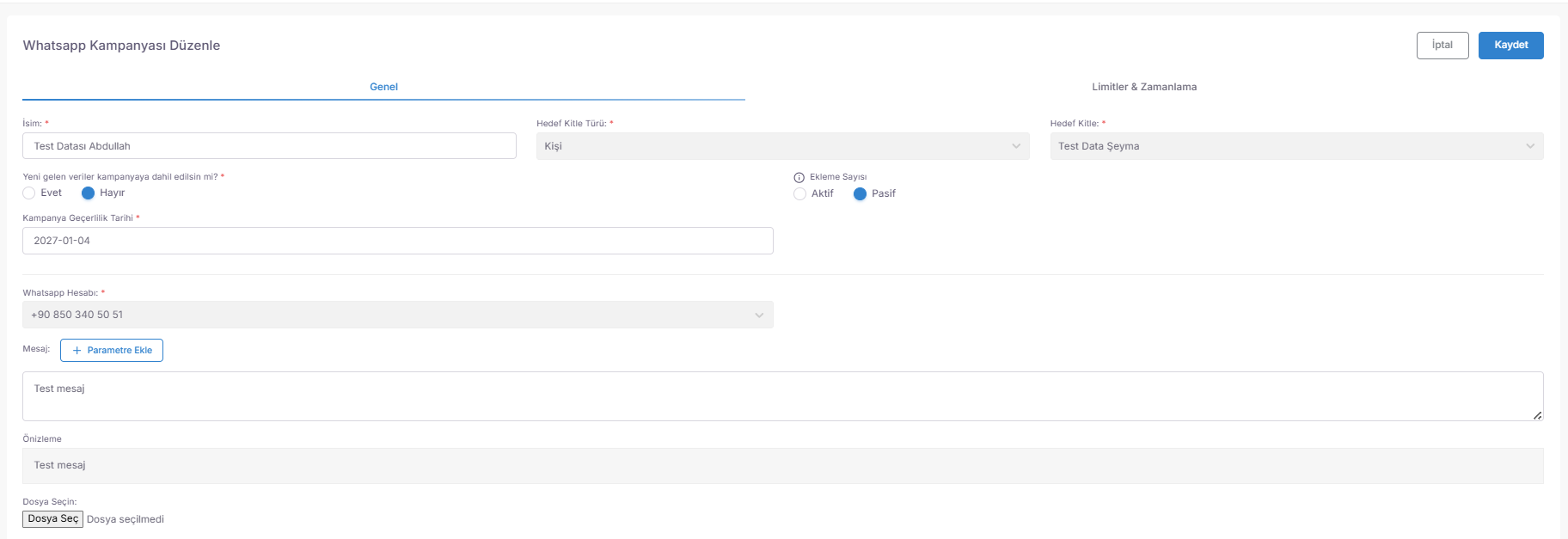
⚙️ Limits, Configuration and Legal Compliance ($IYS$)
💡 Why is it Important?
SMS Campaign;

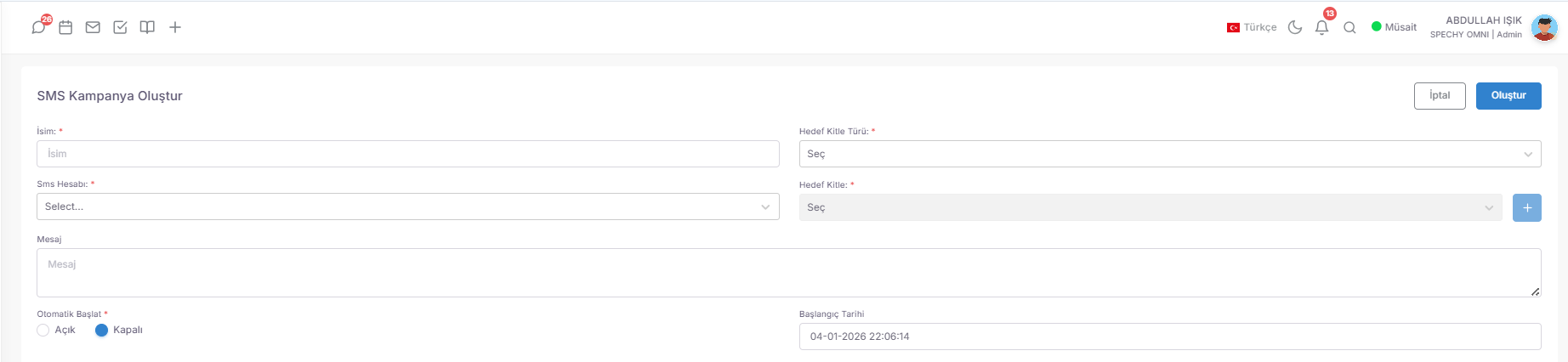
📱 SMS Campaigns (Quick Access and Mass Notification Management)
SMS Campaign Module is the central management panel that allows you to send reliable and operator-based messages directly to your target audiences via your corporate message headers (Originator).
Access URL; https://app.spechy.com/campaign/sms
🛠️ Operational Management and Monitoring Panel
📝 SMS Campaign Setup and Configuration
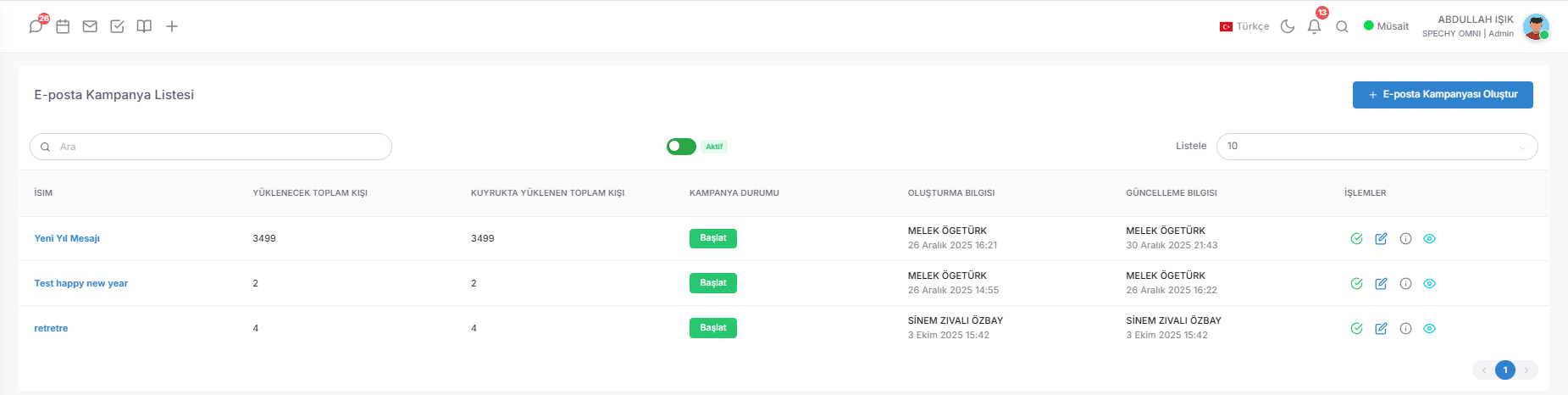
💡 Why is it Important?
📧 Email Campaigns (Corporate Newsletter and Digital Access Management)
The E-Mail Campaign Module is a central panel that allows you to manage the permanent trace of your brand in the digital world (Inbound & Outbound) by sending visually rich and trackable emails to your segments.
Access URL; https://app.spechy.com/campaign/email
📊 Operational Monitoring and Campaign Panel
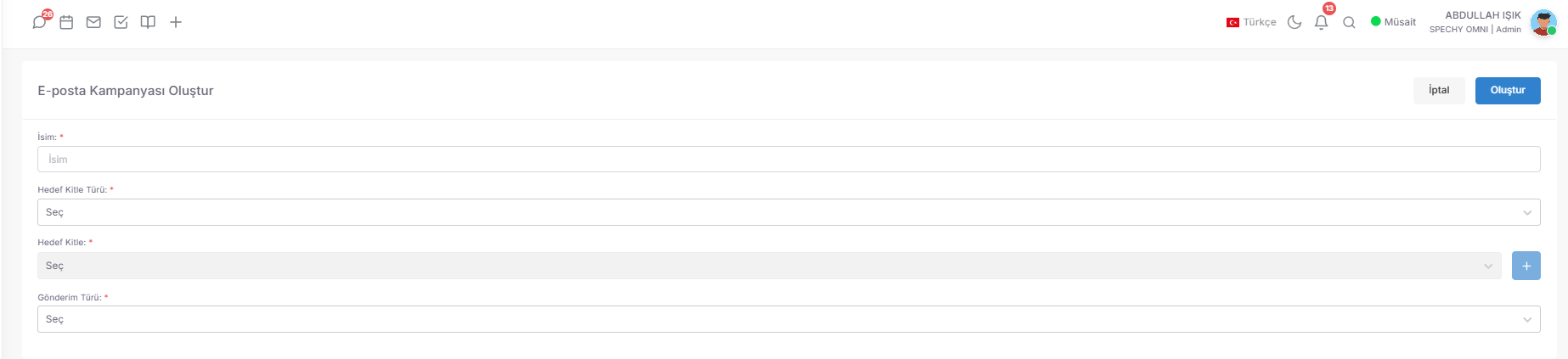
📝 Email Campaign Creation and Sending Architecture
💡 Why is it Important?
📁 File Gallery and Cloud Integration (Digital Asset Management)
The File Gallery Module integrates your local files on your desktop with your data in the cloud (Google Drive) into the Spechy ecosystem; providing access to all kinds of documents (PDF, Image, Video, Excel, etc.) needed in sales, support and marketing processes from a single point.
Access URL; https://app.spechy.com/file-gallery
🛠️ Local Storage and Organization (File Gallery)

☁️ Smart Cloud Integration (Google Drive)
💡 Why is it Important?
🏷️ Product Management (Catalog Configuration and Commercial Parameters)
The Products Module is the central inventory management area where you create the technical, visual and financial identity of each service or physical product you offer; it directly affects the closing speed ($Time-to-Close$) of your representatives.
Access URL; https://app.spechy.com/settings/products?page=1&limit=10&favorite=false
🛠️ Catalog Management and Strategic View
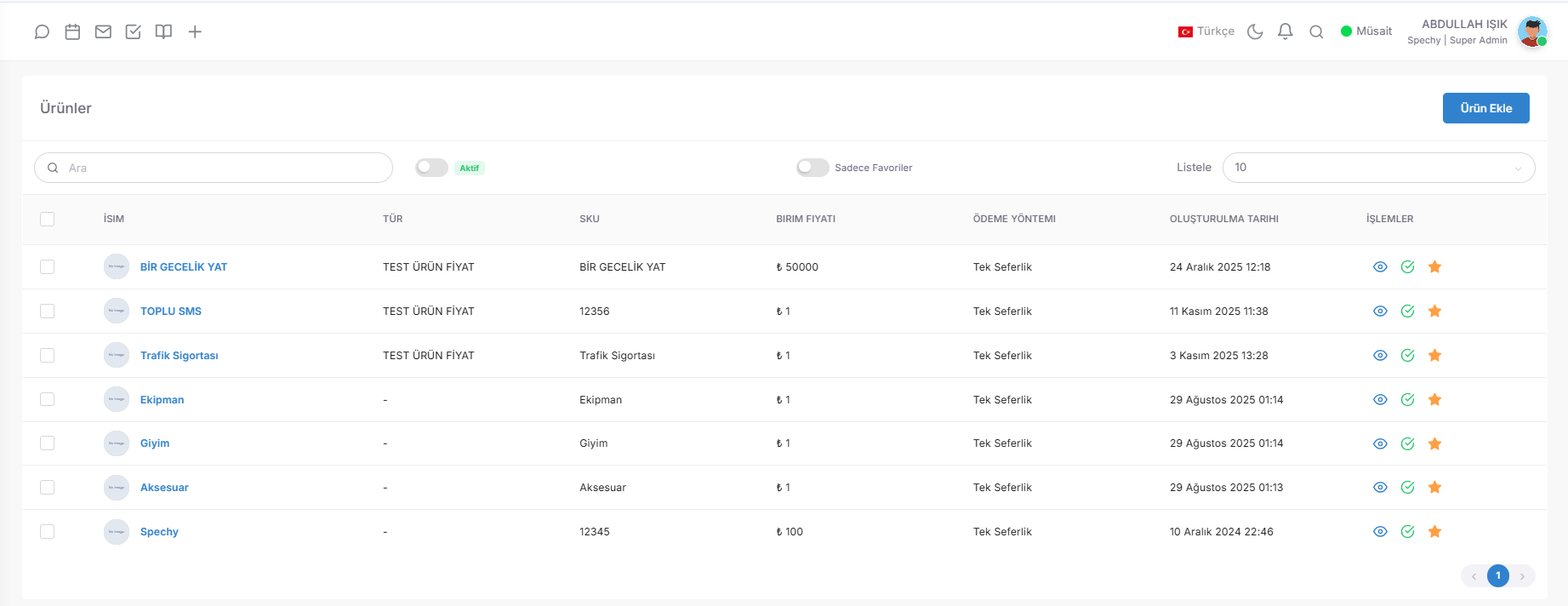
⚙️ Detailed Product Addition and Financial Architecture
💡 Why is it Important?
💎 132. Service Quality (Quality Forms and Interview Inspection)
The Service Quality Module increases customer satisfaction ($CSAT$) and representative competence by enabling the listening of voice calls, examining correspondence, and scoring these interactions according to institutional standards.
Access URL; https://app.spechy.com/service-quality/quality-forms?page=1&limit=10
📝 1. Quality Forms (Construction of Evaluation Criteria)

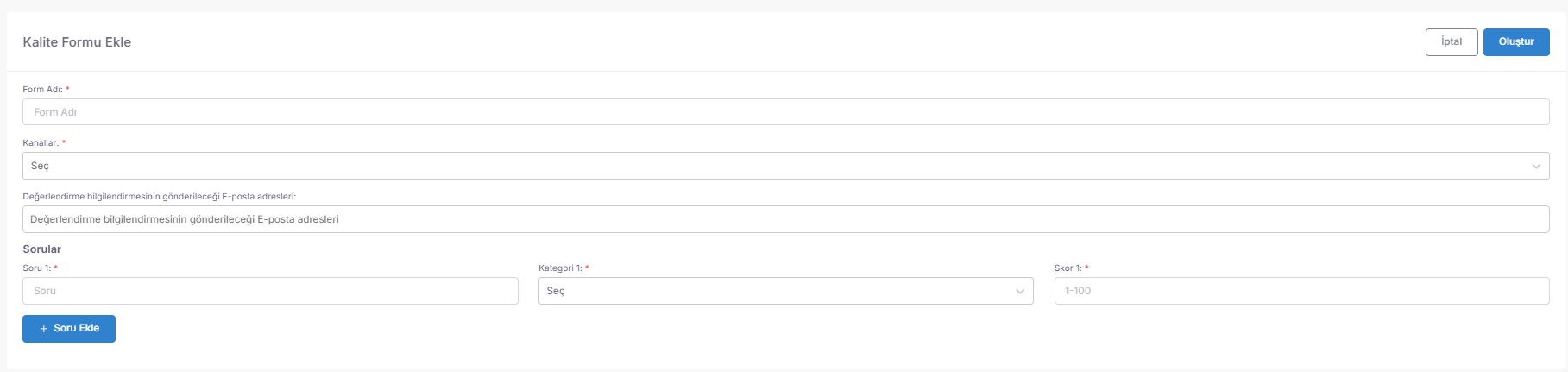
It is the area where you create digital "Evaluation Reports" that are suitable for your own corporate standards.
🔍 2. Unreviewed Meetings (Audit Pool)
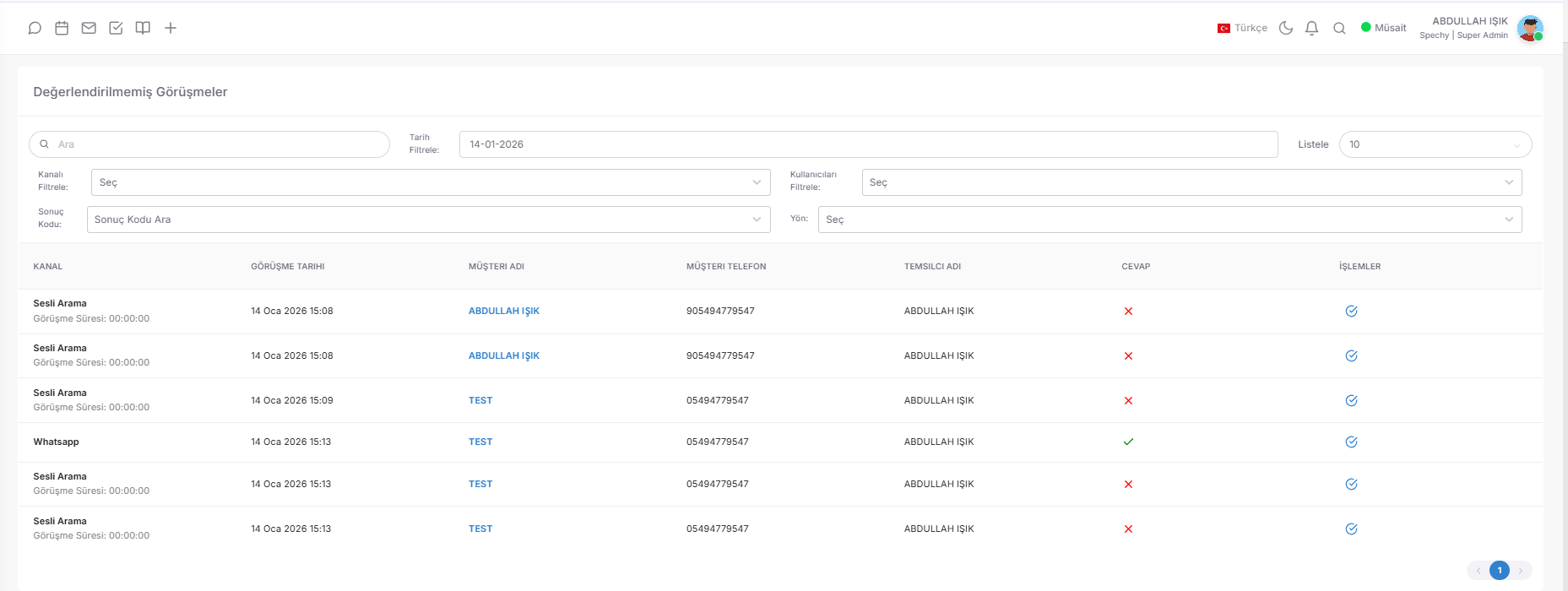
It is the "Quality Control" queue where all interactions that have not yet been reviewed are filtered.
Access URL; https://app.spechy.com/service-quality/unevaluated?page=
🎧 3rd Interview Evaluation (Live Analysis Panel)
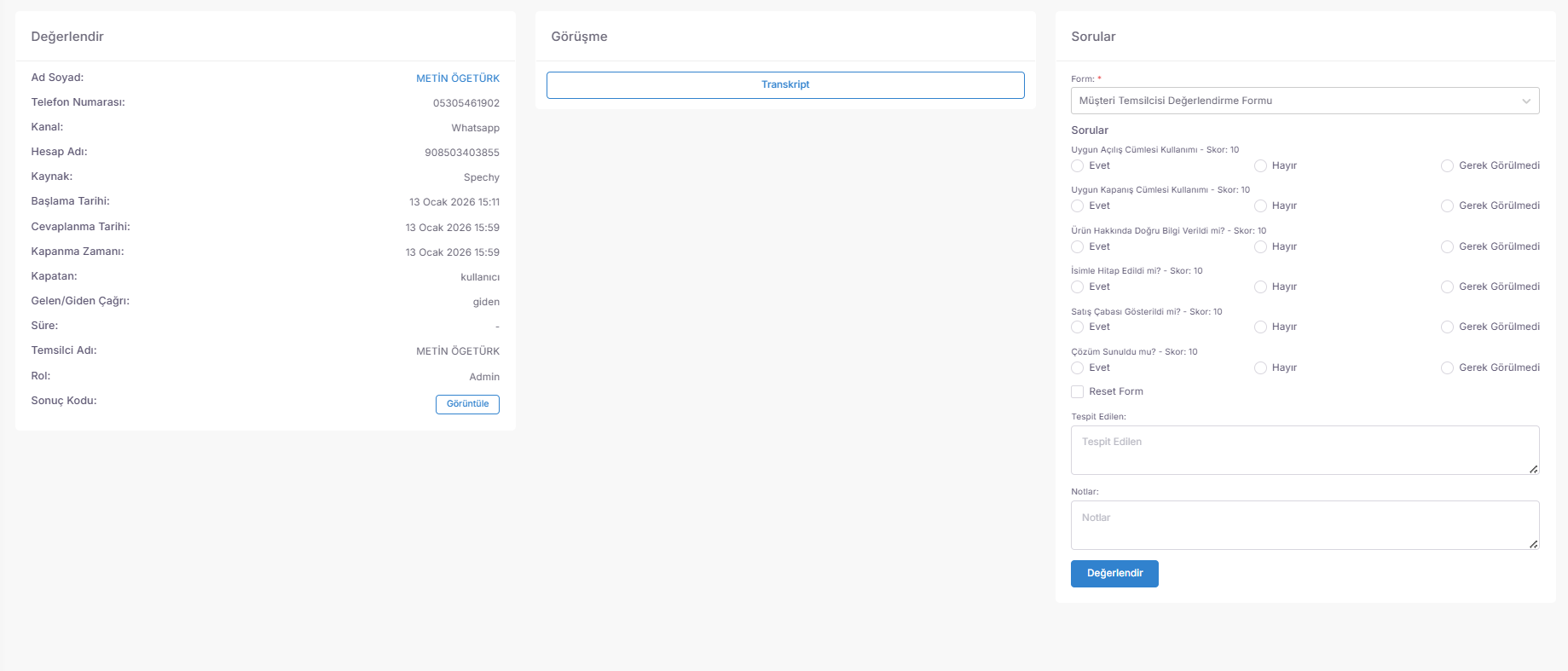
It is an interactive area where the inspection analyzes the interaction between the representative and the customer second by second.
Access URL; https://app.spechy.com/service-quality/evaluate/1128392/3
✅ 4. Evaluated Interviews (Performance Archive)

It is the "Quality Archive" where completed audits are monitored and revised if necessary.
Access URL; https://app.spechy.com/service-quality/evaluated
💡 Why is it Important?
⚙️ Settings (System Architecture and General Configuration)
The Settings Menu is the strategic upper center where all variables that determine Spechy's working principles, from technical infrastructure to user experience, from data entry standards to system security, are managed.
🛠️ Central Configuration and Control Areas
💡 Why is it Important?
The Resources Module is an organizational center that allows you to manage your operational processes based on resources by allowing you to label each piece of data included in the system (Customer, Request, Sales Opportunity, etc.) as "where it came from".

Access URL; https://app.spechy.com/settings/sources/?page=1&limit=10
🛠️ Data Source and Project Management Tools
💡 Why is it Important?
🤖 Automatic Assignments (Communication Channels Distribution Algorithm)

The Automatic Assignments Module is an automation system that instantly shares unstarted conversations from written communication channels according to the areas of expertise or workloads of your representatives.
Access URL; https://app.spechy.com/settings/auto-assigns?page=1&limit=10
🛠️ Smart Distribution and Security Mechanisms
💡 Why is it Important?
⚙️ Automatic Assignment Editing (Smart Distribution and Ownership Rules)
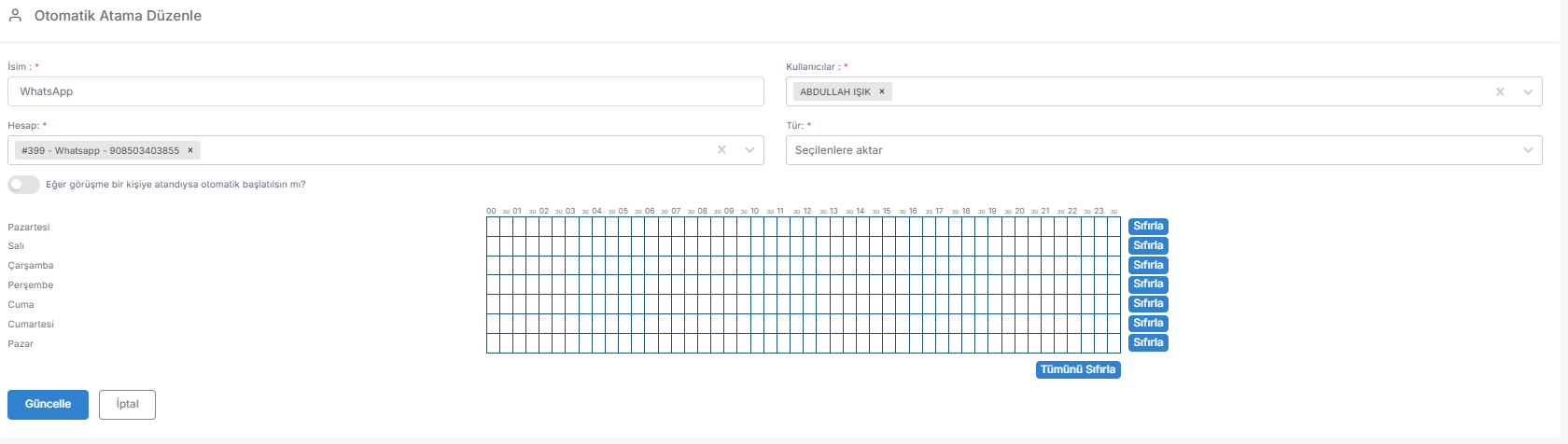
Automatic Assignment Configuration is the "Operational Algorithm" panel that determines which channel, which representative, and with which priority and timing rules incoming correspondence will be transferred.
Access URL; https://app.spechy.com/settings/auto-assigns/add
🛠️ Strategic Organization and Directioning Tools
🕒 Scheduling and Accessibility Management
💡 Why is it Important?
👤 User Profile Creation (Detailed Identity and Permission Identification)
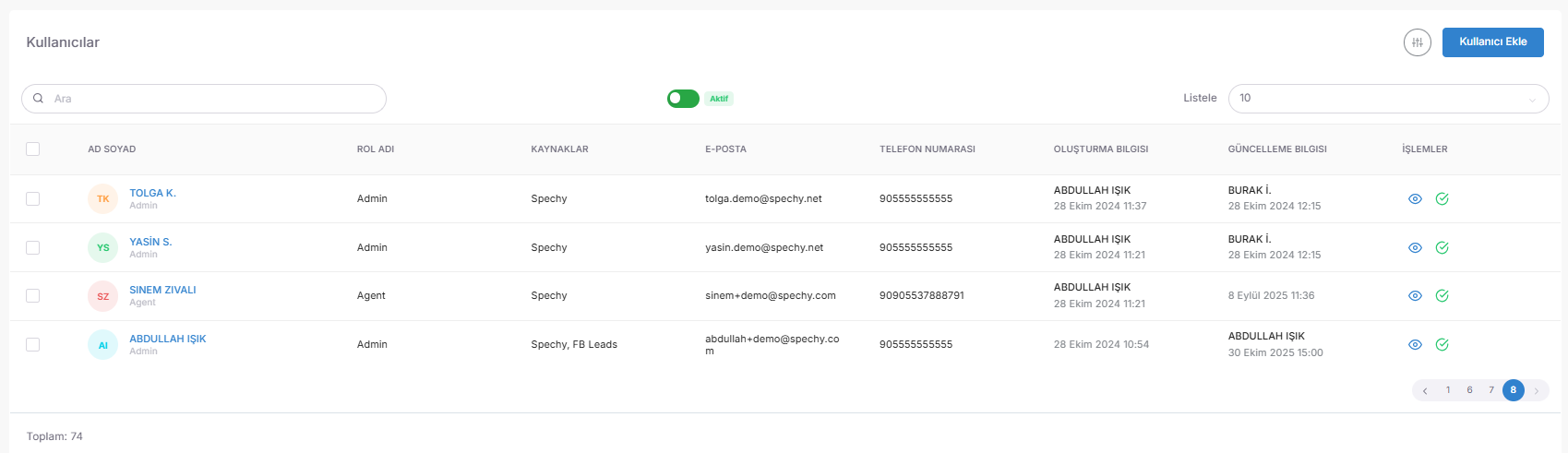
User Card Configuration is the "Personal Control Center" that determines the technical limits, language preferences and access security of a personnel in the Spechy ecosystem.
Access URL; https://app.spechy.com/settings/users?page=1&limit=10&status=true&
📋 Basic Identity and Contact Information
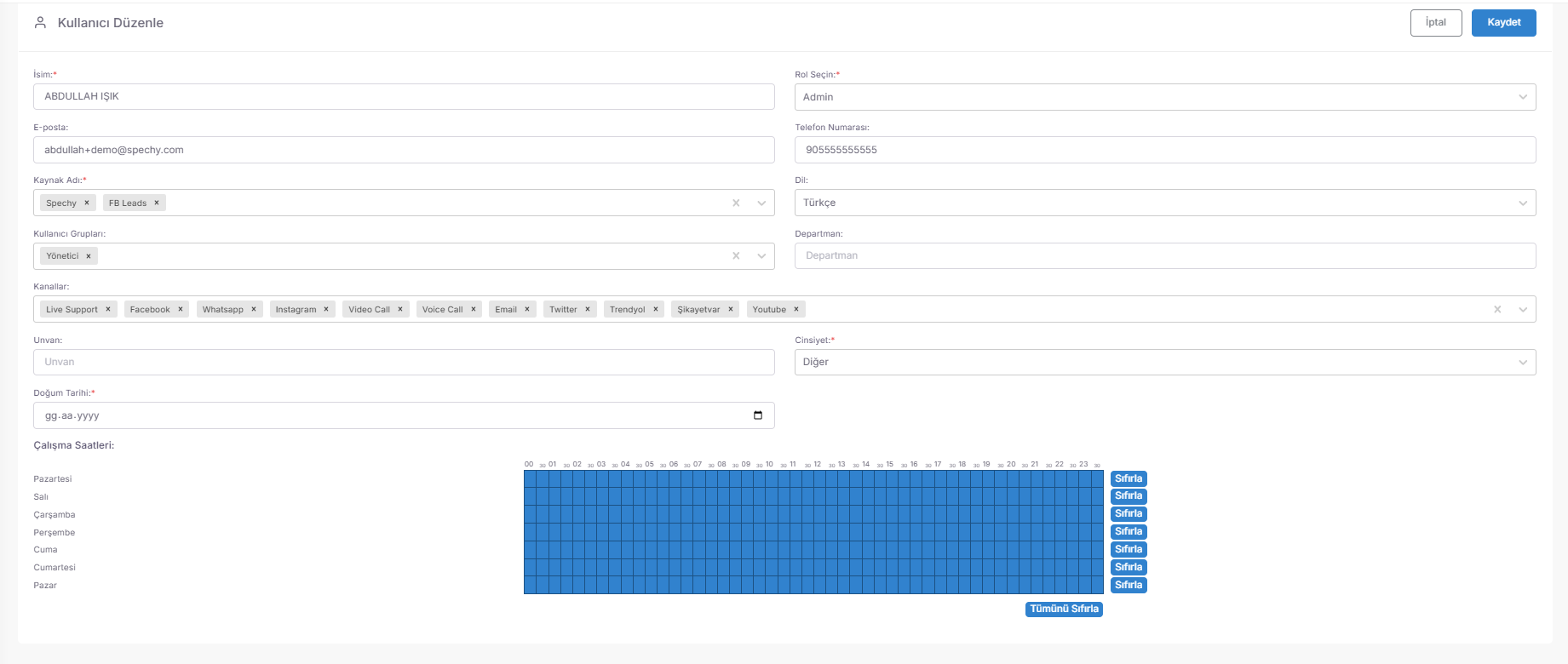
⚙️ Operational Role and Access Architecture
🛡️ Security and Motivational Parameters
💡 Why is it Important?
👥 User Groups (Formation of Operational Teams and Collective Assignment)
The User Groups Module is a clustering system that simplifies request management, campaign distribution and reporting processes by allowing staff to gather in virtual rooms according to their areas of expertise, projects or departments.
Access URL; https://app.spechy.com/settings/usergroups
🛠️ Grouping and Functional Areas of Use
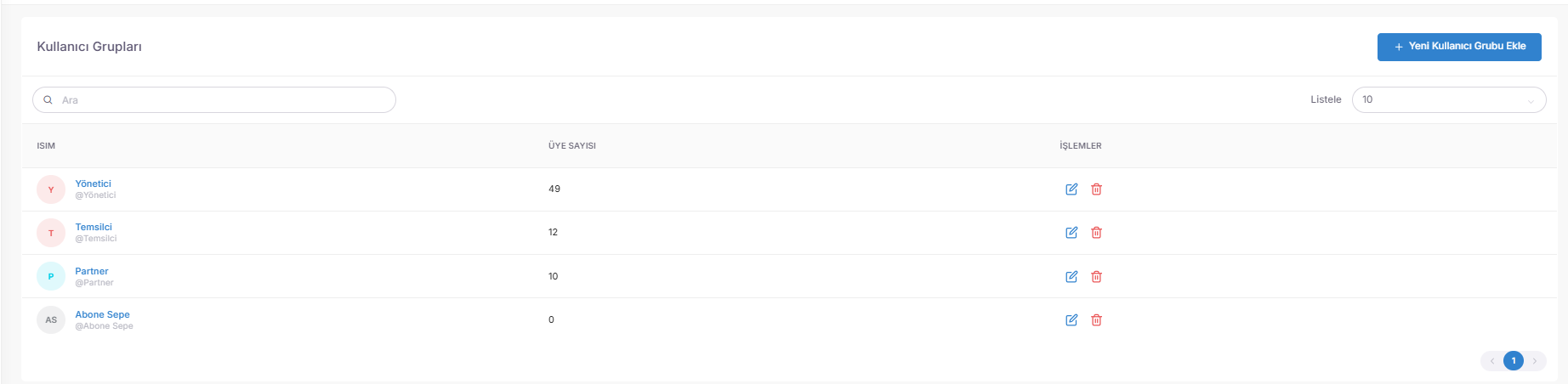
💡 Why is it Important?
🔐 Role Management (Access Control and Permission Hierarchy)
The Role Management Module is the center of the "Authority Constitution", which determines the rank of the personnel in the system, the menus they can see and the operational limits they can perform.
Access URL; https://app.spechy.com/settings/roles
🛠️ Strategic Authorization and Permission Layers
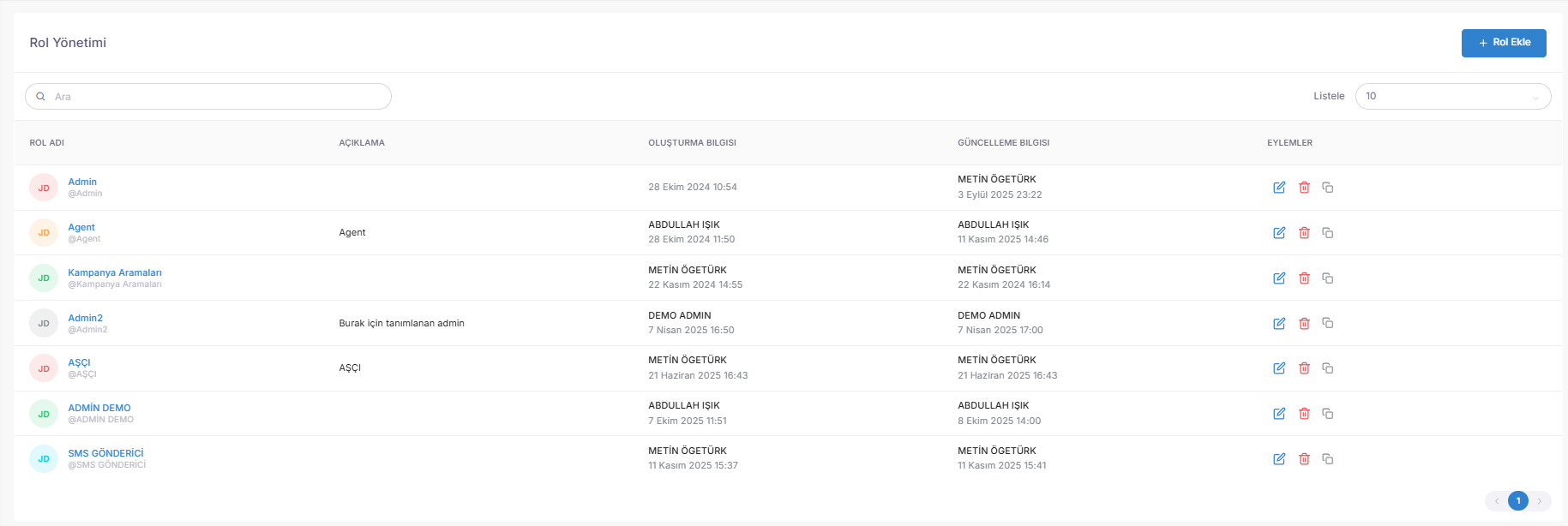
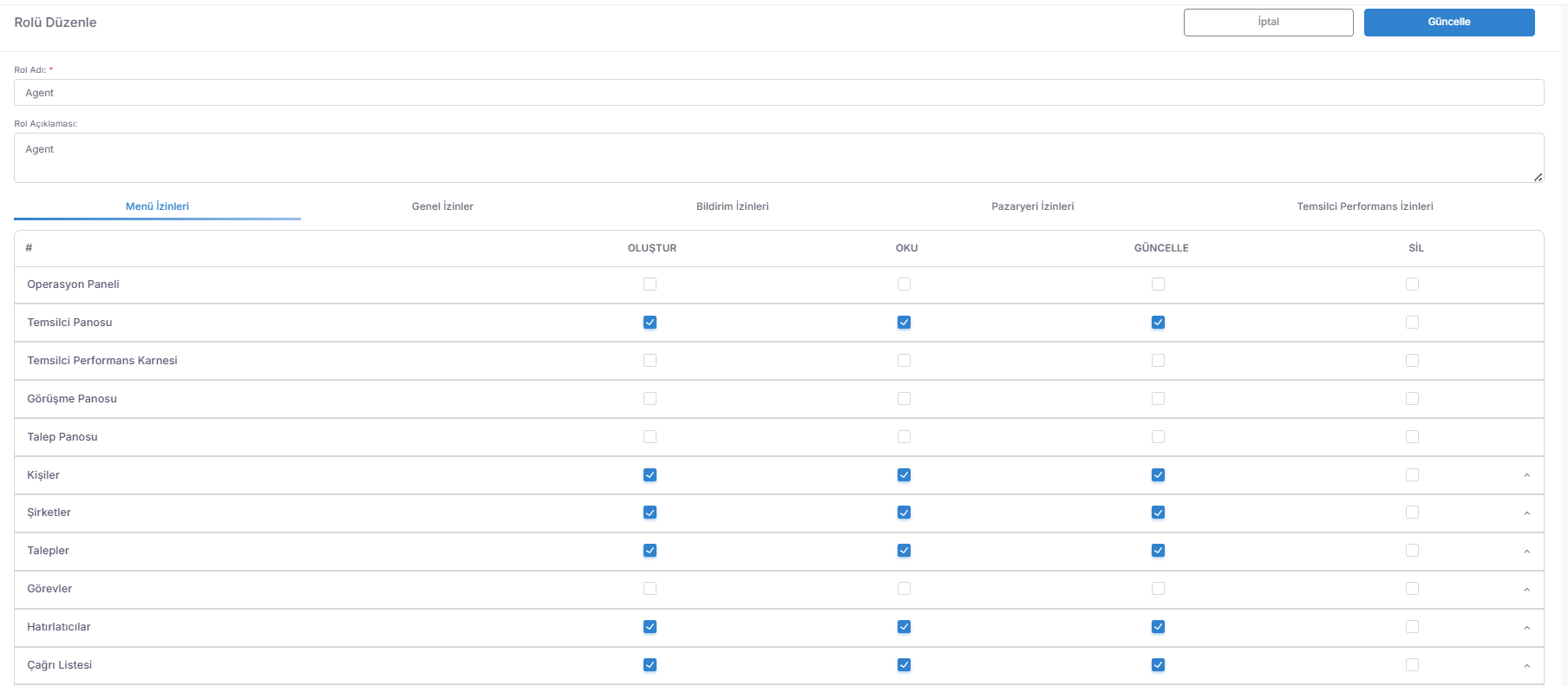
💡 Why is it Important?
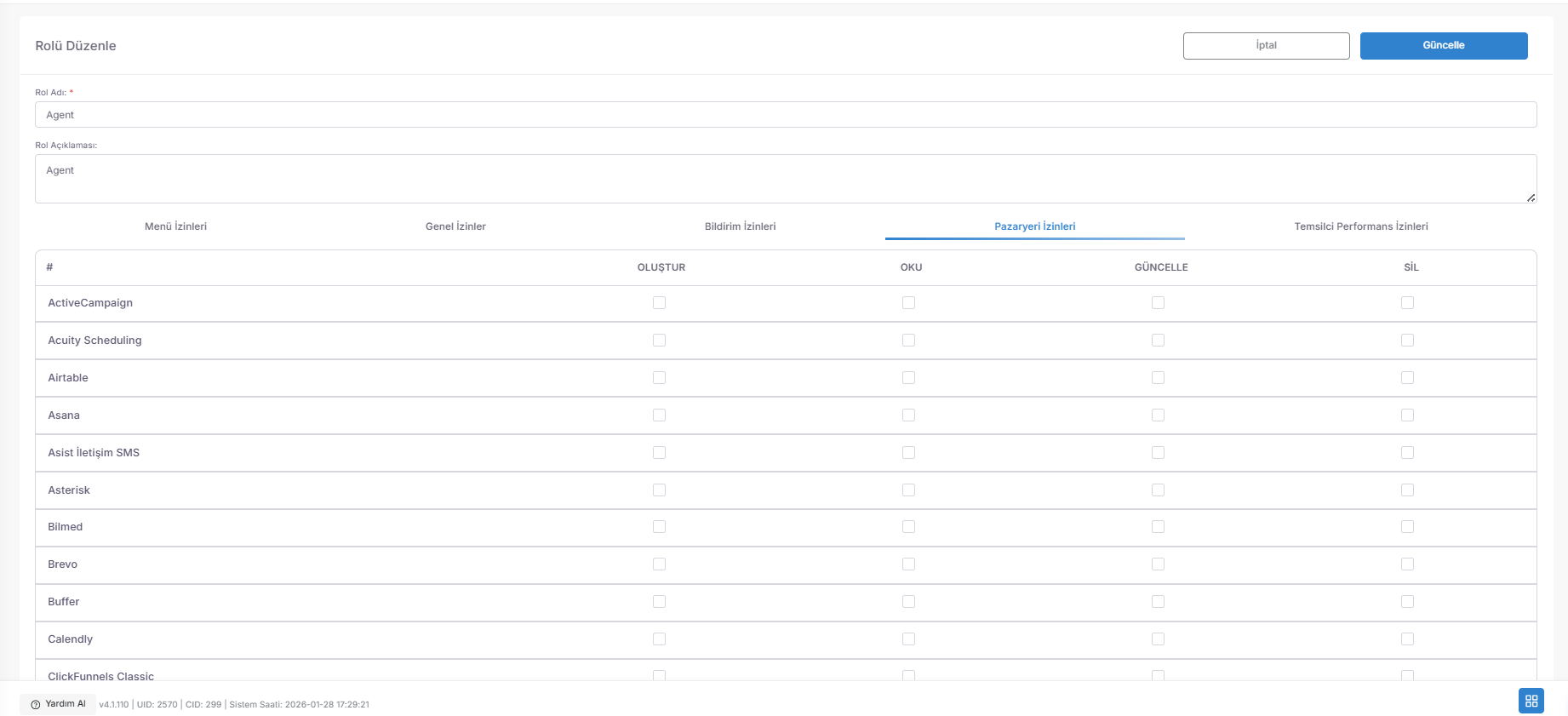
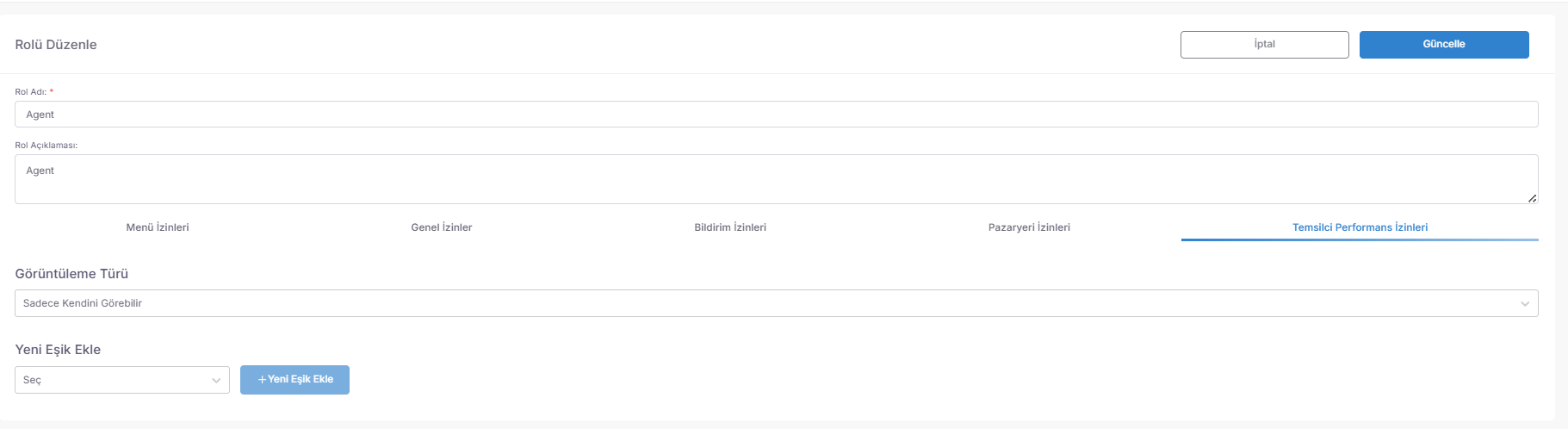
📋 Forms (Dynamic Design and Smart Data Configuration)
The Forms Module is the strategic design center where you can design all data entry fields in the system, from customer registrations to surveys, from web forms to request management, using the drag-and-drop method.
Access URL; https://app.spechy.com/settings/forms
🛠️ Multi-directional Form Types and Areas of Use
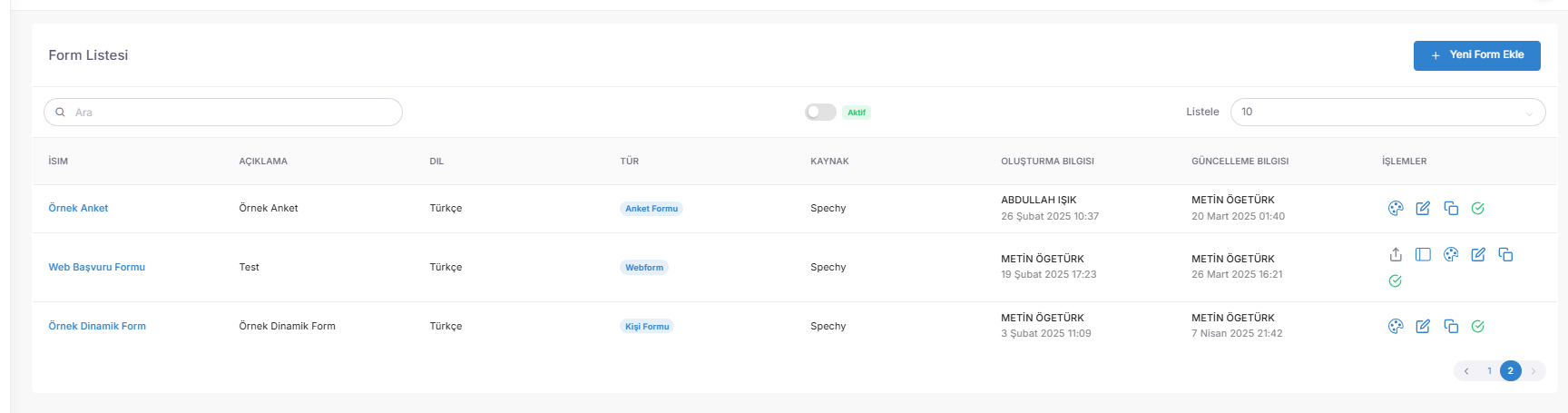
⚙️ Smart Form Elements and Dependency Logic
💡 Why is it Important?
🏁 Result Codes (Interview Termination and Automation Triggers)
The Result Codes Module is the top-level management area where you determine which chain reactions the label chosen by the representative will initiate in the entire CRM ecosystem when he/she closes an interaction (Call, Chat, WhatsApp).
Access URL; https://app.spechy.com/settings/conversationreasons
🛠️ Operational Flexibility and Control
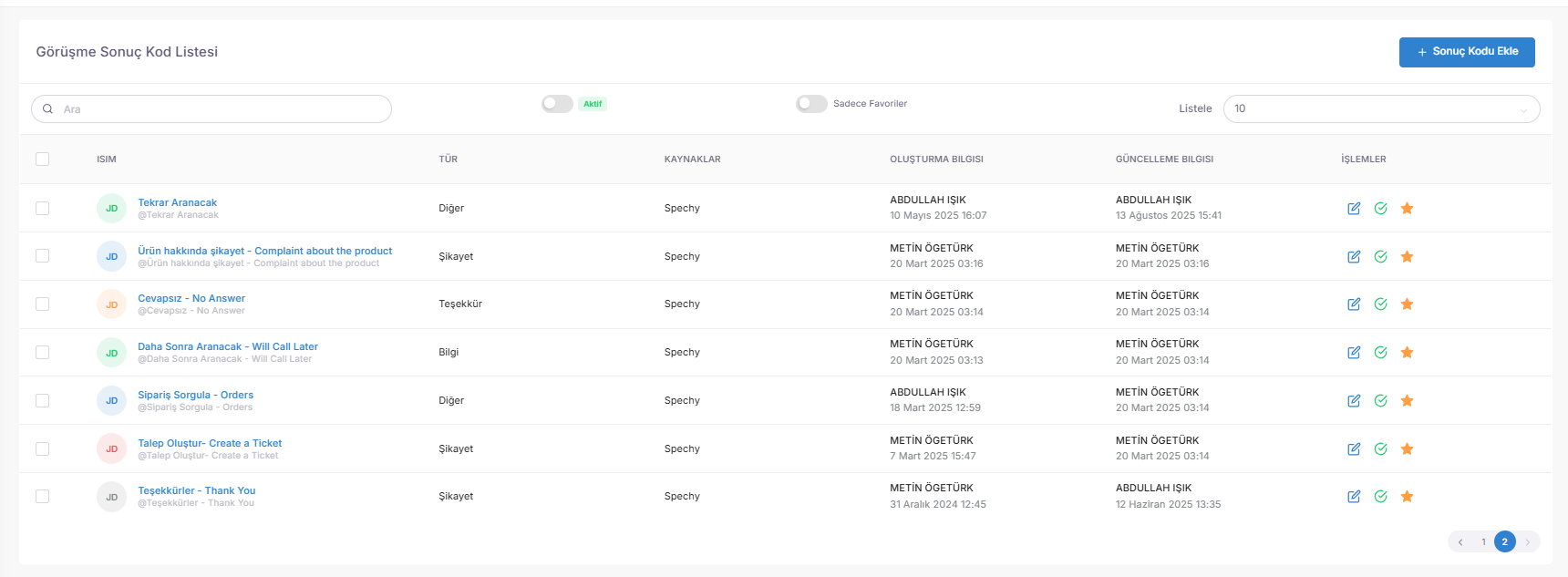
⚙️ Smart Triggers and Chain Reactions
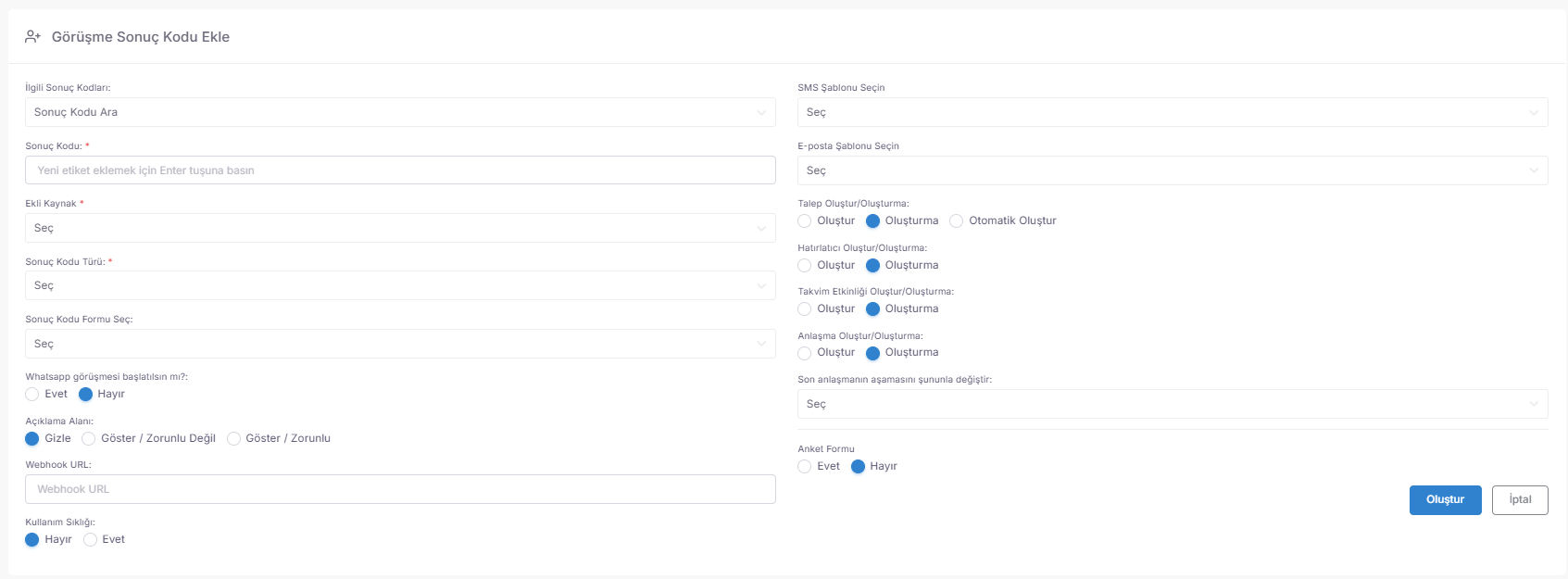
This area is the peak of Spechy's "Automation" power. When a result code is selected, the following are automated:
💡 Why is it Important?
🏗️ Result Code Types (Data Categorization and Reporting Groups)
The Result Code Types Module allows you to collect operational results (e.g., "Busy", "Sold", "Complaint Solved") under upper categories and separate basic metrics such as productivity, sales performance and customer satisfaction ($KPI$).
Access URL; https://app.spechy.com/settings/conversation-reason-types
🛠️ Standardization and Customization Tools
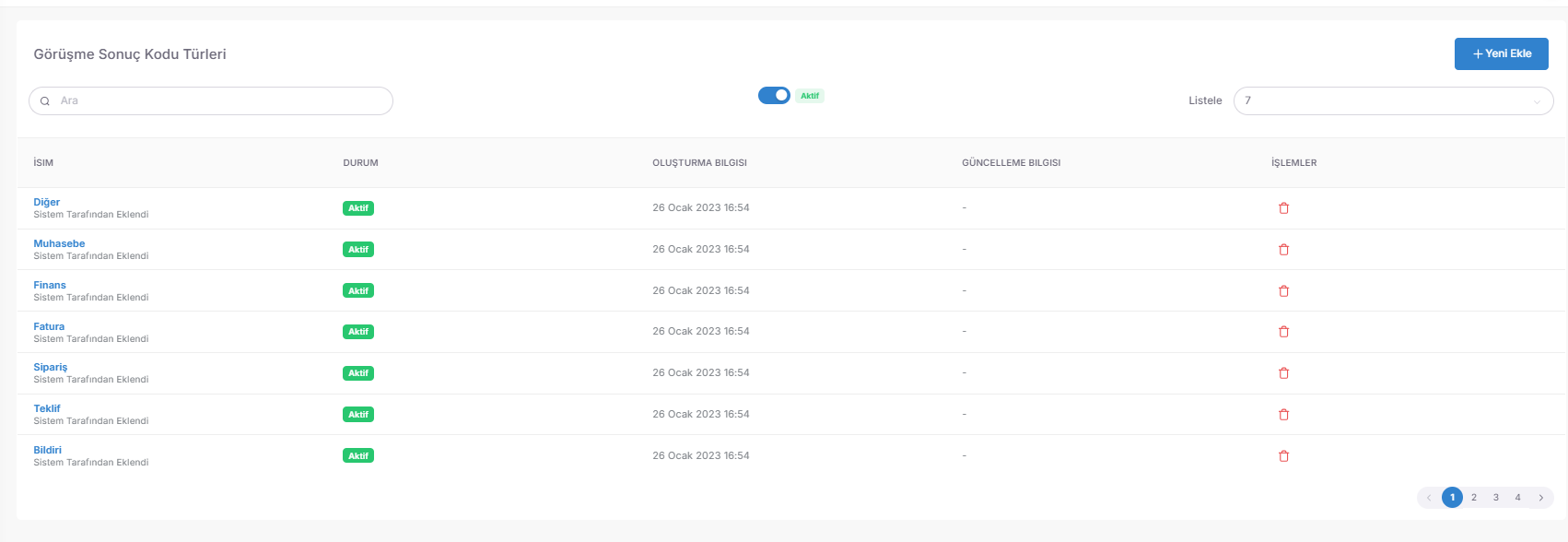
💡 Why is it Important?
⚡ Ready Answers (Quick Answer and Corporate Language Library)
The Ready Answers Module is a shortcut library that allows you to provide professional answers to frequently asked questions or standard information in communication channels such as WhatsApp, Live Support and Social Media with just one click.
Access URL; https://app.spechy.com/settings/readyanswers
🛠️ Easy Setup and Content Management
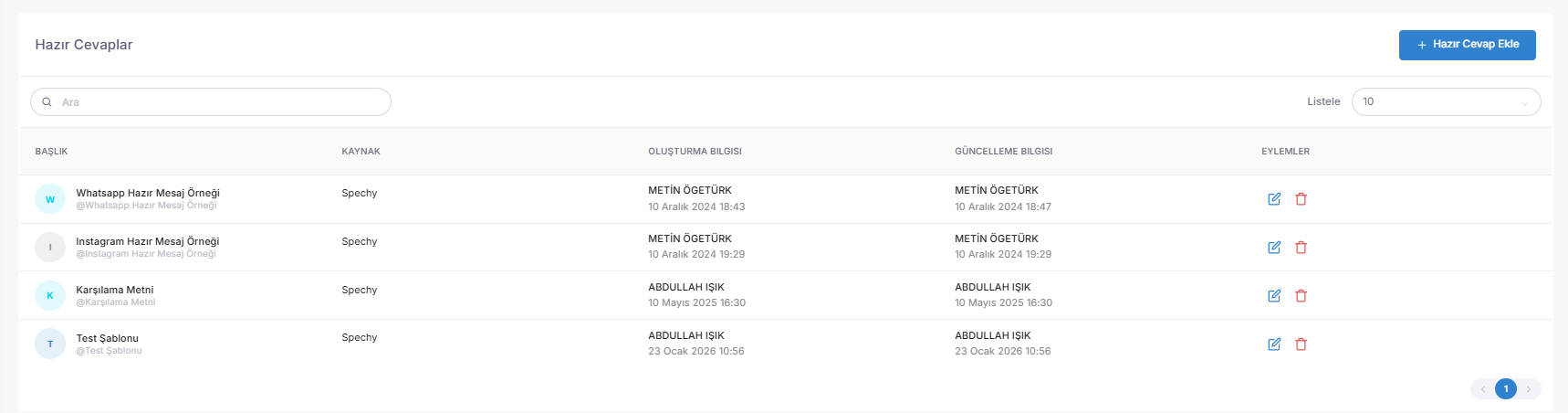
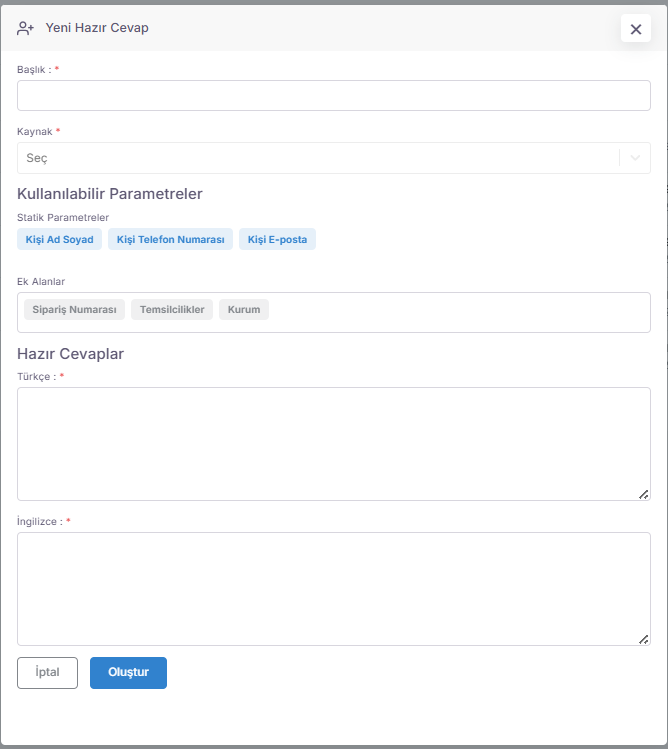
💡 Why is it Important?
💬 Channels: Live Support and Web Widget (Digital Interaction Management)
The Live Support Channels Module is a central bridge that allows you to provide proactive assistance, self-service solutions and real-time representative support through an intelligent chat window (Widget) integrated into your website or mobile application.
Access URL; https://app.spechy.com/settings/channels
🛠️ Integration and Configuration Tools
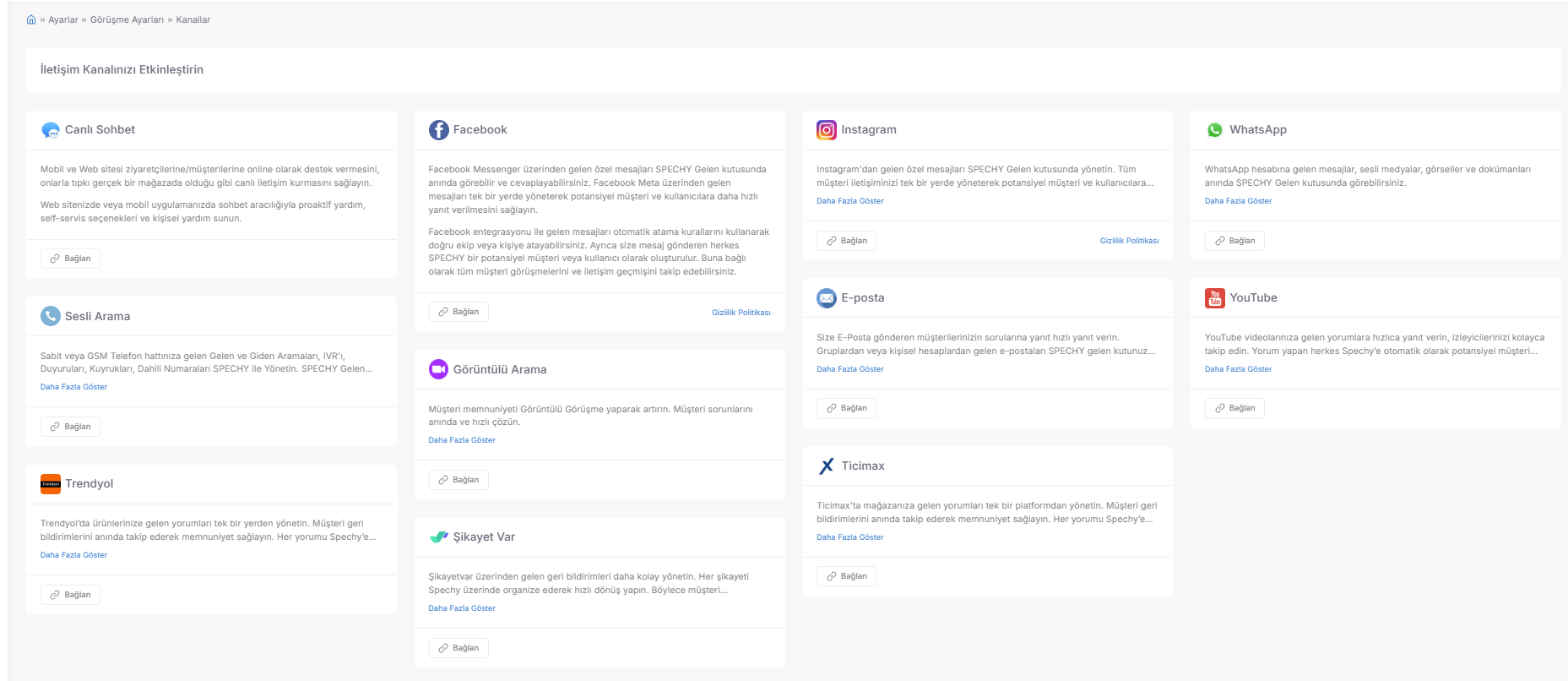
🚀 Proactive and Self-Service Communication Strategy
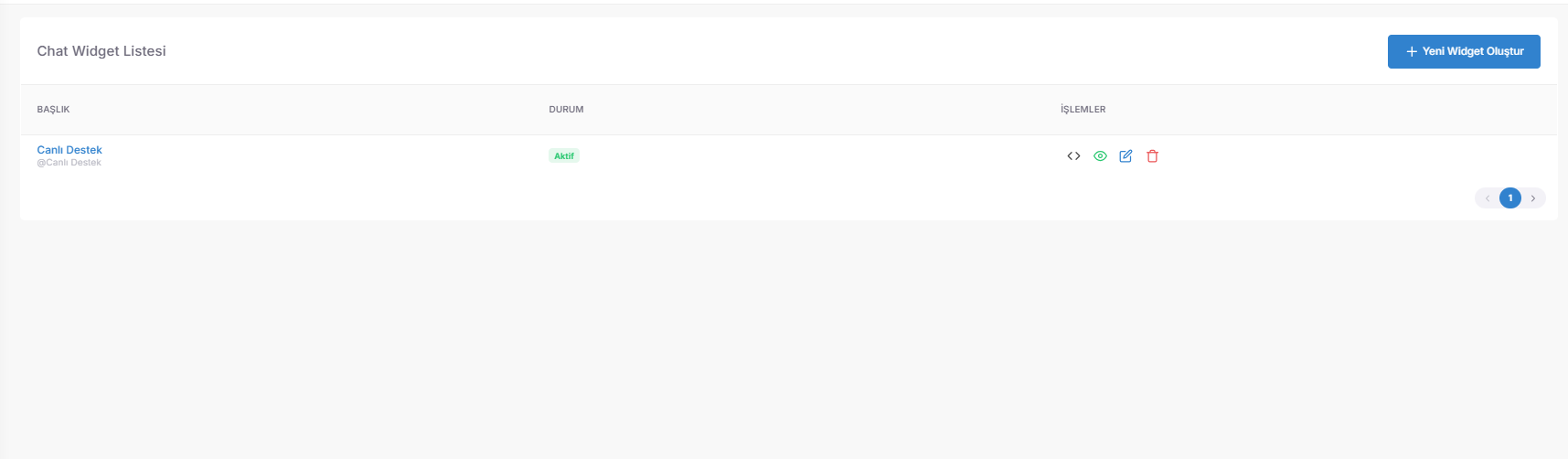
💡 Why is it Important?
🎨 Chat Widget Configuration (Visual, Functional and Artificial Intelligence Design)
The Widget Editing Panel is the strategic center where you manage the customer journey, from technical integration to visual aesthetics, from legal compliance (KVKK) to the latest level of artificial intelligence ($AI$) and video communication technologies.
Access URL; https://app.spechy.com/chat-widget/list
🏢 1. General Settings and Corporate Identity
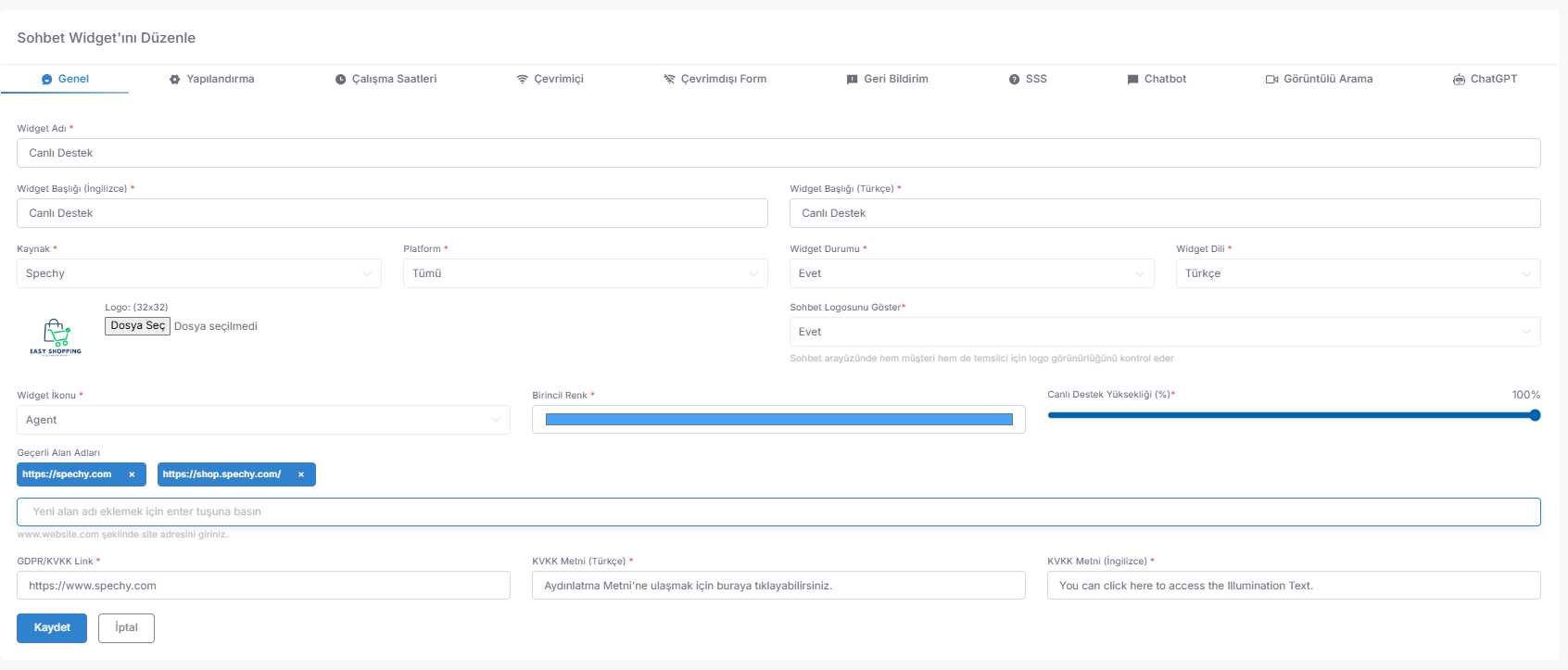
🤖 2. Smart Configuration and Automations
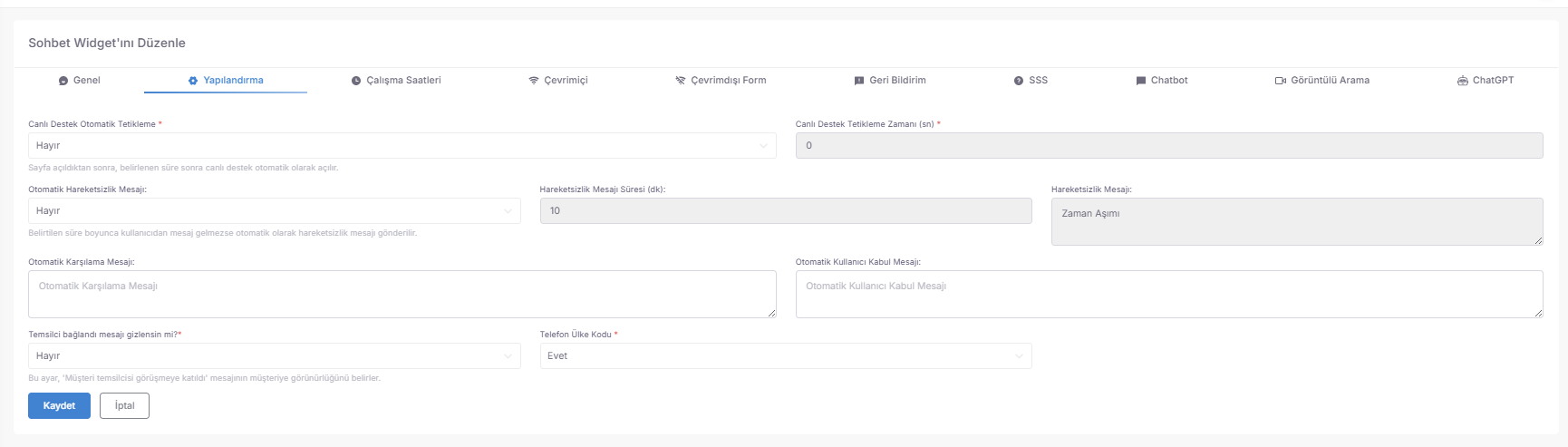
🕒 3. Working Hours and Offline Management
🚀 4. New Generation Communication Layers ($AI$ & Video Call)
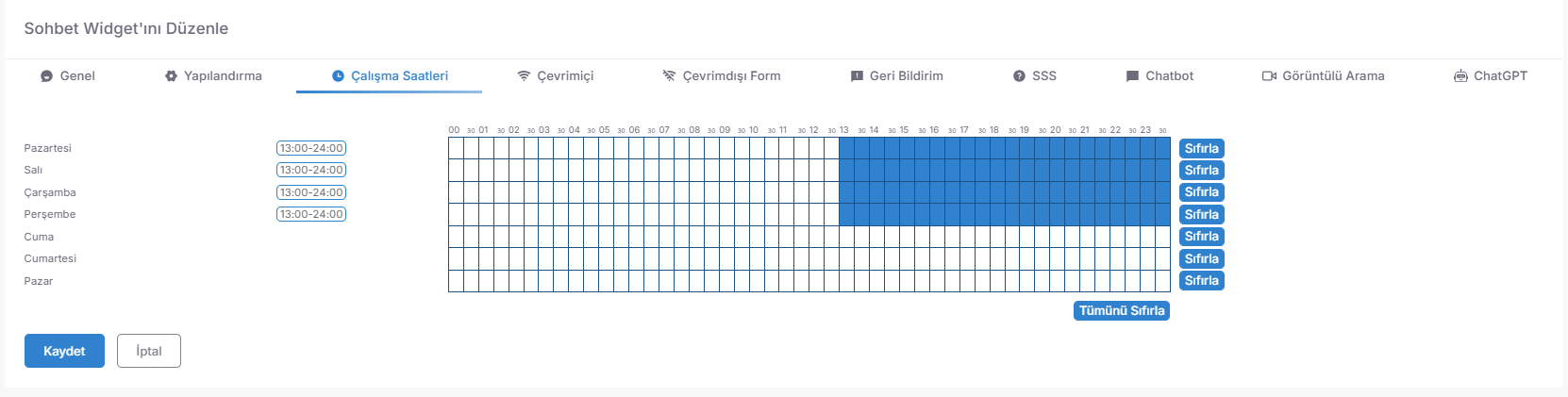
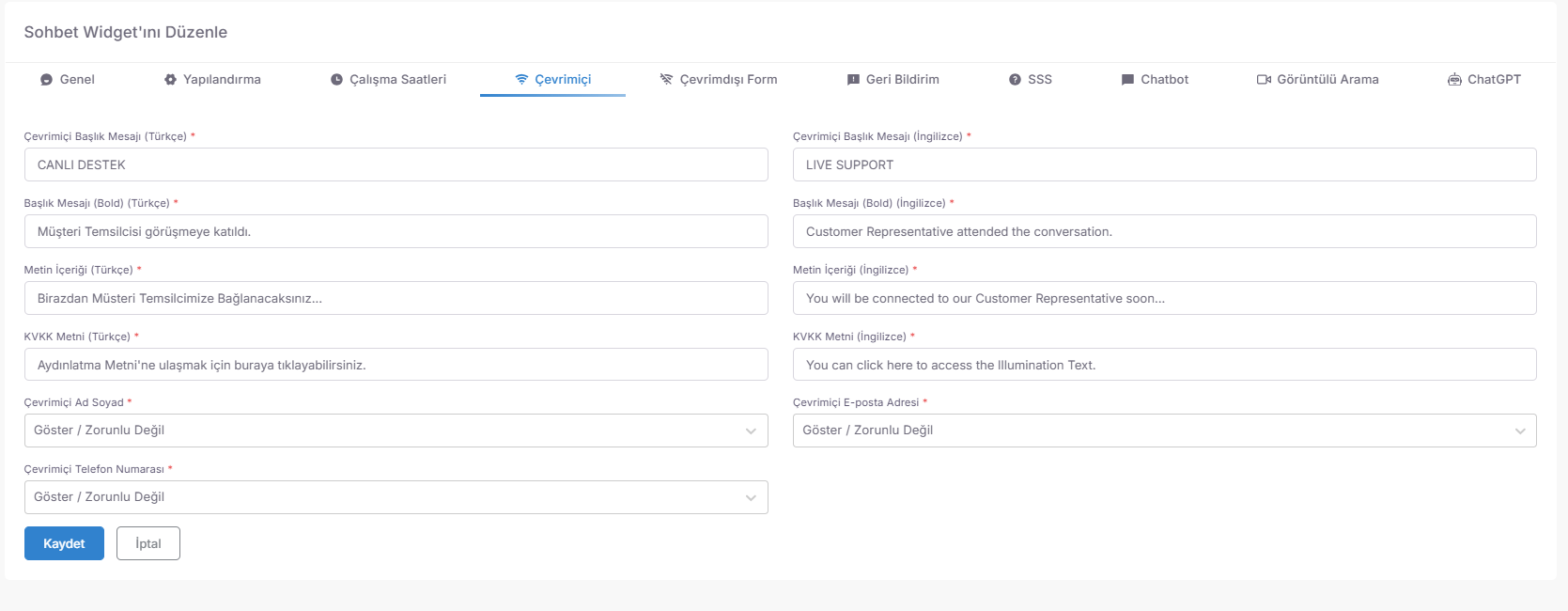
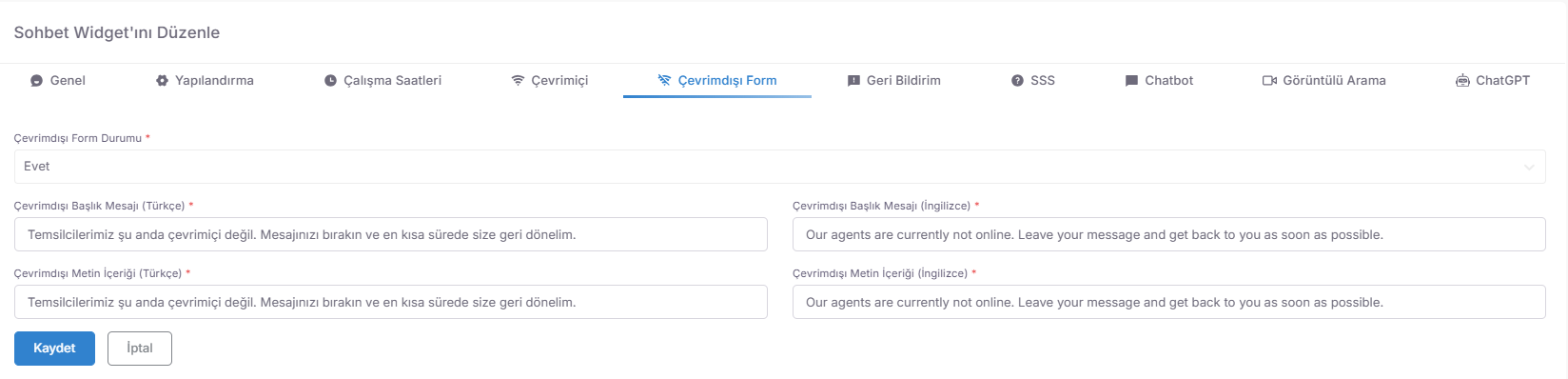
⭐ 5. Feedback and FAQ



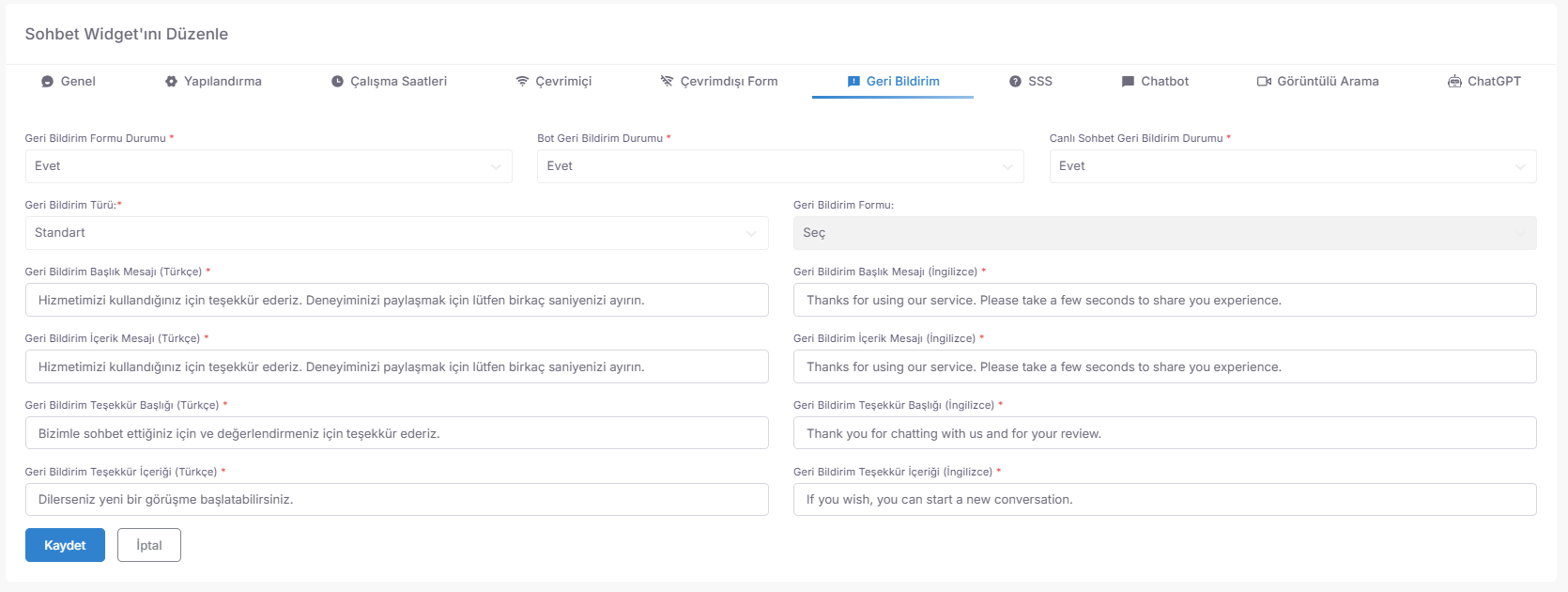

💡 Why is it Important?
🔵 Facebook Messenger Integration (Social CRM Management)
Facebook Integration is an automation system that instantly drops all private messages (DMs) received via Meta into the Spechy Inbox ($Inbox$) and turns every interaction into a customer data.
Access URL; https://app.spechy.com/media/reactfacebook

📸 Instagram Direct Message (DM) Integration
Instagram Integration is a professional management module that connects Instagram DM traffic, the most dynamic communication channel in the visual world, to an enterprise workflow.
Access URL; https://app.spechy.com/media/instagram/list

💡 Why is it Important?
🟢 WhatsApp Business API (Corporate Messaging Line)
WhatsApp Integration is a professional communication layer that goes beyond personal use, turning your number into an enterprise channel through Meta and sealing all traffic with Spechy CRM.
Access URL; https://app.spechy.com/social/whatsapp

📞 Voice Call and Centralization Integration (Cloud PBX & VoIP)
The Voice Search Module is the "Voice Communication Spine" that converts every phone call into a data set and CRM record by working fully integrated with Spechy's central infrastructure.
Access URL; https://app.spechy.com/settings/phoneaccounts
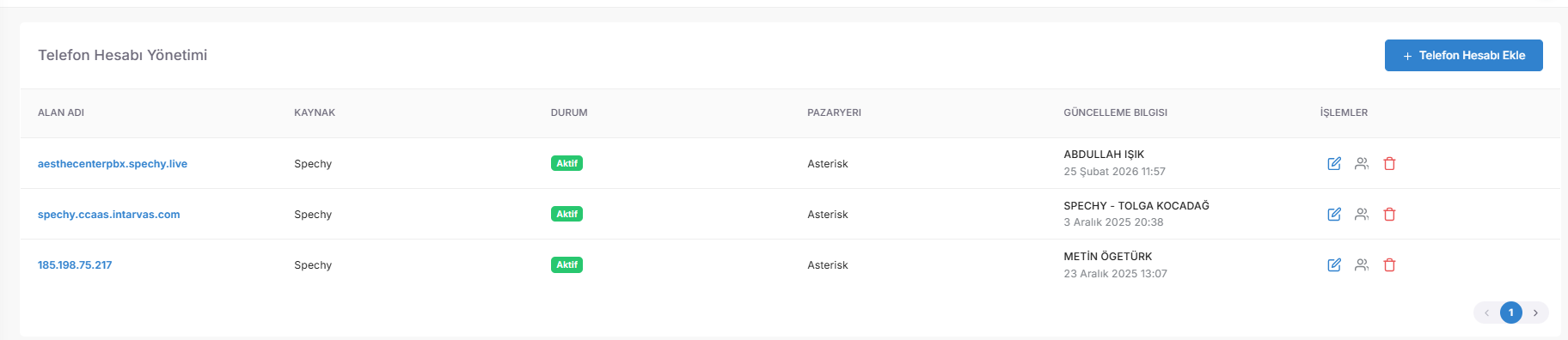
💡 Why is it Important?
📹 Video Search Settings (Visual and Technical Configuration)
The Video Search Module is a strategic communication channel that works with a $Iframe$ code integrated into your website, establishing a video conference bridge between representatives and customers.
Access URL; https://app.spechy.com/video-chat-widget/list
🛠️ 1. General and Technical Infrastructure Settings
🕒 2. Scheduling and Waiting Experience

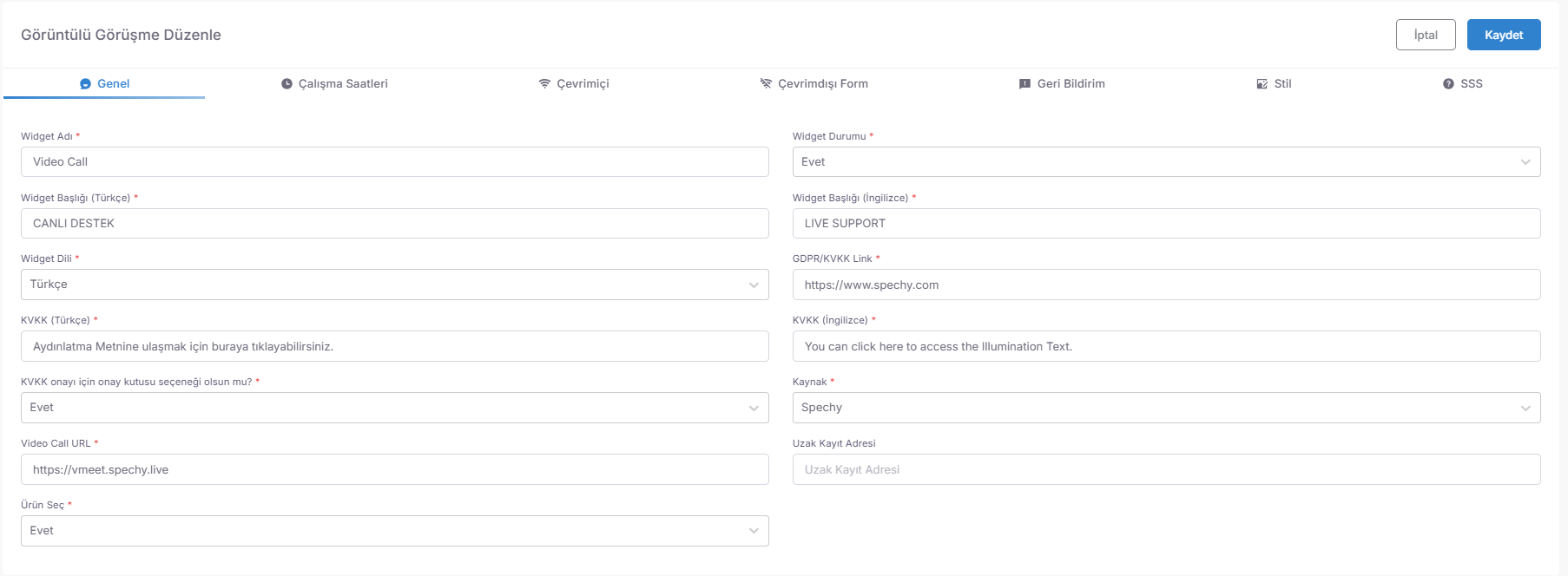
📋 3. Offline Form and Feedback
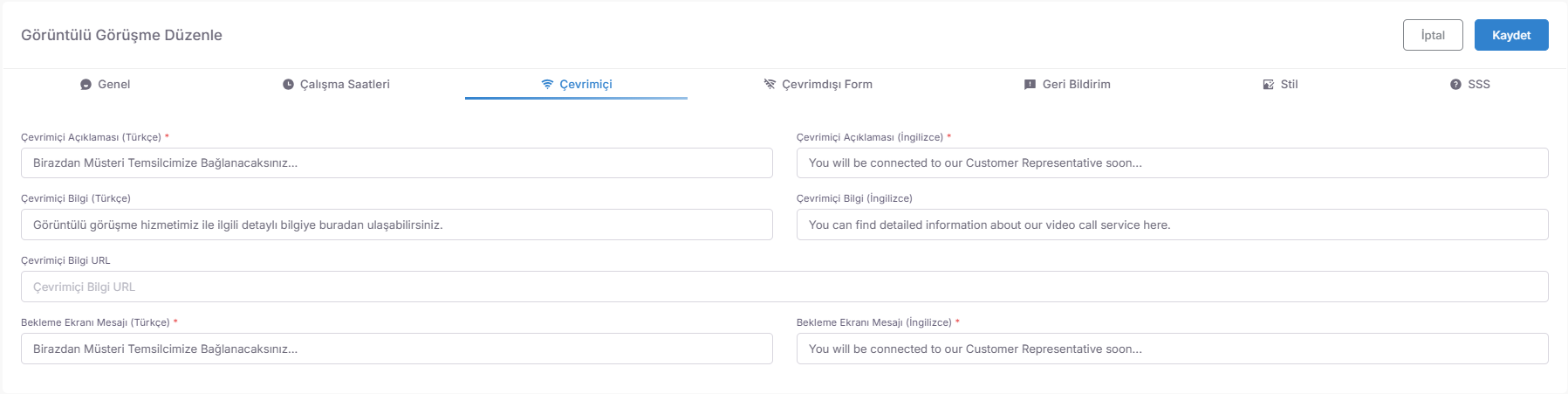
🎨 4. Design and Data Form (Visual Architecture)


💡 Why is it Important?
📧 Email Notification Settings (System Notifications and Sending Protocol)
The Email Management Module is the management area where you define the corporate email accounts that the system will use to send automatic notifications, check connection security (API/SMTP) and create sending scenarios.
Access URL; https://app.spechy.com/settings/mail-accounts
🛠️ 1. Account Inspection and Connection Status

⚙️ 2. Sending Configuration and Automation Rules
💡 Why is it Important?
🌐 Google Services Integration (Cloud Tools Authorization)
The Google Services Module is the central authorization area that synchronizes your corporate workflows with the Google ecosystem; it allows you to manage file storage, data analysis, appointment management and video content strategies from within Spechy.
Access URL; https://app.spechy.com/settings/integration-settings/google-accounts
🛠️ Integrated Employee Basic Google Services

⚙️ Authorization and Security Protocol
💡 Why is it Important?
🛍️ Trendyol Marketplace Integration (E-Commerce and Customer Support Synchronization)
Trendyol Integration Module is an automation center that increases response speed and turns every Trendyol customer into a Spechy CRM record by dropping customer questions, order details and interactions from your store into the Spechy Inbox ($Inbox$).
Access URL; https://app.spechy.com/integrations/trendyol
🛠️ 1. Technical Authorization and Connection Parameters
⚙️ 2. Operational Access and Resource Management

💡 Why is it Important?
🛡️ Şikayetvar Integration (Reputation Management and Rapid Solution Center)
Şikayetvar Integration Module is the operational bridge that allows you to turn the complaint into "satisfaction" without turning it into a "crisis" by immediately dropping all complaints and comments received via the platform into the Spechy Inbox ($Inbox$).
Access URL; https://app.spechy.com/integrations/sikayetvar
🛠️ 1. Technical Certification and Safety Parameters
⚙️ 2. Authorization and Resource Management
💡 Why is it Important?
🛒 Ticimax Integration (E-Commerce Data and Order Synchronization)
Ticimax Integration Module is the infrastructure that includes all the movements (Orders, Member Information, Product Movements) on your e-commerce site in the Spechy ecosystem; eliminating manual data entry and giving customer representatives the ability to "Support by Viewing Order Details".
Access URL; https://app.spechy.com/integrations/ticimax
🛠️ 1. Integration Installation and Technical Parameters

⚙️ 2. Operational Scope of Synchronization
💡 Why is it Important?
📝 Manual Interview Result Codes (External Contact Tracking and Reporting)
The Manual Result Codes Module is the tracking mechanism that allows you to seal which commercial or operational result the conversations that are not initiated via a personal card or occur off-system (e.g. manual call) end up with.
Access URL; https://app.spechy.com/settings/manuel-conversation-reason-codes
🛠️ 1. Data Management and Search Functions
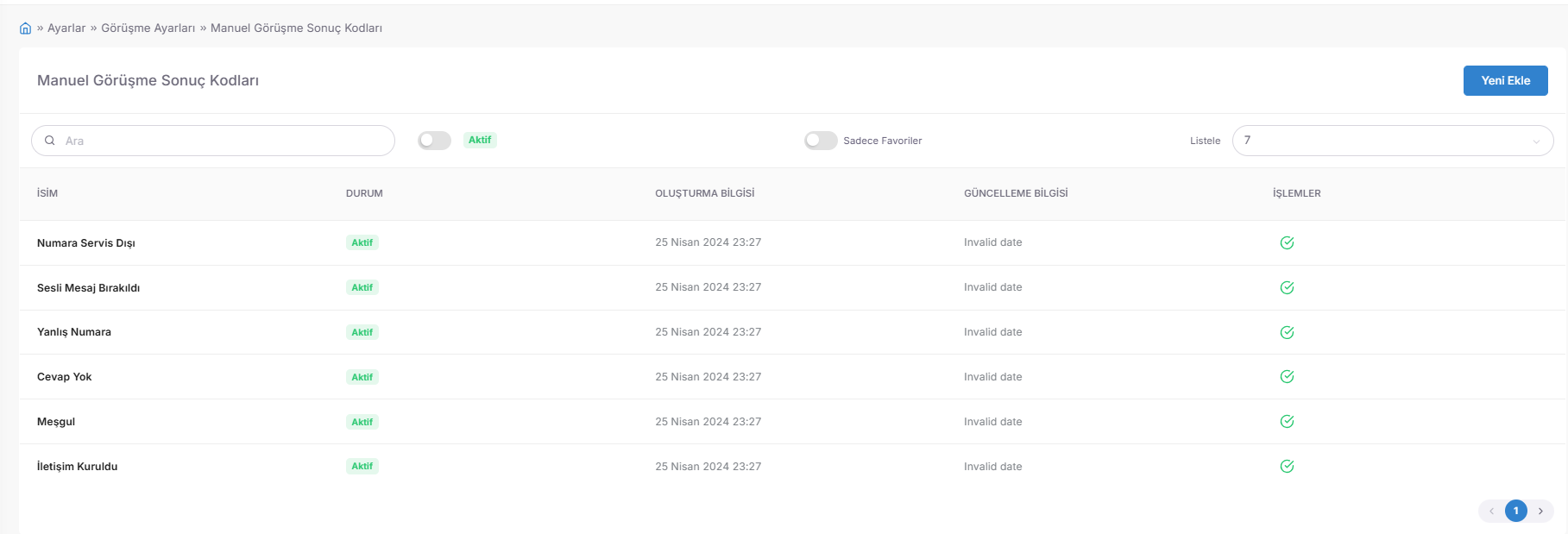
⚙️ 2. Configuration and New Code Definition
💡 Why is it Important?
🎫 Request Result Code Management (Solution Classification)
Request Result Code List is the measurement area that standardizes how a request is completed (e.g., "Return Approved", "Information Provided").
Access URL; https://app.spechy.com/settings/ticketreasons
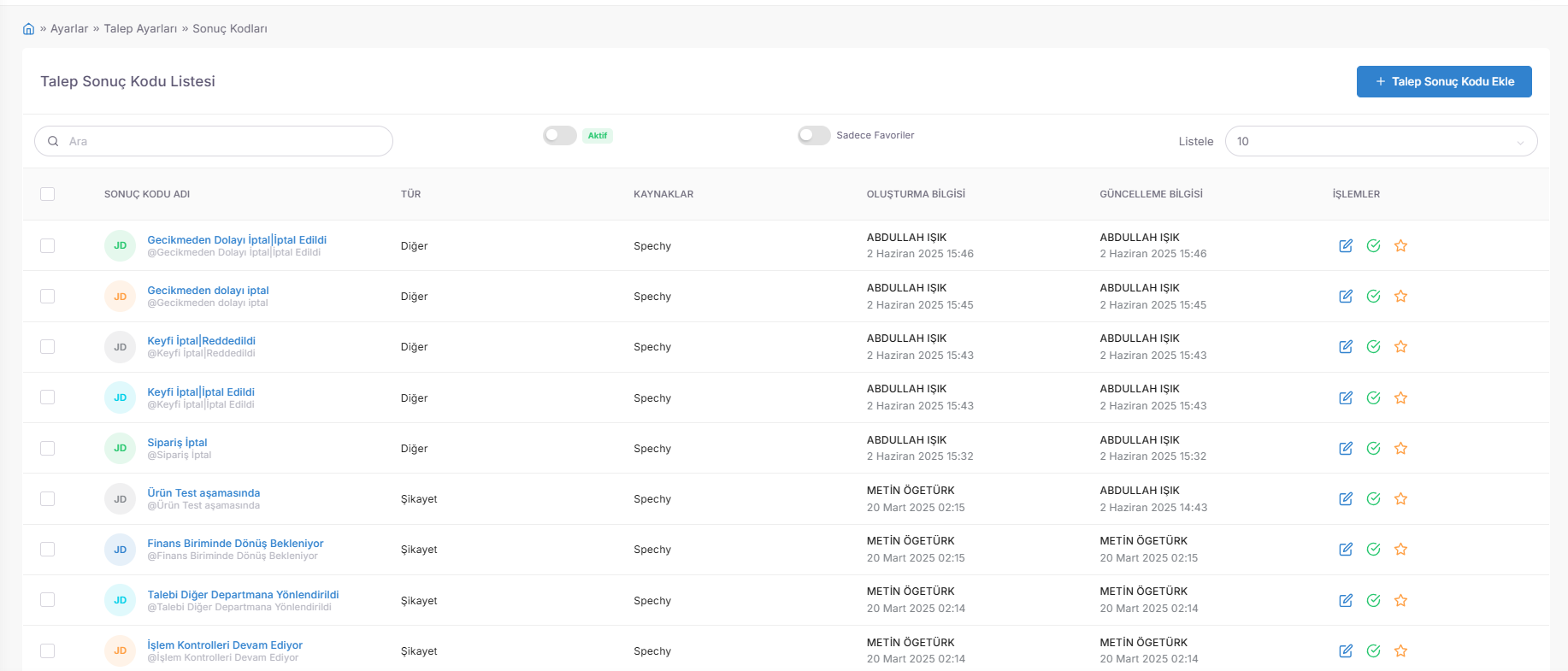
⚙️ Request Result Code Configuration and Automation
The Request Result Code Add page is not just a tag selection, but also a **"Communication Trigger"**.
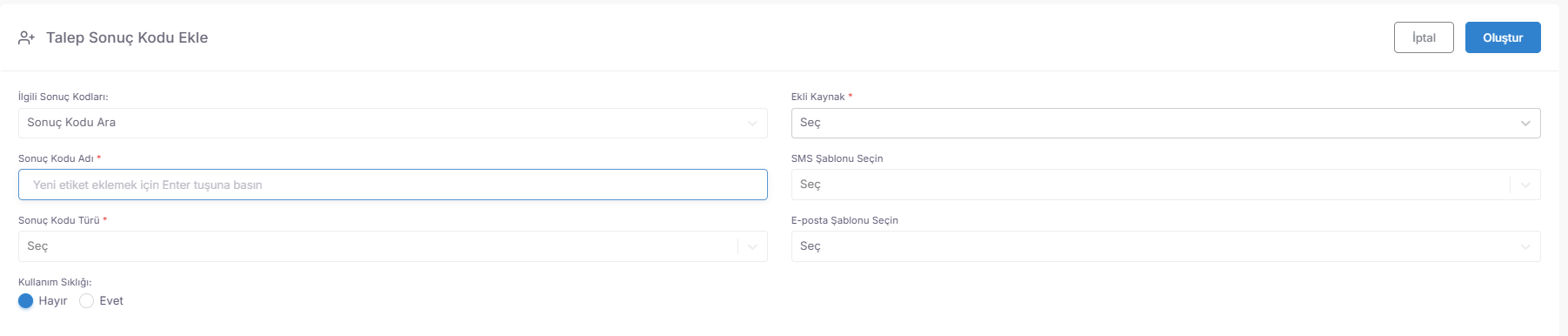
📂 Request Result Code Types (Department-Based Grouping)
This page is the Hierarchical Base, which determines under which main business branches (e.g., "Logistics", "After-Sales Support") the result codes will be aggregated. New types added provide departmental classification of results in complex operations.
Access URL; https://app.spechy.com/settings/ticket-reason-types
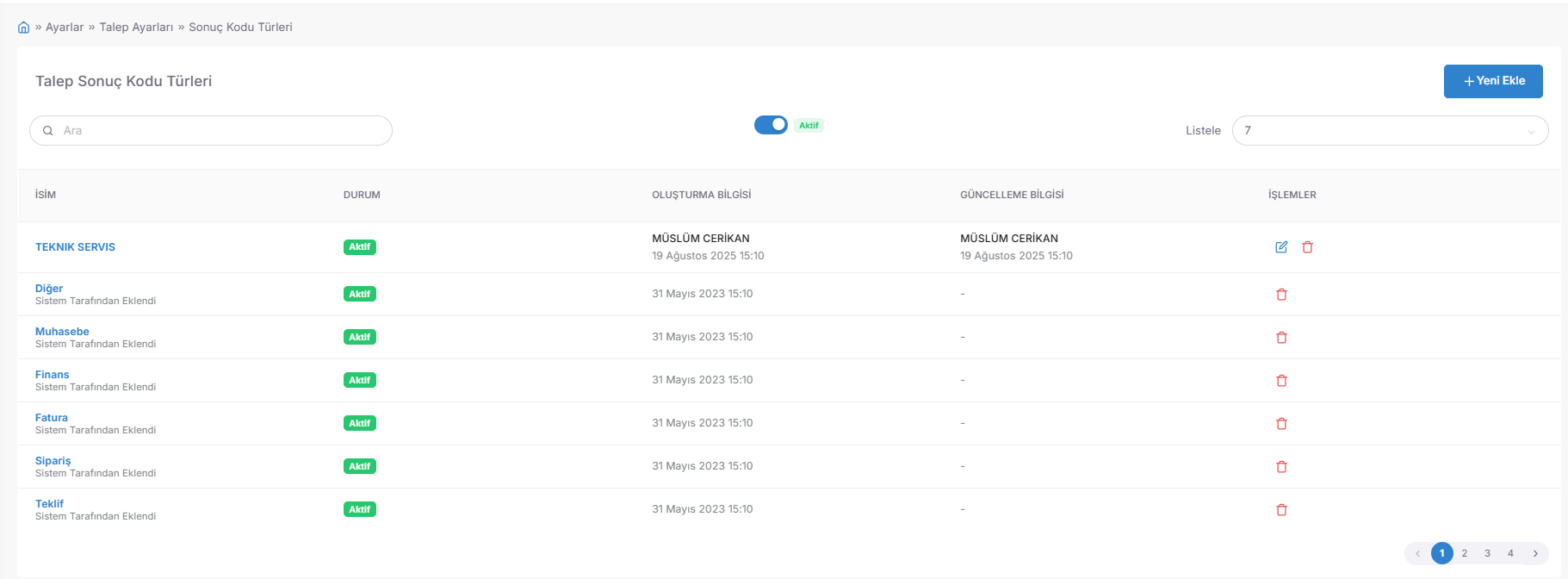
🗂️ Request Category List (Process Tracking)
Request Category is the main working area that determines which workflow requests will be resolved in (e.g., "Return Processes", "VIP Support"). This list clarifies the division of labor between teams, preventing requests from becoming "unclaimed".
Access URL; https://app.spechy.com/settings/ticketcategories
🛠️ New Request Category Design and Approval Mechanism
This area represents Spechy's Audit Power.
🏛️ Request Category Types (Hierarchy Management)
It is the "Constitution" layer at the top of the entire request system. It determines which main business branches (SALES, SUPPORT, etc.) the requests are related to at the highest level. This page ensures that thousands of requests in large-scale organizations are collected under the correct main heading.
Access URL; https://app.spechy.com/settings/ticket-category-types
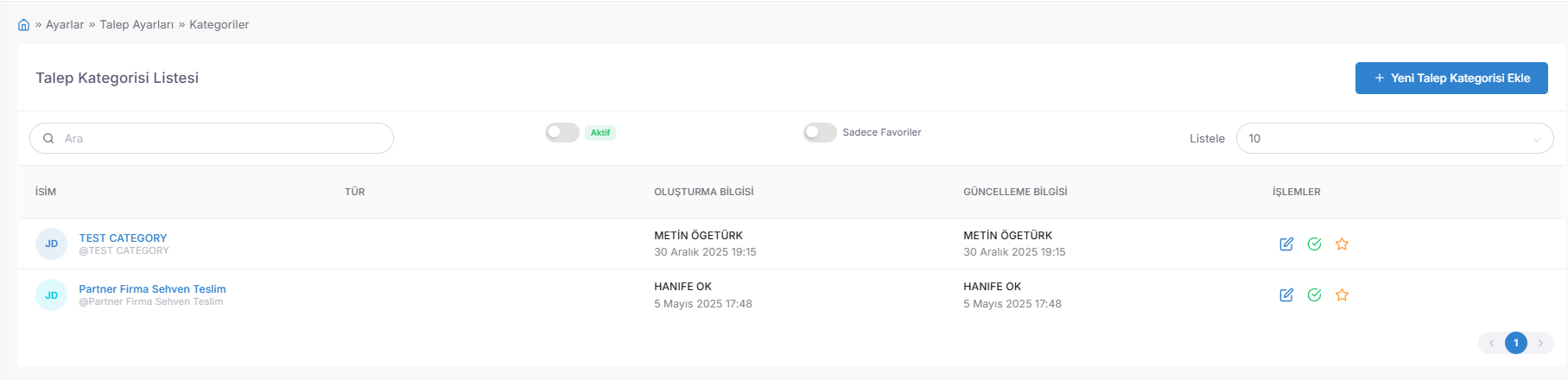
💡 Why is it Important?
📧 Email Template Management (Automatic Notification Templates)
Email Templates is the center of formal communications that will go to the customer when system events or request result codes are triggered. All drafts are listed, updated and associated with department-based relationships here.
Access URL; https://app.spechy.com/settings/emailtemplates
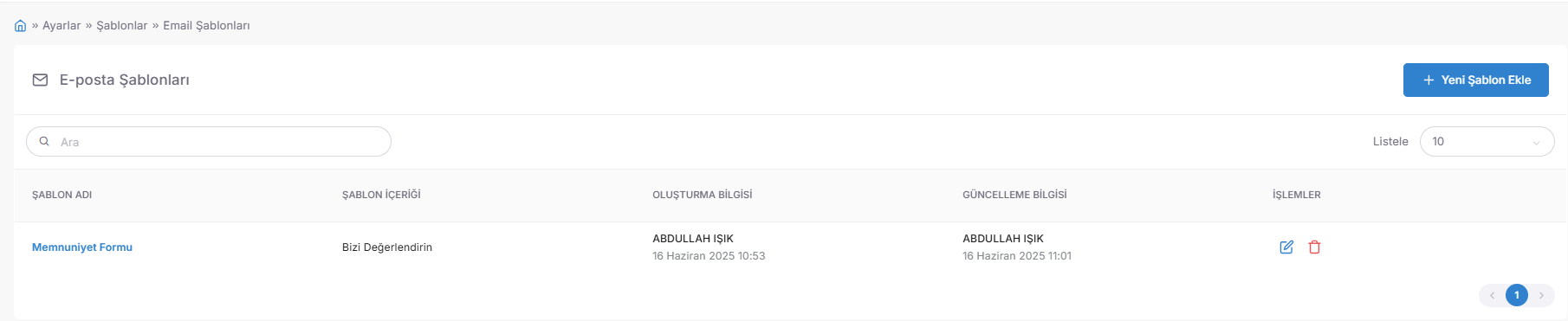
✍️ New Email Template Design and Dynamic Variables
This page turns the email from being an ordinary text into a "Personalized Experience" ($Personalized \ Experience$).
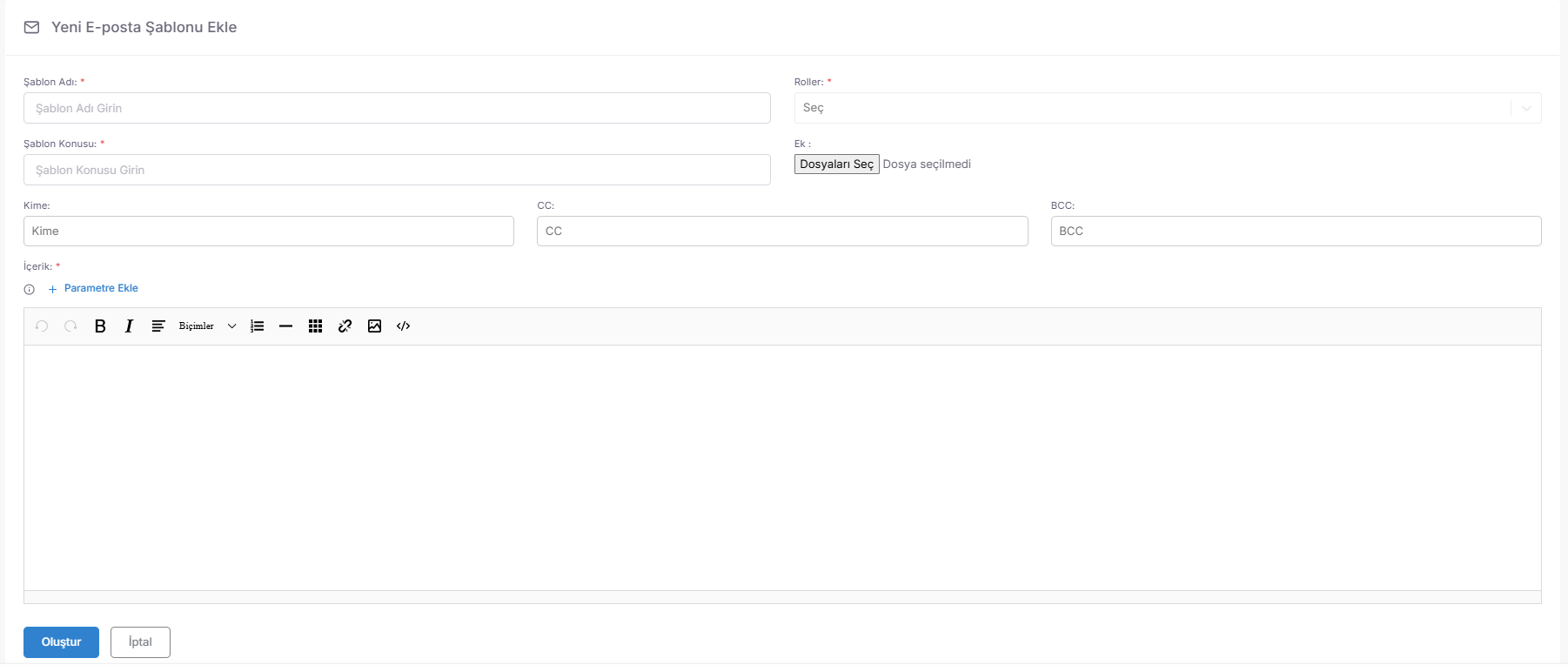
📱 SMS Template Management (Quick Information Pool)
SMS Templates is a library of short messages prepared for situations that require immediate action (appointment reminder, cargo code, etc.). All SMS drafts are reviewed by authorized personnel here and quickly filtered by name.
Access URL; https://app.spechy.com/settings/smstemplates

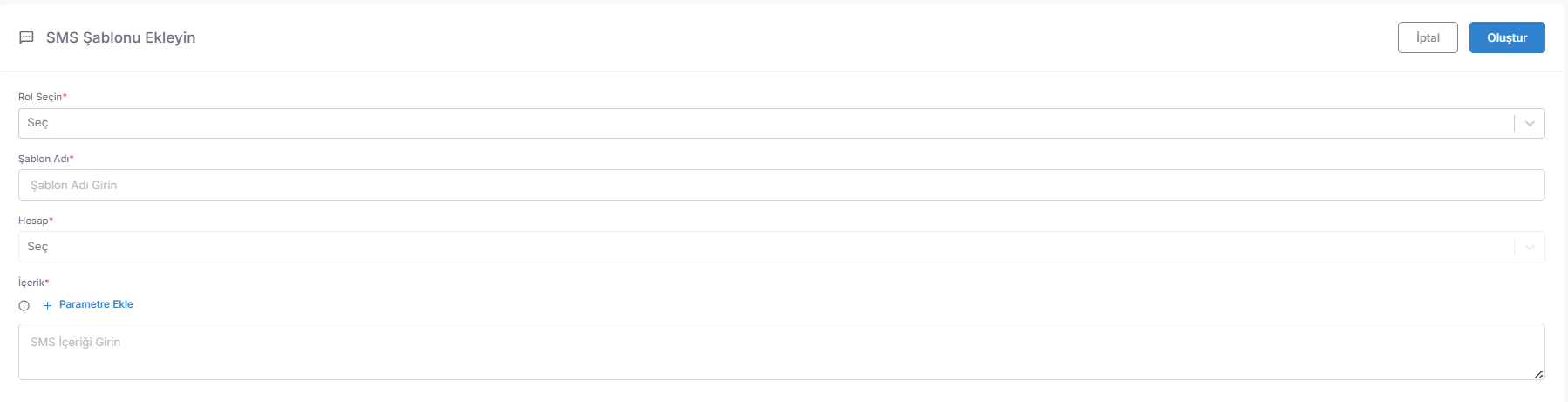
💬 Smart SMS Configuration and Sending Rules
This module determines the operational limits and content of SMS sending.
📄 Agreement and Offer Templates (Official Documentation)
Agreement Templates is the area that digitizes the repetitive contract, offer and protocol preparation work in sales or legal processes. Corporate formats such as "iPhone Offer Template" or "Maintenance Agreement" are stored here.
Access URL; https://app.spechy.com/settings/dealtemplates
📜 New Agreement Template Design and Contract Automation
This page reduces the hours-long contract preparation process to seconds.
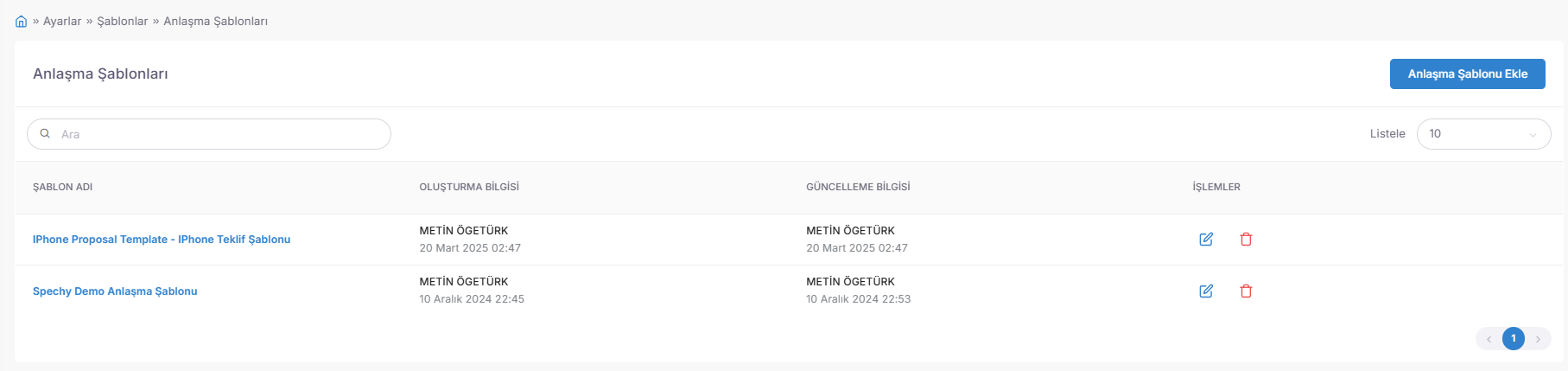
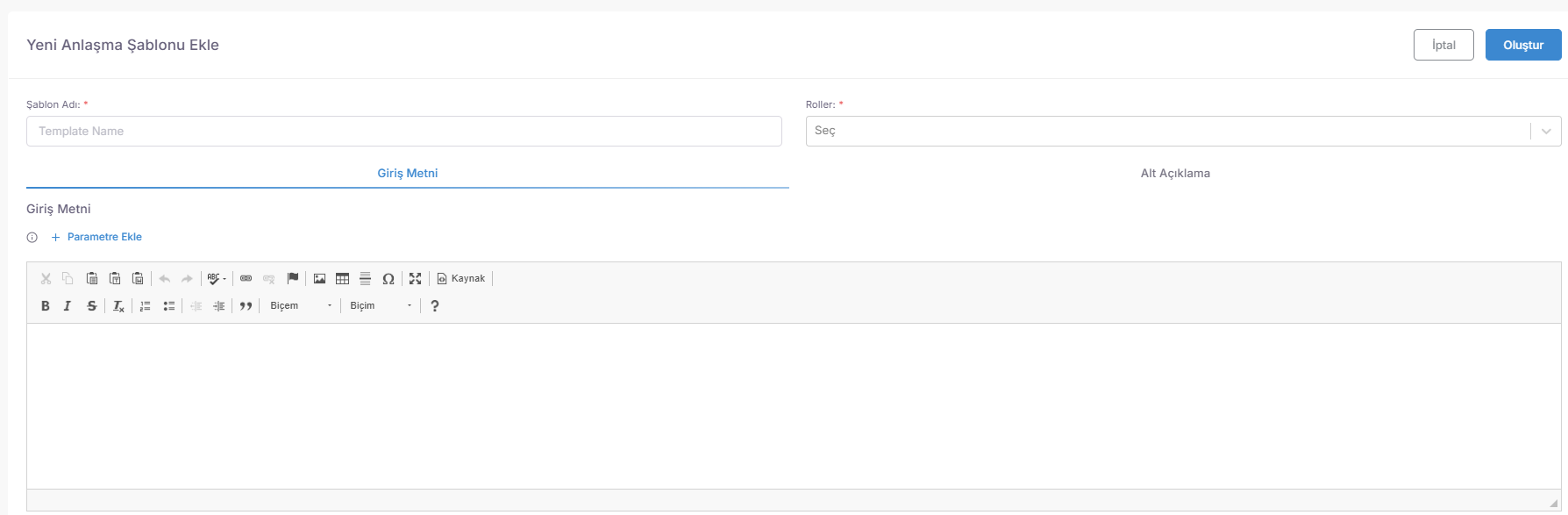
💡 Why is it Important?
💳 My Plan: Subscription and Invoice Management (Financial Operations Center)
The Plan Page is the management area designed for enterprise scalability ($Scalability$), which combines the rights of use of the software, user limits and official billing processes on a single screen.
Access URL; https://app.spechy.com/settings/myplan
📊 1. Subscription Status and Plan Analysis (My Plan Section)
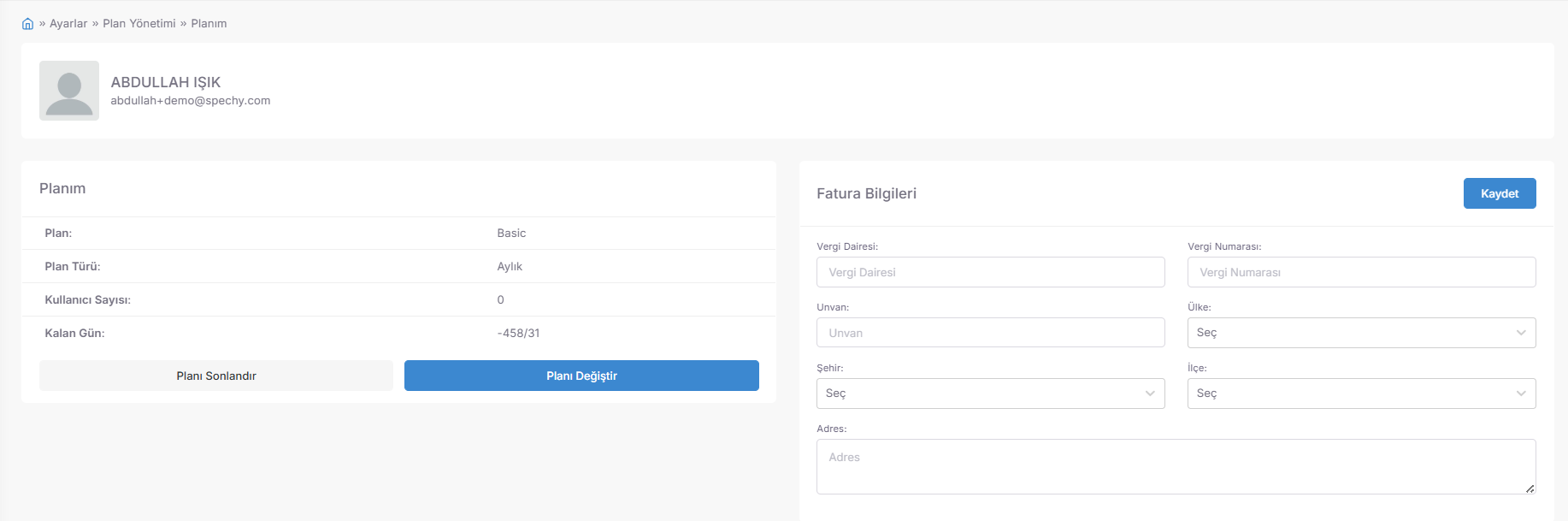
It allows you to monitor the technical limits and durations of your current license instantly:
📄 2. Corporate Identity and Invoicing (Invoice Information)
It is the section that guarantees the system's full compliance with legal and financial processes:
💡 Why is it Important?
🛠️ Result Codes & Filters (Operational Requirements and Display Settings)
This tab under General Settings is the control area where you manage the rules that the representative must follow when ending an interaction (call or ticket) and the user experience ($UX$) in this process.
Access URL; https://app.spechy.com/settings/customization
📝 1. Workflow Compliance Settings ($Compliance$)
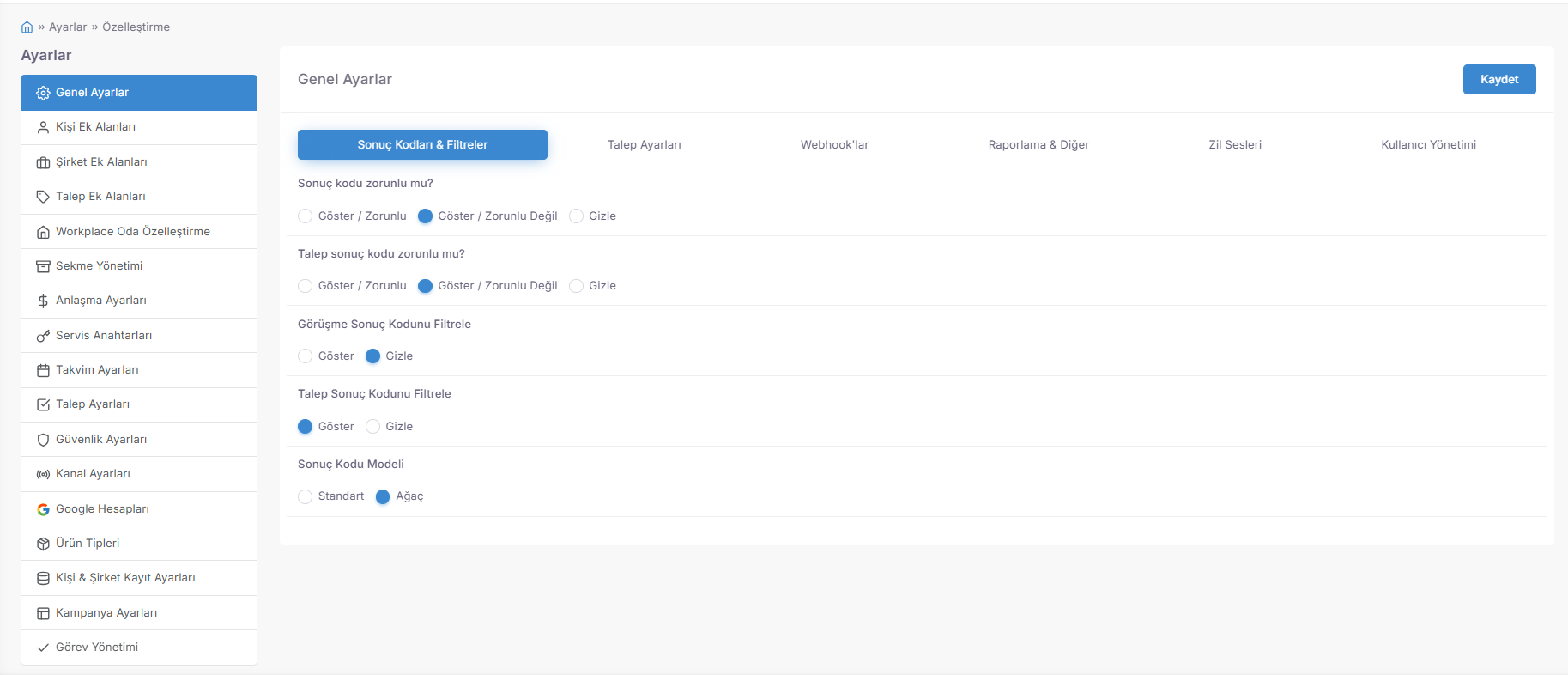
They are critical control points that balance the representative's initiative with system discipline:
🔍 2. Search and Filtering Dynamics
It allows the representative to find the correct one among hundreds of codes in seconds:
🌳 3. Result Code Presentation Model ($UI \ Design$)
It is the architectural preference that determines how the data will be served to the representative:
💡 Why is it Important?
🎫 Request Settings (Support Processes and Operational Discipline Rules)
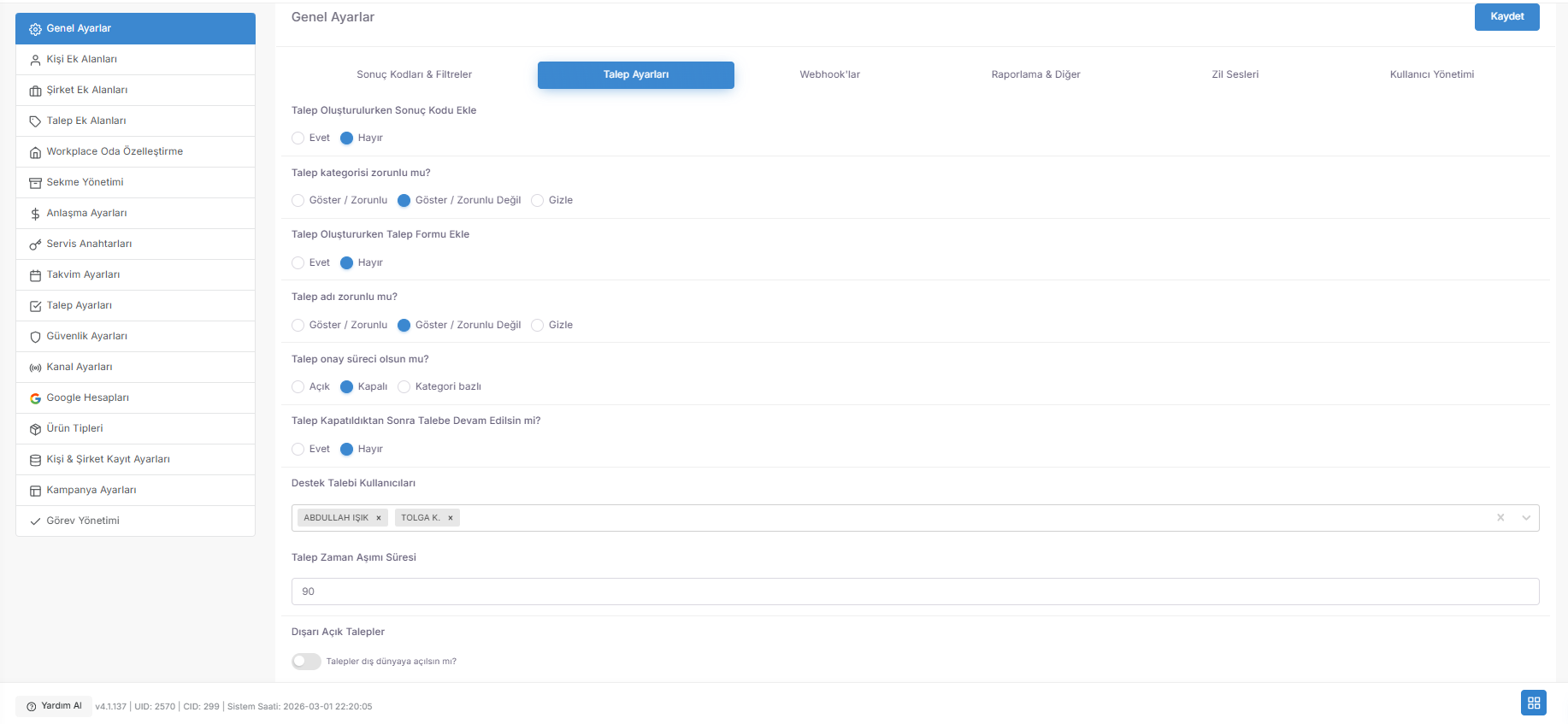
The Request Settings tab under the General Settings menu is the set of rules that automates the entire lifecycle of customer requests (Ticket/Case) ($Lifecycle$) and seals the working standards of your staff.
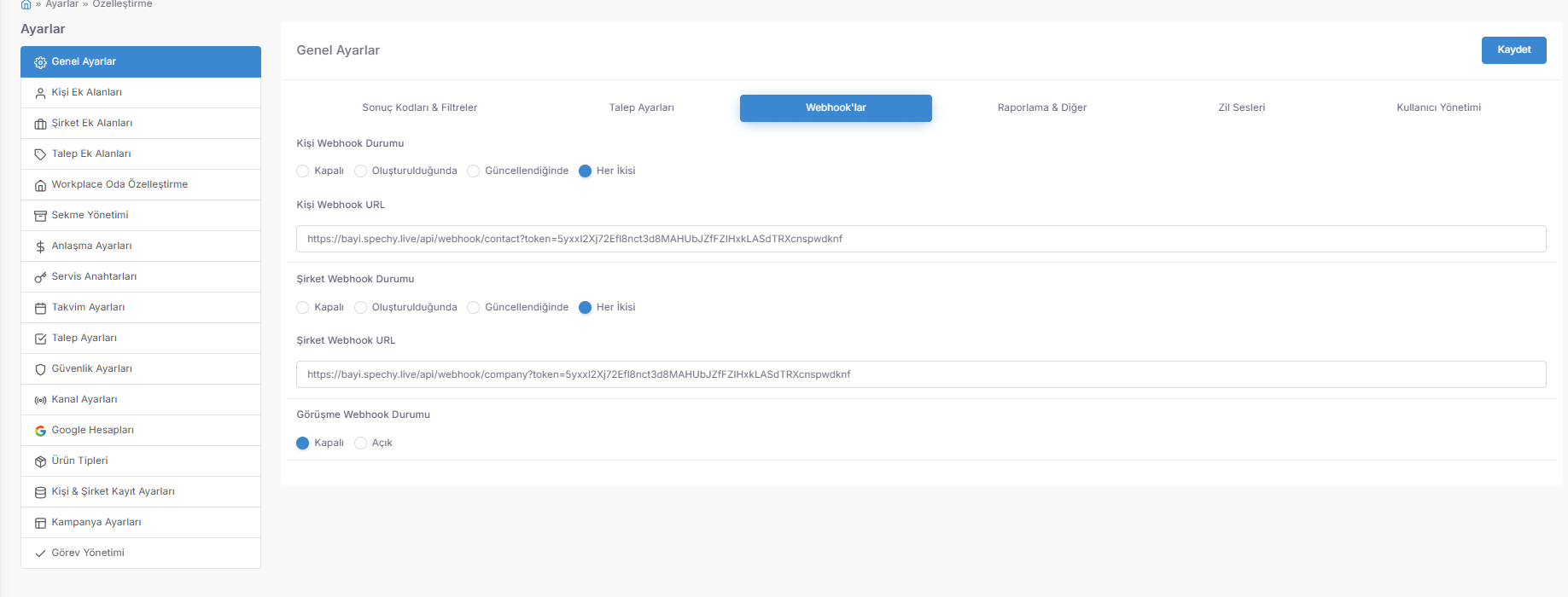
🛠️ 1. Request Creation and Data Quality ($Data \ Entry$)
These are the obligations that ensure the integrity of the data at the time of entering the request into the system:
⚙️ 2. Process Control and Approval Mechanism ($Workflow$)
Advanced settings that protect service quality ($SLA$) and operational security:
🔄 3. Life Cycle and Interaction with the Outside World
It manages the behavior and visibility after the request is closed:
👥 4. Authorization and User Assignment
💡 Why is it Important?
🔗 Webhook Settings (Real-Time External System Integration)
The Webhooks tab under General Settings is the automation hub that allows the data generated in the Spechy ecosystem (Customer, Company, Meeting) to be pushed ($Push$) to an external server or application in $JSON$ format ($Endpoint$).
👥 1. Customer (Person) Data Synchronization
It connects the person card movements in the system to the outside world:
🏢 2. Corporate (Company) Data Flow
It is a bridge that maintains the freshness of company-based B2B data:
📞 3. Third Meeting and Interaction Notifications
It provides real-time tracking of operational outputs:
💡 Why is it Important?
📊 Reporting & Other (Data Standards and Document Discipline)
This tab under General Settings is the set of rules that determine the sensitivity of the data collected in the system and how it will "speak" in reports.
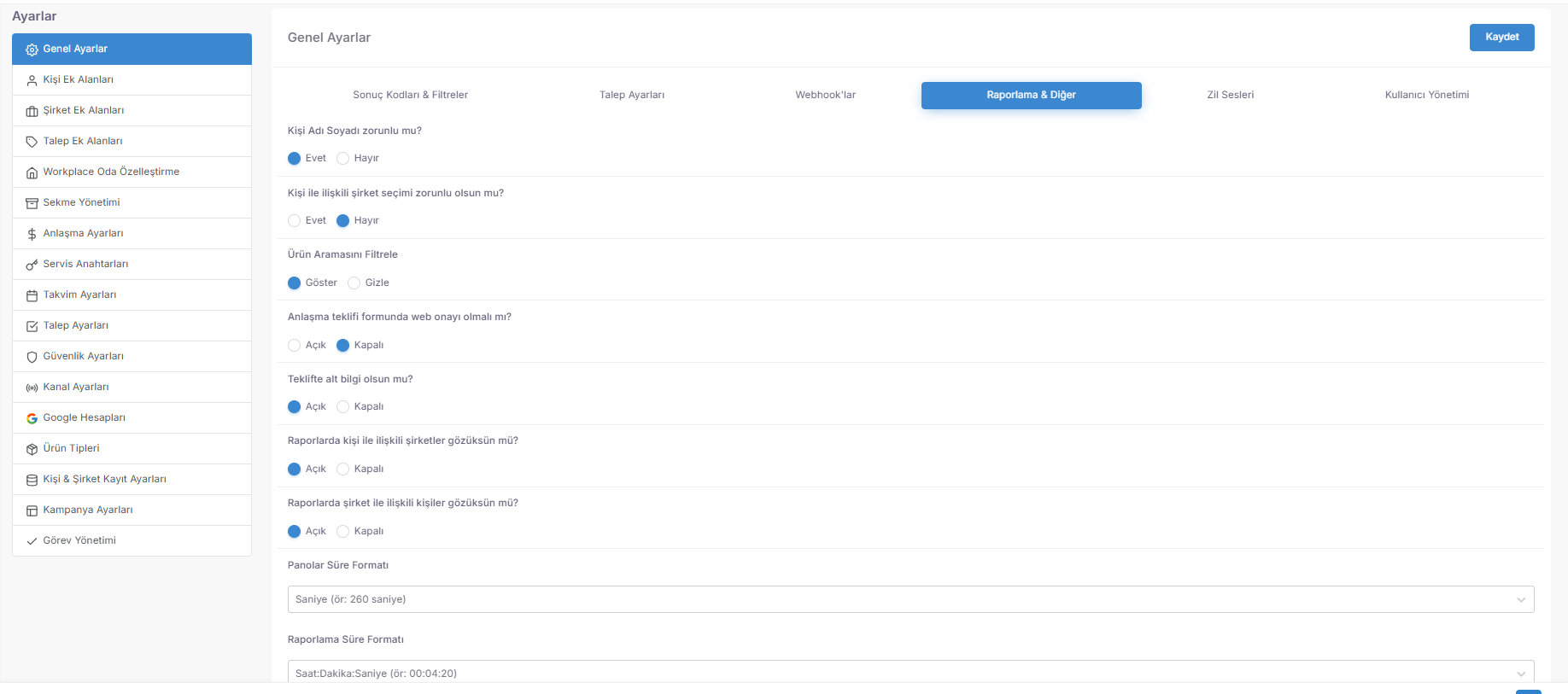
🔔 Bell Sounds (Auditory Separation and Notification Management)
The Bell Sounds tab is centered on the auditory user experience ($Auditory \ UX$) that allows representatives to distinguish the types of interactions they receive in the midst of their intensive working pace "without looking at the screen".
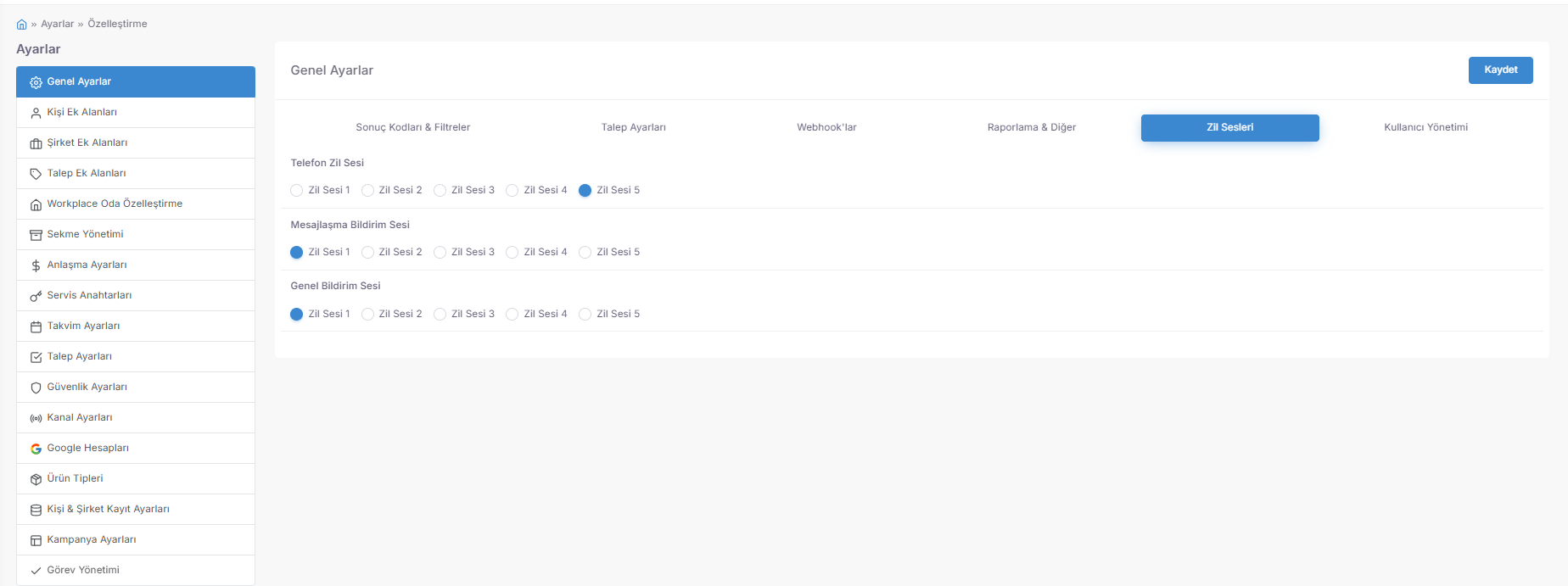
👤 User Management and Registration Control
This last ring of the General Settings menu controls the entry door and authorization processes of the personnel to be included in the system.
💡 Why is it Important?
👤 Personal Additional Areas (Customer Card Customization)
Person Additional Areas is a module that allows you to collect data (e.g., "Customer Loyalty Score", "Body Measurement", "Reference Code") that is critical for your business sector but not found in the standard CRM structure (Name, Last Name, Phone). All special customer data is listed here and managed centrally.
Access URL; https://app.spechy.com/settings/customization/contact-static-fields
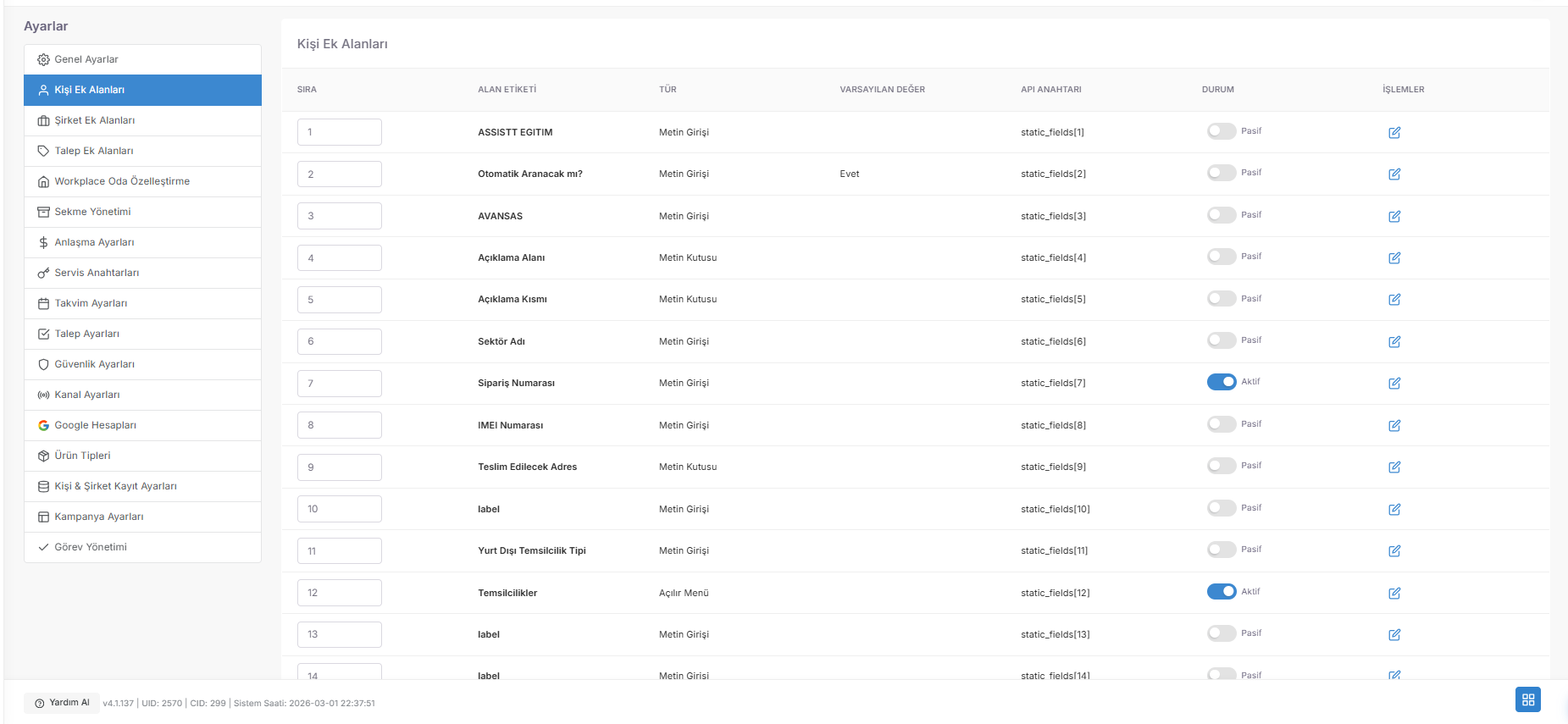
🛠️ Additional Area Behavior Rules and Data Types
It is the technical layer where you determine not only what a new field is, but also how it will behave. The Data Type Options that reduce incorrect data entry to zero and provide reporting discipline are as follows:
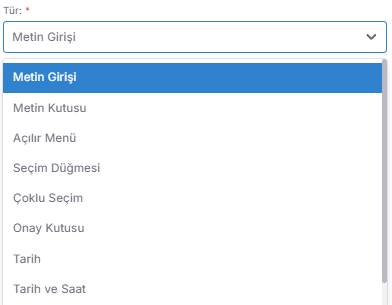
🏢 Company Additional Areas (Corporate Data Expansion)
This module allows you to create special data fields directly for Company Profiles (B2B) rather than individual customer cards.
Access URL; https://app.spechy.com/settings/customization/company-static-fields
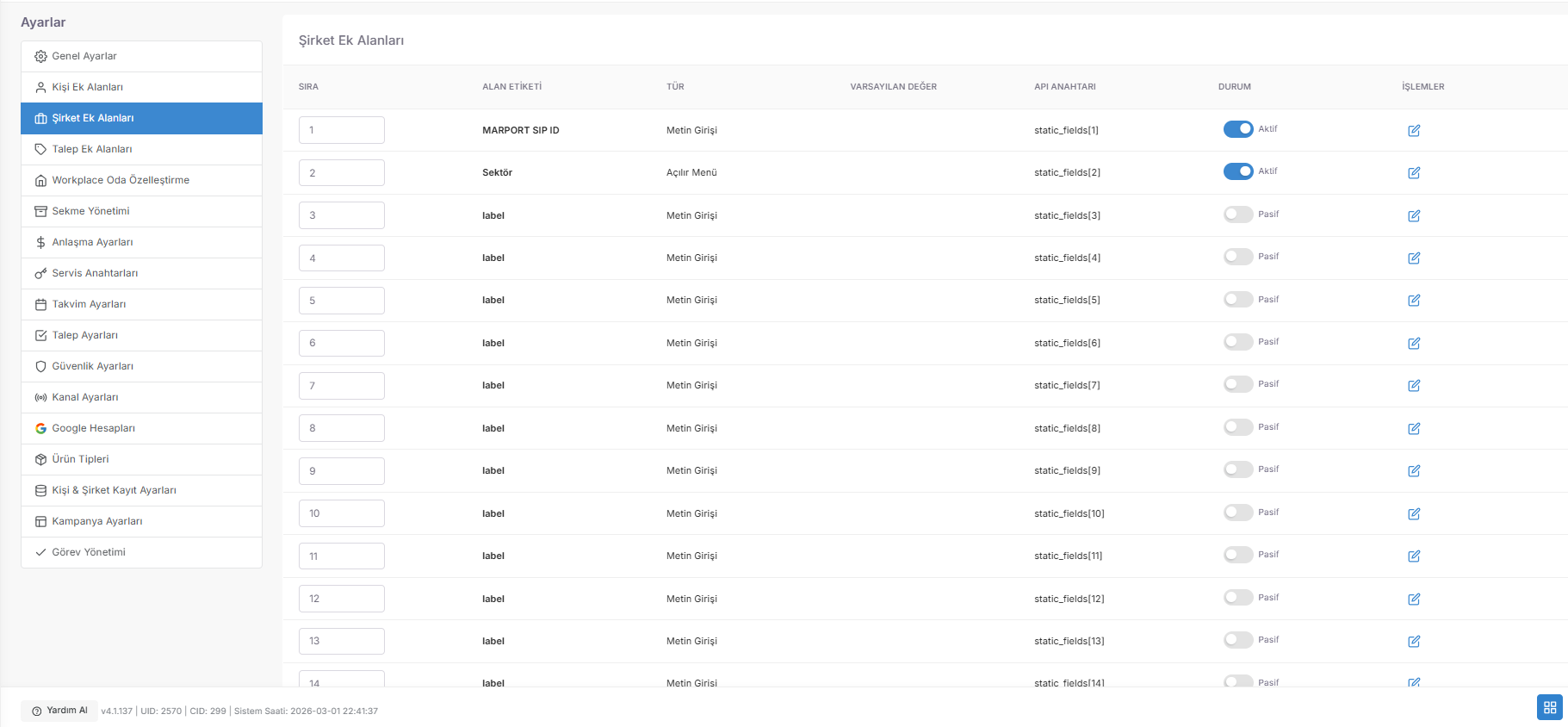
💡 Why is it Important?
🎫 Request Additional Areas (Special Support Data and Technical Form Management)
Request Additional Fields is a configuration area that allows the collection of technical details specific to that job (e.g., "Serial Number", "Error Type", "Return Reason", "Shipping Tracking Code") beyond a standard support request (Title, Description, Category).
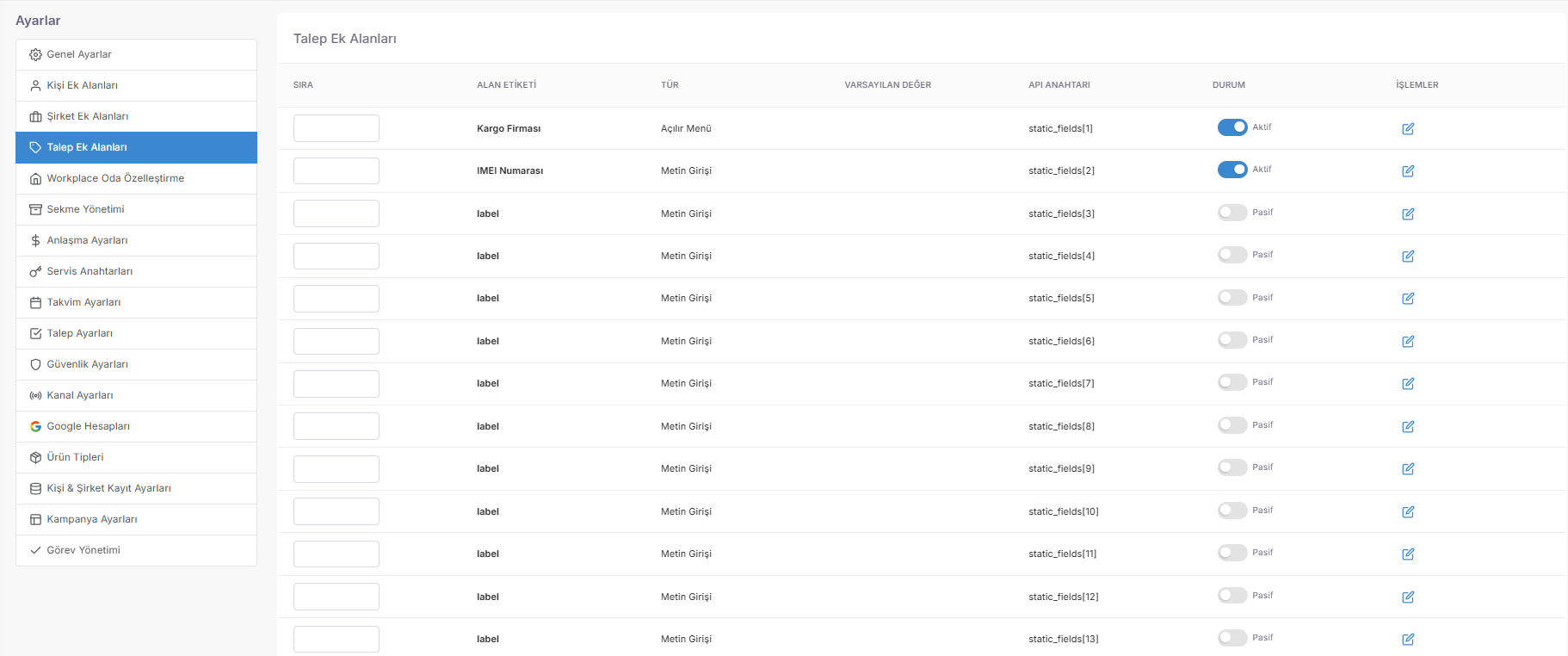
Access URL; https://app.spechy.com/settings/customization/ticket-static-fields
🛠️ 1. Dynamic Demand Form Components
According to the content of the request, these are the data entry types that the representative must fill in:
⚙️ 2. Category-Based Form Matching
Instead of every additional field appearing in every request, it is only triggered in the relevant categories:
💡 Why is it Important?
🏢 Workplace Room Customization (Digital Office and Team Room Management)
Workplace Rooms are independent micro-ecosystems where the personnel within the system are clustered according to their own areas of expertise or common interest groups; they can share files, communicate via instant messaging and track tasks.
Access URL; https://app.spechy.com/settings/customization/workplace-room-customization
🛠️ 1. Architectural Structure of Operational Rooms
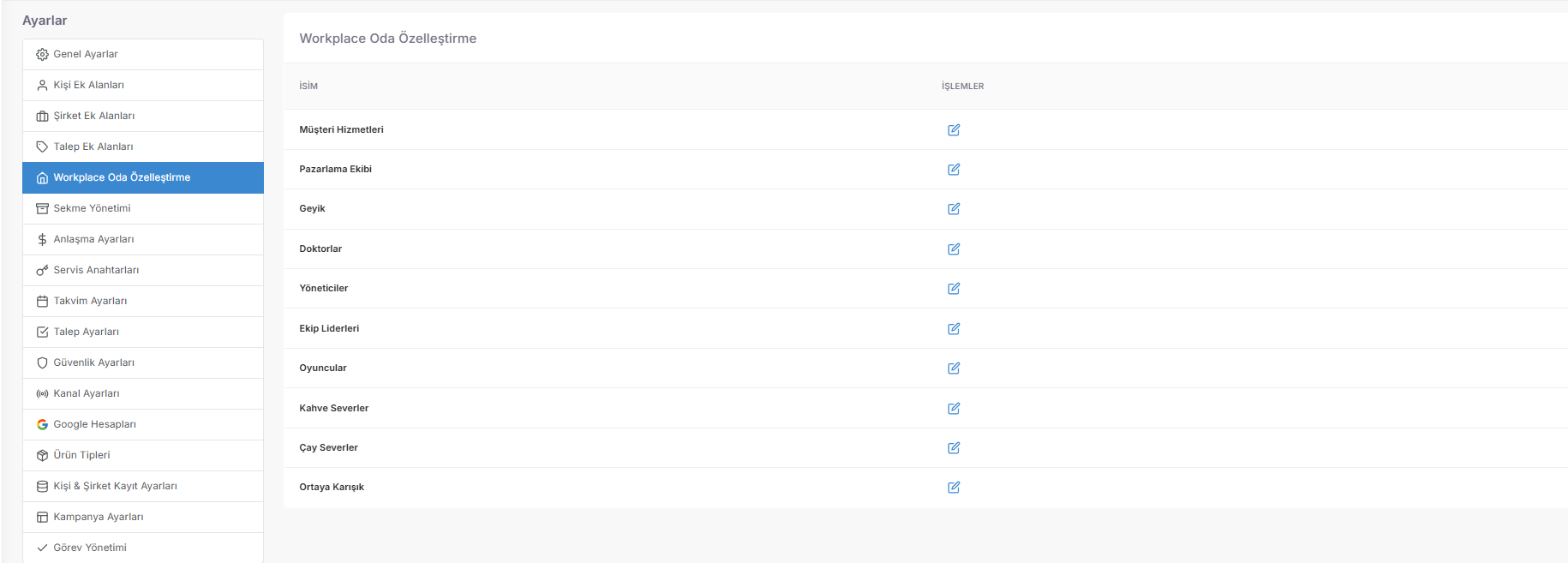
It is the process of naming and categorizing rooms according to the company hierarchy and workflow:
⚙️ 2. Dynamic Adjustment and Operations
💡 Why is it Important?
📑 Tab Management (Embedded Web Integration and Single Panel Comfort)
Tab Management is the integration center that eliminates the necessity of constantly switching between browser tabs or different applications (Context Switching) while your representatives are doing their work; it seals external web interfaces into Spechy.
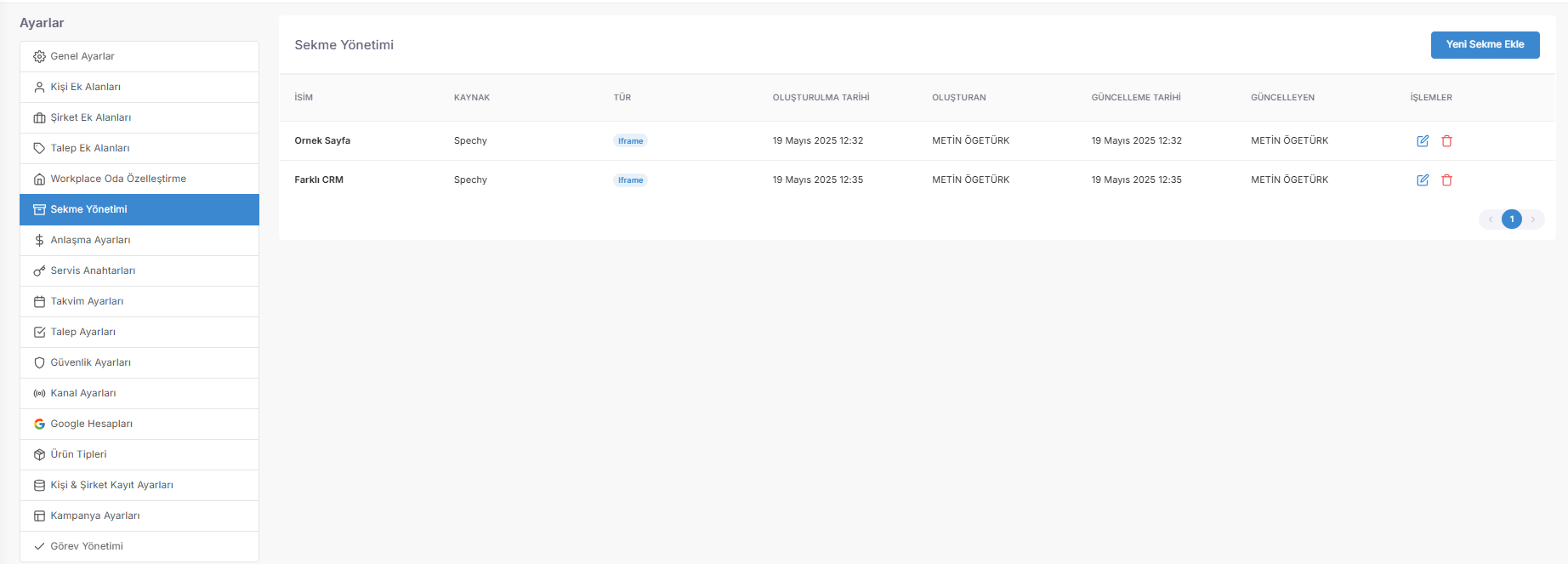
Access URL; https://app.spechy.com/settings/customization/tab-management
🛠️ 1. Technical Integration Components
They are parameters that allow external software to connect to the system like an "organ":
⚙️ 2. Control and Traceability
💡 Why is it Important?
📈 Agreement Stage Settings (Sales Funnel and Probability Management)
Stage Settings form the backbone of your sales pipeline ($Pipeline$). It is the control center that standardizes the processes a potential customer will go through to become a real customer.
Access URL; https://app.spechy.com/settings/customization/deal-settings
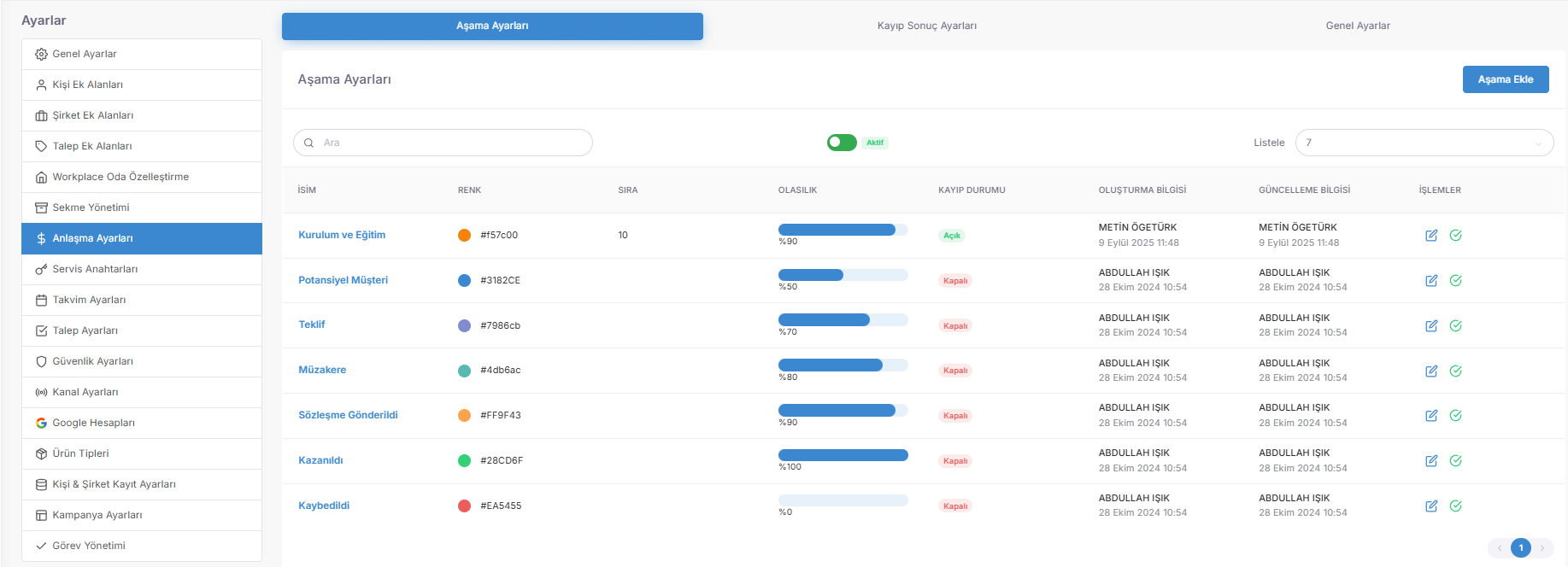
🛠️ Technical Components of the 1st Sales Journey
⚙️ 2. Shutdown and Status Management
📉 Loss Result Settings (Failure Analysis and Feedback)
Loss Result Settings are the Strategic Mirror that "identifies" why the sale did not occur and thus allows the company to improve its weaknesses.
🔍 1. Why Classification of Roots
When a potential deal is marked as "Lost", it is the list of reasons the representative must choose:
💡 Why is it Important?
🔑 Service Keys (API Management and Data Access Security)
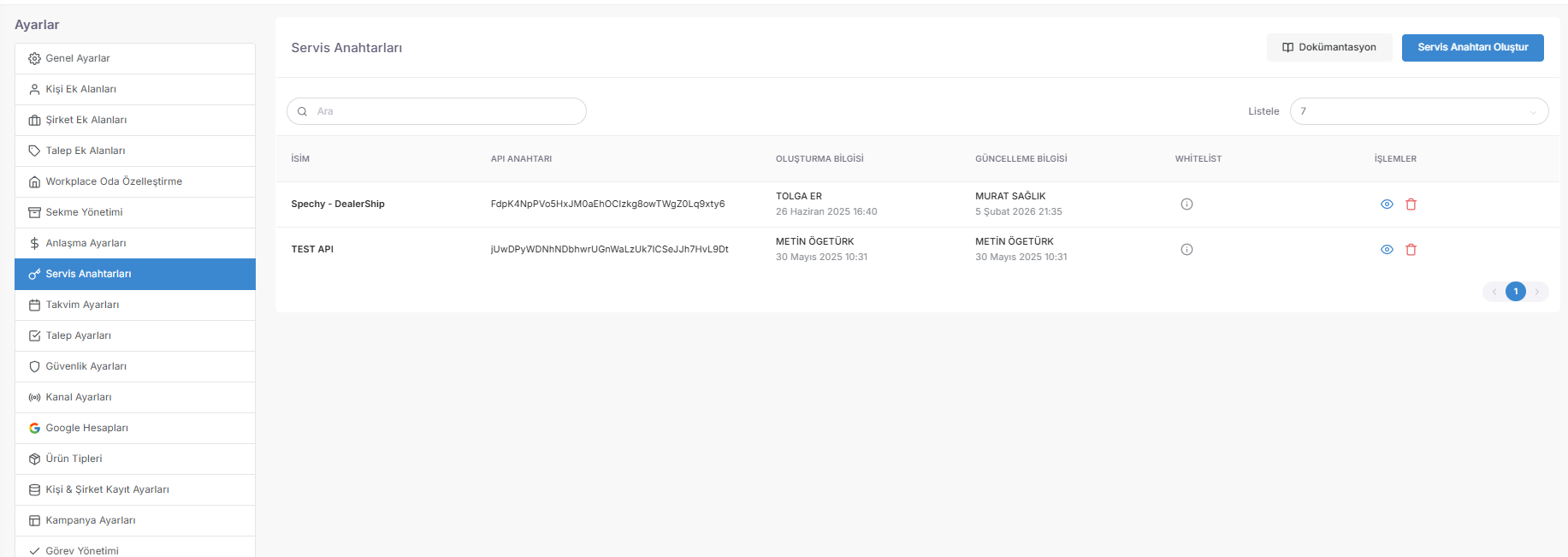
Service Keys is the technical section where "Digital Keys" (API Keys), which are necessary for the Spechy infrastructure to exchange data with external applications (Mobile applications, Websites, ERP/CRM software), are produced and managed.
Access URL; https://app.spechy.com/settings/customization/service-keys
🛠️ 1. Secure Access and Authentication ($Authentication$)
They are the components of the secure bridge that the system establishes with the outside world:
⚙️ 2. Critical Integration Scenarios
The operational areas where service keys are most commonly used:
⚠️ 3. Security Protocol and Warnings
💡 Why is it Important?
📅 Calendar Settings (Automatic Appointment Notifications)
Calendar Settings enable customer appointments and events to become operational efficiency elements.
Access URL; https://app.spechy.com/settings/customization/calendar-settings
🤖 Advanced Demand Automation Rules (Workflow Design)
This tab is the **"Automation Engine"** that washes repetitive manual tasks onto the system.
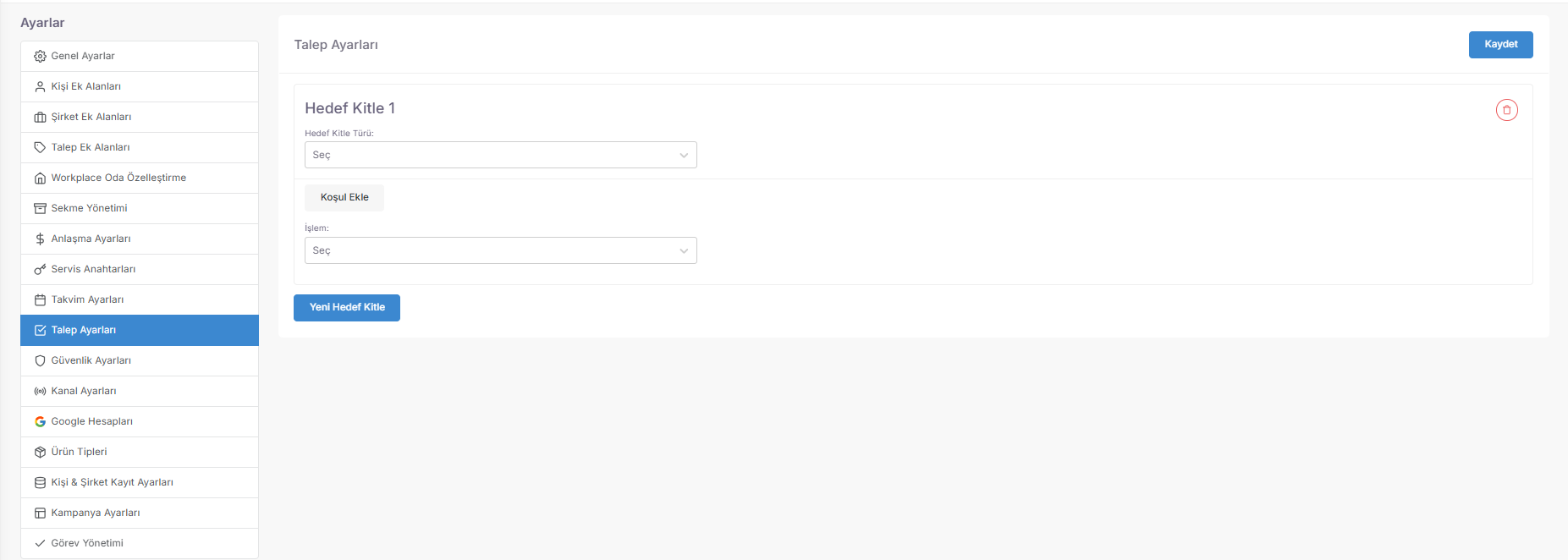
Access URL; https://app.spechy.com/settings/customization/ticket-settings
🛡️ Security Settings (IP and Access Accessibility Protocol)
It is the cybersecurity layer that seals the system's corporate data and access gates against digital attacks.
Access URL; https://app.spechy.com/settings/customization/security-settings
🔄 Channel Settings and Distribution Architecture (Omnichannel Governance)
It is the center of the "Digital Traffic Police" which determines how different communication channels (WhatsApp, Instagram, Phone, etc.) will work with a traffic rule.
Access URL; https://app.spechy.com/settings/customization/channel-settings
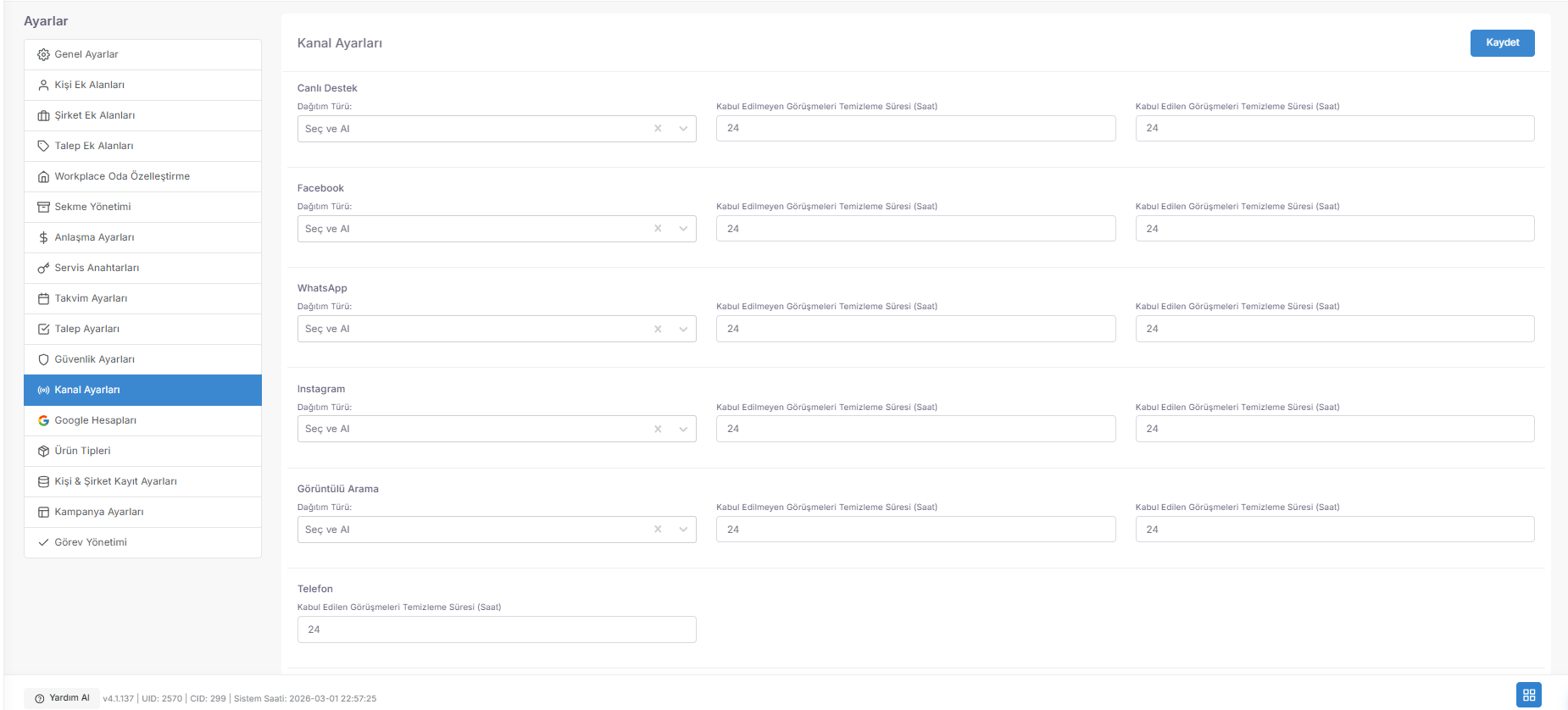
💡 Why is it Important?
☁️ Google Services Integration (Efficiency and Cloud Synchronization)
The Google Services tab is the authorization area that combines file management, appointment scheduling and data analysis processes in one place by establishing a secure data bridge ($OAuth \ 2.0$) between your corporate Google accounts and Spechy.
Access URL; https://app.spechy.com/settings/integration-settings/google-accounts
🛠️ 1. Integrated Basic Services and Functions
⚙️ 2. Security and Authorization Protocol
💡 Why is it Important?
📦 Product Types (Catalog Configuration and Sales Inventory Management)
The Product Types tab is the management area where the products or services you offer for sale (Hardware, Software, License, Service, etc.) are classified in a hierarchical order.
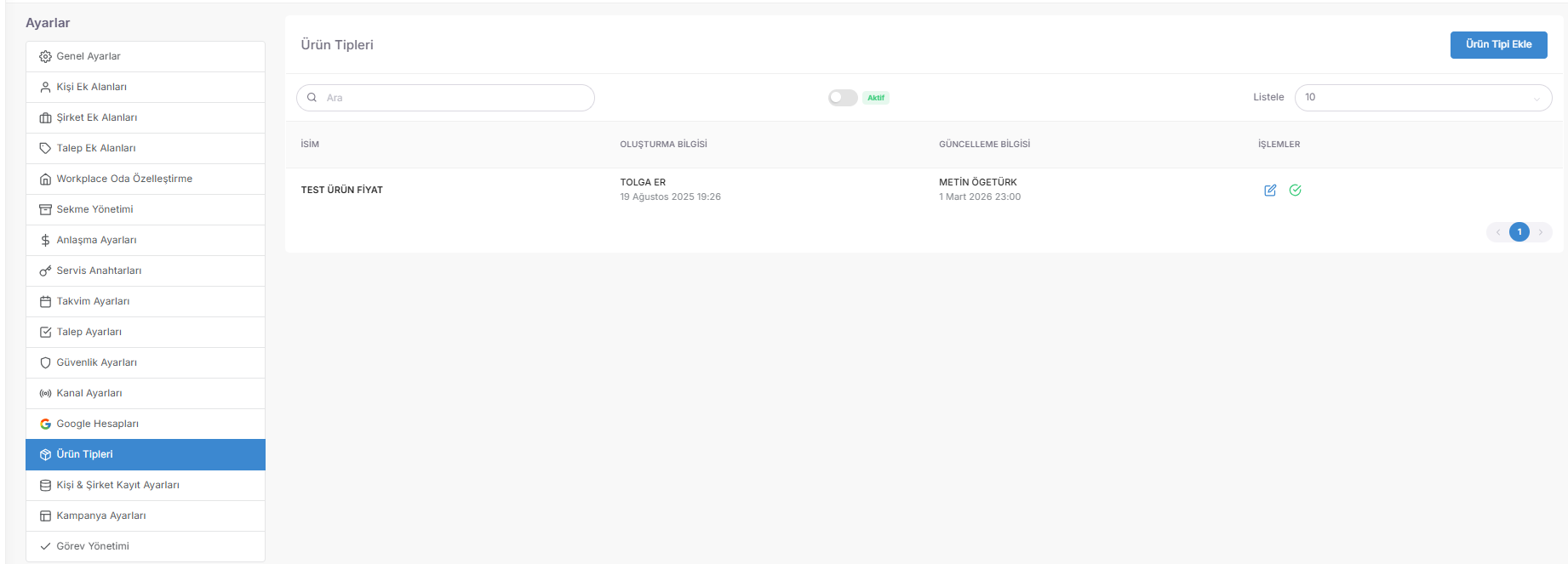
Access URL; https://app.spechy.com/settings/customization/product-types
r.
🛠️ 1. Product Categorization and Hierarchy ($Taxonomy$)
They are configuration components that ensure that products look correct in offer forms and reports:
⚙️ 2. Inventory and Operational Connections
💡 Why is it Important?
🔡 Visual Standardization and Localization (Text Formatting)
Person & Company Registration Settings allow all text data in the system to speak in a single corporate language.
Access URL; https://app.spechy.com/settings/customization/contact-company-record-settings
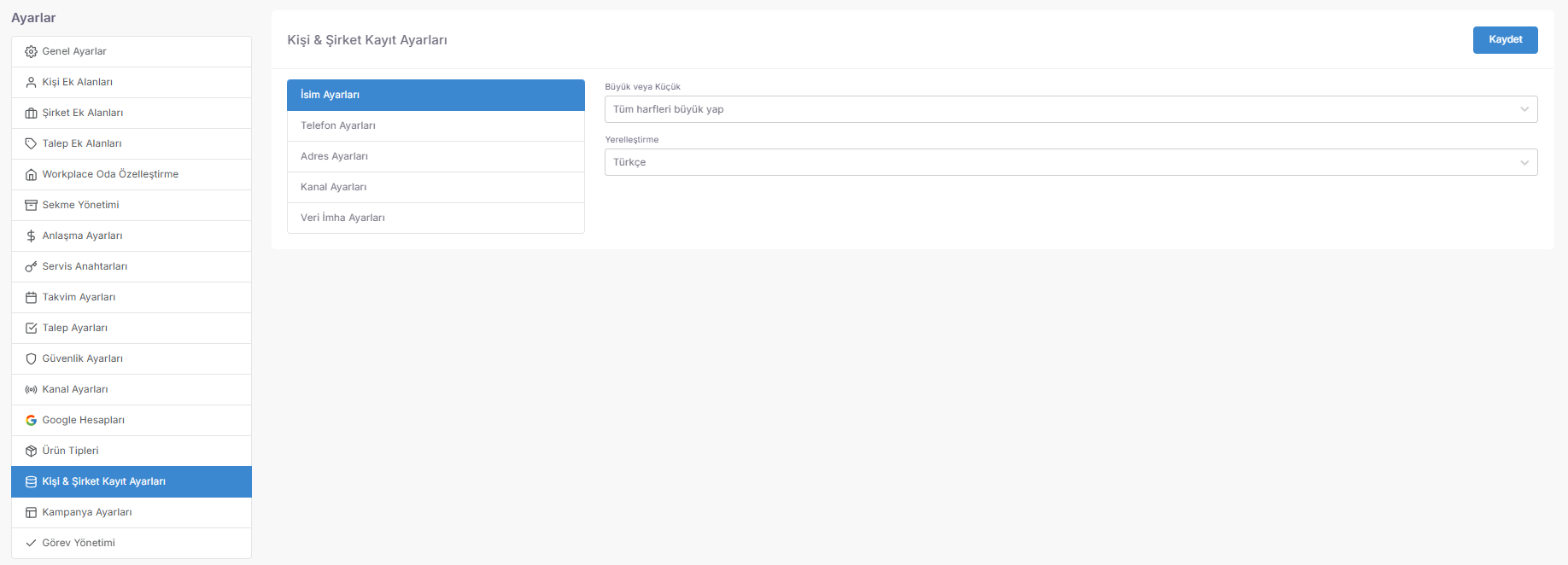
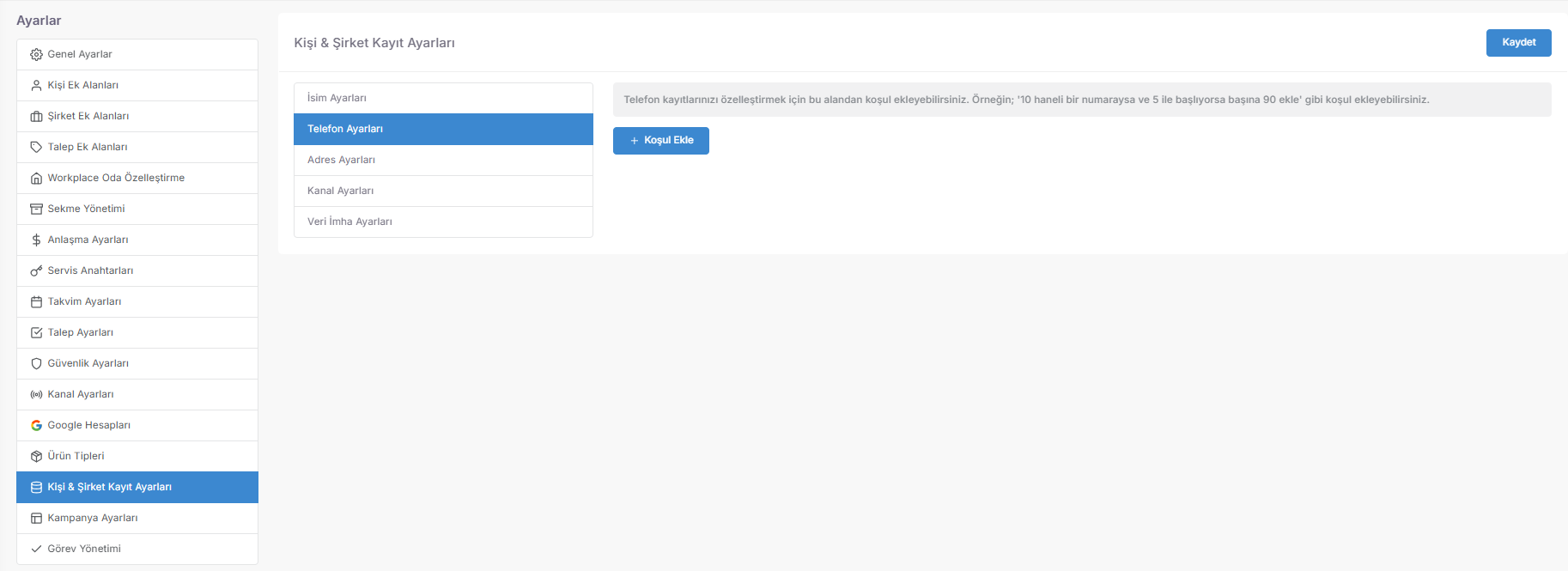
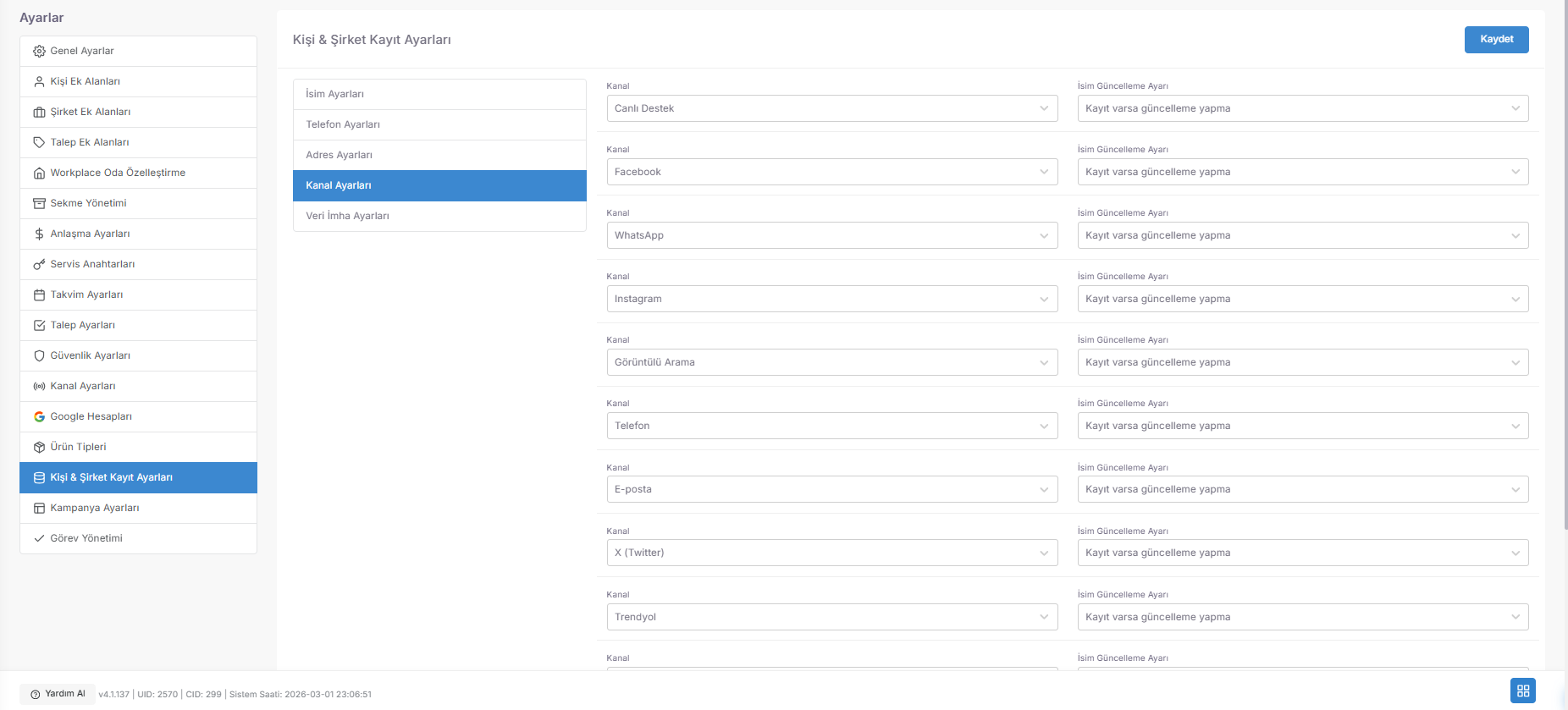
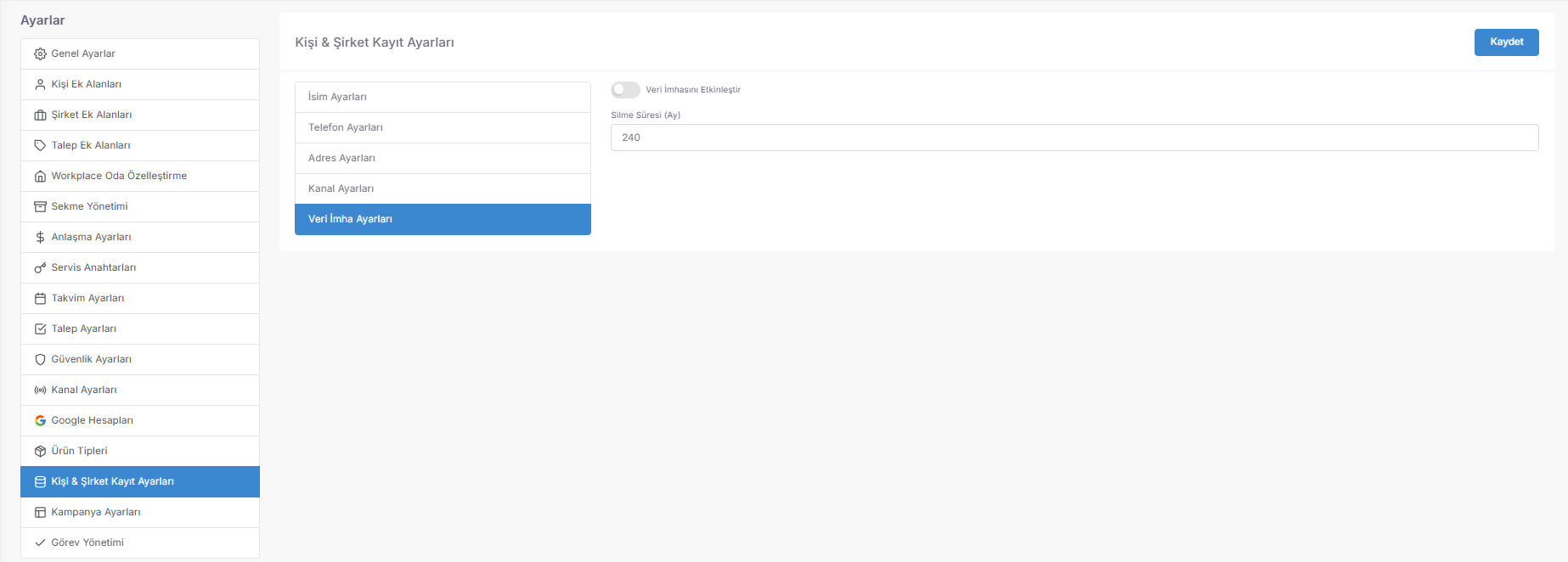
📞 Smartphone Number Normalization (Conditional Formatting)
This area is the Logical Filter layer that automatically "Cleans" and "Completes" phone numbers for the smooth operation of your VoIP and SMS systems.
Access URL; https://app.spechy.com/settings/customization/contact-company-record-settings
📍 Address Mandatory Hierarchy (Location-Based Data Discipline)
It is the Gradual Obligation System that determines how deeply geographical data in customer and company cards will be collected.
Access URL; https://app.spechy.com/settings/customization/contact-company-record-settings
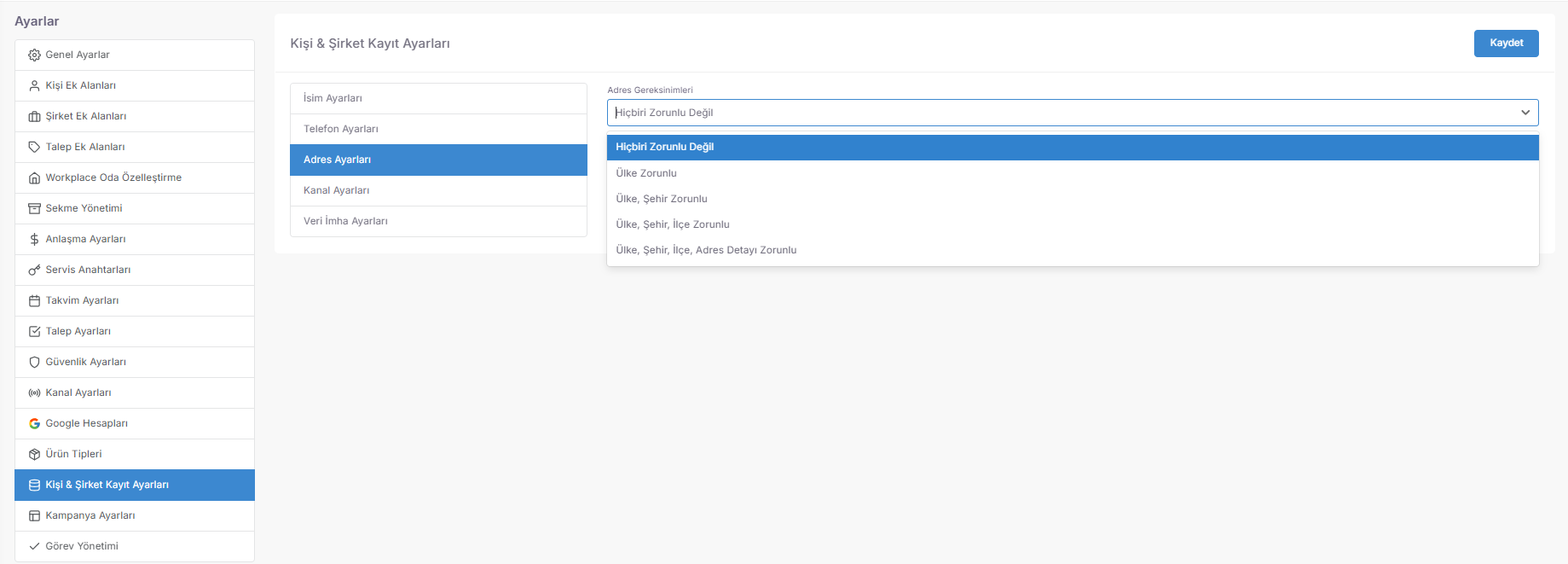
💡 Why is it Important?
🛡️ Channel Settings: Identity Protection and Data Update Protocol
This section under Channel Settings is the control mechanism that determines how customer information from different channels will be matched in a hierarchy with the existing CRM records in Spechy's multi-channel ($Omnichannel$) structure.
Access URL; https://app.spechy.com/settings/customization/contact-company-record-settings
🧩 1. Multi-Channel Data Source Management
The system supports many channels with different characters such as WhatsApp, Trendyol, Facebook, X (Twitter), Instagram and Email. The username or profile information from each of these channels may vary.
⚙️ 2. Name Update and Data Protection Logic ($Data \ Integrity$)
This setting, which can be configured specifically for each channel, prevents your guide from "polluting":
💡 Why is it Important?
⚖️ Data Erasure and Legal Compliance (KVKK / GDPR Standards)
This section, located under the Person & Company Registration Settings tab, is the management area where you determine the "Lifespan" ($Data \ Lifespan$) limits of customer and company data in the system within the framework of personal data protection laws (KVKK/GDPR).
Access URL; https://app.spechy.com/settings/customization/contact-company-record-settings
🛡️ 1. Data Storage and Destruction Policy
They are components that automate the "Right to be Forgotten" ($Right \ to \ be \ Forgotten$), which is a legal obligation of the system:
⚙️ 2. Strategic and Legal Benefits
💡 Why is it Important?
💰 Campaign Settings (Marketing Budget and Expense Control)
The Campaign Settings panel seals the data connection of your advertising and marketing activities (Google Ads, Meta Ads, etc.) with the system from a financial perspective; it allows you to keep your expenses within the limits you set ($Budget \ Limits$).
Access URL; https://app.spechy.com/settings/customization/campaign-settings
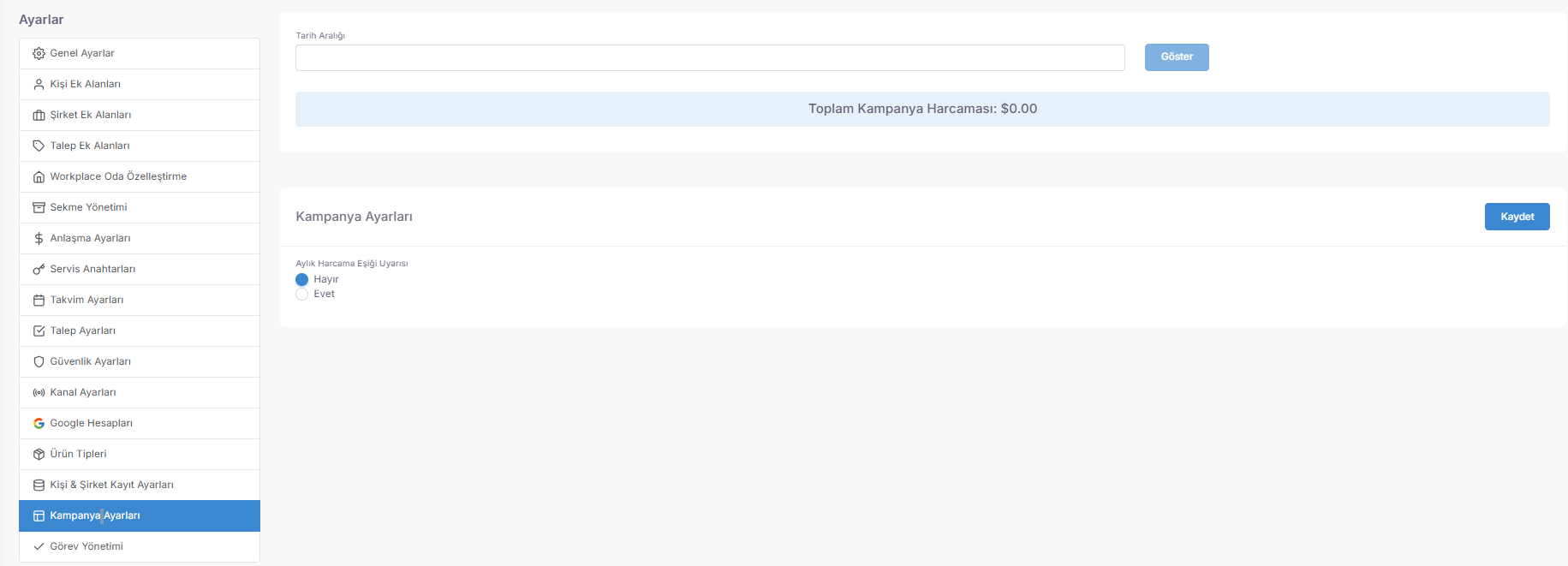
📊 1. Total Campaign Spending and Seasonal Analysis
It is the tracking tool that forms the basis of your marketing ROI (Return on Investment) calculations:
🚨 2nd Smart Monthly Spending Threshold Alert ($Budget \ Alert \ System$)
It is the digital insurance mechanism that prevents unexpected cost excesses (Overspending):
💡 Why is it Important?
🏗️ Task Project Management (Department and Customer-Oriented Grouping)
This tab is **"Roof Design"**, which collects scattered tasks into meaningful wholes.
Access URL; https://app.spechy.com/settings/customization/task-settings
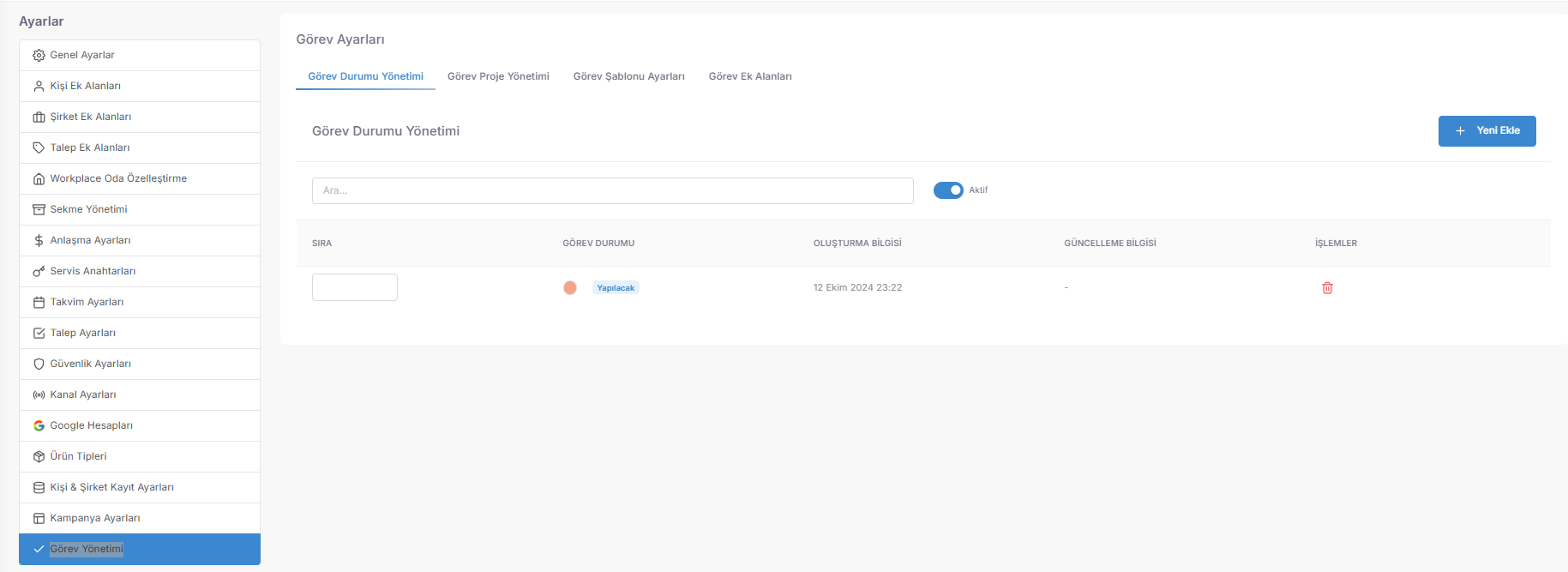
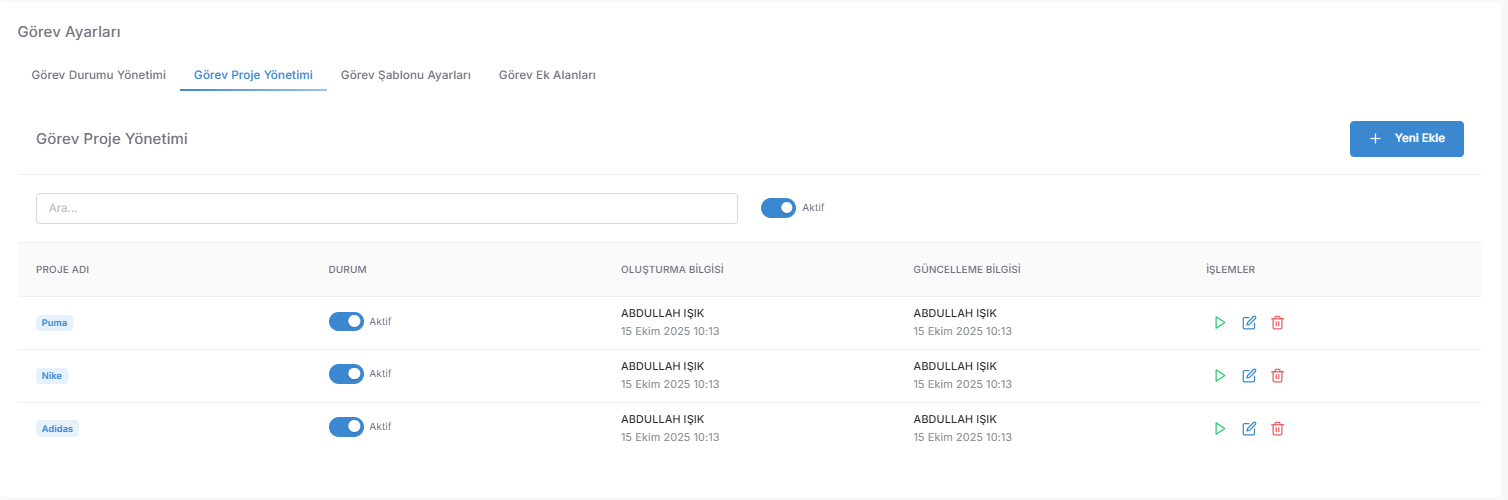
📝 Task Template Settings (Operational Standardization)
Task Templates are **"Digital Business Recipes"** that keep the corporate memory alive and reduce the margin of error to zero.
💡 Why is it Important?
📖 Phone Directory (Central Communication Memory and Registration Management)
The Phone Directory panel is not just a list where numbers are stored; it is a strategic data center that enables the matching of communication traffic between customers, business partners and employees with "correct identities".
Access URL; https://app.spechy.com/phone-book
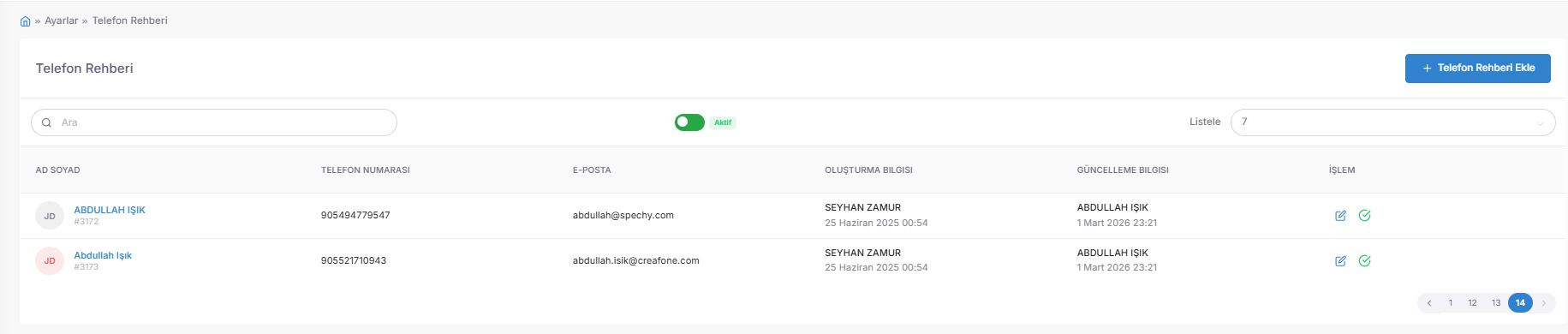
➕ 1. Adding Phone Directory and Data Entry
It is the basic function used to add a new communication entity ($Contact \ Asset$) to the system:
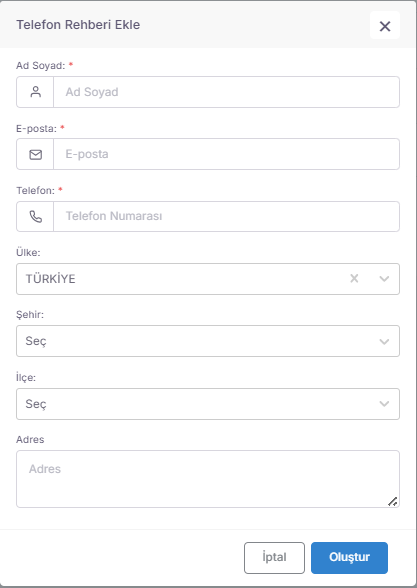
🔍 2. Operational Efficiency and Guidance Discipline
💡 Why is it Important?

📂 Information Bank Categories (Hierarchical Classification)
Information Bank Categories is the hierarchical structure that turns the thousands of pages of documents into a regular library shelf system.
Access URL; https://app.spechy.com/knowledge-base/categories

🏷️ Category Definition and Label Management
This interface used when creating a new information class determines the "Identity" and "Scope" of the category.

📝 Information Bank Contents (Central Documentation Management)
It is the panel where all help articles, guides and articles are monitored, updated and checked through a single "Dashboard".
Access URL; https://app.spechy.com/knowledge-base/posts
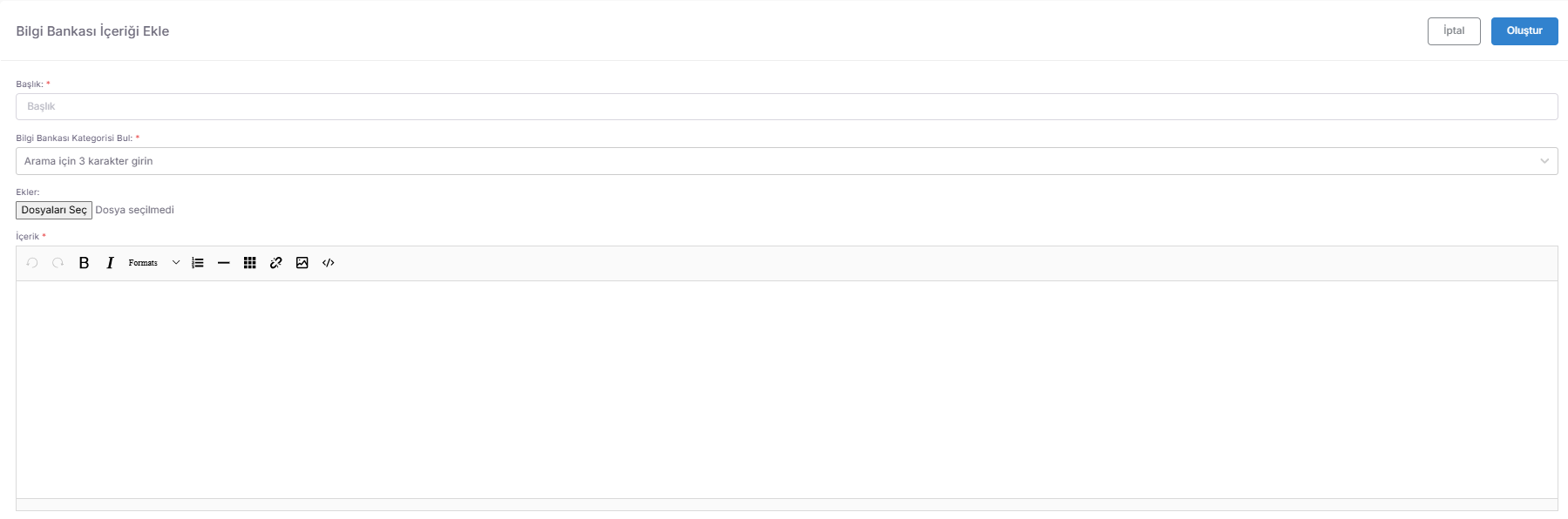
✍️ Knowledge Base Content Creation and Rich Text Editor
It is a professional writing module used to add a new knowledge asset ($Knowledge \ Asset$) to the system.
Access URL; https://app.spechy.com/knowledge-base/post/add
💡 Why is it Important?
📂 FAQ Categories (Question Grouping and Navigation)
FAQ Categories are a hierarchical guide that classifies questions in users' minds before they are even asked and shortens the path to the correct answer.
Access URL; https://app.spechy.com/settings/faq/categories
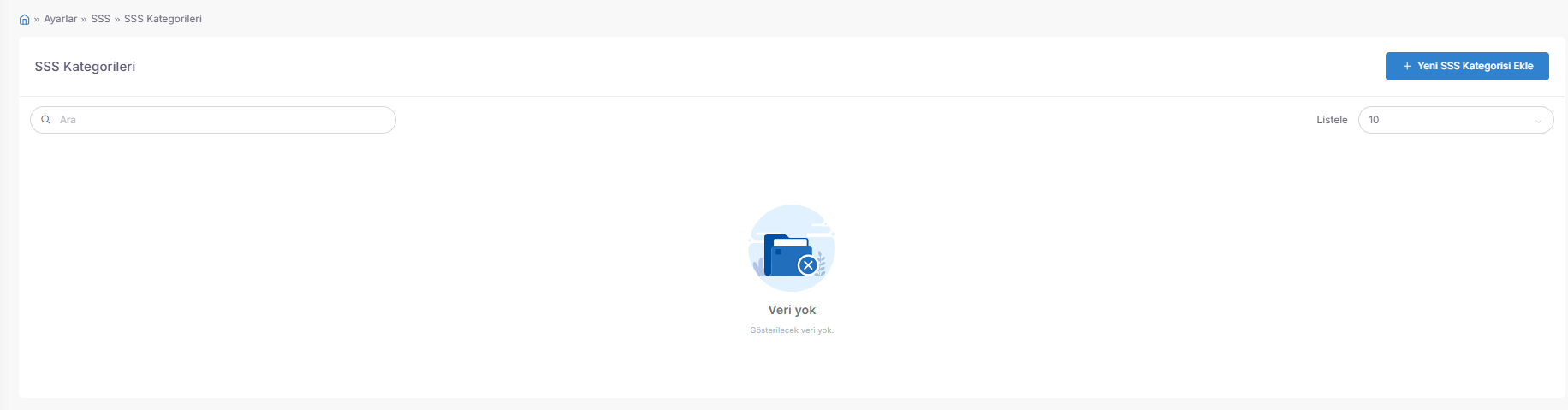
💬 FAQ Contents (Self-Service Answer Management)
This panel is the content kitchen of **"Digital Consultant"**, where customers can solve their own problems without the need to connect to a representative.
Access URL; https://app.spechy.com/settings/faq/posts
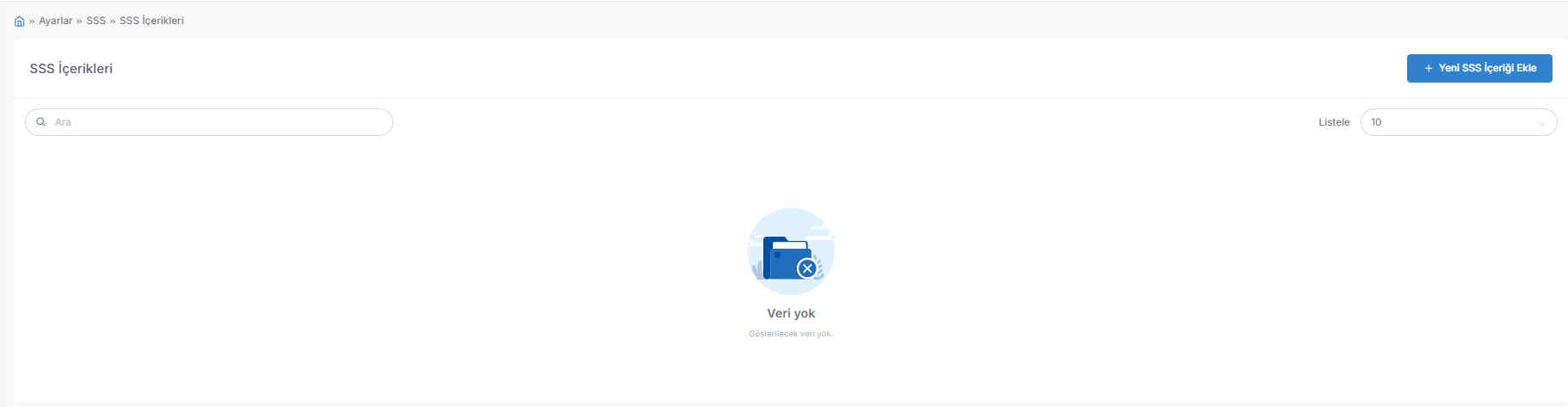
💡 Why is it Important?
🔗 Link Tracking (Marketing Analytics and URL Shortening Management)
The Link Tracking panel is the center where long and complex links sent to customers via the system (via SMS, Email or WhatsApp) are converted into short URLs specific to your brand and their performance is measured.
Access URL; https://app.spechy.com/link-tracker
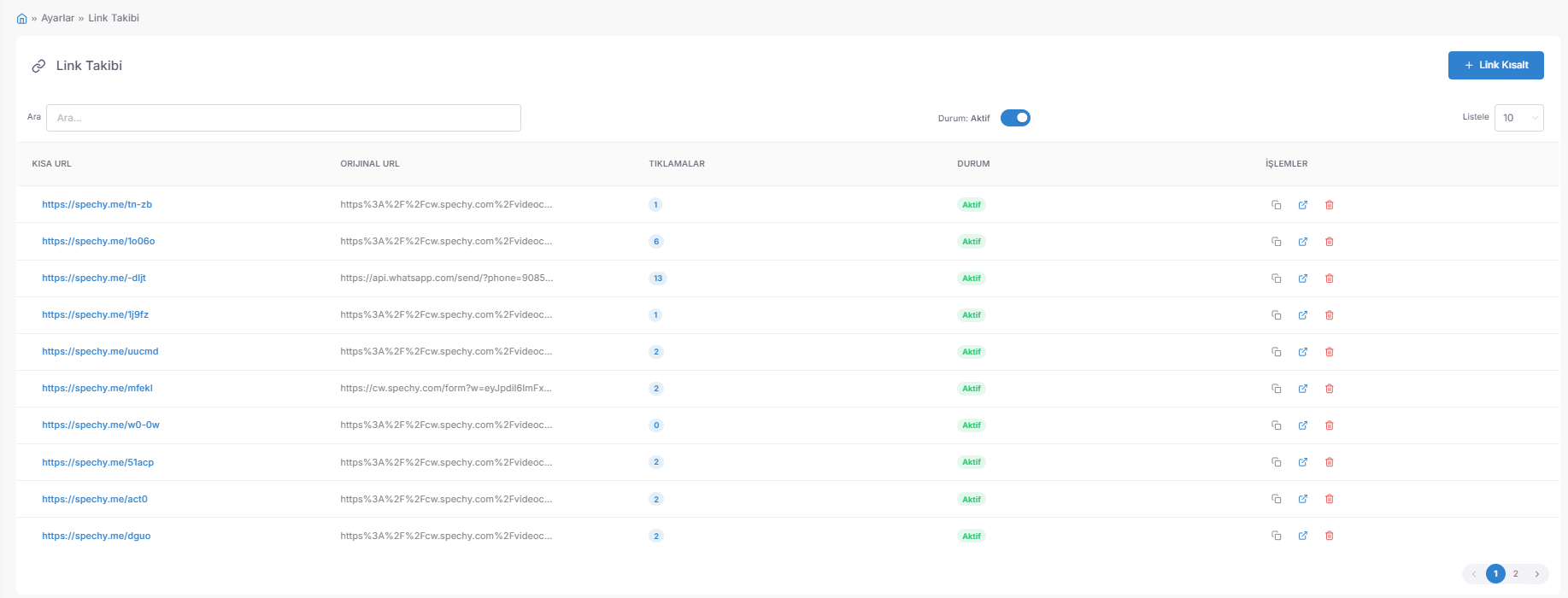
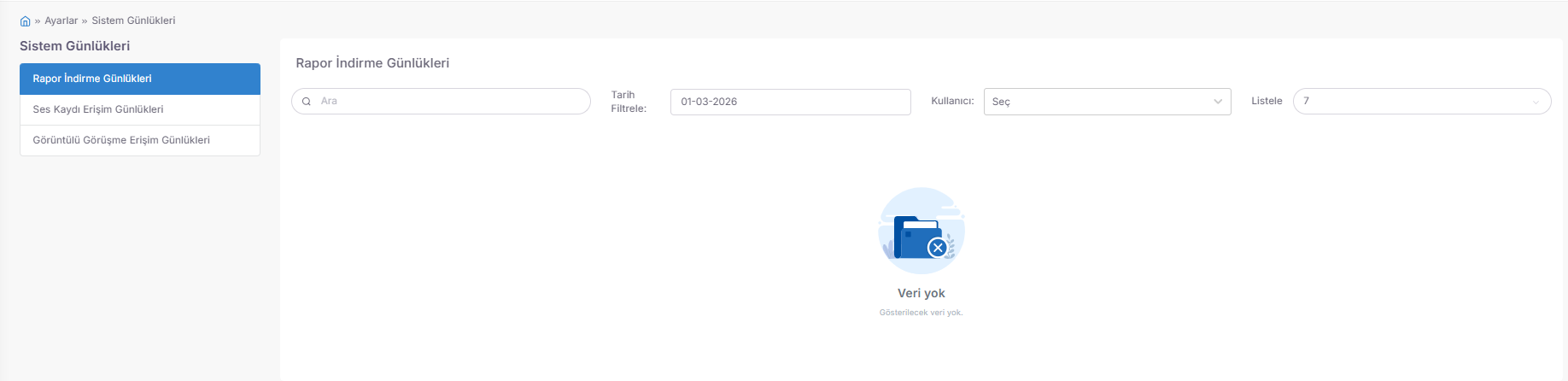
🛡️ Access Logs and Audit Center (Audit Logs & Data Privacy)
This panel is the **"Corporate Black Box"** that seals who, when and for what purpose accessed the most sensitive data in the system. It is the technical proof center of KVKK and GDPR compliance.
Access URL; https://app.spechy.com/system-logs
🔍 1. Critical Tracking Categories
This is a list of entries made to the most private points of the system:
⚙️ 2. Advanced Monitoring and Filtering Tools
💡 Why is it Important?
📱 Social Media Profiles and Integration
Social Media allows you to collect your customer's digital footprint in the digital world (username and profile links) on the personal card at one point.
🛠️ What can you define?
You can process the user information belonging to the following platforms that your customer actively uses into the system:
💡 Why is it Important?